

User Management Settings
All User related settings, configurations like user addition, user profile edit, deletion, change of role, password change, etc
User Management
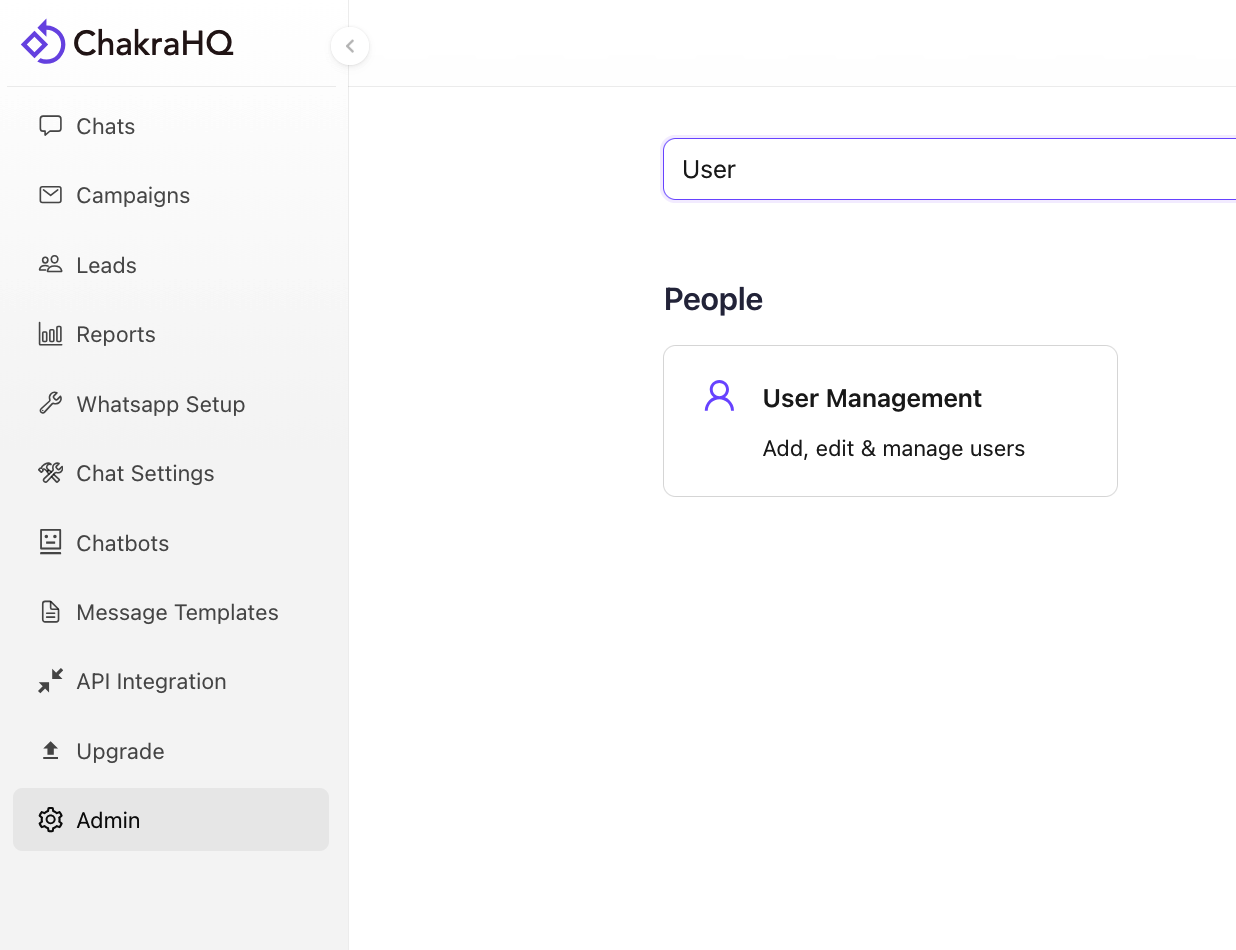
- Go to Admin -> User Management to access all User Management Settings
User Management Basics
The User Management section in Chakra Chat gives you complete control over your team's access and permissions. This central hub allows administrators to efficiently manage all user accounts, roles, and security settings in one place.
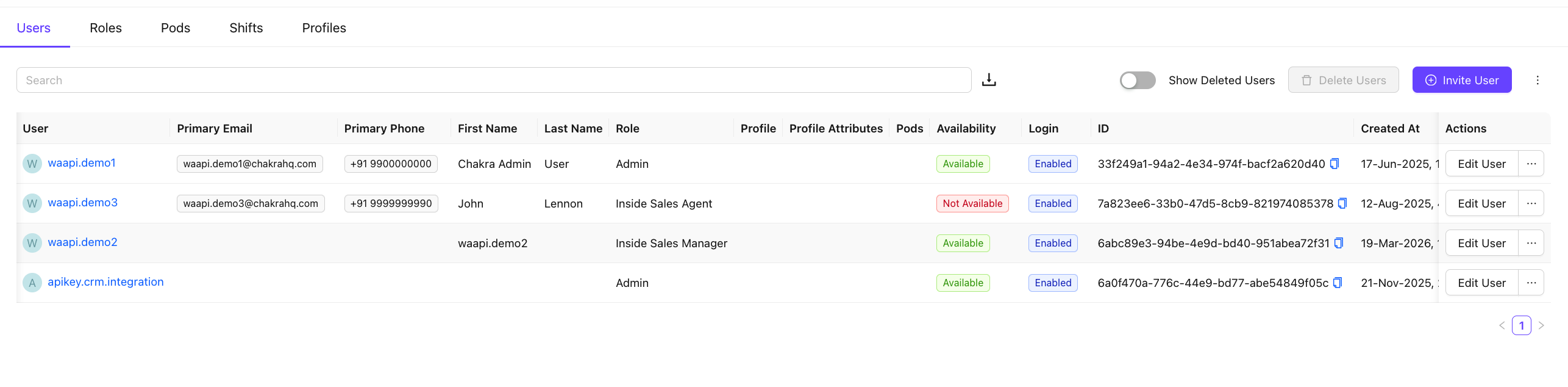
The user management dashboard provides a comprehensive view of all system users with the following capabilities:
- Adding Users
- Editing User Information
- Password Management
- Role Type Management
- Login Access Control
- Deleting Users
- Current Availability Status
- User Created Date
Add Users
- Click on
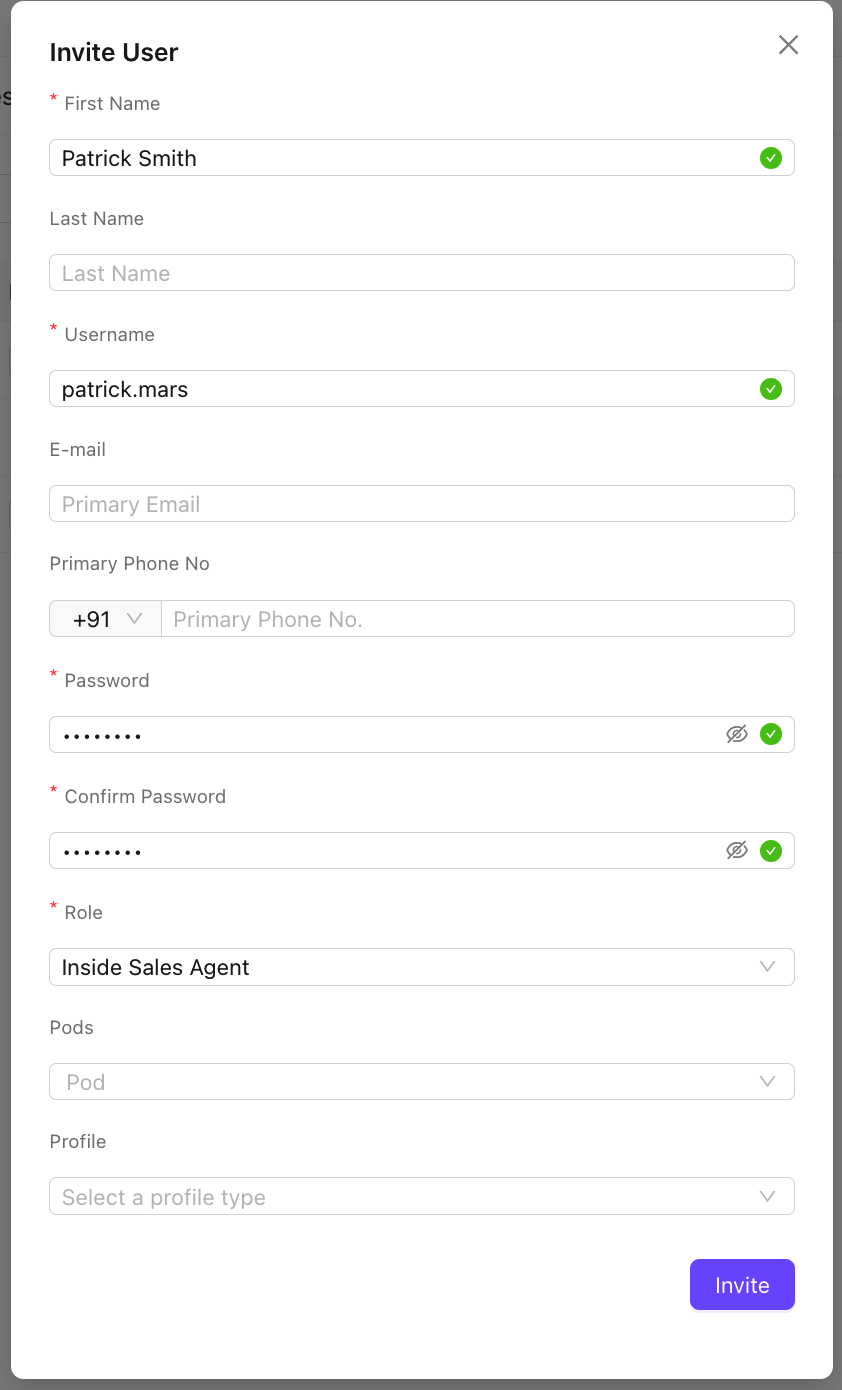
⊕ Invite User - In the Invite user pop up form add all relevant details wiht mandatory fields
- First Name
- Username
- Password
- Role (Admin, Inside Sales Agent, Inside Sales Manager)
- Adding an E-mail and Primary Phone helps in password reset
- Pods and Profile fields can be ignored
- Click Invite to add the user
User Roles
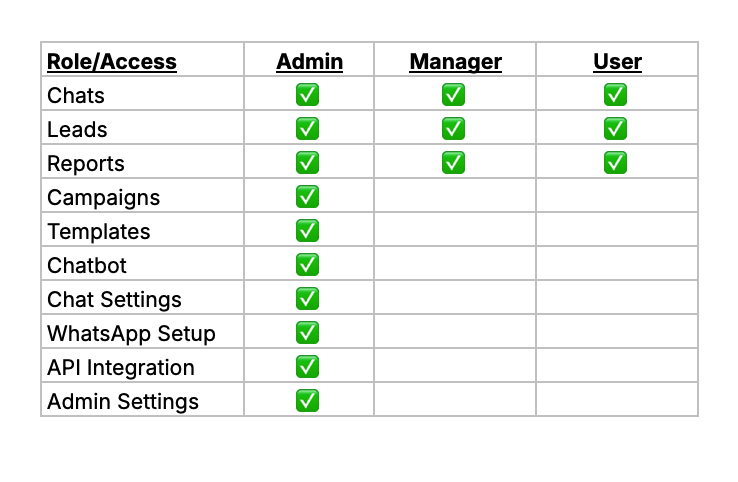
In Chakra Chat, a user can be assigned any of the 3 role types. The 3 roles have different level of feature and admin setting access.
Role Types
- Admin
- Manager
- User
Default Roles
3 Roles are created in the default team template for each of the Role Types
Admin(Admin)Inside Sales Manager(Manager)Inside Sales Agent(User)
Role Type Access
User Management Actions
- In the Users tab, find the user in the list.
- Click on the • • • to the right side of the user row in the list.
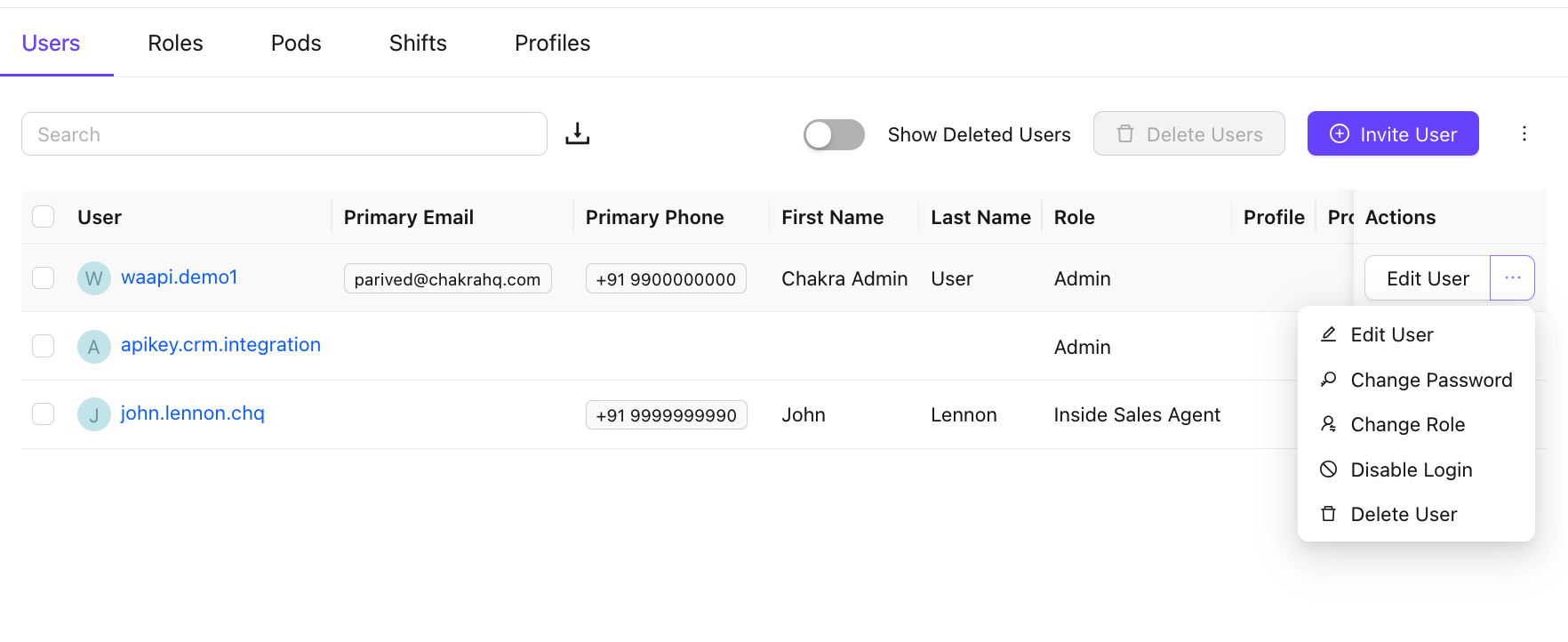
Edit User
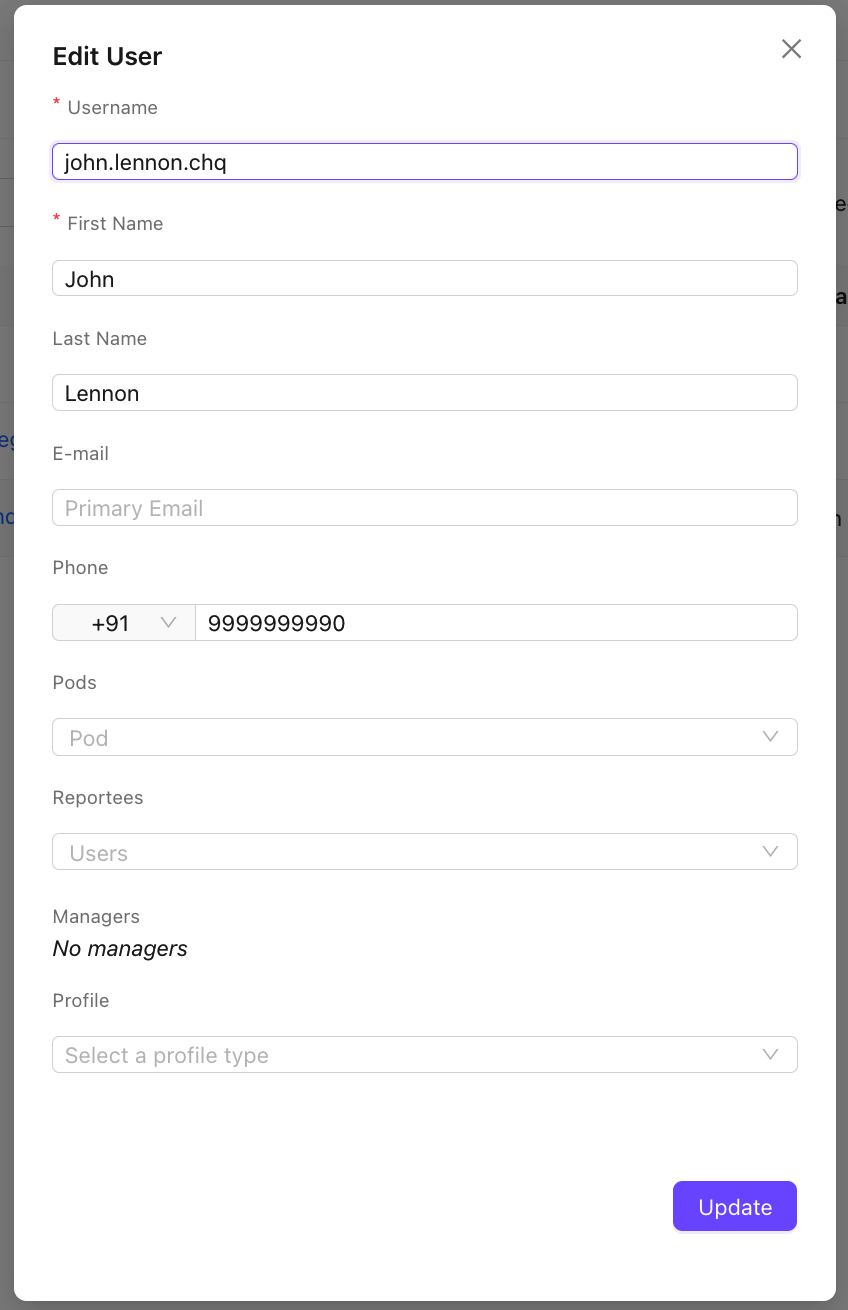
- Click on
Edit Useroption - Edit the User details in the popup window
- Click on Update
Change User Password
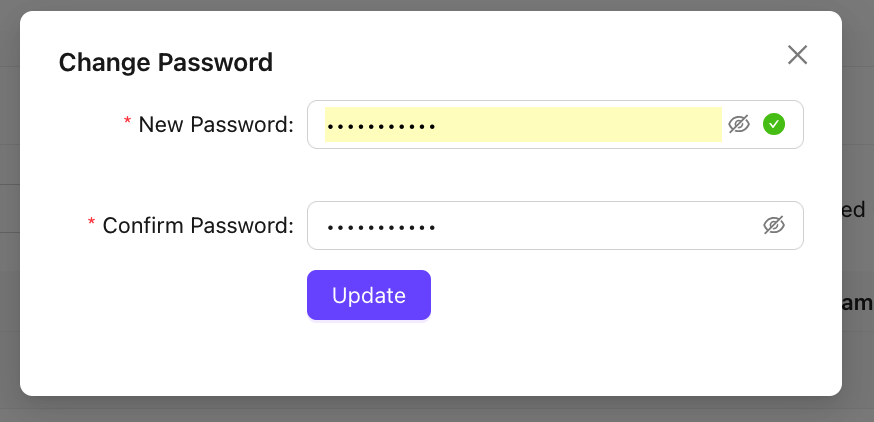
- Click on
🔍 Change Passwordoptionunknown node - Add the New Password in the pop up window to update the password.
Change User Role
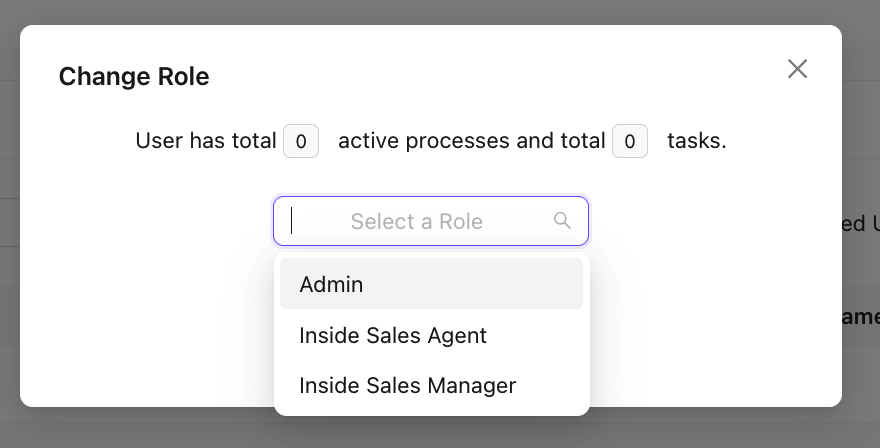
- Click on the
Change Roleoption - Select the new role to be updated for the user in the popup window.
- Click on Change Role to update the change.
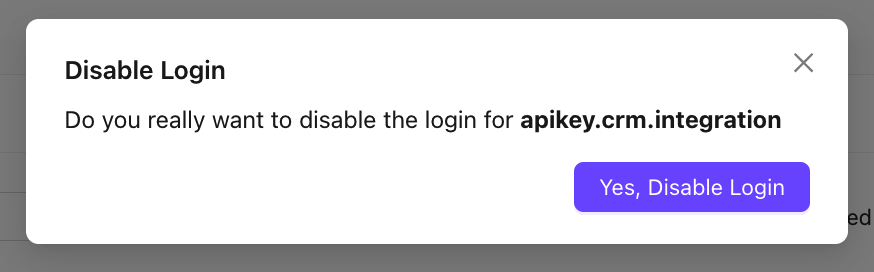
Disable User Login
- Click on
Diable Loginoption - Confirm the disable login action in the popup window using
Yes, Disable Login
Delete User
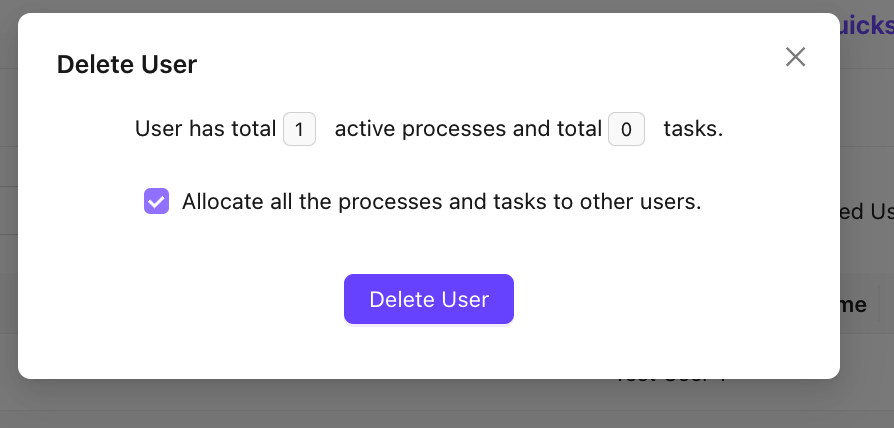
- Click on the
Delete Useroption - If any active leads are associated with the user, a prompt is highlighted in the popup window
- To reassign the user leads to other users (done randomly) check the option Allocate all the processes and tasks to other users
- Click on Delete User to make the changes final.
User Availability
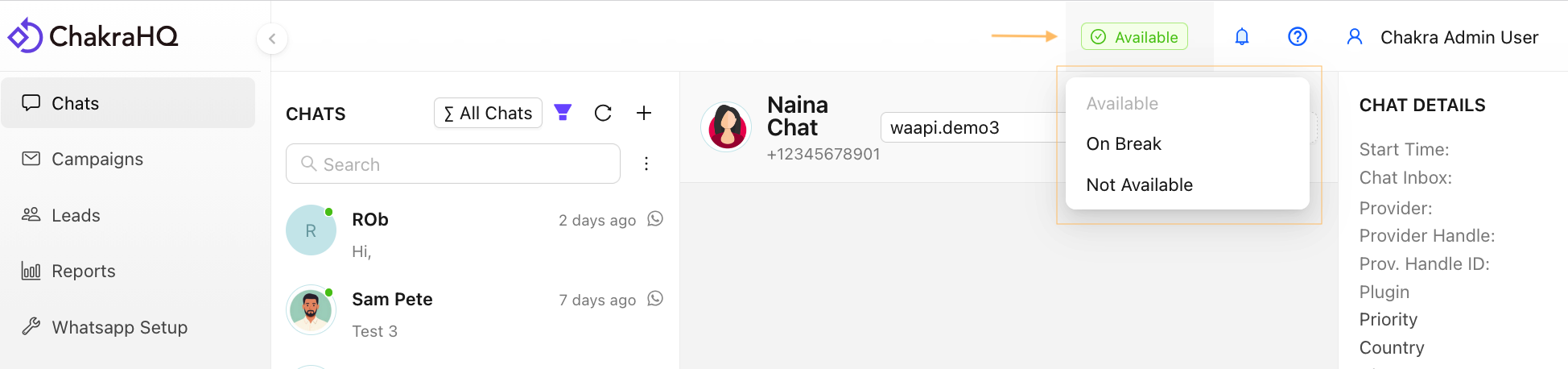
Users can manage their current availability status to any of the below
AvailableOn BreakNot Available
How to Change User Availability?
- Go to Top panel of the Chakra Chat dashboard
- Click on Available Status
- Choose any of the desired status to update
How does the User Aavailability status work?
Available - This is the default availability status of users. This status should be applied when users are on work. User swill be assigned the chats during this availability status
On Break - This status should be used when users are on a short break. No Chats will be assigned to users during this period when the status is On Break.
Not Available - This status should be used when users are on a work off day or on a vacation. No Chats will be assigned to users with this status.