

Calling Setup & Use
Steps to setup & Use the WhatsApp Calling API feature in Chakra Chat
WhatsApp API Calling Overview
Chakra Chat now supports voice calling through your connected WhatsApp Business API number. This guide walks admins through setup and users through day-to-day calling workflows.
WhatsApp Calling Setup
Steps to configure the Whatsapp Calling API feature on the connected WhatsApp Number in Chakra.
[For Admins]
Enable WhatsApp Calling
Go to the Calls section of the WhatsApp Setup page.
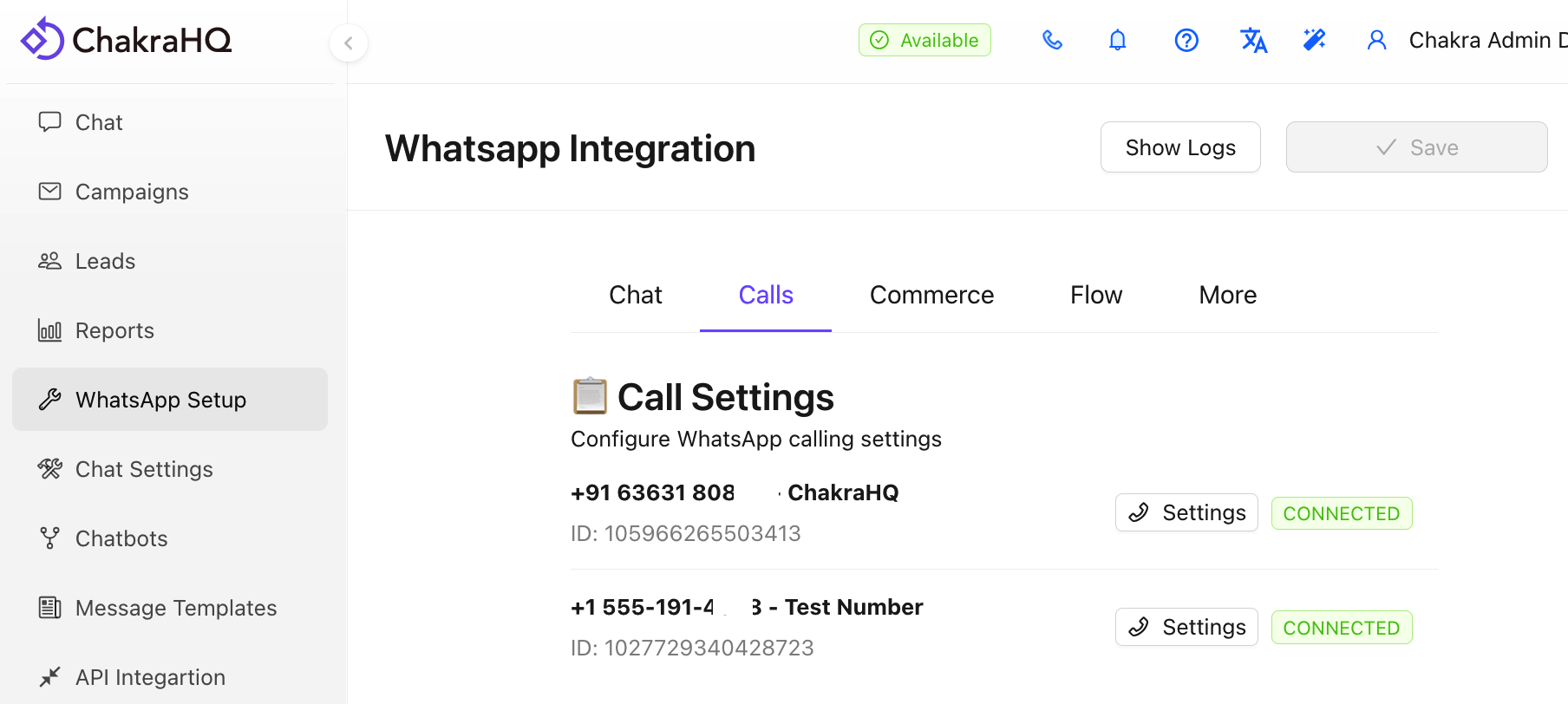
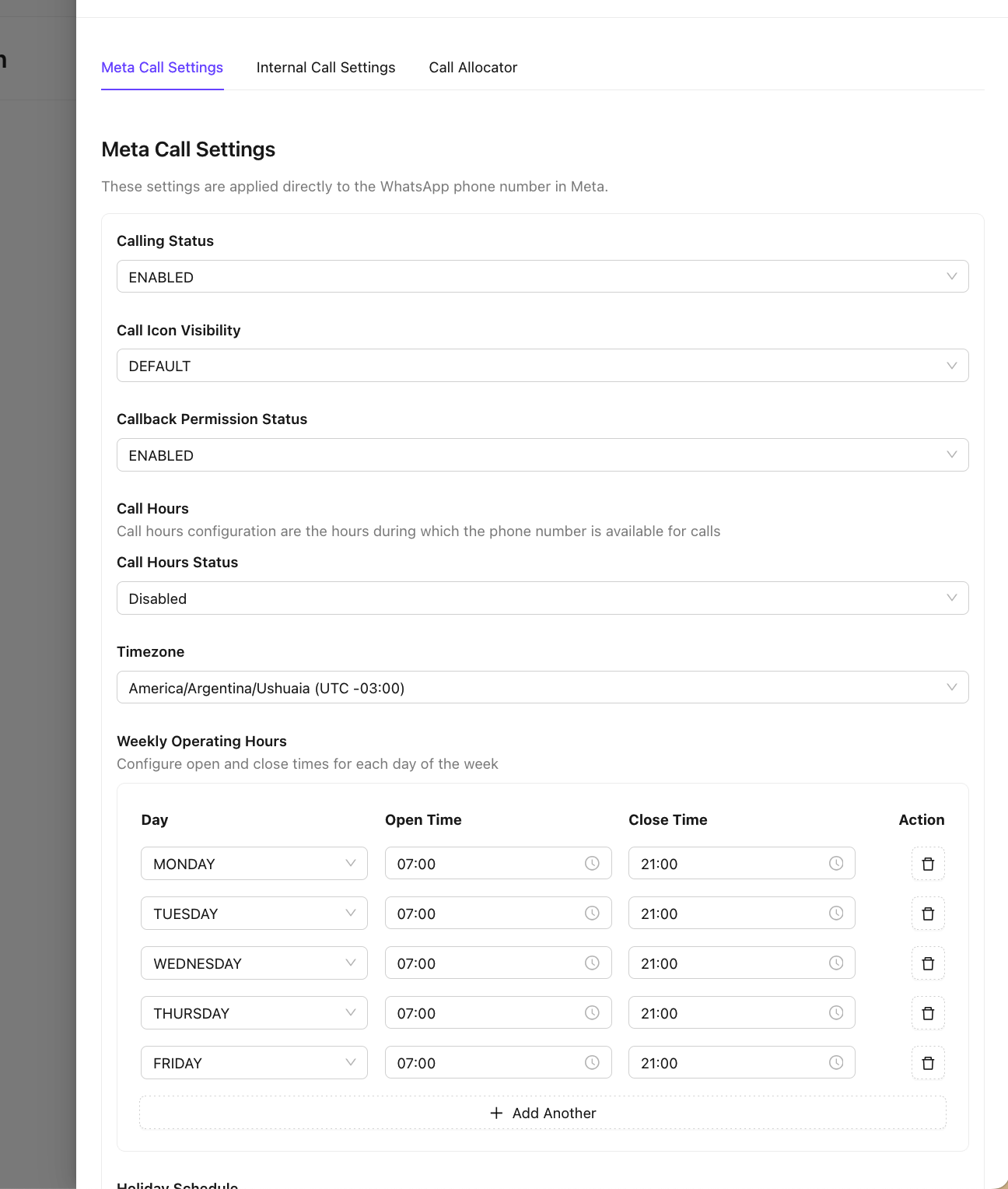
- Open the Meta Call Settings tab and click
Settings. - Under
Calling Status, select Enabled.
- Under
This enabled the
- [Optionally] Set
Call Icon Visibilityto Enabled to display a call icon on your number in customers' WhatsApp apps. - [Optionally] Enable
Callback Permission Statusto automatically prompt customers for calling permission after they contact your business. - Click Update Meta Settings to save.
Setup Inbound Call Allocator
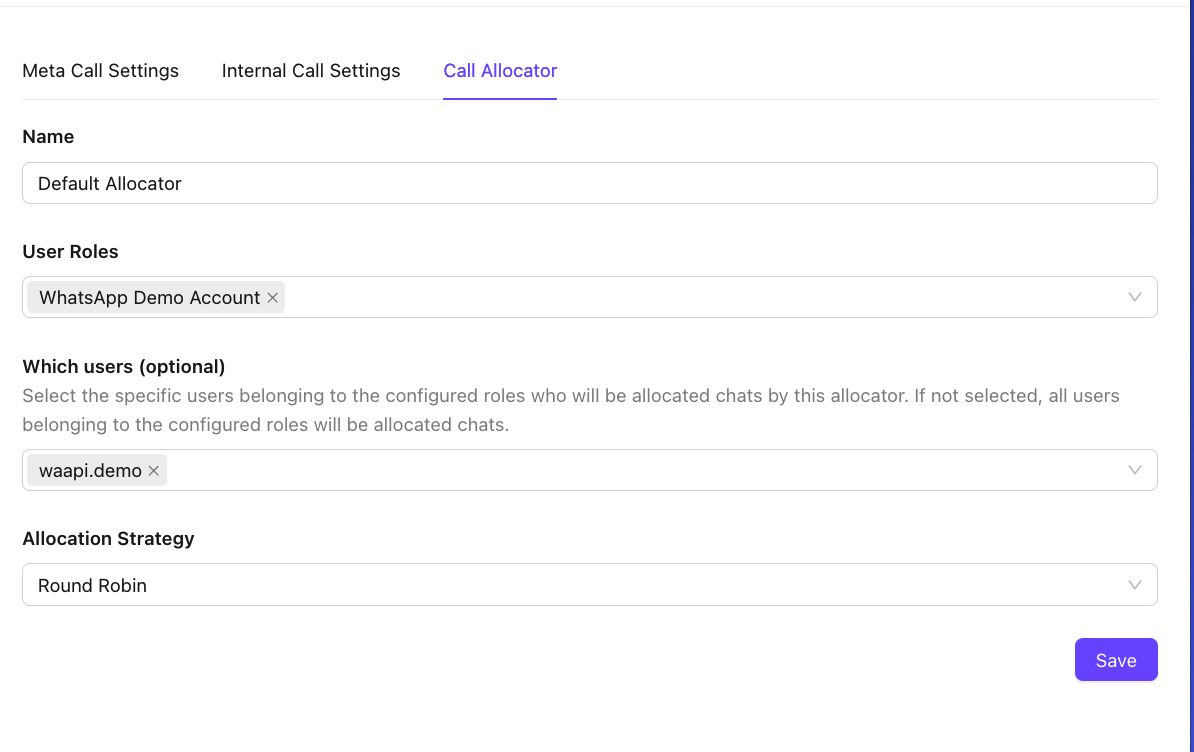
If your team will be receiving inbound calls, you need an allocator to route them to the right people.
On the same Calls tab in WhatsApp Setupn page;
- Open the
Call Allocatortab - Click A
dd Allocator. - Select the user roles that should receive calls.
- To restrict allocation to specific individuals, choose them under Which Users
Note that selecting a role is required before you can choose specific users.
- Click Save.
Create Call Permission Template
Before making outbound calls to a customer, you must have their permission. If you have an active chat session open with the customer, you can send a permission request directly from the chat dashboard via a session message. If not, you'll need a template message.
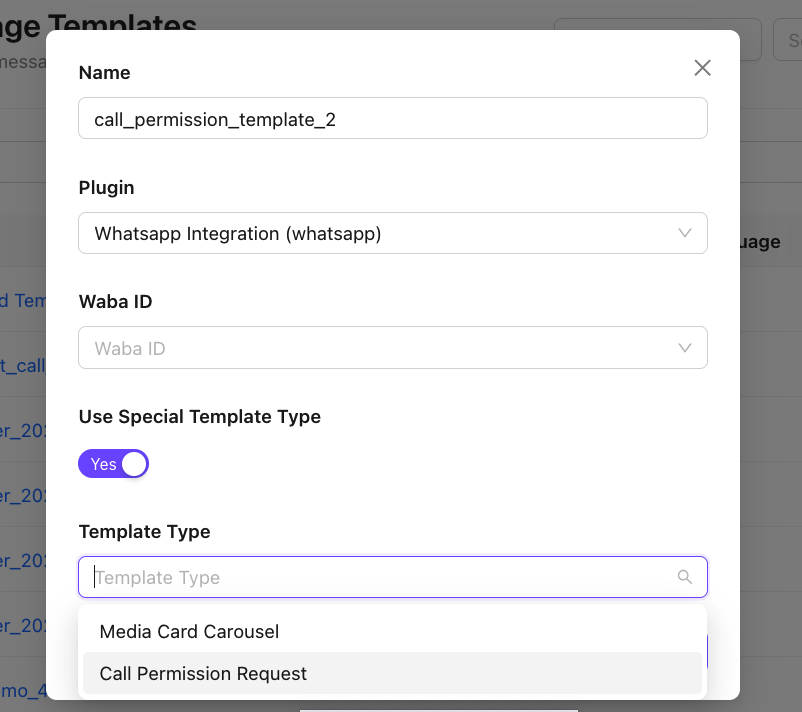
To create a template message;
- Go to WhatsApp Template Messages.
- Enable Use Special Template Type,
- select Call Permission Request as the type
- Create the template.
[For Users]
Users need to configure a one-time setting to enable the inbound and outbound calling via the Chakra Chat interface.
Configure WhatsApp Telephony
[One-time setup]
- Click the call button in the top bar
- Select WhatsApp as your telephony type
- Choose the WhatsApp phone number to be user.
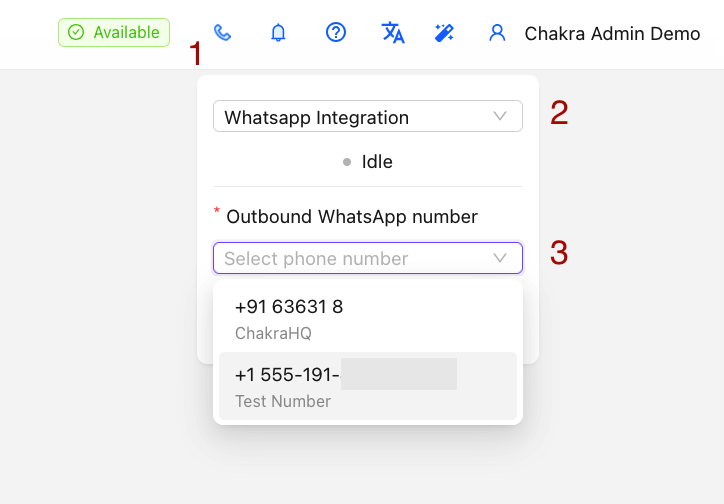
This only needs to be done once per user account.
Calling Feature Usage Guide
Manage Inbound Calls
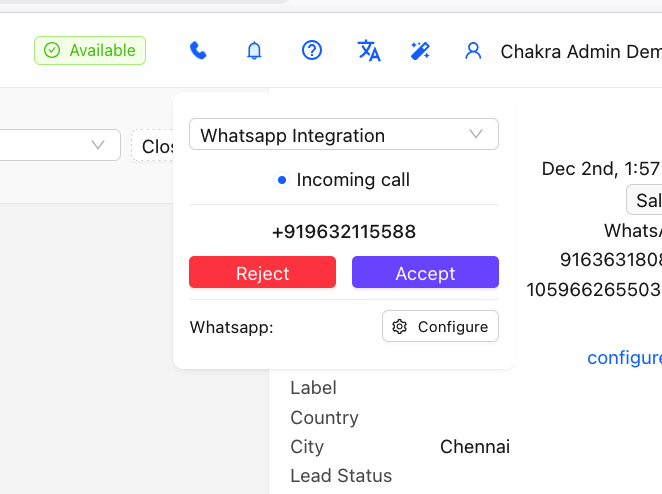
When a customer calls your business number, a popup will appear under the call icon in the top bar.
- Click
Acceptto connect the call Rejectto decline the call
Manage Outbound Calls
Open the customer conversation in the chat dashboard. In the right sidebar, locate the WhatsApp Calling section.
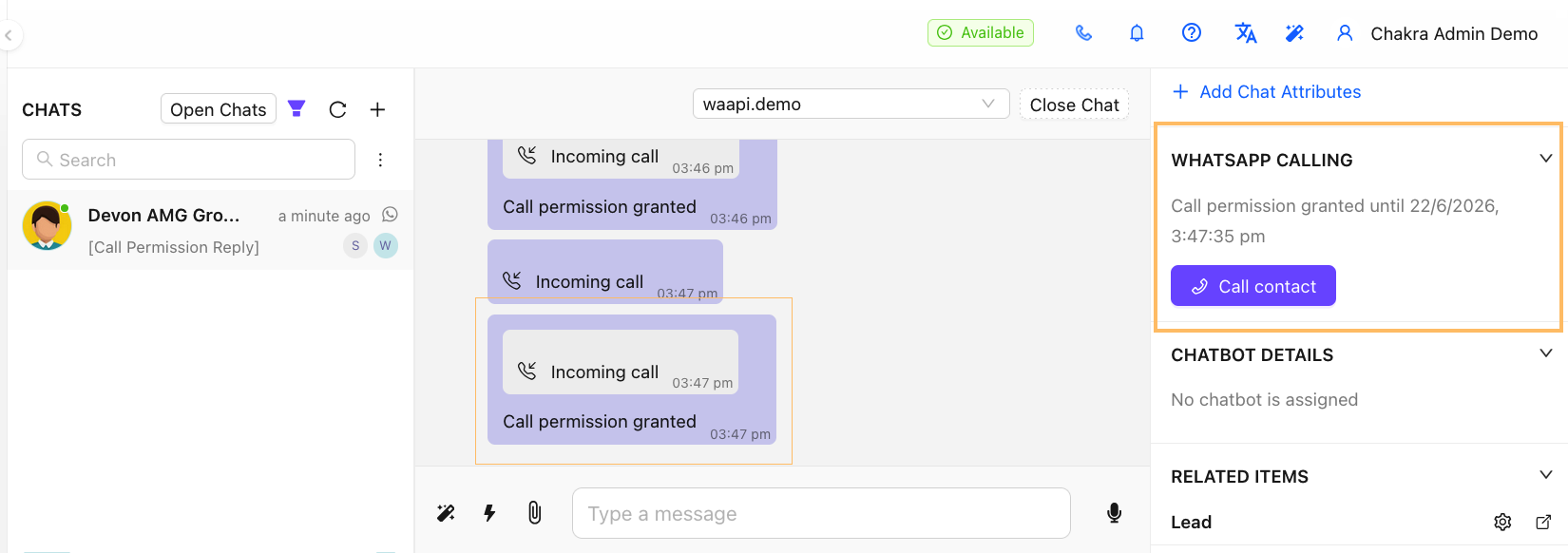
If Permission already granted customer:
- A Call Contact button is visible
- Click it to start the call.
If permission has not been granted yet;
- Send a call permission request message from this section.
- Once the customer approves
- Call Contact button will become available.
The WhatsApp Calling API feature is now enable in Chakra Chat.