

Chat Automation Workflows
Chat automation workflow to drive action based on chat triggers
Chat Trigger Automation
Configure keywords that trigger automatic messages or chatbots
Steps to create chat trigger automation
- Go to
Chat Trigger Settings - Click on
Create Trigger
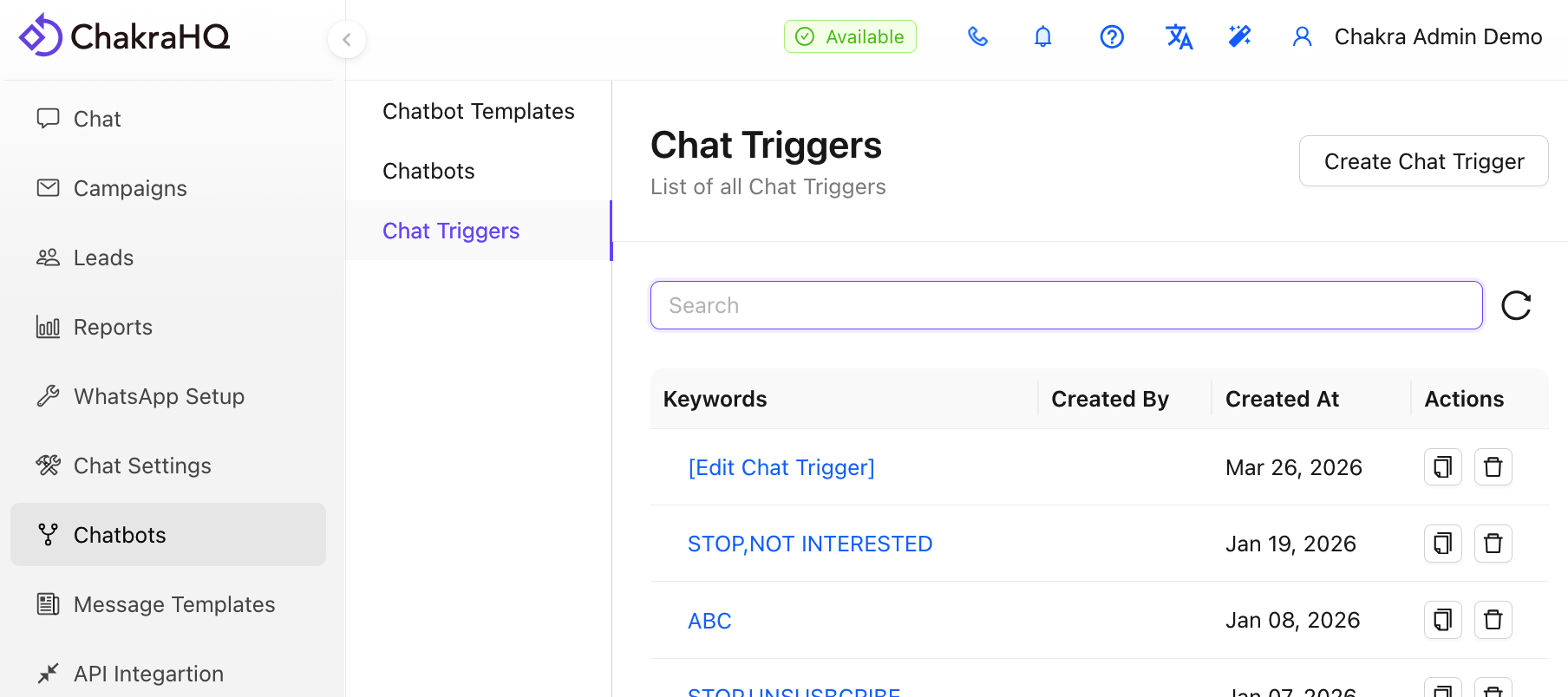
- Add Keyword(s)
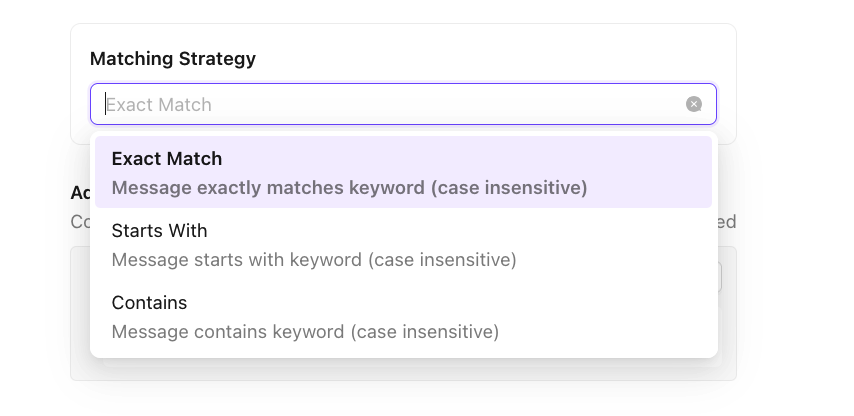
Add relevant keyword or multiple keywords to trigger a particular action - Select the Matching Strategy
- Exact Match (Message exactly matches keyword - case insensitive)
- Starts With (Message starts with keyword - case insensitive)
- Contains (Message contains keyword - case insensitive)
- [Optional] Additional Where Condition
Configure additional conditions that should match for this rule to be executed
- Add Action(s)
Configure the actions to be undertaken if matching keywords are found
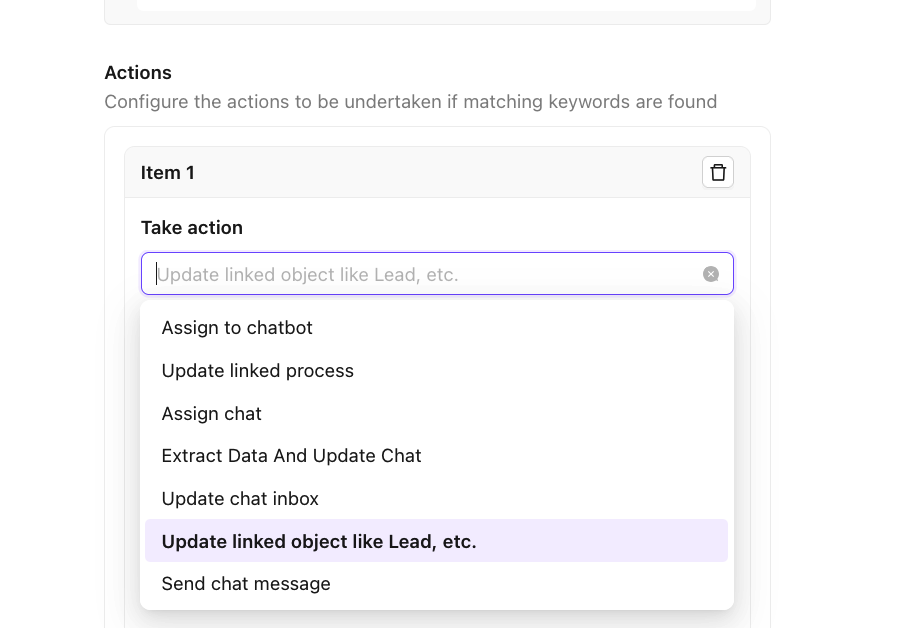
- Take Action List
- Assign to chatbot (to assign a chatbot)
- Update linked process (to update a lead field using regex)
- Assign chat (to assign a chat to a user)
- Extract Data And Update Chat (to extract data using regex and update chat field)
- Update chat inbox (update the chat inbox for the chat )
- Update linked object like Lead, etc. (to update lead fields)
- Send chat message (to send a chat message)
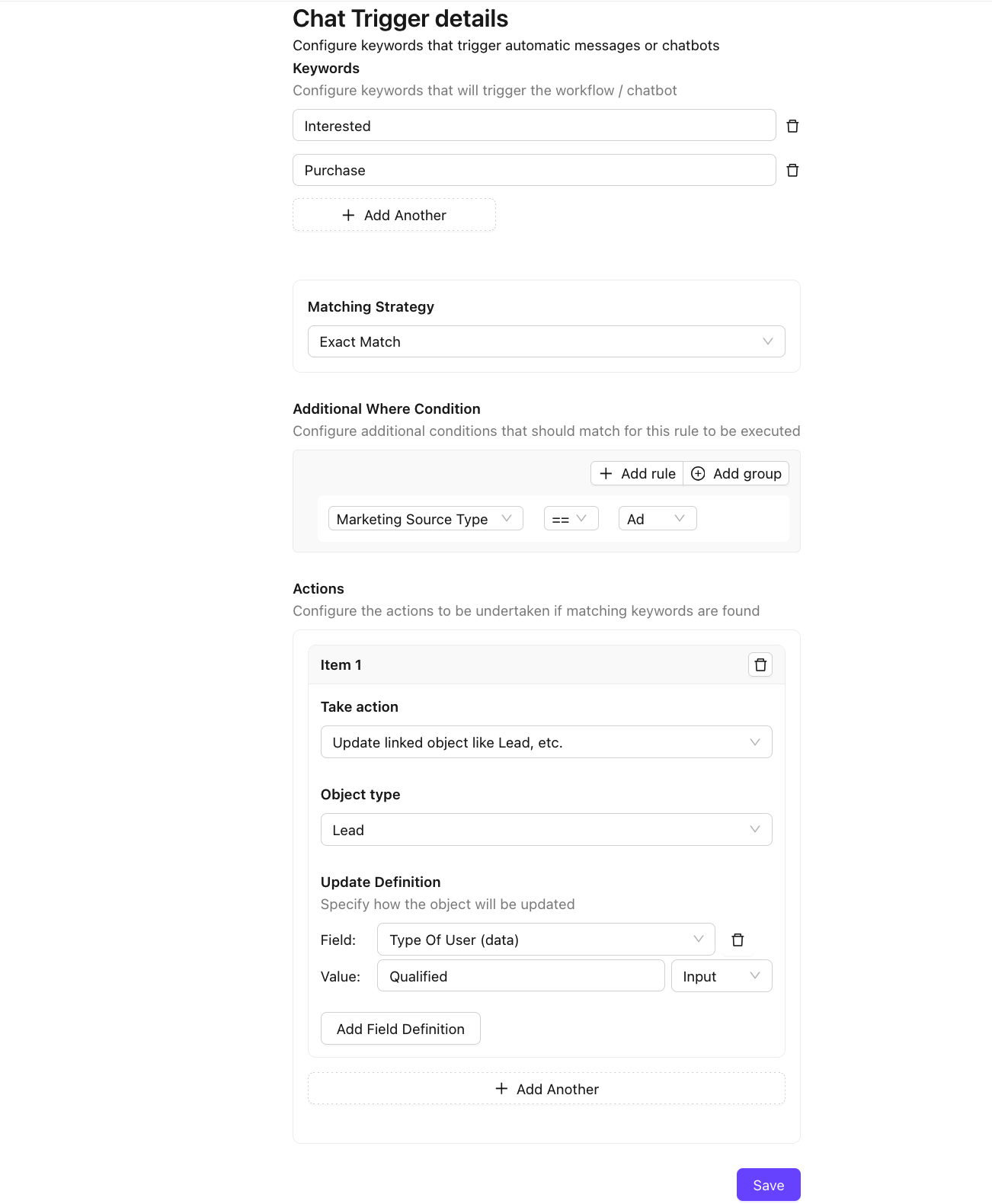
The Chat Trigger is complete. The configuration may look something like this.
Advanced Chat Automation
Configure advanced settings for chats:
Use Cases:
- To Customize Open Chat, Closed Chats and Chat Re-Open actions
- To Create a New Chat for every template message sent
How to Configure?
- Go to Advanced Setting in Chat Settings
- Configure below settings to enable Advanced Chat Settings
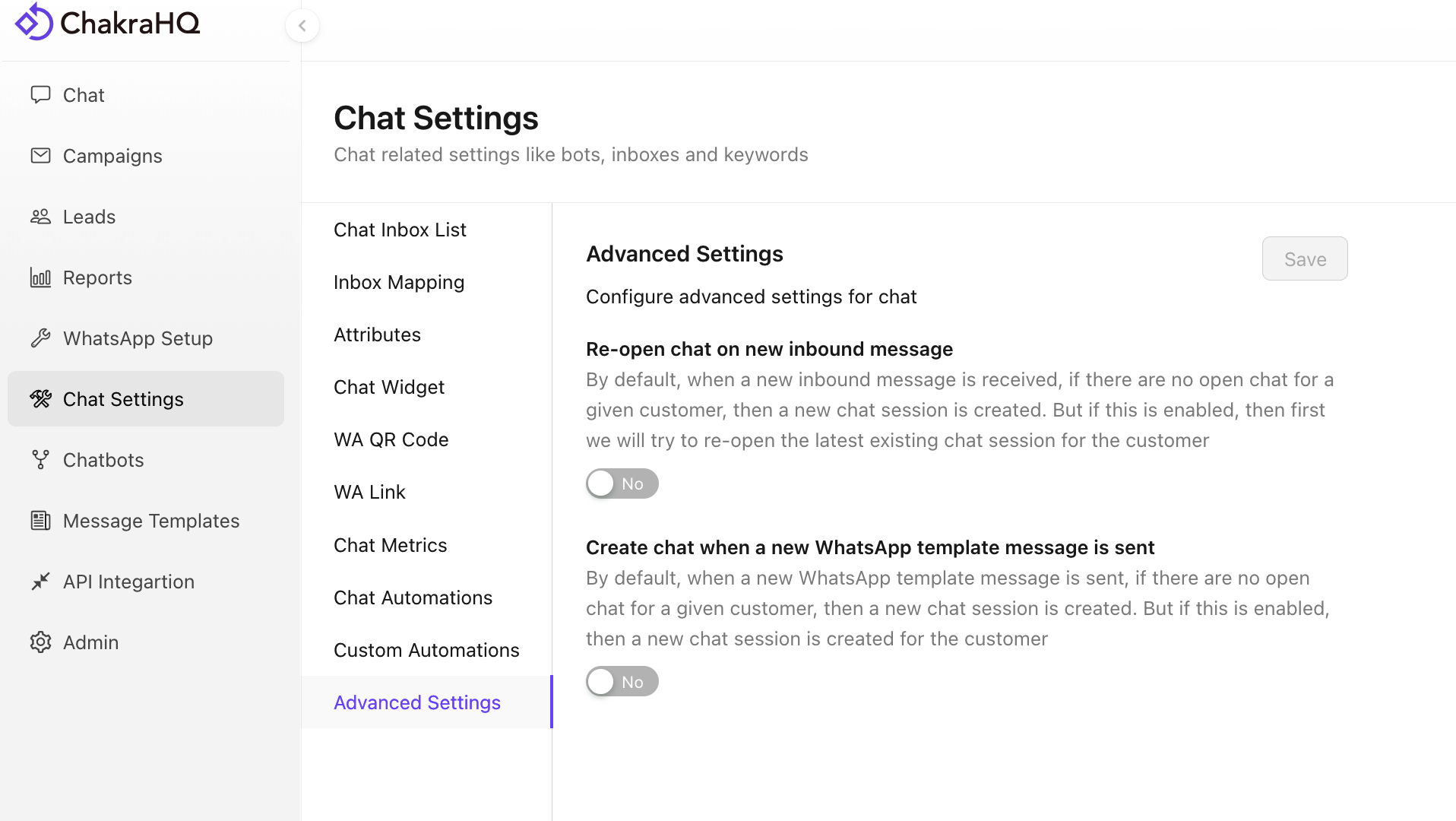
Re-open chat on new inbound message
By default, when a new inbound message is received, if there are no open chat for a given customer, then a new chat session is created. But if this is enabled, then first we will try to re-open the latest existing chat session for the customer
Create chat when a new WhatsApp template message is sent
By default, when a new WhatsApp template message is sent, if there are no open chat for a given customer, then a new chat session is created. But if this is enabled, then a new chat session is created for the customer
Custom Chat Automation
Configure custom automations for chat
Steps to configure custom chat automation:
- Go to
Chat Settings - > Custom Automations - Click on
+ New Automation Rule
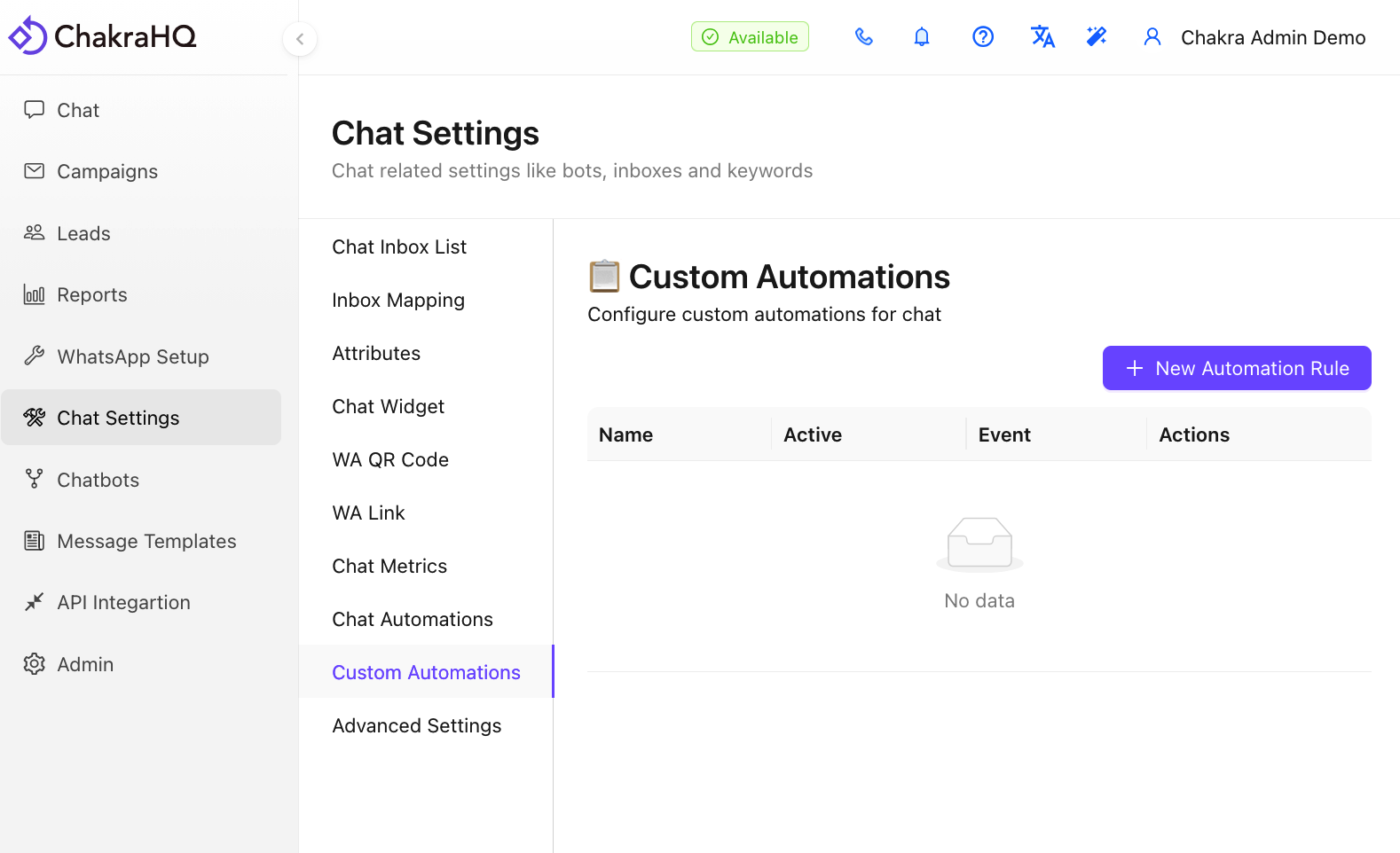
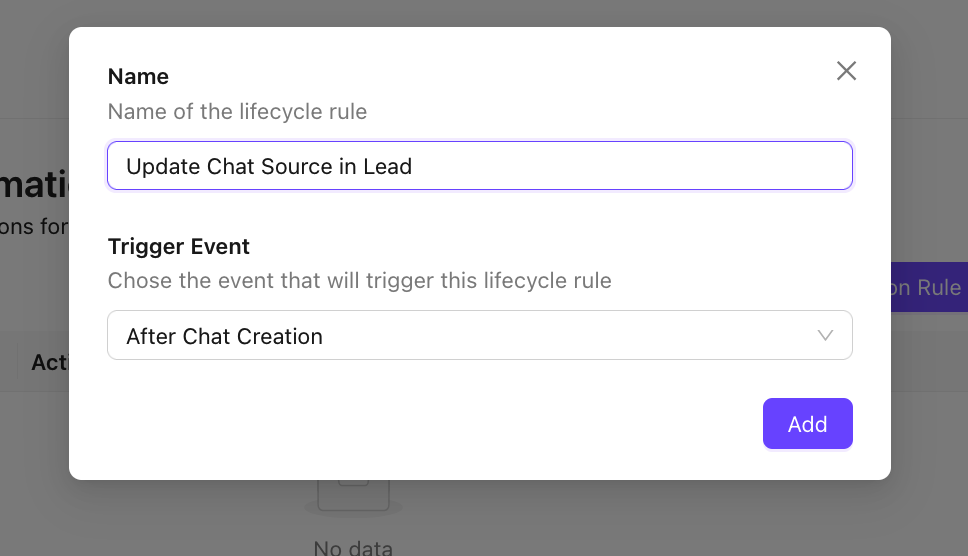
- Add a Name and choose the Trigger Event Type. Chose the event that will trigger this lifecycle rule
- After Chat Creation
- After Chat Updation
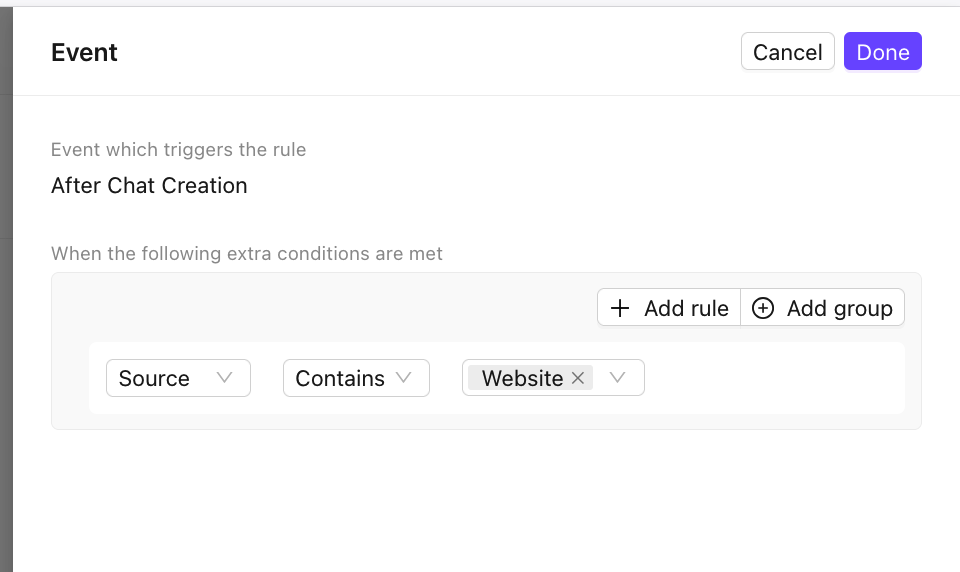
- In the
Triggering Eventnode, click on Edit _ 🖊_ on the right top - The Default Trigger is Chat Updation. To Add additional filter rules configure the Event
- Next, click on
+ Add Action - In the
Take Actionnode, click on Edit _ 🖊_ on the right top
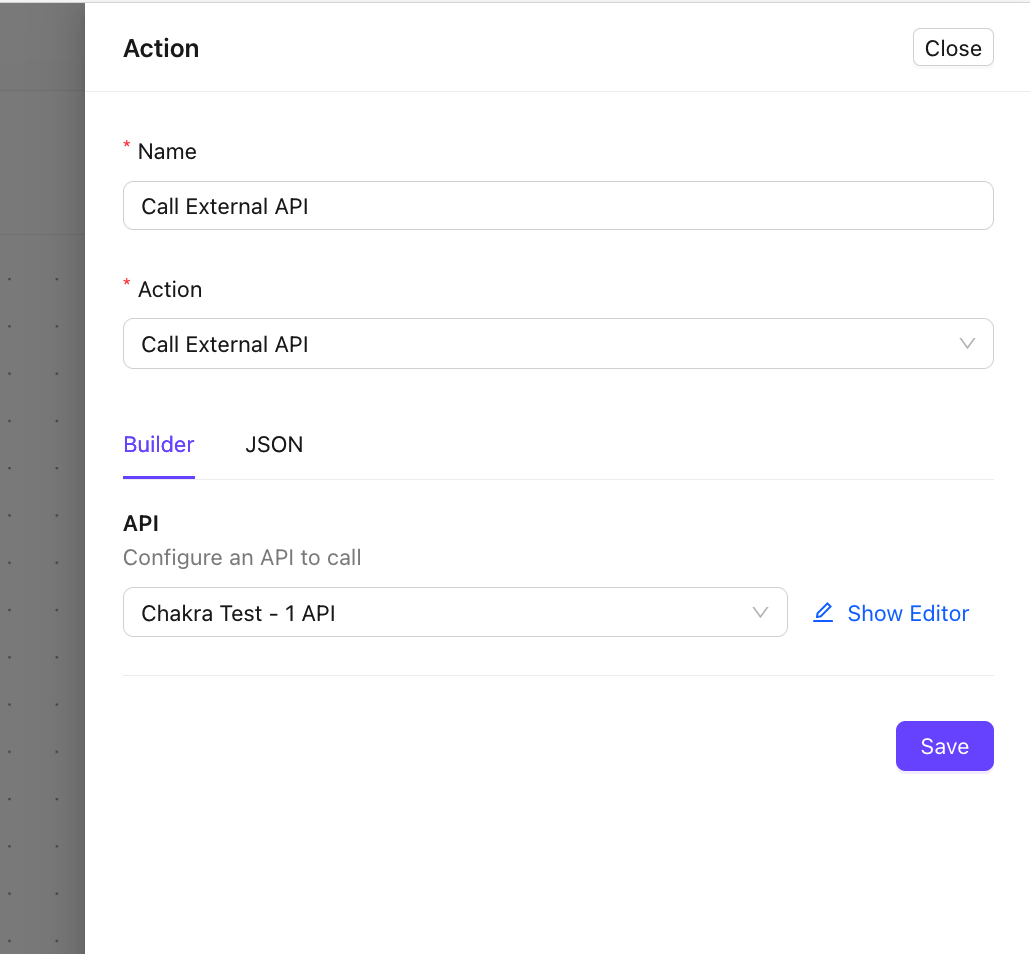
- Choose the appropriate action
Savethe Chat automation configuration and make the automationActive
The Customer Chatbot Automation is Active now.