Automate Flows Response
Automate WhatsApp Flows response in Chakra Chat Leads
Overview:
WhatsApp "Flows" let you send rich, interactive forms to customers. Chakra helps you process these responses automatically through Inbound Flow Rules. Here’s how you can set it all up. This guide explains how to capture the flow response in Chakra Leads automatically.
Step 1: Access Inbound Flow Rules
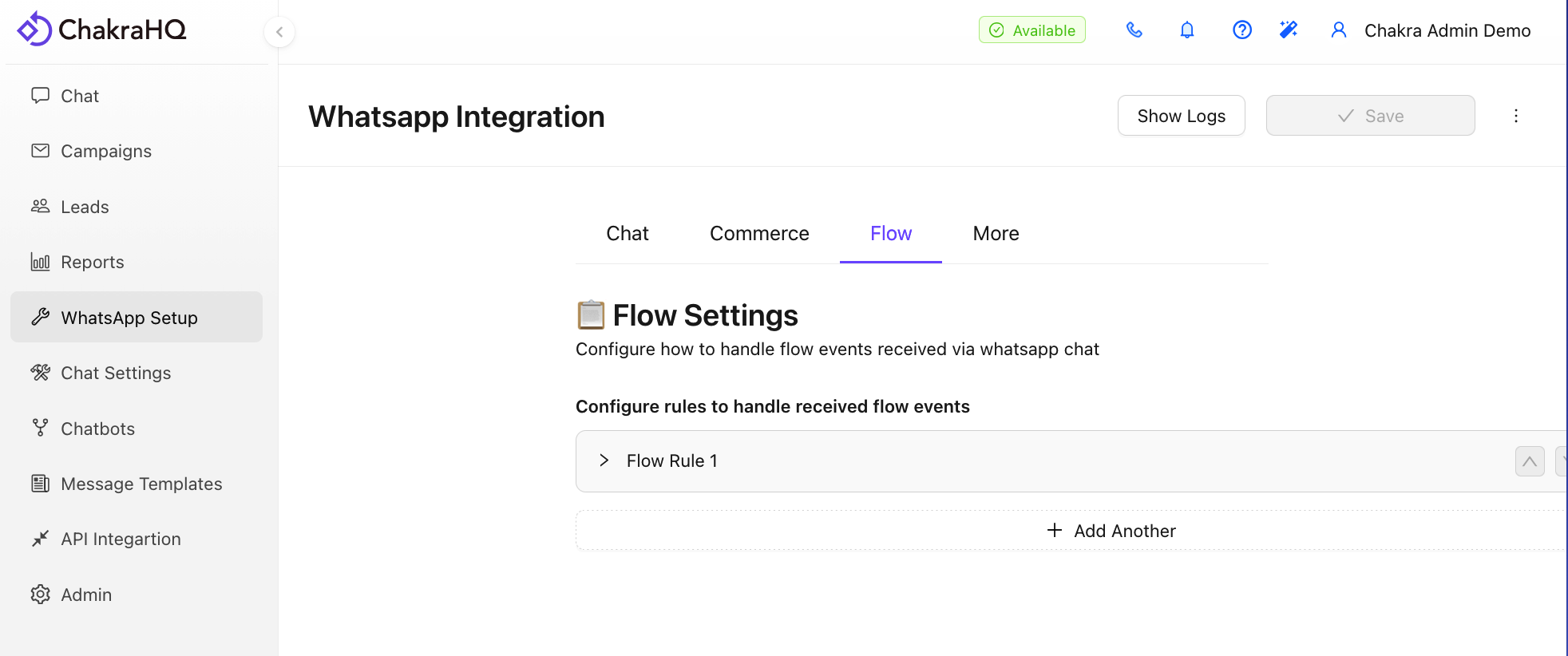
- Go to WhatsApp Setup on the left-hand navigation bar
- Click the Flow tab
- Click
Add Anotherto create a new rule for processing incoming flow responses
Step 2: Configure a Rule
Choose Action
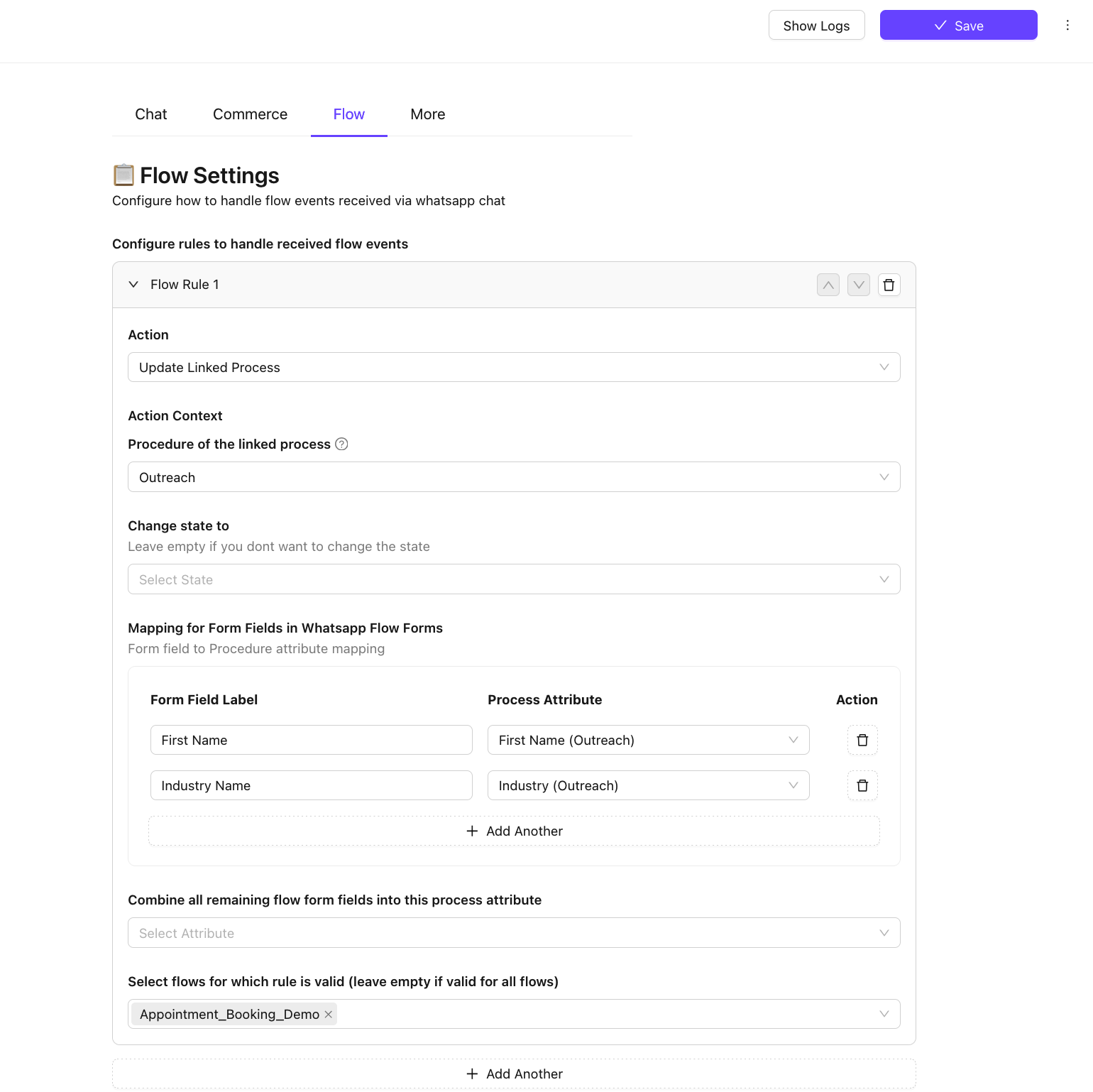
- Select the action to perform when a flow response is received.
- Currently, only "Update Linked Process" is supported.
- Set the Procedure to
Lead
[Optional] Change Lead State
- If you want to update the lead’s state based on the response, select the new state under "Change state to"
Map Flow Fields to Lead Attributes
- Click "Add Another" under "Mapping for form fields in WhatsApp Flow Forms"
- For each mapping:
- In "Form Field Label", enter the label of the form field from your WhatsApp Flow
- In "Process Attribute", choose the corresponding Lead attribute to store the value
- Repeat for all form fields in your flow
⚠️ You may need to create a Lead attribute to capture the flow field data in Chakra leads.
Catch-All Field (Optional)
- Set a fallback Lead field to store any form data that isn’t explicitly mapped.
- This ensures no data is lost if form fields change and mappings are missed.
Select Applicable Flows
- Choose specific flows this rule should apply to.
- Leave empty to apply the rule to all flow responses.
➕ Step 3: Add Multiple Rules
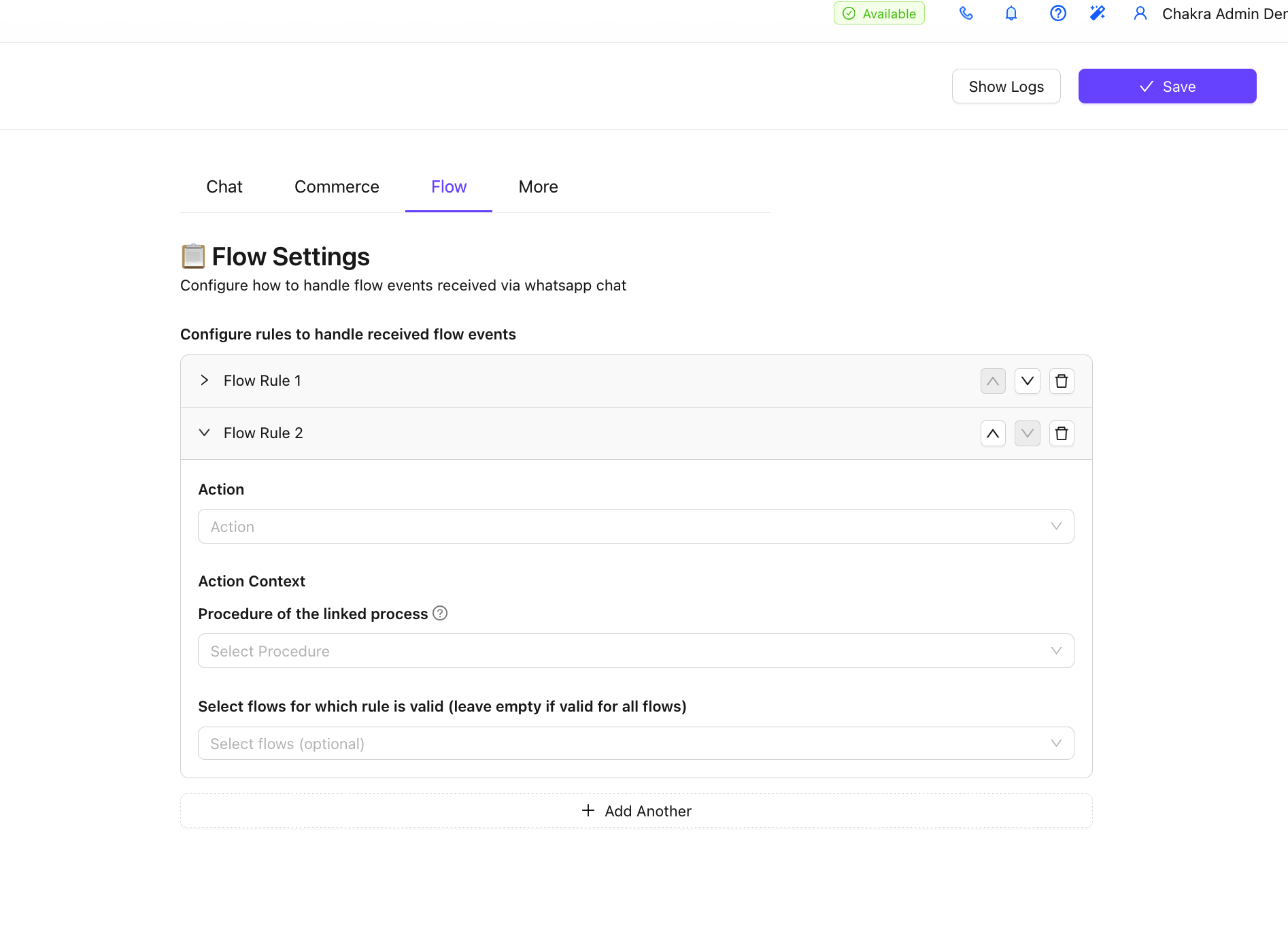
- You can define multiple rules
- When a flow response is received, Chakra checks each rule in order until a match is found
- The first matching rule will process the response
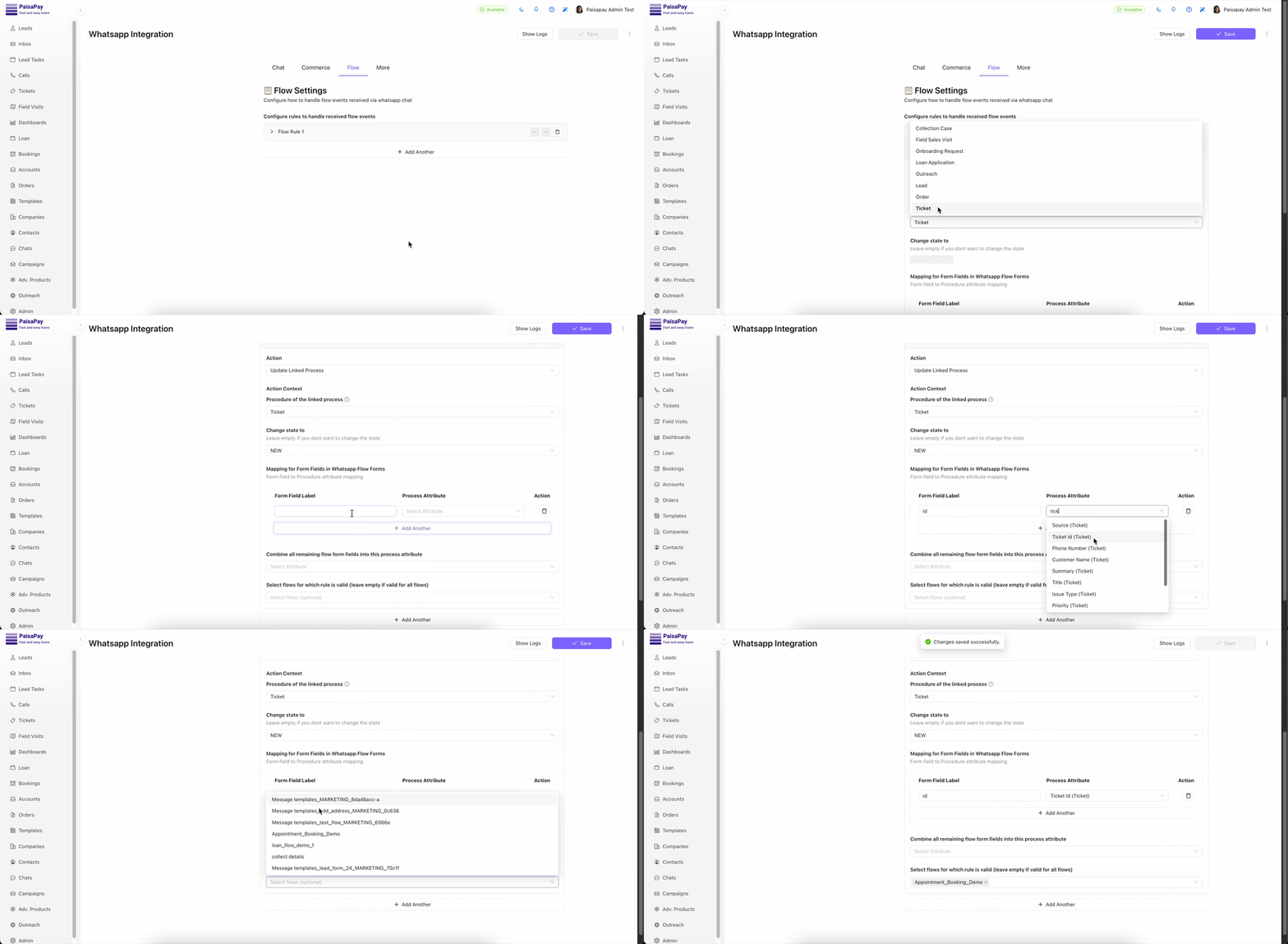
Interactive guide to setup Flows Configuration in Chakra