

Add Catalog in Meta Business
Steps to Add Catalog in Meta Business Manager
Access Meta Business Manager
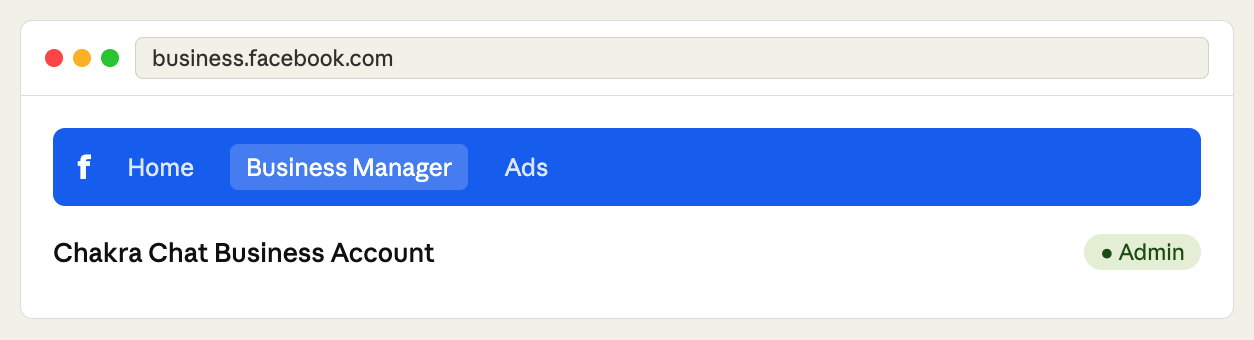
Go to business.facebook.com and sign in with your business credentials. Ensure you have Admin access to the Business Manager linked with Chakra Chat.
Navigate to Commerce Manager
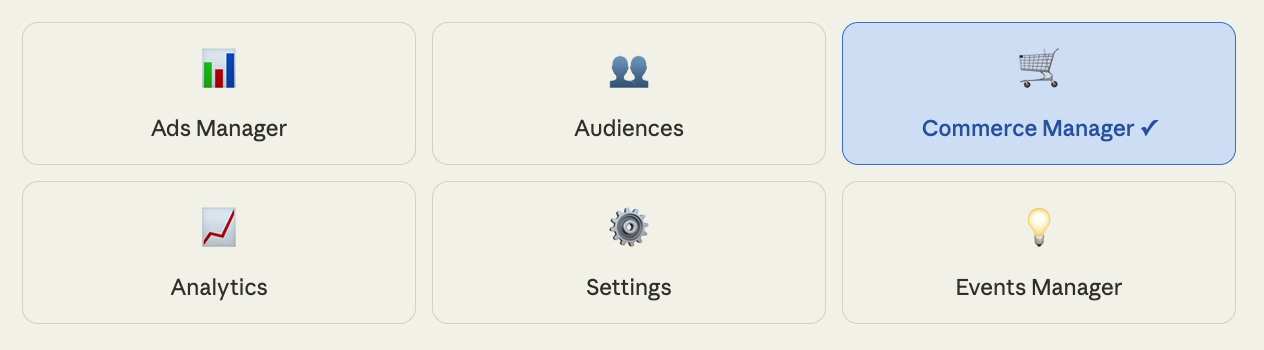
Click All Tools (grid icon) from the left menu and select Commerce Manager under "Sell Products". You can also go directly to business.facebook.com/commerce.
Create a New Catalog
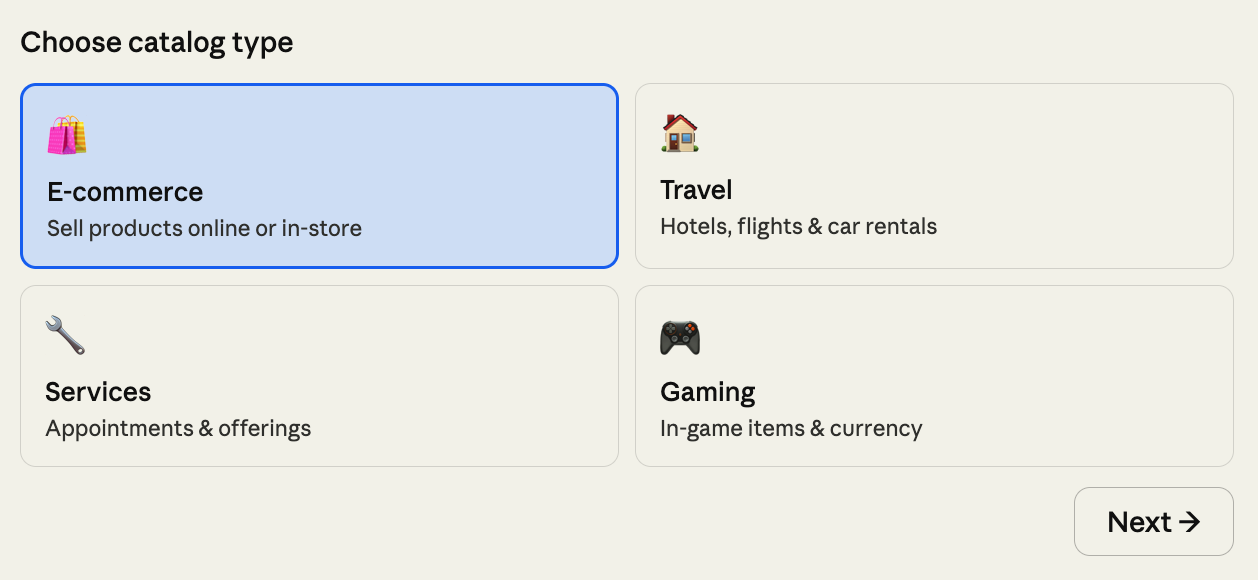
On the Commerce Manager homepage, click Add Catalog. Choose the catalog type that matches Chakra Chat — select E-commerce for subscription plans, or Services if more appropriate. Click Next.
Name Your Catalog
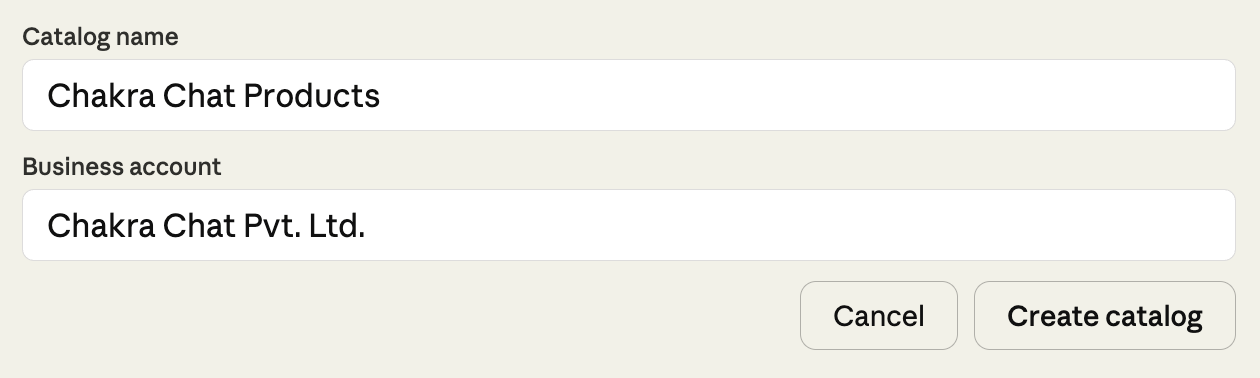
Enter a clear catalog name such as "Chakra Chat Products". Associate it with your correct Business Manager account and click Create.
Add Products to Catalog
Inside your new catalog, click Add Items. Choose the best method to add your Chakra Chat products.
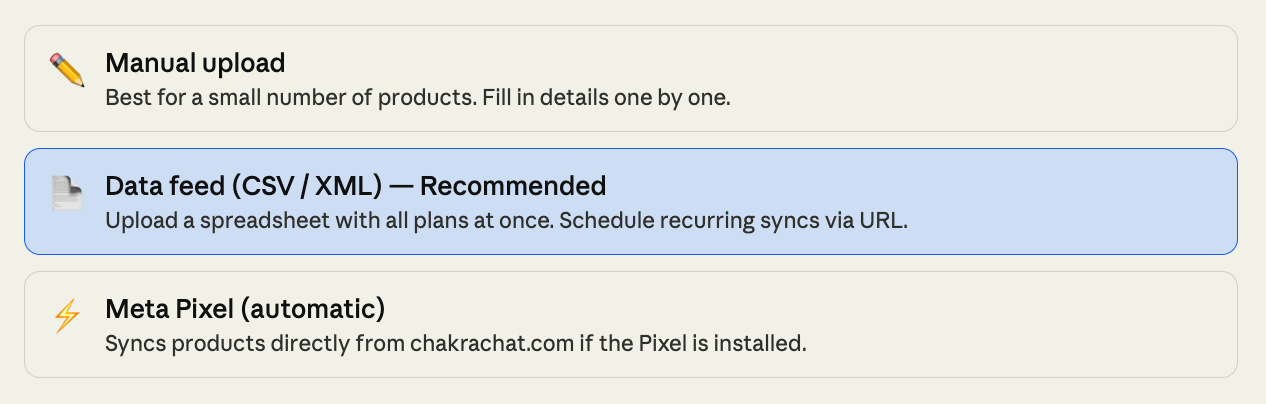
Fill in Product Information
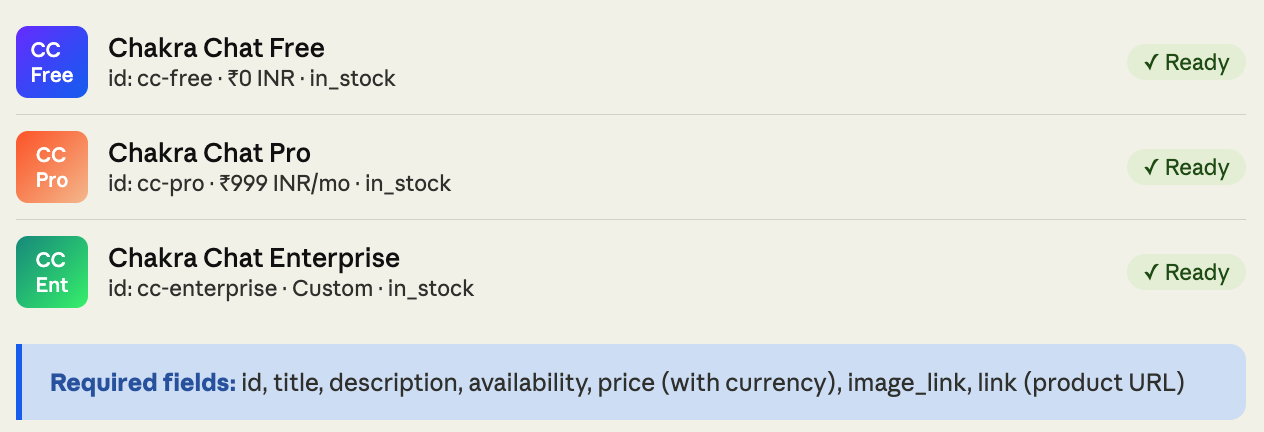
For each Chakra Chat plan (Free, Pro, Enterprise), fill in all required fields. Here's what a completed product entry looks like:
Review and Fix Errors
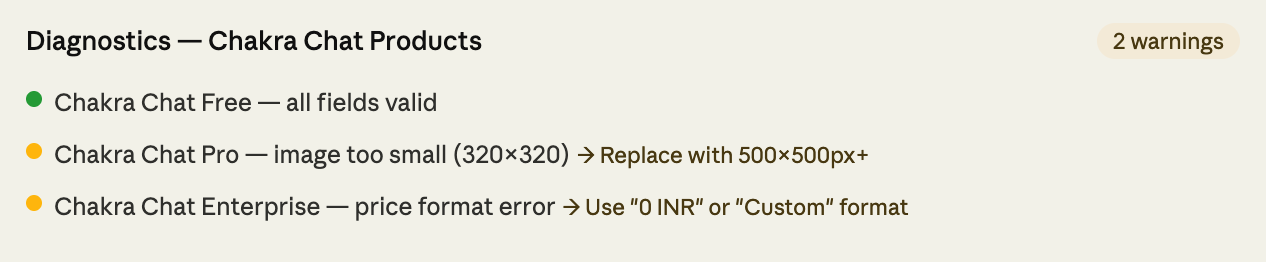
After uploading, visit the Diagnostics tab. Meta validates every item and flags issues that need your attention before ads can run.
Organise Product Sets
[Optional ]Use Product Sets to group items logically. This makes targeting specific plan tiers in ad campaigns much easier.

Assign Catalog to Ad Account
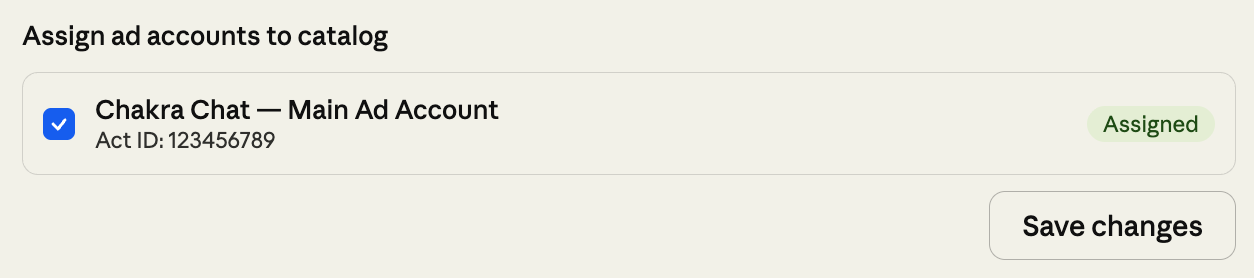
Go to Business Settings → Catalogs, find your Chakra Chat catalog, and click Assign Ad Accounts. This is required before the catalog can be used in any campaigns.
Use the Catalog in Ads/Shops
Your catalog is live! You can now deploy it across Meta's surfaces — run dynamic ads, set up a Facebook/Instagram Shop, or use it in WhatsApp Business product messages.
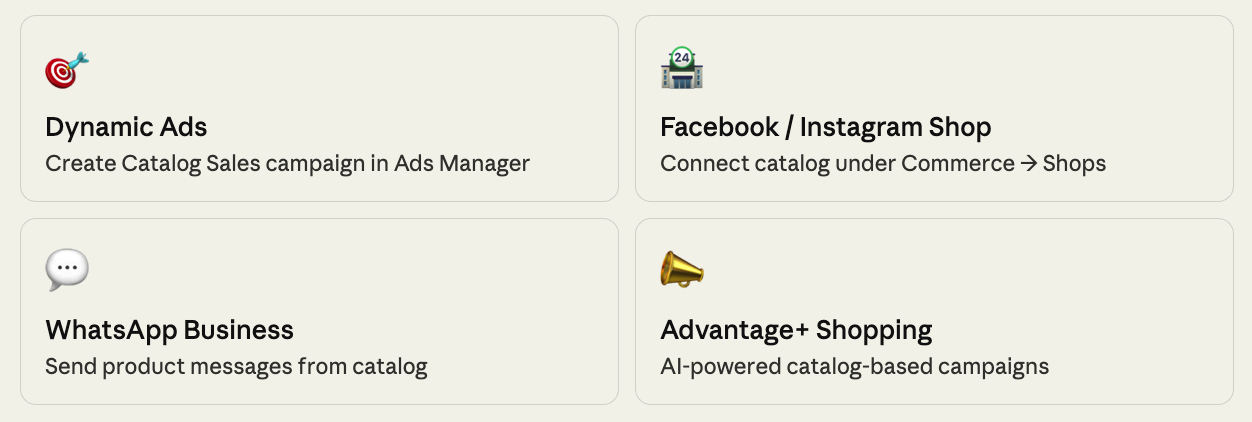
The Catalog is added in the Meta Business Manager