Embed WhatsApp Connect
If you are a SaaS or solutions provider and want your customers to connect their WhatsApp Phone numbers via Your Chakra Account, You can do so by following the steps below
1. Create a connect token
To embed the connect button inside your webpage/webapp you will first need to generate a connect token. Please note that this token is only valid for 1 hour.
Use the Create Connect Token API to do this. Ideally this should be generated at the backend and passed to the frontend.
Parameters needed for this API when using it for a new client, where no plugin exists in Chakra:
newPluginName- [optional] Name of the new plugin to be created for the client. If no value is passed, the plugin will be named "WhatsApp". It is recommended to add the client's name or other meaningful and readable identifiers in this field. This will be the name of the plugin in Chakra and you will be able to search the plugin in Chakra webapp using this name.clientReferenceId- [optional] A unique reference id for the client. Usually, this will be the user id / unique id of the client as per your internal system. This will help in maintaining a correlation between Chakra system and your internal system.clientName- [optional] Name of the client as per your internal system. Usually this will the name of the user.clientEmail- [optional] Email address of the clientclientPhone- [optional] Phone number of the client
Parameters needed for this API when using it for an existing client, where a plugin already exists in Chakra:
- `pluginId` - this is the pluginId of the WhatsApp plugin where the connected WABA details are stored. You would have received and stored this pluginId when the client completed their Embedded Signup flow for the first time. Do not use a common pluginId for all clients, it is strongly recommended to create a new plugin per client. For new clients, this parameter should not be present in the body params.
2. Embed the sdk
To embed the sdk, add the following script tag to the head of your webpage
<script src="https://embed.chakrahq.com/whatsapp-partner-connect/v1_0_1/sdk.js"></script>Create a container div with a unique id in your webpage and then add the following script tag to the end of your webpage. It is important to add this script tag after the container div, else the intialization will fail. Example Snippet below:
<div id="container"> </div> <script> const connectToken = "<CONNECT-TOKEN>"; const chakraWhatsappConnect = ChakraWhatsappConnect.init({ connectToken: connectToken, container: '#container', // optional, defaults to document.body onMessage: (event, data) => console.log(event, data), onReady: () => console.log('ready'), onError: (err) => console.error(err), onSuccess: (data) => console.log('Connection successful, data:', data) }); // Later, you can destroy the iframe: // chakraWhatsappConnect.destroy(); </script> The data arg of onSuccess function will have pluginId, whatsappBusinessAccounts and whatsappPhoneNumbers keys. It is strongly recommended that you store the pluginId value received here against your customer / client in your internal system, and in future, use this pluginId when generating the connectToken for this client. By doing this, if the client later wants to add or modify WABA or Phone Number, it will be mapped to the correct plugin in Chakra.
3. Check if the integration is successful
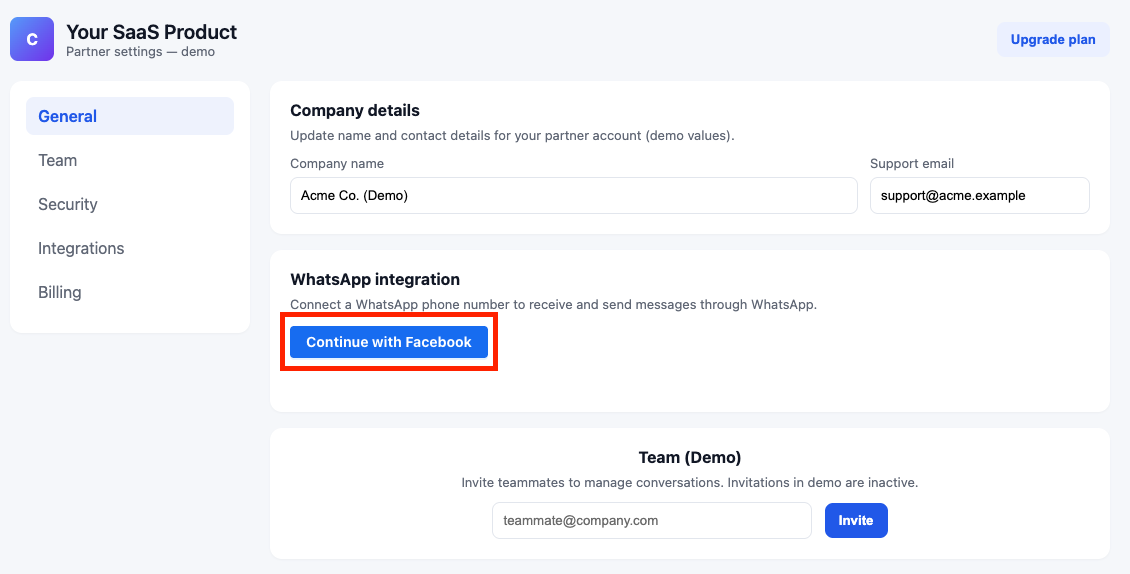
If the integration is successful, you should see a "Connect with Facebook" button as shown in the screenshot below
Connecting a WhatsApp phone number
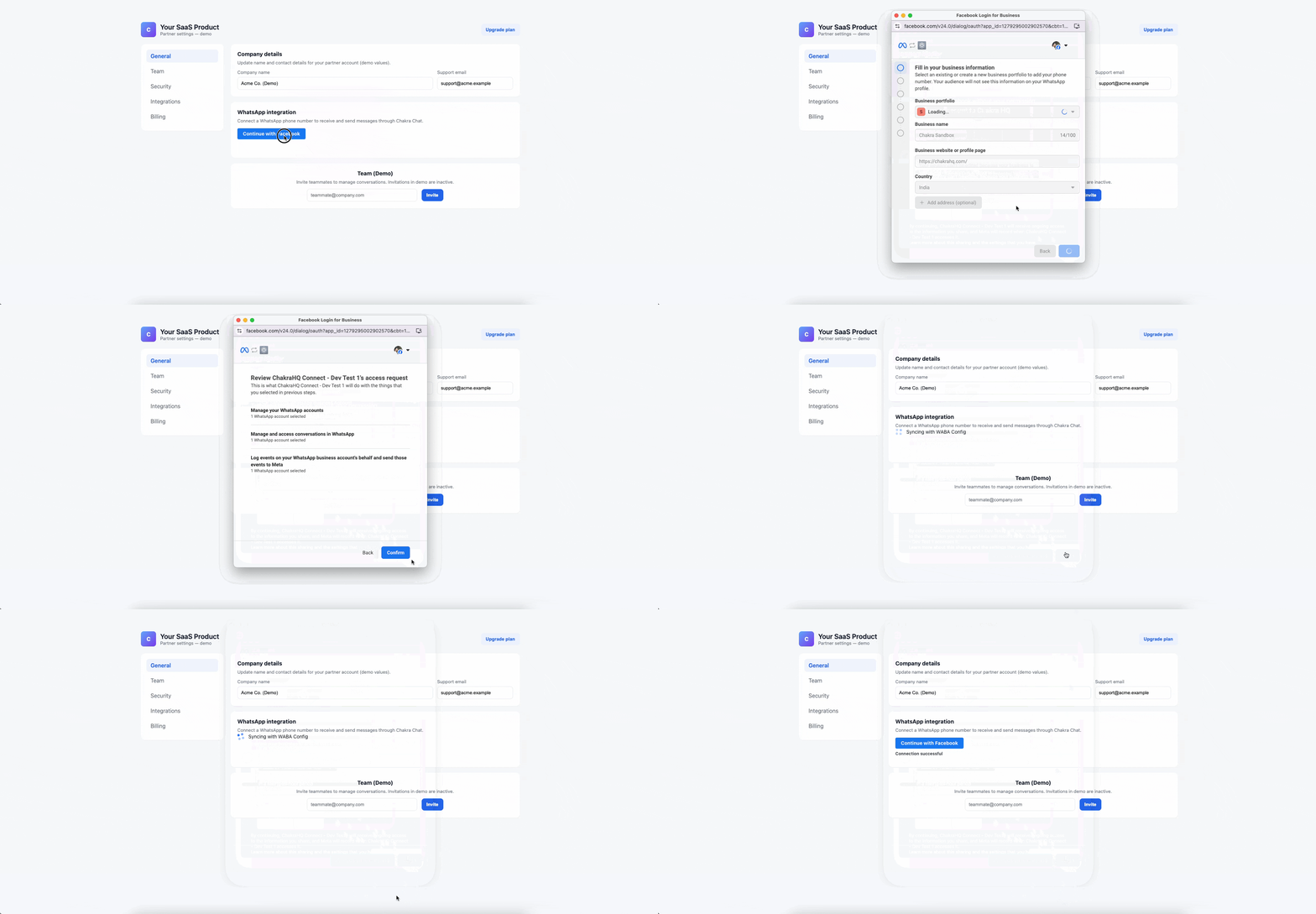
Your customer can now click the "Connect with Facebook" button and complete the embedded signup. A successful flow would look something like the demo below: