Lead Details Page
Guide to Chakra Sales lead details page
Lead Details Page
The Lead Details page is your primary workspace for viewing, managing, and engaging with individual leads. This article explains every section and feature available on the page.
Lead Details Key Section
Top Header
Top header is a persistent, high-visibility strip designed to provide an instant overview of a lead important properties identity, status, and value without requiring the user to scroll. This section carries the following properties.

Lead Title
Pipeline State Bar
State Pipeline bar is a visual, horizontal interface component that displays the sequential state a lead moves through from initial state across the sales funnel. It acts as an interactive bar allowing sales user to see at a glance where a deal stands and to quickly update its progress, often through a click-and-update mechanism or by clicking on specific states.

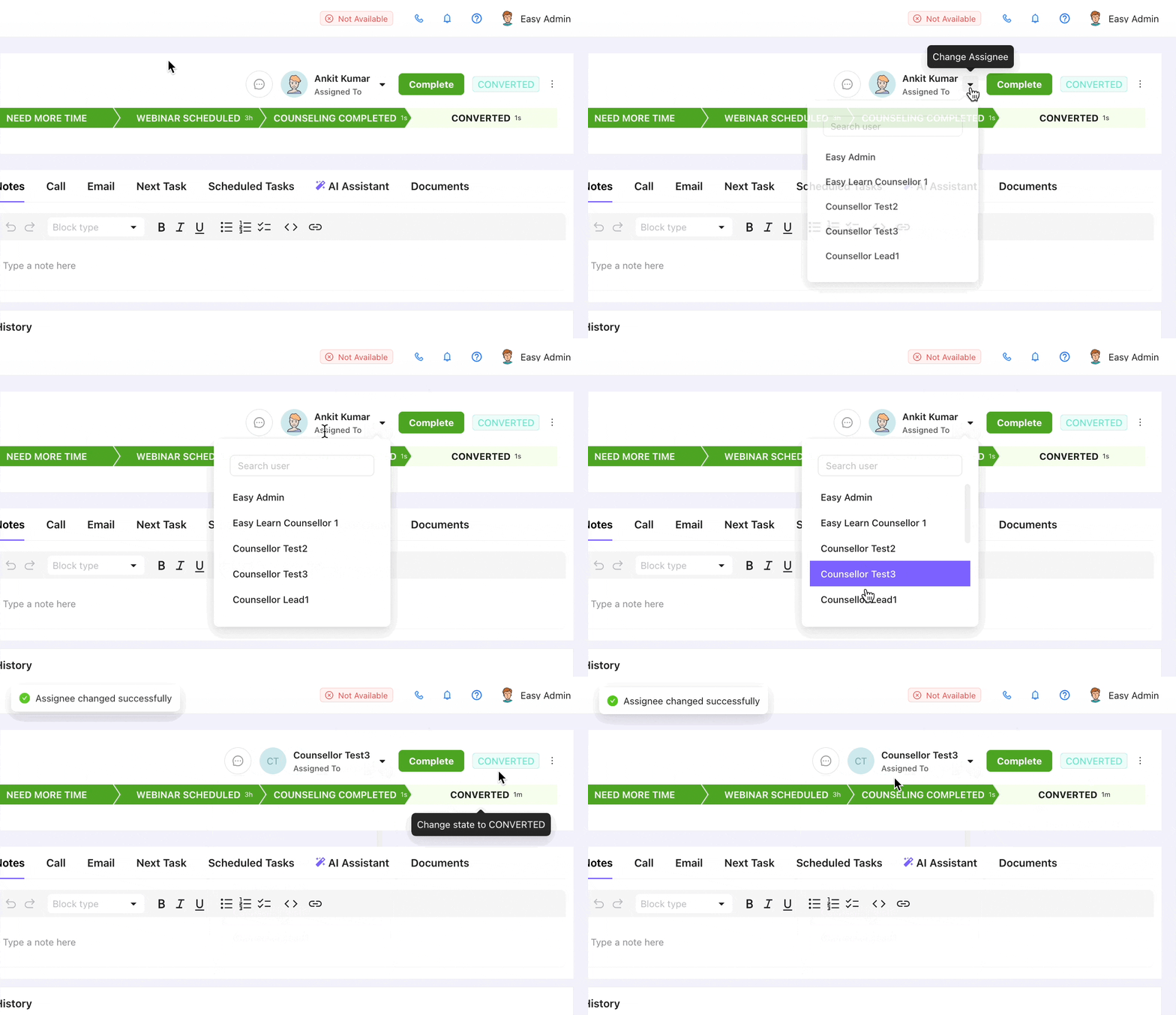
Assignee Status & Change Button
Manually reassign a lead to any active user. Access to this feature can be restricted by role, ensuring reassignment is controlled within your team hierarchy.
- Select any active user as the new lead assignee
- Access is controlled by role permissions and can be restricted as needed
- Reassignment is logged in lead history with a timestamp
- The new assignee receives a notification upon assignment
"Lead Won" Button
The complete button is a special one-time-click action button to convert a lead into the final positive node of the sales process. This is used to directly convert a lead to a successful prospect.
How Lead Won Button works?
- Click on "
Lead Won" Button - This updates the lead state to final successful state (e.g. - Convert) as configured in the lead workflow
- The "
Lead Won" button is replaced by a completed status - A Reopen button is visible to reopen the lead [Optional]
- The Lead can be re-opened using this button, the "
Lead Won" button reappears in the interface
How Lead Won Button is configured?
- This configuration is enabled for for
Admin/Manager Rolesonly - Click on the
⋮icon at the right top of the Lead Header section - Click on
Customize Header - Show completion/won button? (Yes/NO)
- Complete Button Text
- Completed Status Text
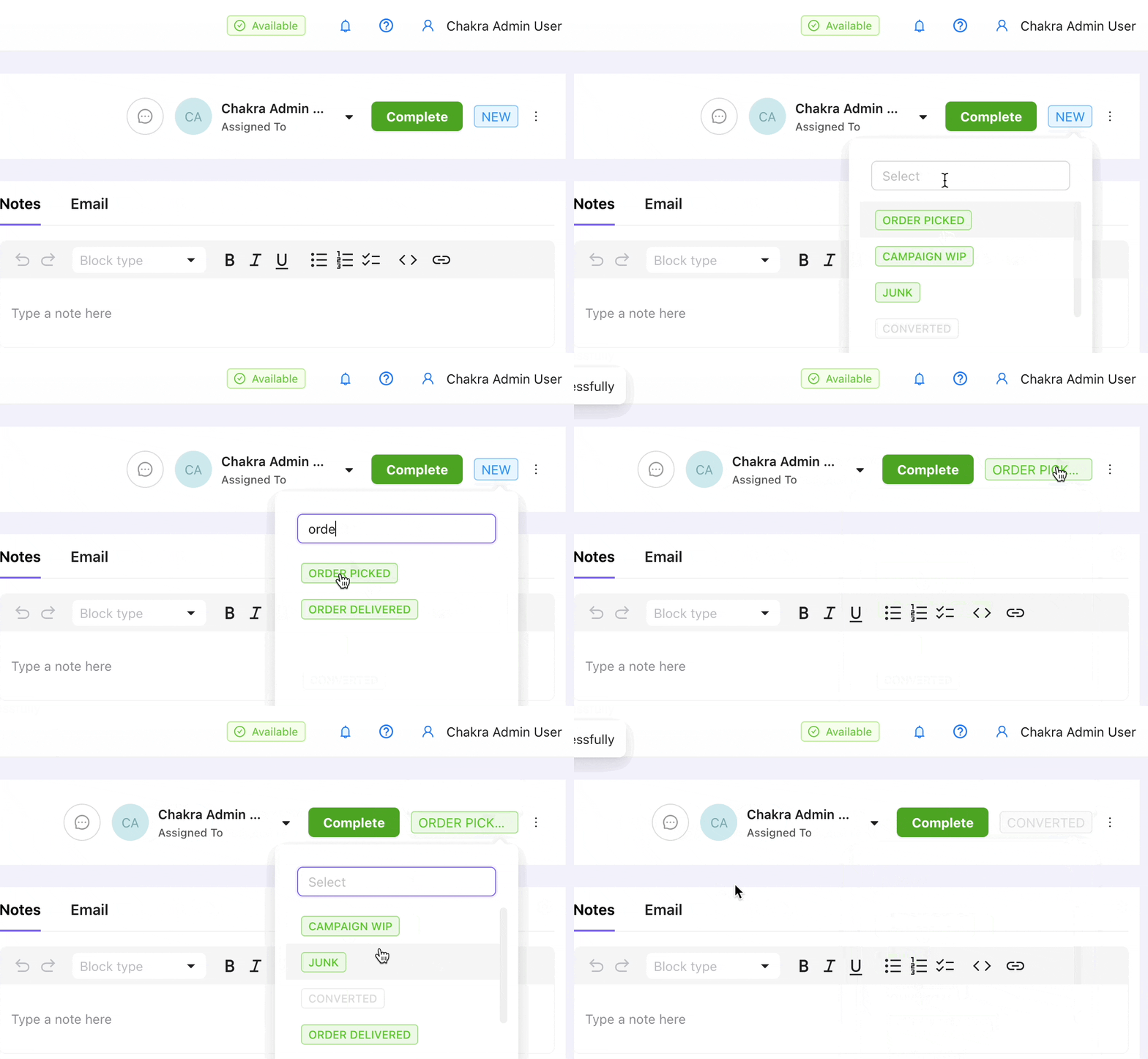
Lead State & Change State
Track lead status from the Lead Status tracker and also use to manually change the lead state to a desired one.
- Manually move a lead to any state directly from the lead detail page. State changes are reflected instantly across all views and can trigger automations.
- Select any available state from the state dropdown on the detail page
- Each state change is logged in lead history for traceability
- Automations can be triggered upon specific state transitions
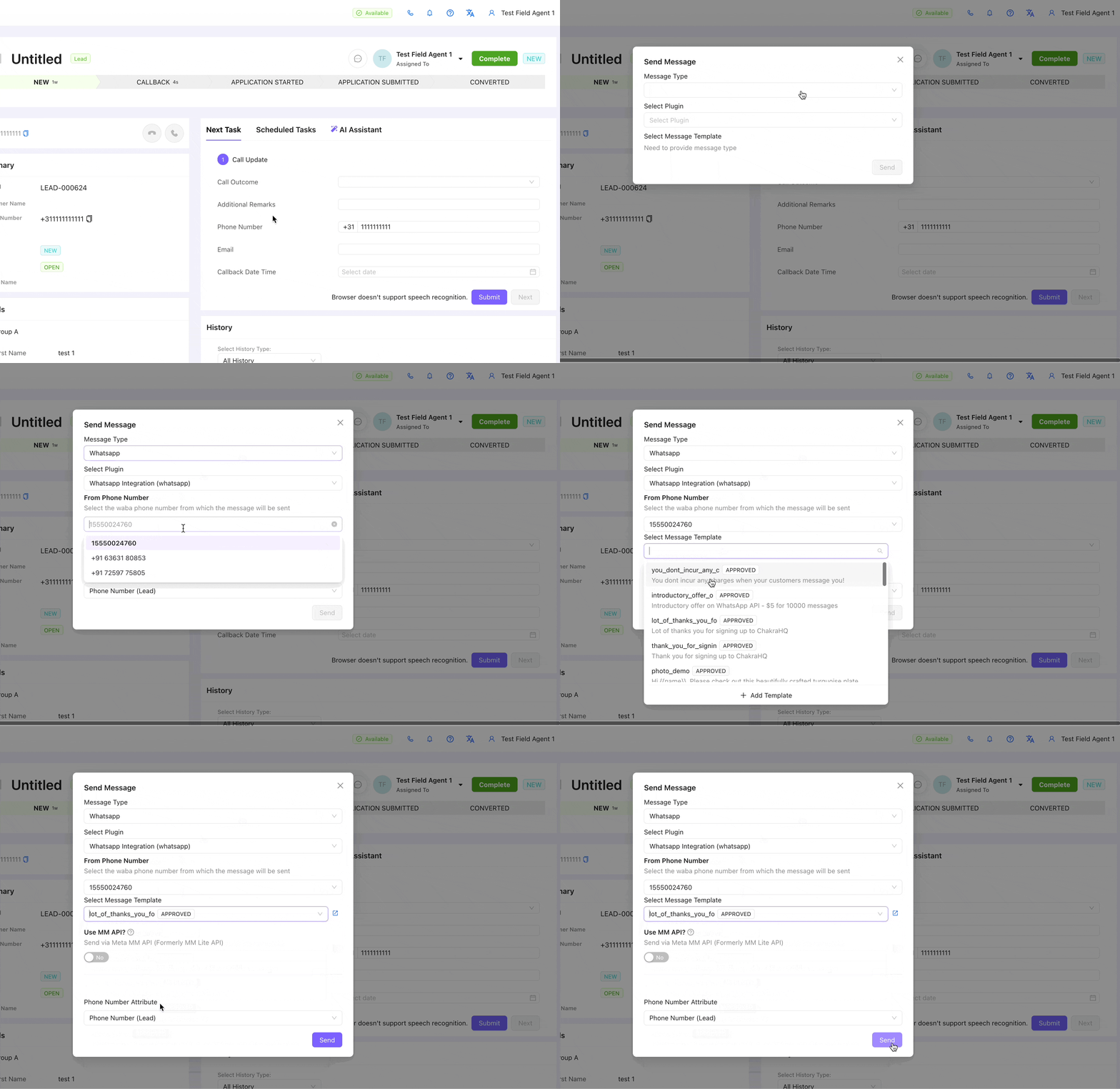
💬 Quick Message Action
Use the quick message action from the lead header section to send a text, email or a WhatsApp message in quick 2 steps.
Left Lead Details Columns
The left side column of the lead details page has the lead summary, lead details widget (customisable).
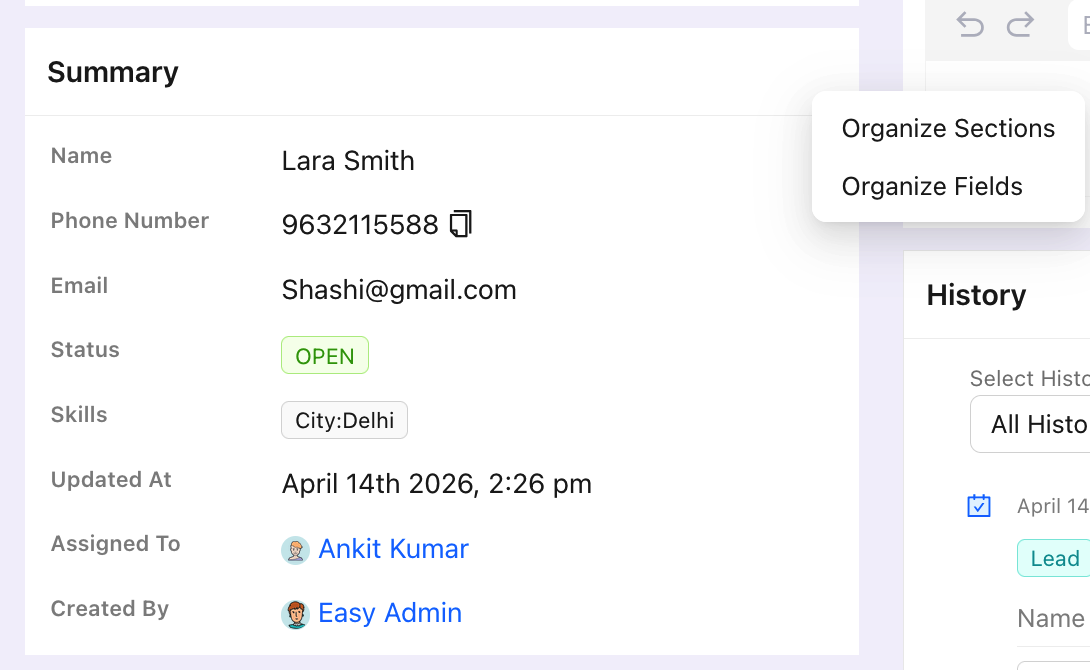
Lead Summary
Captures the essential read-only details of a lead — such as Lead ID, contact information, creation date, and source — in one fixed section at the top of the lead detail page. The section can be customized to show specific fields.
- Shows lead ID, creation date, source, and primary contact
- Fields in this section are non-editable to protect core data integrity
- Customize which fields appear in the summary section via Settings
- Useful for agents to quickly confirm identity before engaging with a customer
Lead Fields Customization
The Lead Details section can be customized with the fields most relevant to your use case. Each user can personalize their own view, and fields can be marked as required to ensure data completeness.
- Add, remove, or reorder fields in the lead details view
- Mark specific fields as required to enforce data completeness
- Customize fields per user for personalized views
- Supports all field types: text, dropdown, date, number, and file
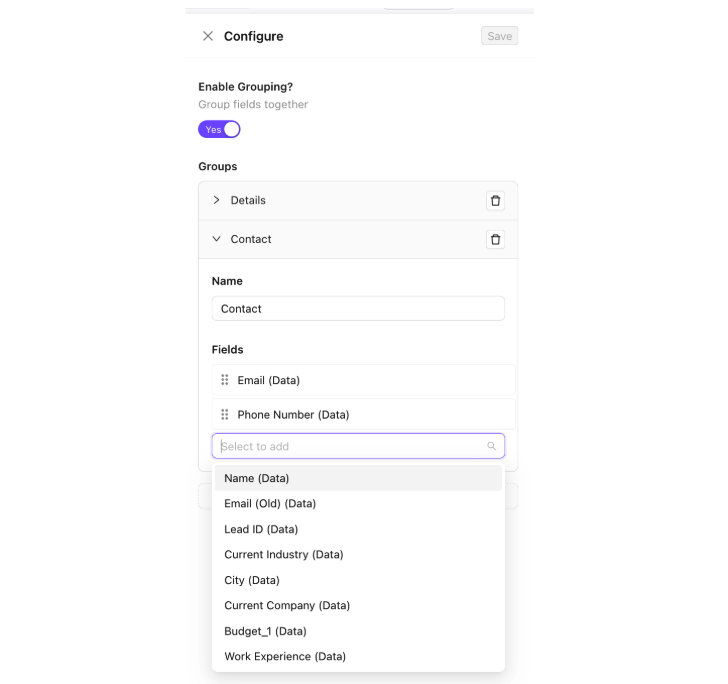
Lead Fields Grouping
Group fields in the Lead Details section into named sections to keep the form organized and easy to navigate, especially for teams managing complex data.
- Create named groups such as 'Contact Info', 'Deal Details', or 'Preferences'
- Drag fields into relevant groups to organize the layout
- Groups are collapsible in the lead details view for a cleaner experience
- Keeps the lead form structured for complex data models
Right Activity Column
Lead Activity Section
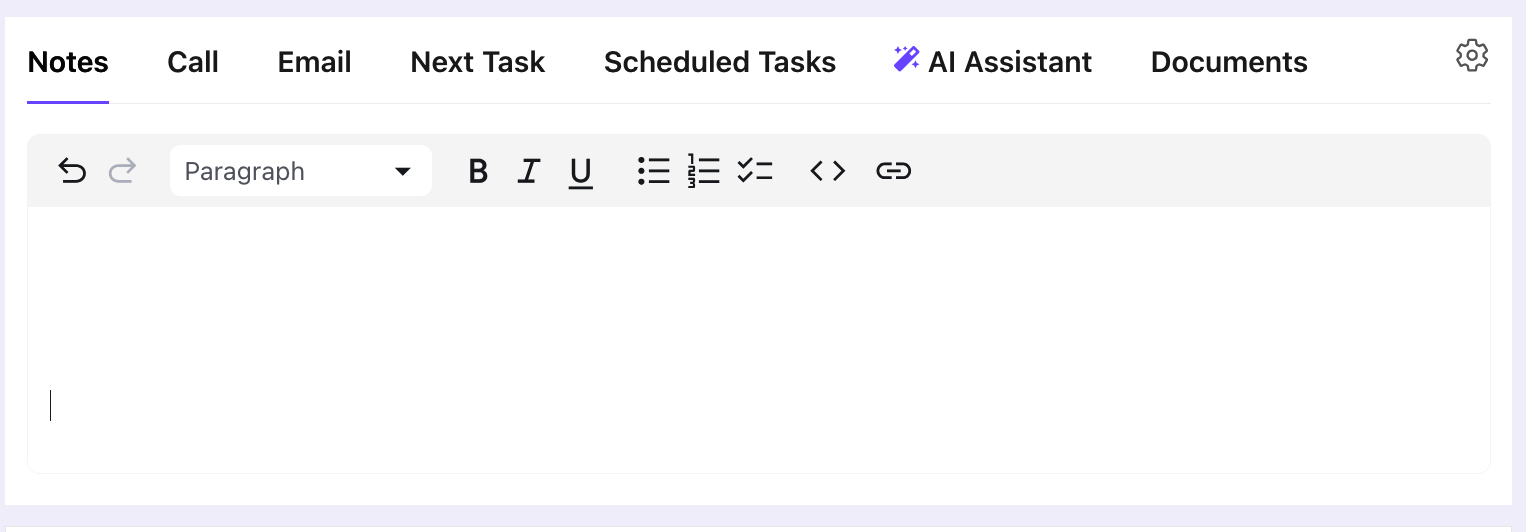
The Activity section is the central hub for all engagement with a lead. It tracks every interaction — calls, emails, meetings, notes, and tasks — in a chronological timeline, so nothing gets missed.
- Log calls, meetings, notes, and emails directly from the activity section
- View a complete timeline of all lead interactions in one place
- Schedule and manage follow-up tasks from the activity panel
- AI assistant is accessible from this section for smart suggestions and next steps
Lead Notes
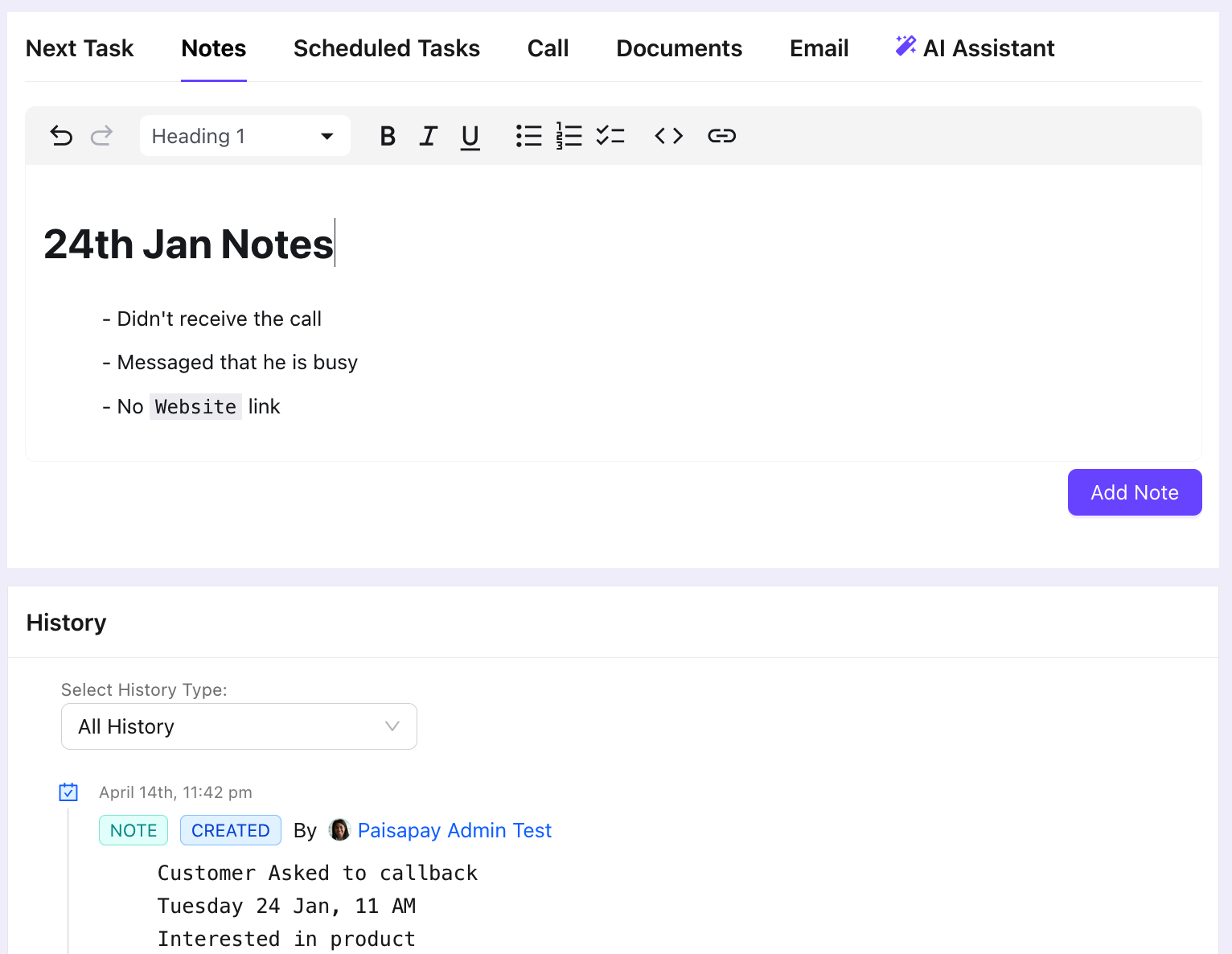
The Notes section lets users capture detailed, formatted information about a lead — such as meeting summaries, client requirements, or contextual observations — so that important context is never lost.
- Write formatted notes with text styling options (bold, lists, headings, etc.)
- Attach media such as images and files within notes
- Notes appear in chronological order in the activity timeline
- Useful for capturing nuanced customer details not covered by standard fields
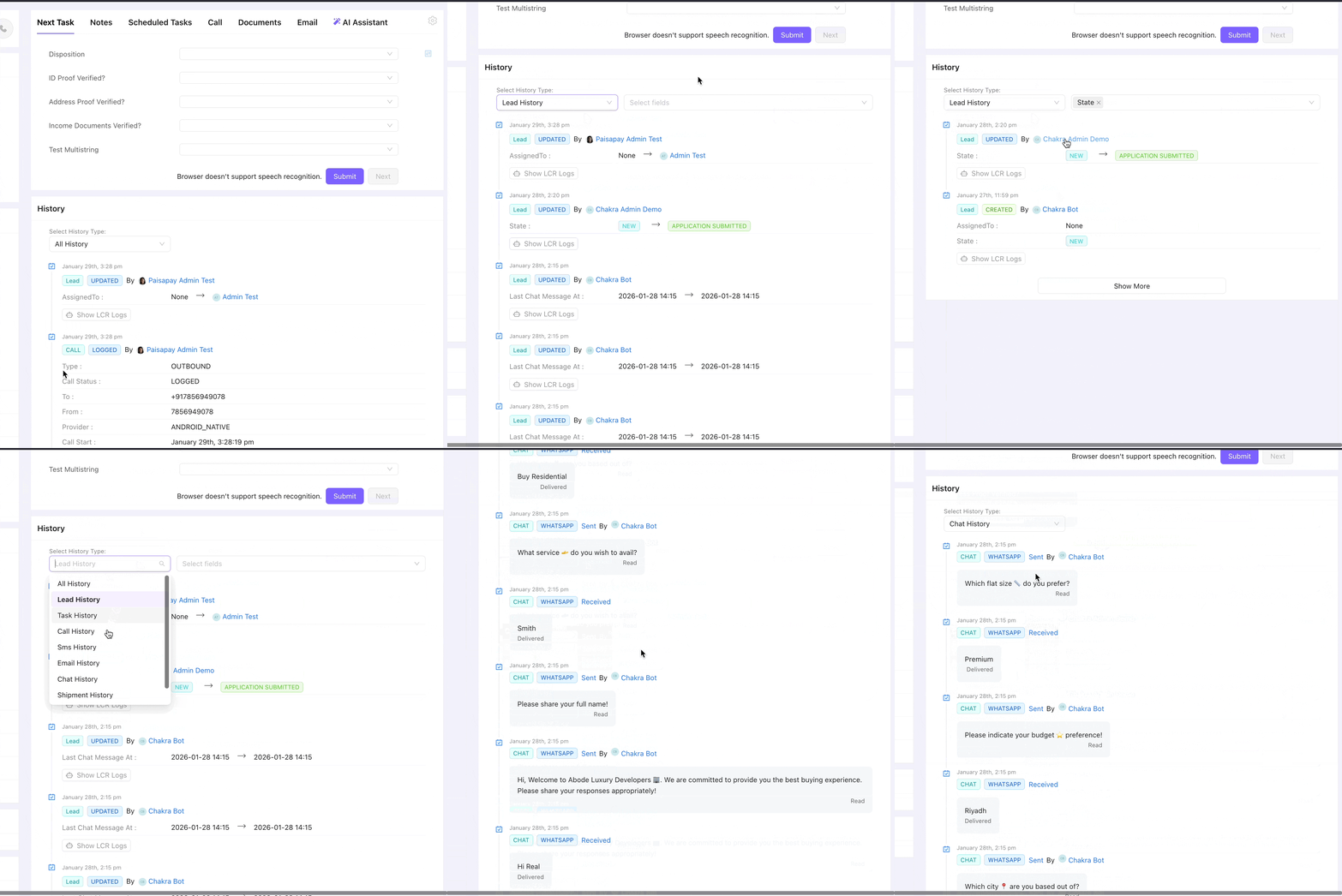
Lead History
Lead History is an immutable, chronological record of all changes made to a lead. It tracks who made each change, what changed, and when — including actions by users, the system, bots, and automations.
- Filter history by type: chat, call, email, task, or field change
- See who made each change: user, system, bot, or automation rule
- Click any history entry to expand and view its full details
- Provides an immutable audit trail for compliance and accountability