

Lead Dashboard
Detailed guide to Chakra Sales Lead Dashboard
Lead Dashboard – Feature Guide
This guide covers all features available in the Lead List dashboard in Chakra Sales CRM. Each section includes a brief description of what the feature does, followed by detailed usage notes to help you get the most out of it.
Lead List Views
Overview
Switch between three lead list view types: Table, Kanban, and Card. Each view can be customized independently.
Details
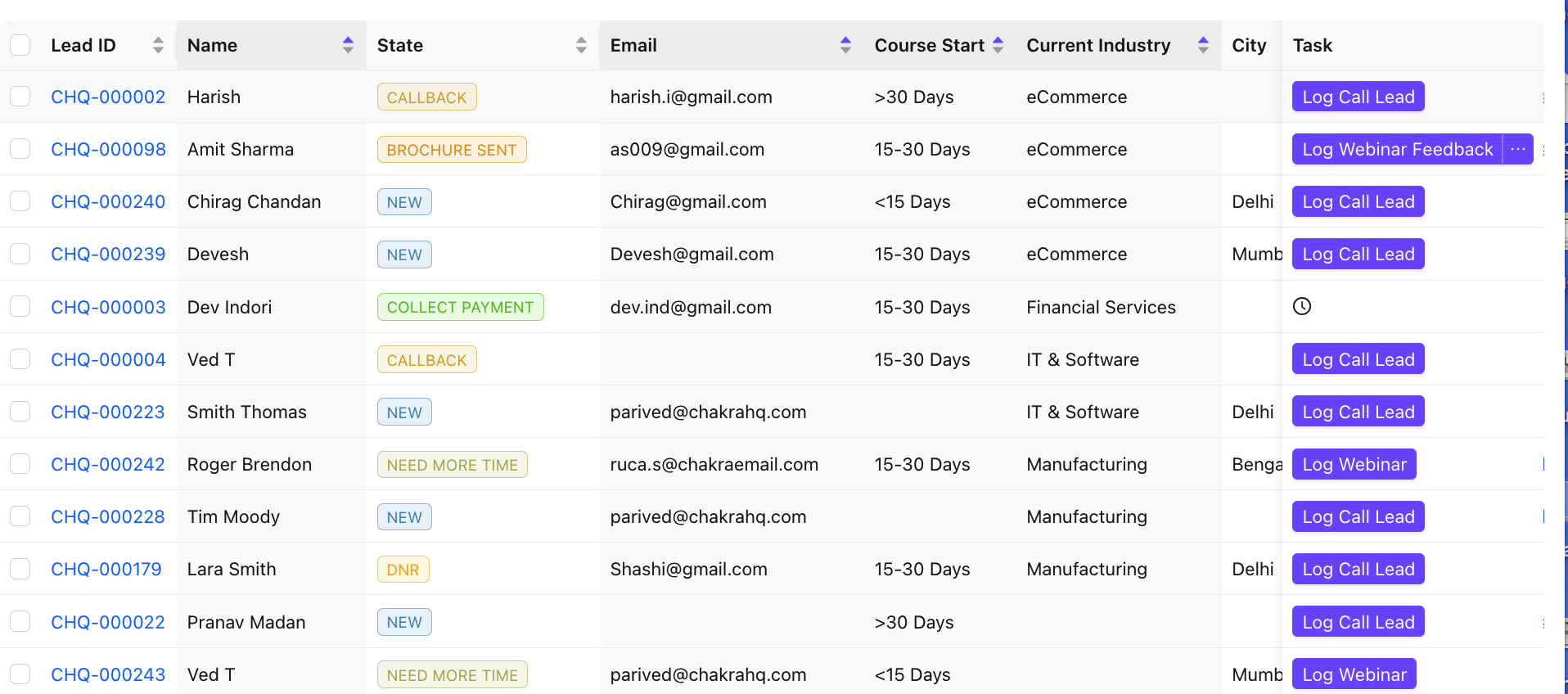
- Table view: spreadsheet-style layout with sortable, configurable columns
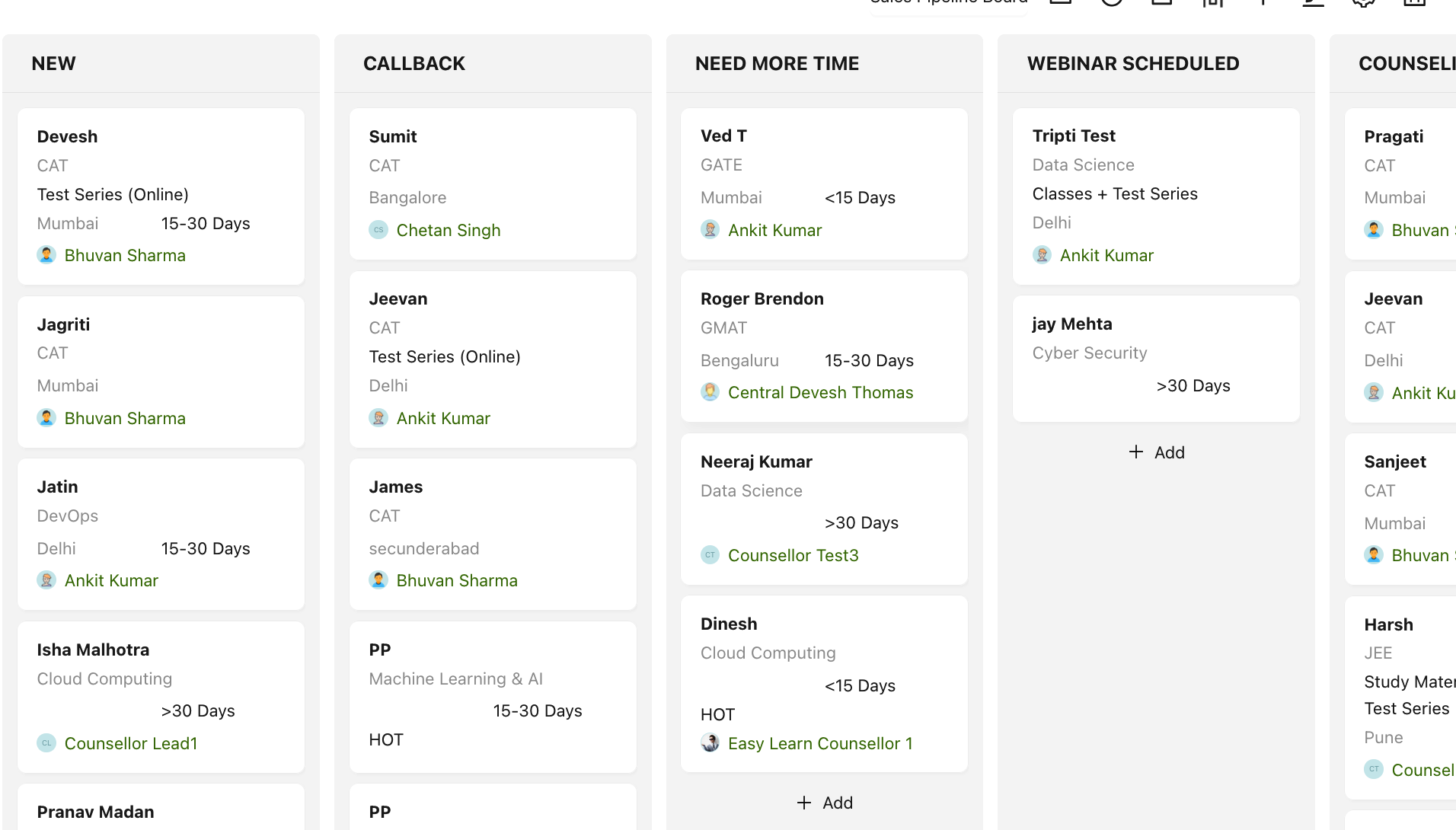
- Kanban view: drag and drop leads across pipeline stages visually
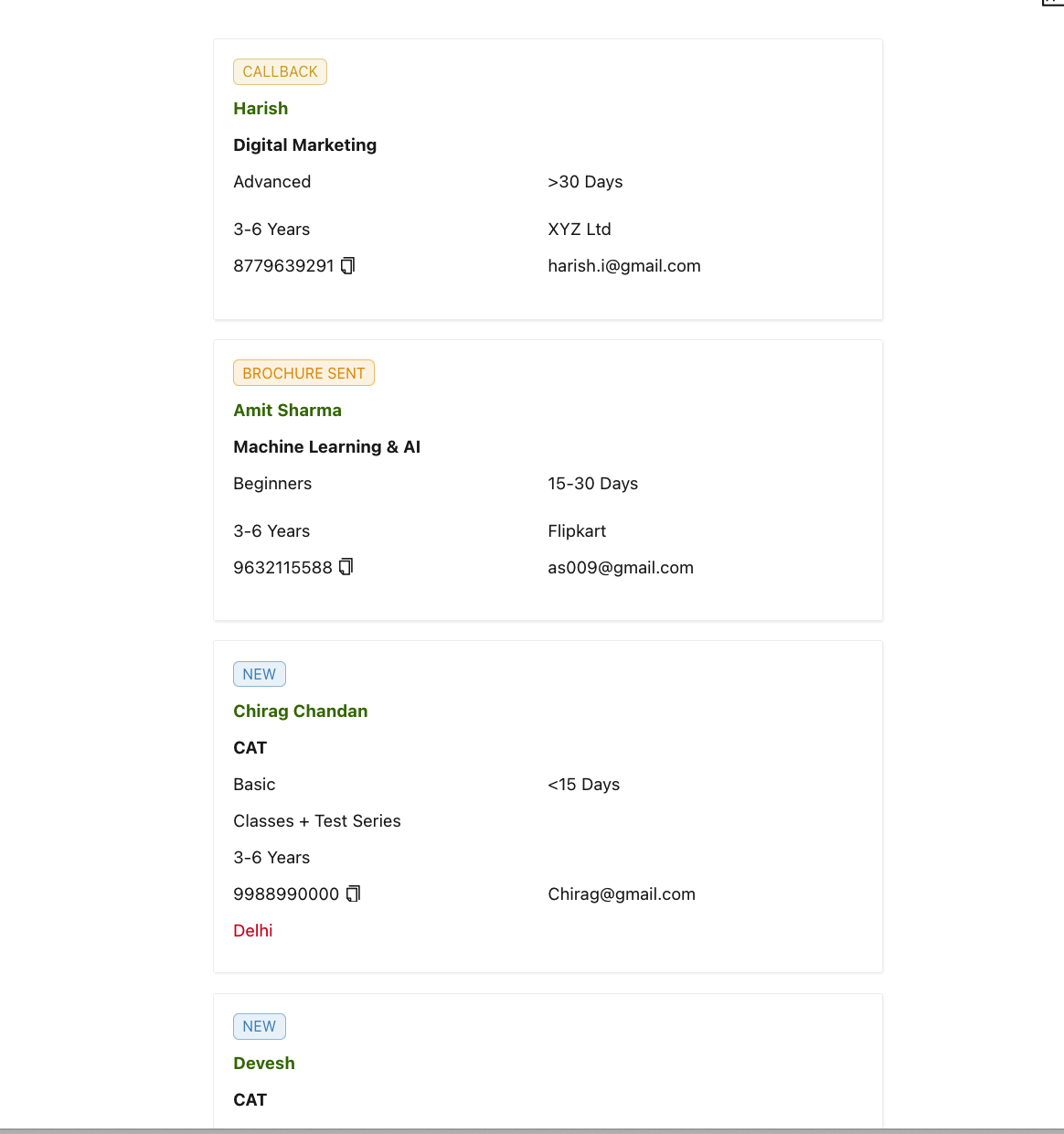
- Card view: visual tile layout for quick scanning (default view in the mobile app)
- Customize which fields are displayed in each view type independently
Lead Search
Overview
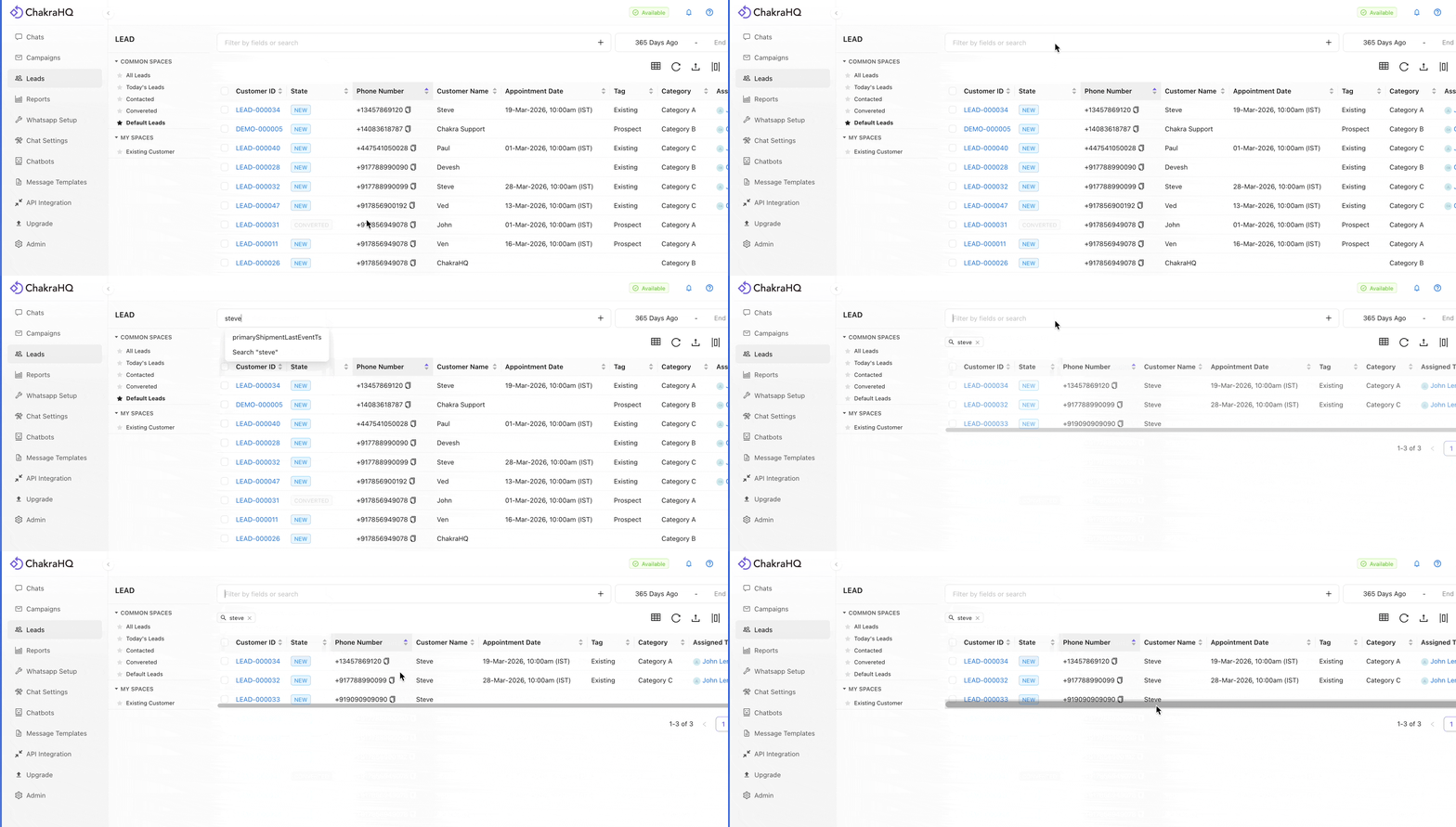
Search for leads from the lead dashboard using any lead field or attribute.
Details
- Real-time search results as you type — no need to press Enter
- Search across all lead fields, including custom fields you have created
- Combine search with filters for more precise results
- Useful for quickly pulling up a lead during a live customer call
Lead Filters
Overview
Filter leads in the dashboard using any lead field or attribute. Multiple filters can be applied together using AND/OR logic.
Details
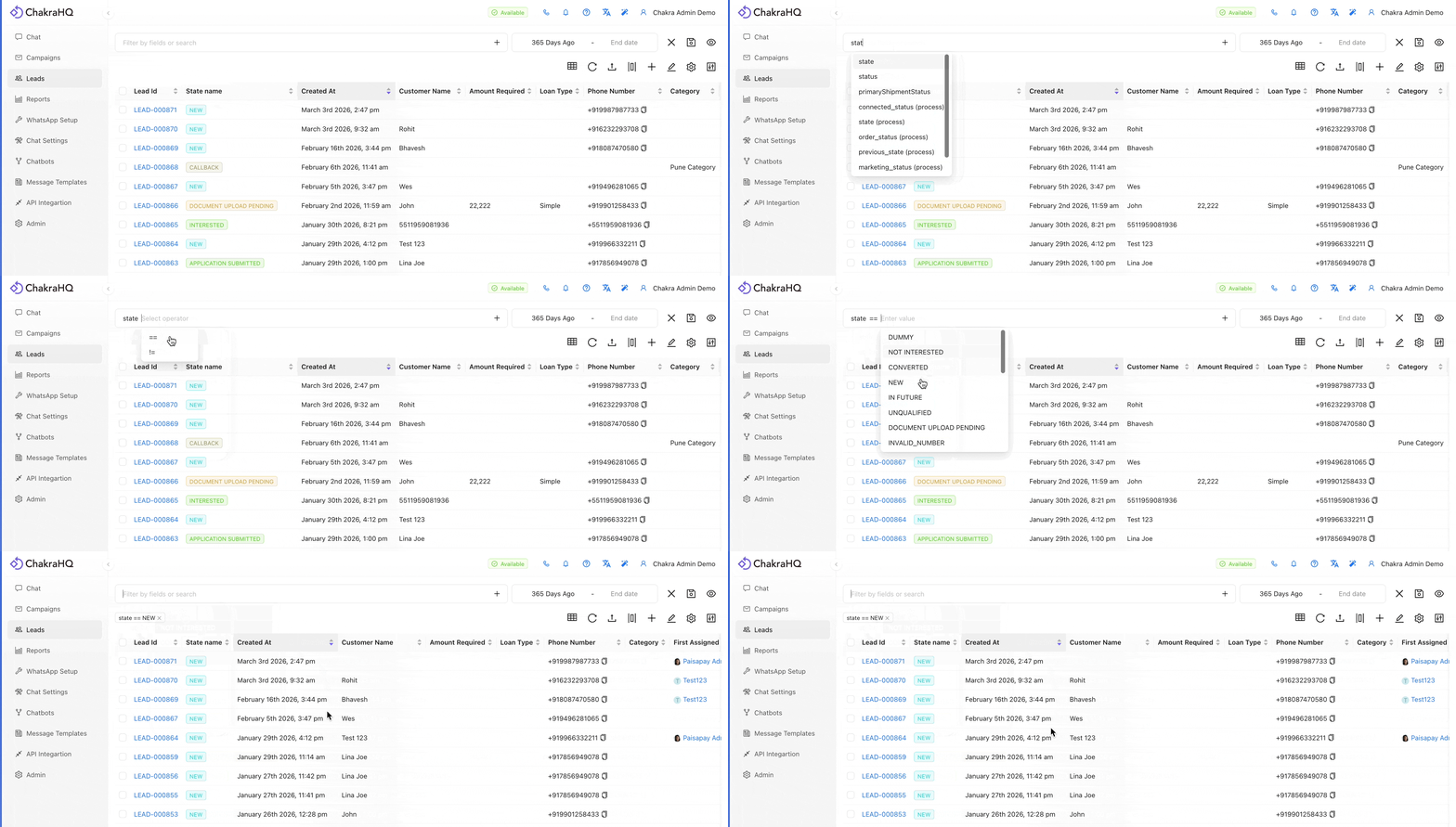
- Filter by standard fields: state, assignee, status, date created, and more
- Filter by any custom field using multiple operators (equals, contains, greater than, etc.)
- Combine multiple filter conditions with AND/OR logic
- Save filter combinations as custom views for quick one-click access later
Lead Spaces
Overview
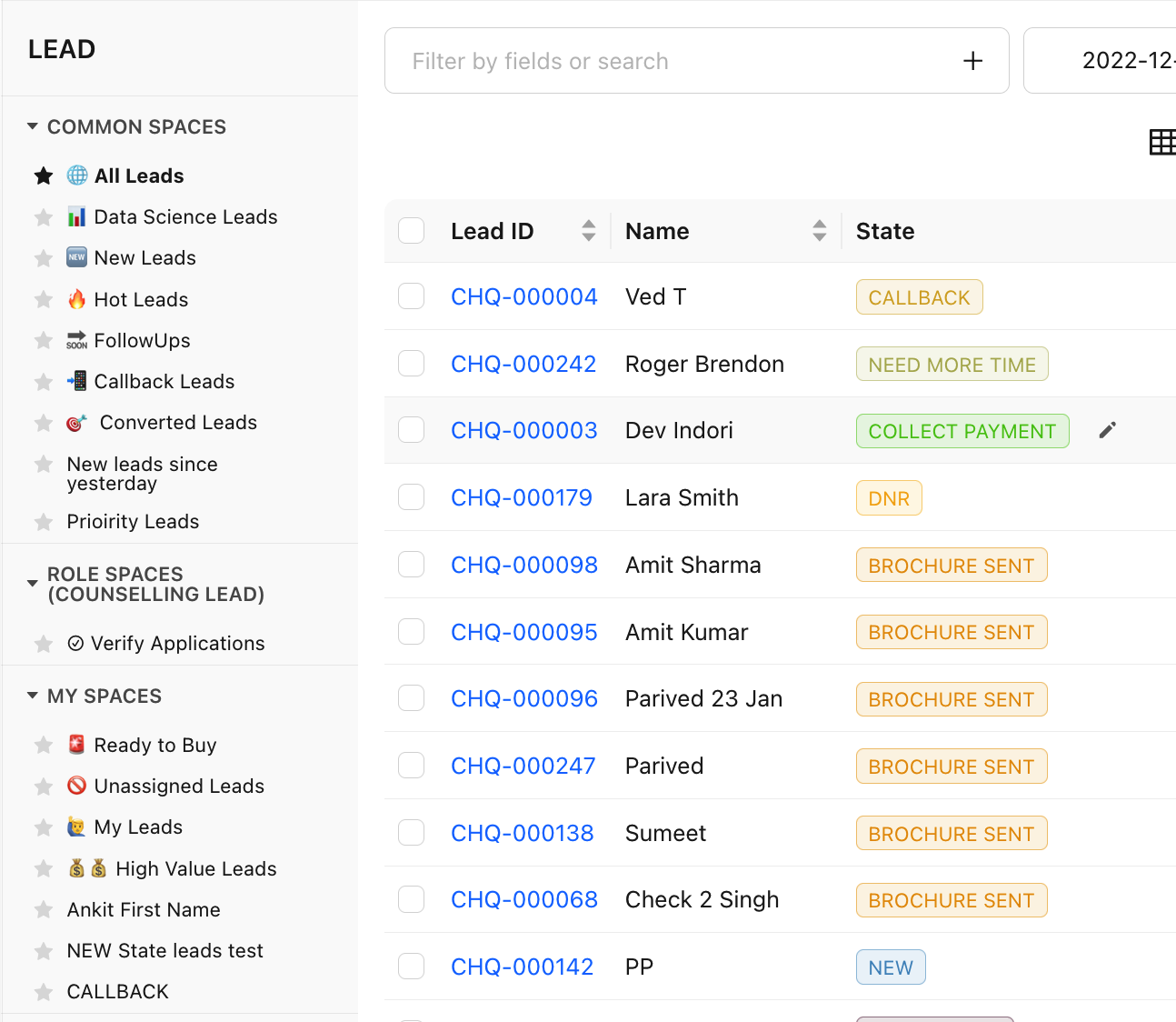
Lead Spaces are saved filters that can be accessed with a single click from the Spaces tab. Spaces can be scoped to yourself, your team, or a specific role.
Details
- Create spaces based on product line, region, team, or any custom grouping
- The lead list automatically filters to show only leads within the active space
- Move leads between spaces manually or based on automation rules
- Reduces clutter for large teams managing multiple segments simultaneously
Manual Lead Creation
Overview
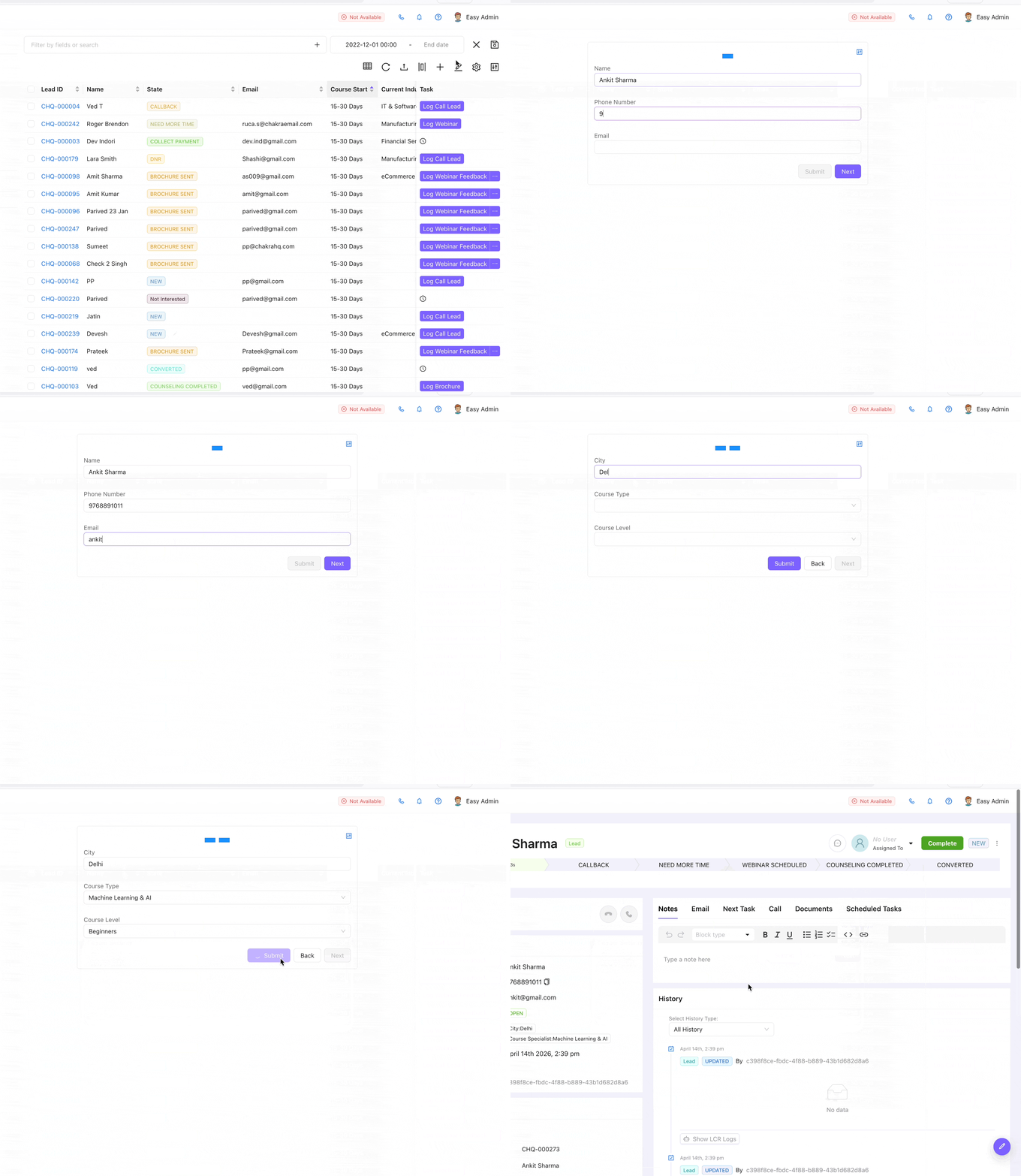
Create a single lead manually using the lead creation form. The form is customizable and allows you to fill in all lead details at the time of creation.
Details
- Enter all standard and custom fields while creating the lead
- Assign the lead to a specific user and set its initial state upon creation
- Map the lead source and channel at the time of creation
- Required fields are enforced based on your team's configuration
Bulk Lead Upload
Overview
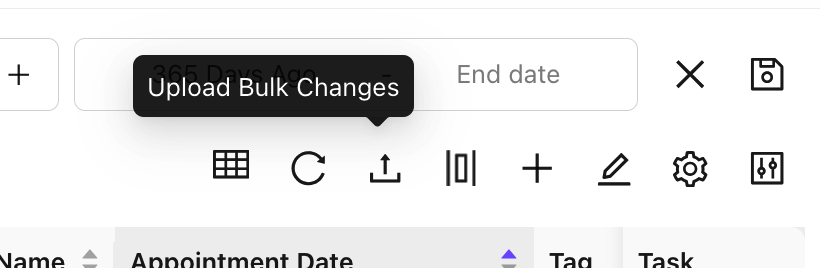
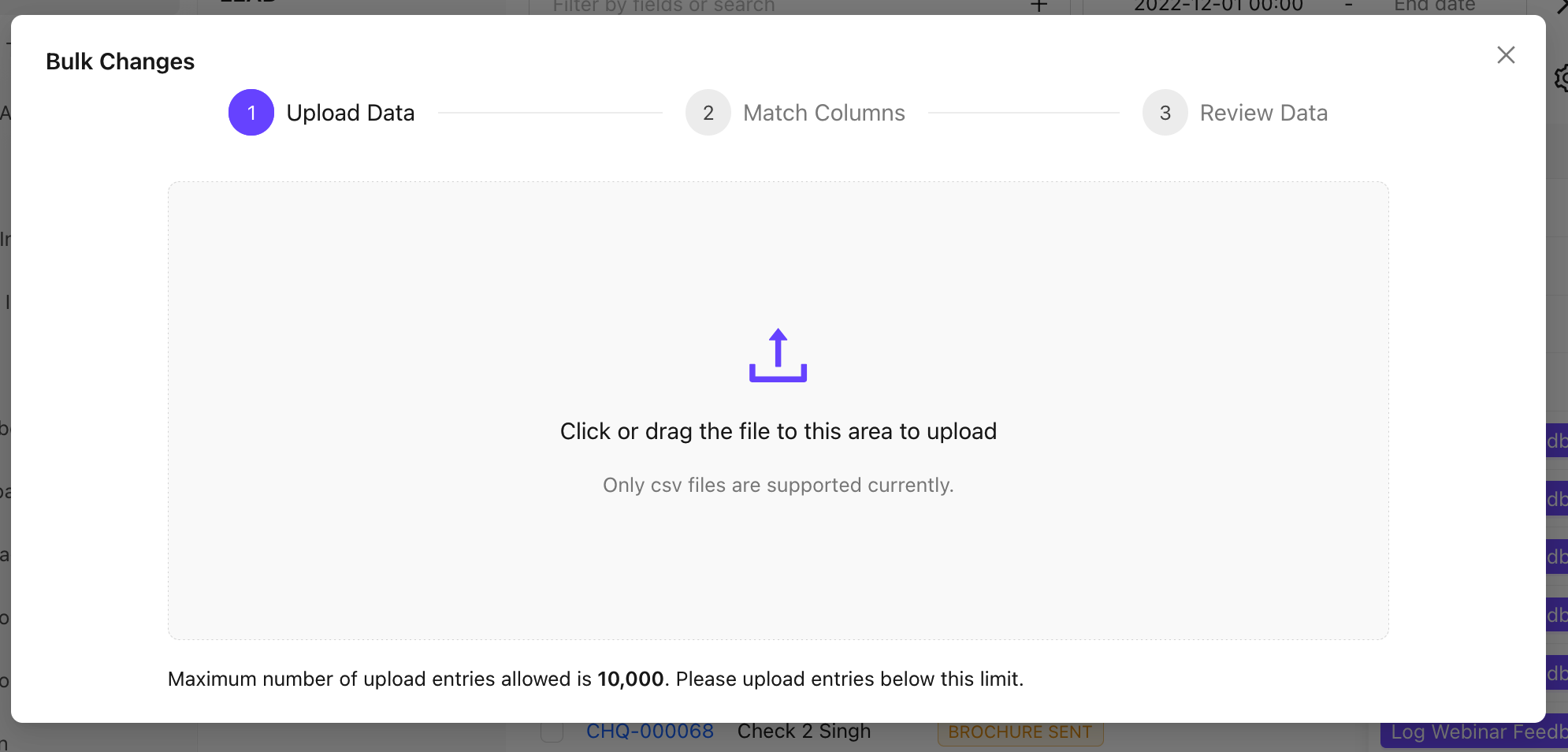
Add multiple leads at once by uploading a CSV file. Map your CSV columns to Chakra lead fields during the import process.
Details
- Upload leads via CSV and map your file's columns to Chakra lead fields
- Validate for duplicate detection before finalizing the upload
- Review an upload summary showing success count and any errors
- Large imports are processed efficiently with a clear status report on completion
Lead List Bulk Selection
Overview
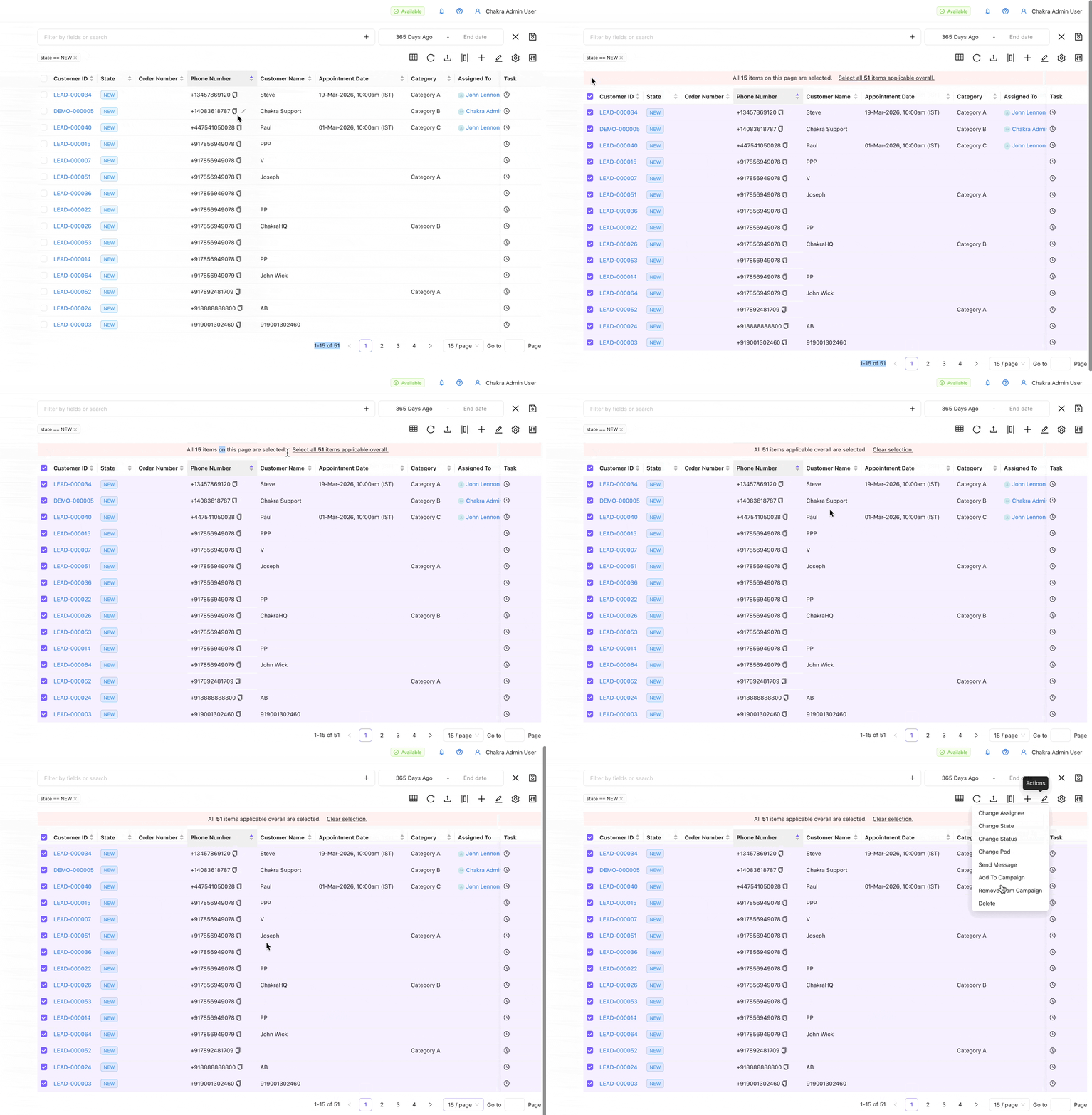
Select multiple leads at once using individual checkboxes, a Select All option for the current page, or a Select All across all pages option.
Details
- Check individual leads or use 'Select All' to select the entire current page
- Expand selection to all leads across all pages for large-scale actions
- Apply bulk actions: assign, add to campaign, delete, or download
- The total selection count is shown before you confirm any bulk action
Lead Action Buttons
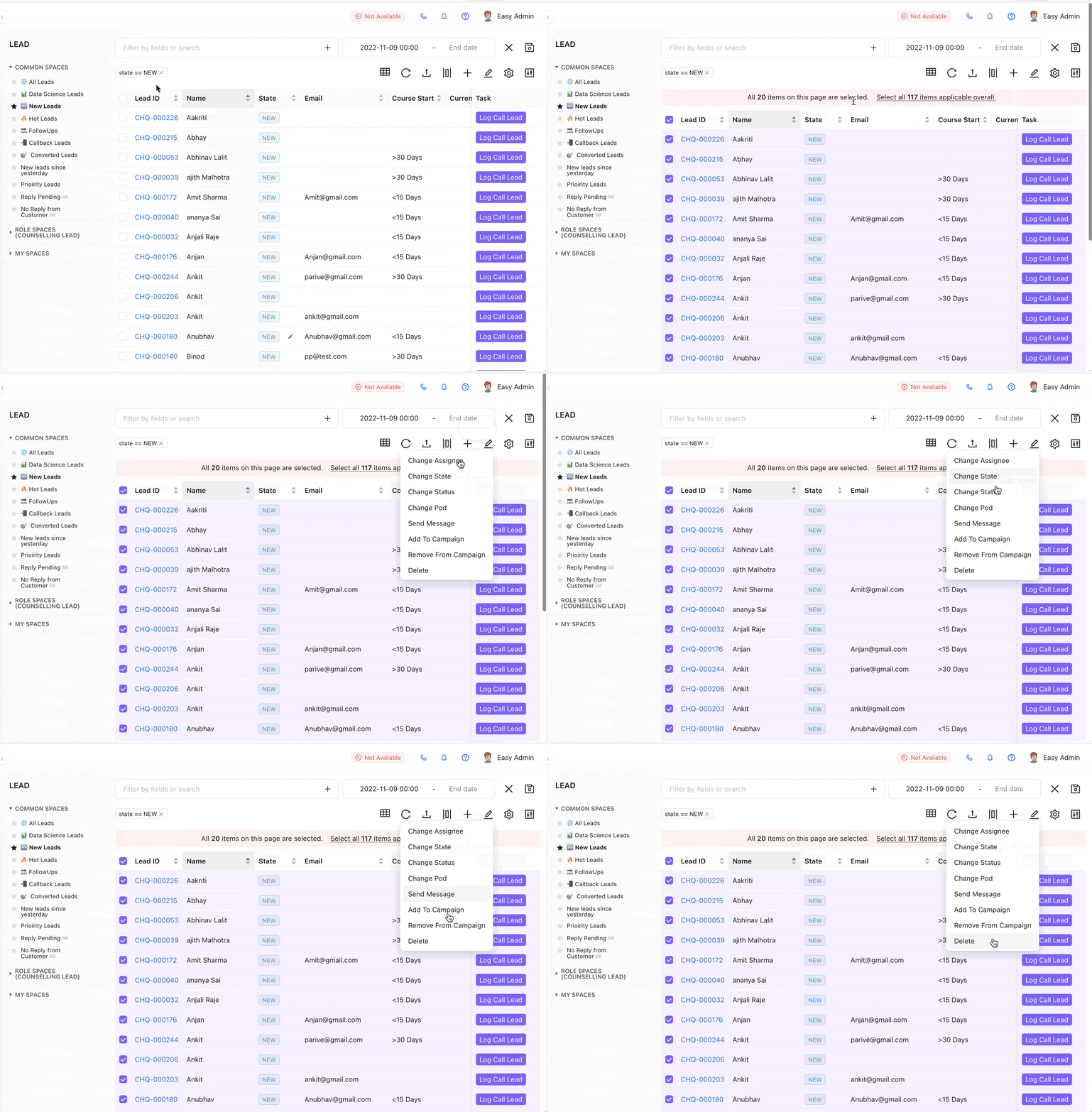
Lead actions are dedicated buttons perform specific actions on the entire lead list or particular leads.
Lead Delete
Overview
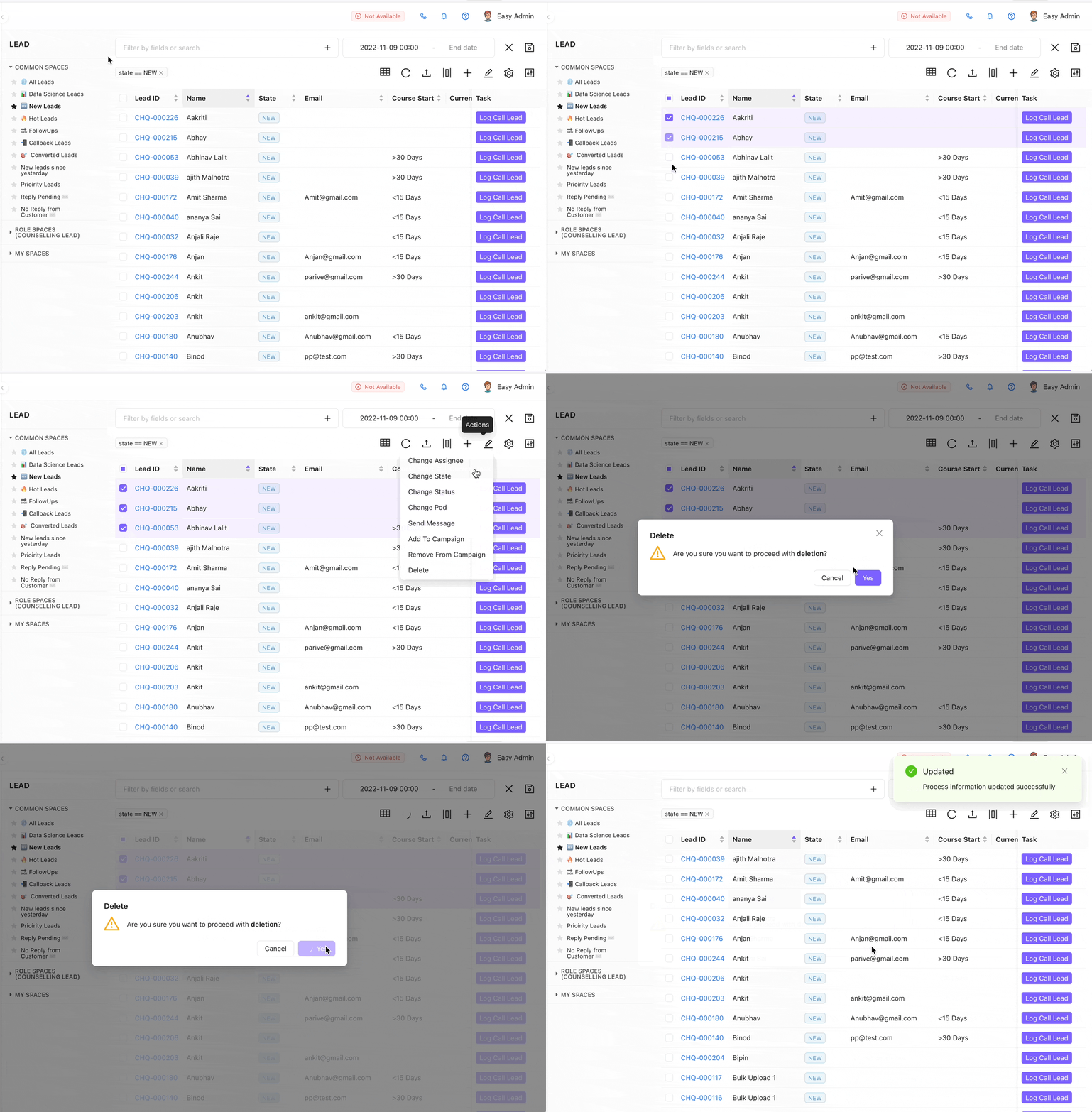
Permanently delete multiple leads at once. This action is available to Admins or Managers (configurable) using bulk selection and the Delete action.
Details
- Select leads individually or use the bulk selection option
- A confirmation step is required before permanently removing leads
- Deleted leads are removed from all views, filters, and reports
- Use filters first to ensure you are selecting the correct leads before deleting
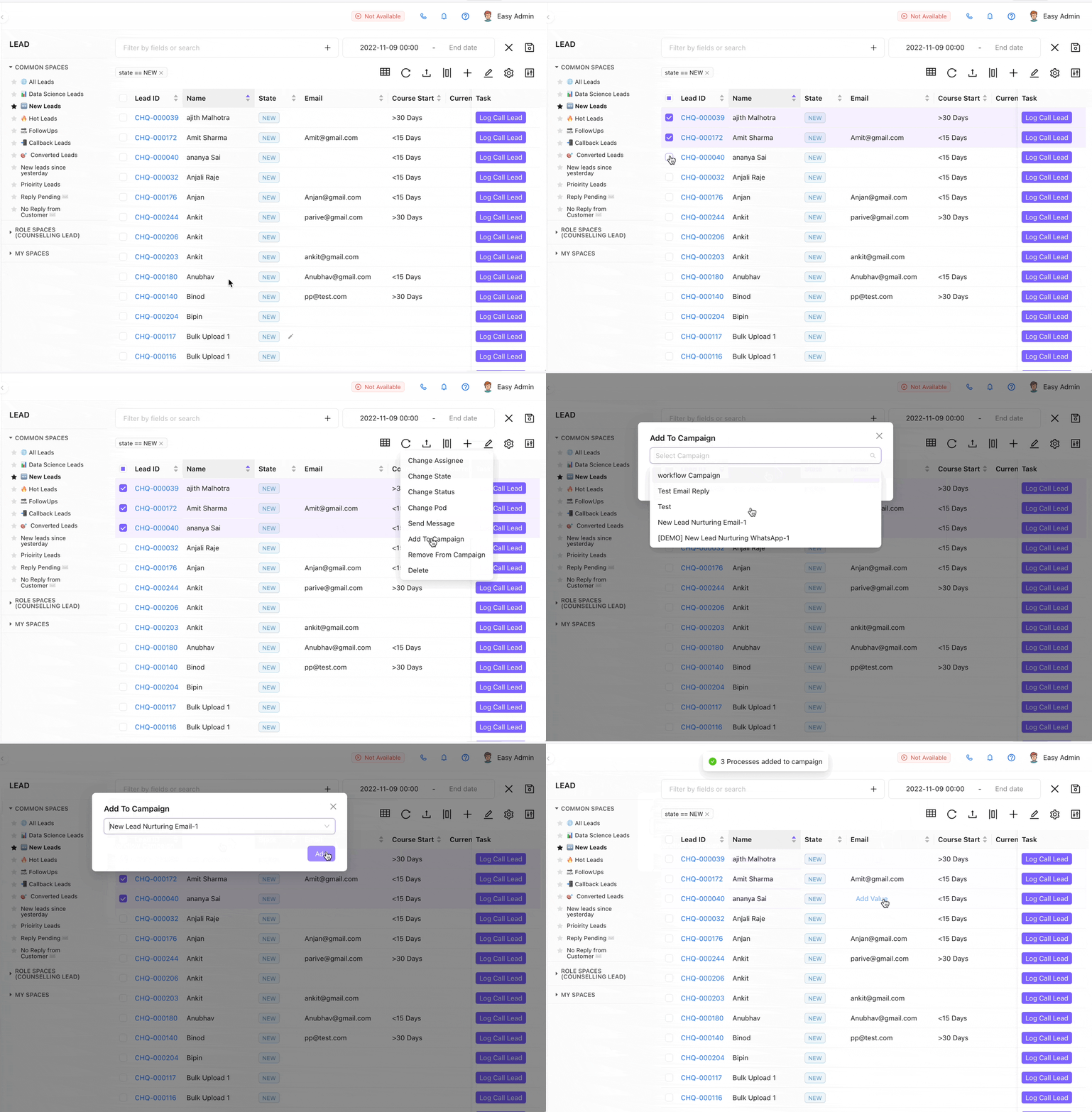
Add to Campaign
Overview
Add selected leads to an active campaign using the Add to Campaign action button.
Details
- Select leads from the list and add them to any active campaign
- Choose the campaign type: broadcast or workflow
- Preview the audience count before confirming enrollment
- Leads added are immediately queued for campaign delivery
Remove from Campaign
Overview
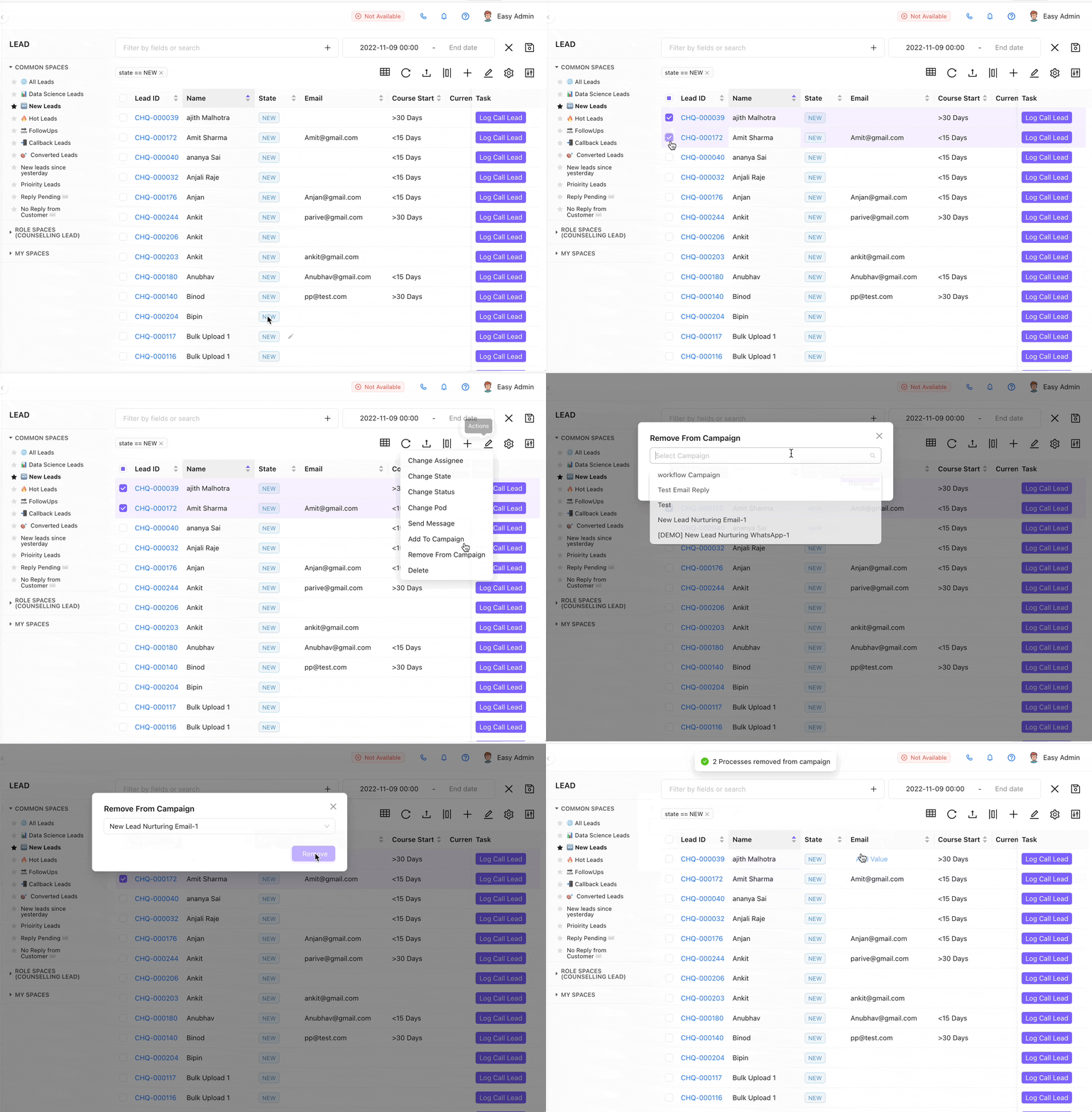
Remove selected leads from a campaign using the Remove from Campaign action button.
Details
- Select one or more leads from the lead list
- Choose the campaign you want to remove the leads from
- Removal takes effect immediately and stops further campaign messages to those leads
- Use filters to identify and select the right leads before removing
Change Assignee
Overview
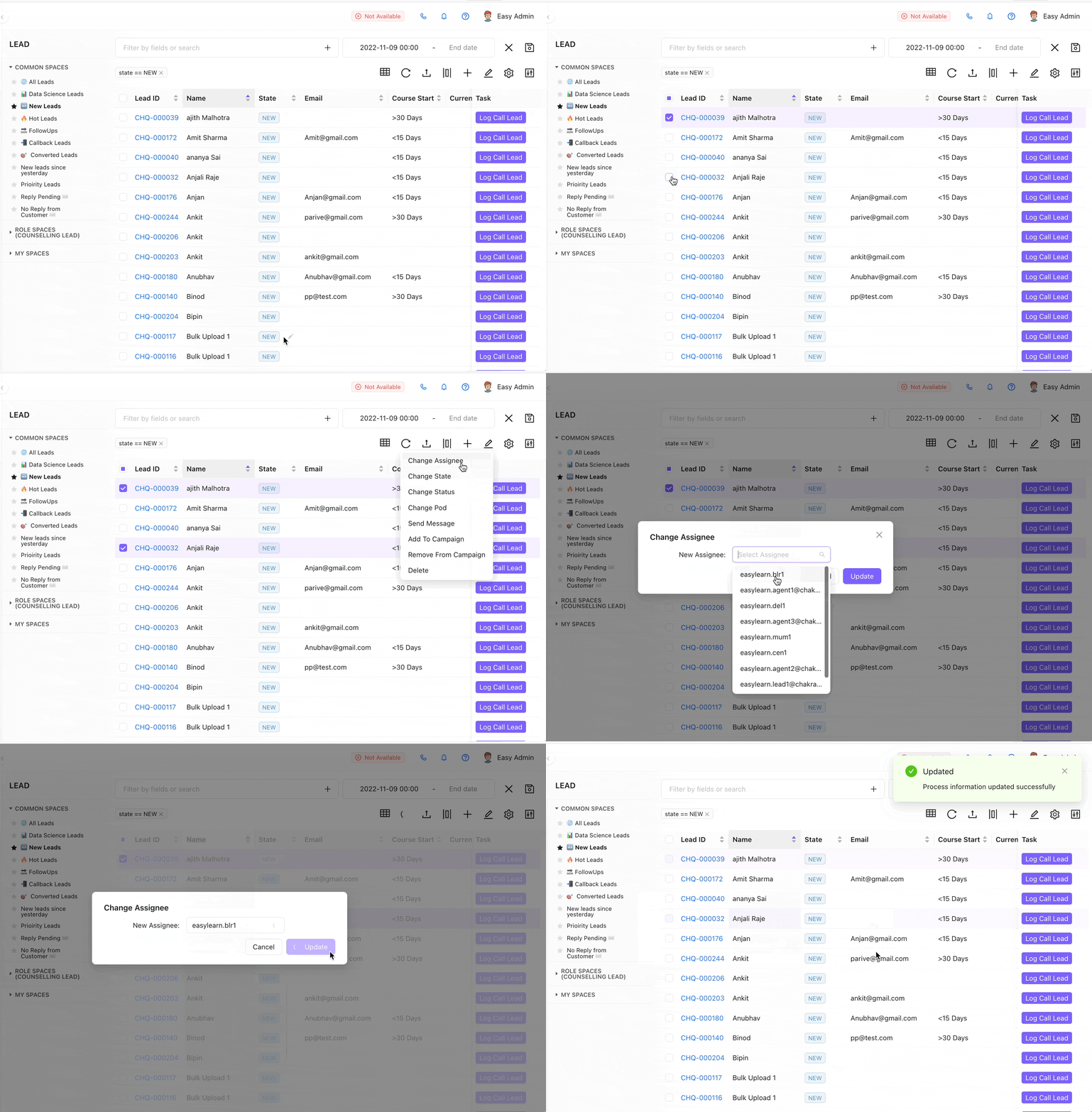
Reassign multiple leads to a different user in a single action using the Change Assignee option.
Details
- Select multiple leads and change their assignee in one action
- Choose any active user from your team as the new assignee
- All changes are logged in each lead's history for traceability
- Reassigned leads trigger notifications to the newly assigned owner
Lead List Customization
Overview
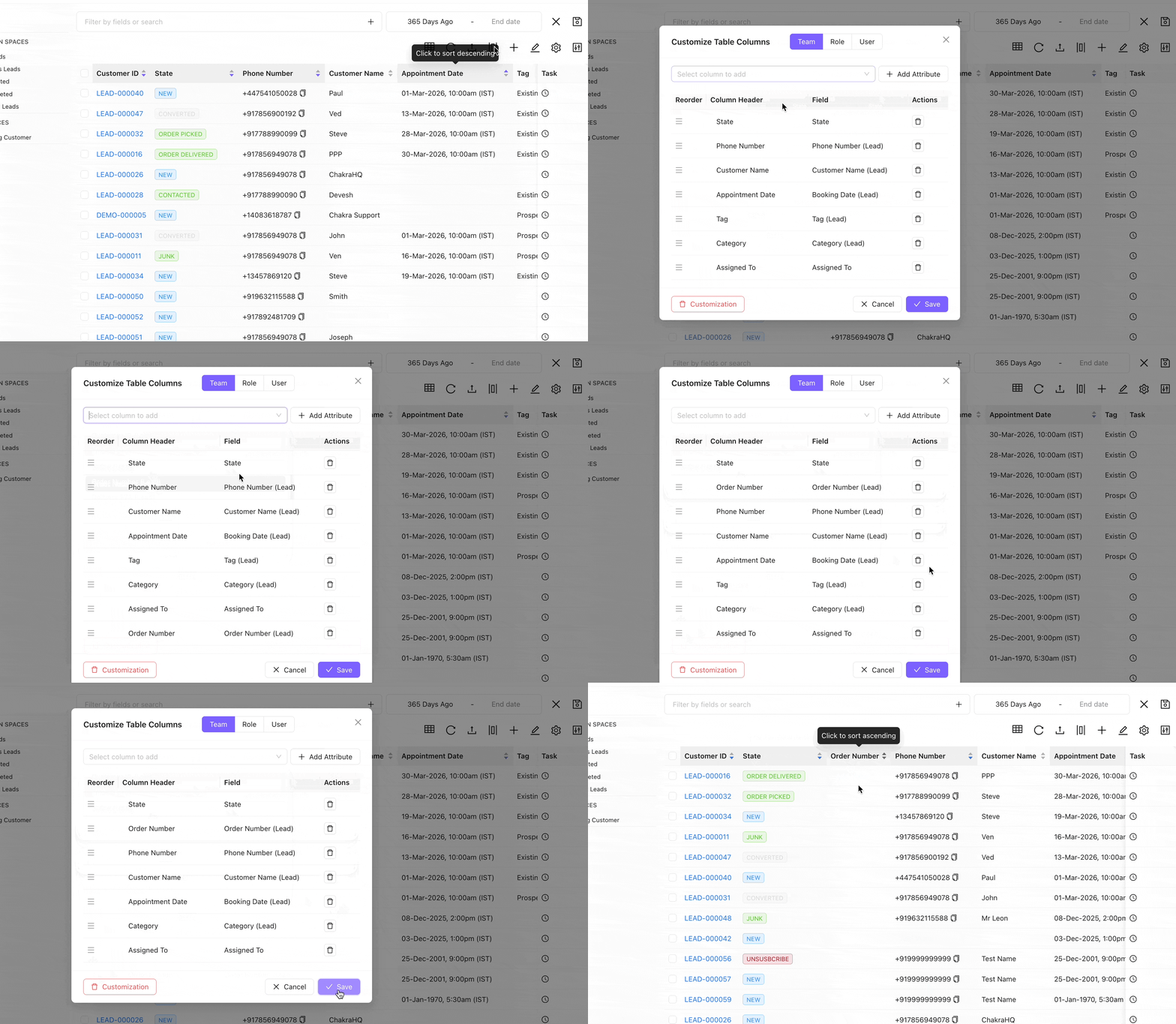
Customize the columns shown in your lead dashboard — add, remove, reorder, and sort columns to match your workflow.
Details
- Add or remove columns, including custom fields
- Drag columns to reorder them in the table view
- Save your personalized column view per user
- Different team members can maintain their own individual list configurations
Lead List – In-Place Field Editing
Overview
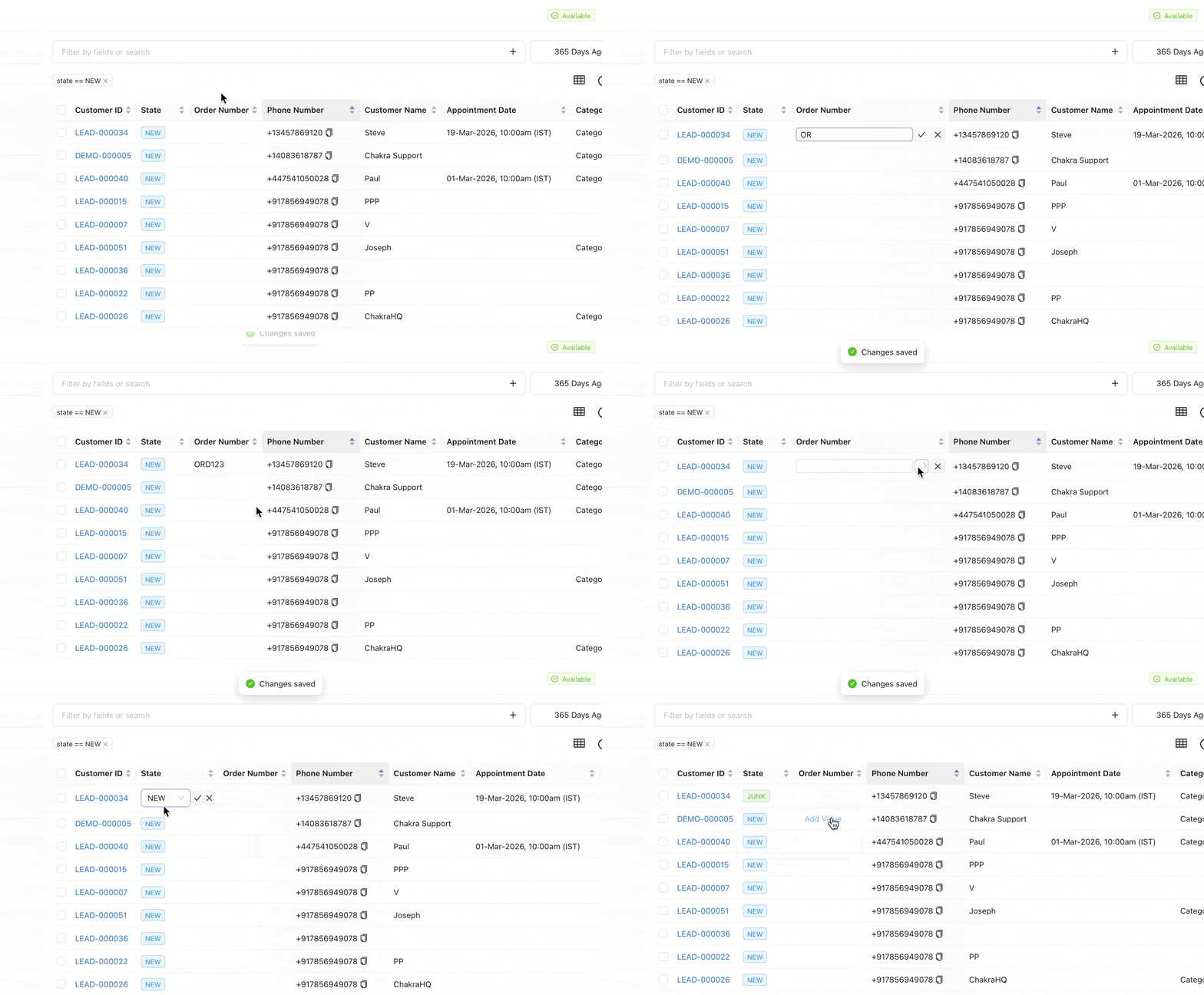
Edit lead fields directly from the lead list without opening the lead detail view.
Details
- Click any editable cell in the lead table to edit it inline
- Supports text, dropdown, and date field types
- Changes are saved instantly and logged in the lead's history
- Reduces the need to switch between the lead list and individual lead detail pages
Lead List Sorting
Overview
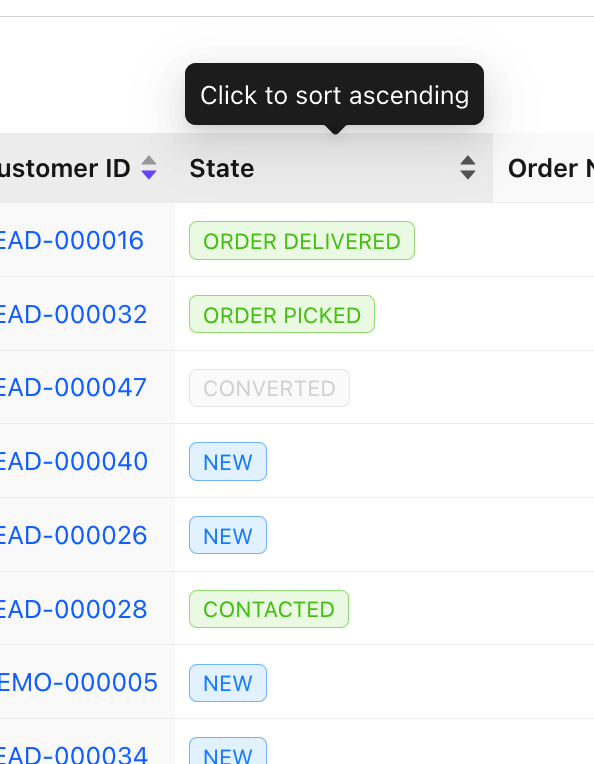
Sort the lead list by any column in ascending or descending order.
Details
- Click any column header to toggle between ascending and descending order
- Sort by date fields, text, numbers, or dropdown values
- Your sort preference is maintained throughout the current session
- Combine sorting with filters to precisely prioritize your lead list
Lead Bulk Download
Overview
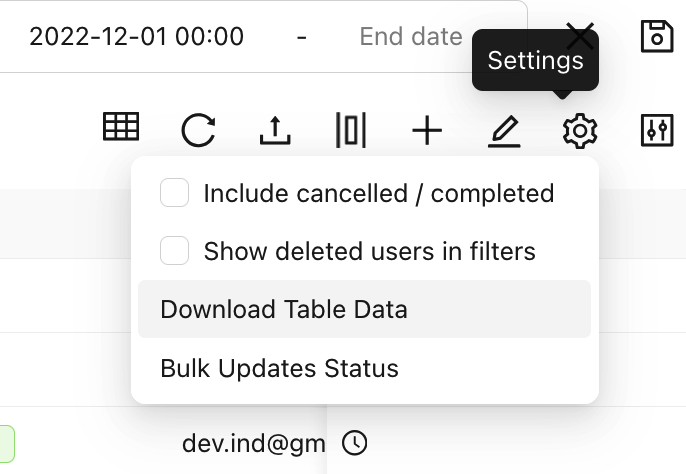
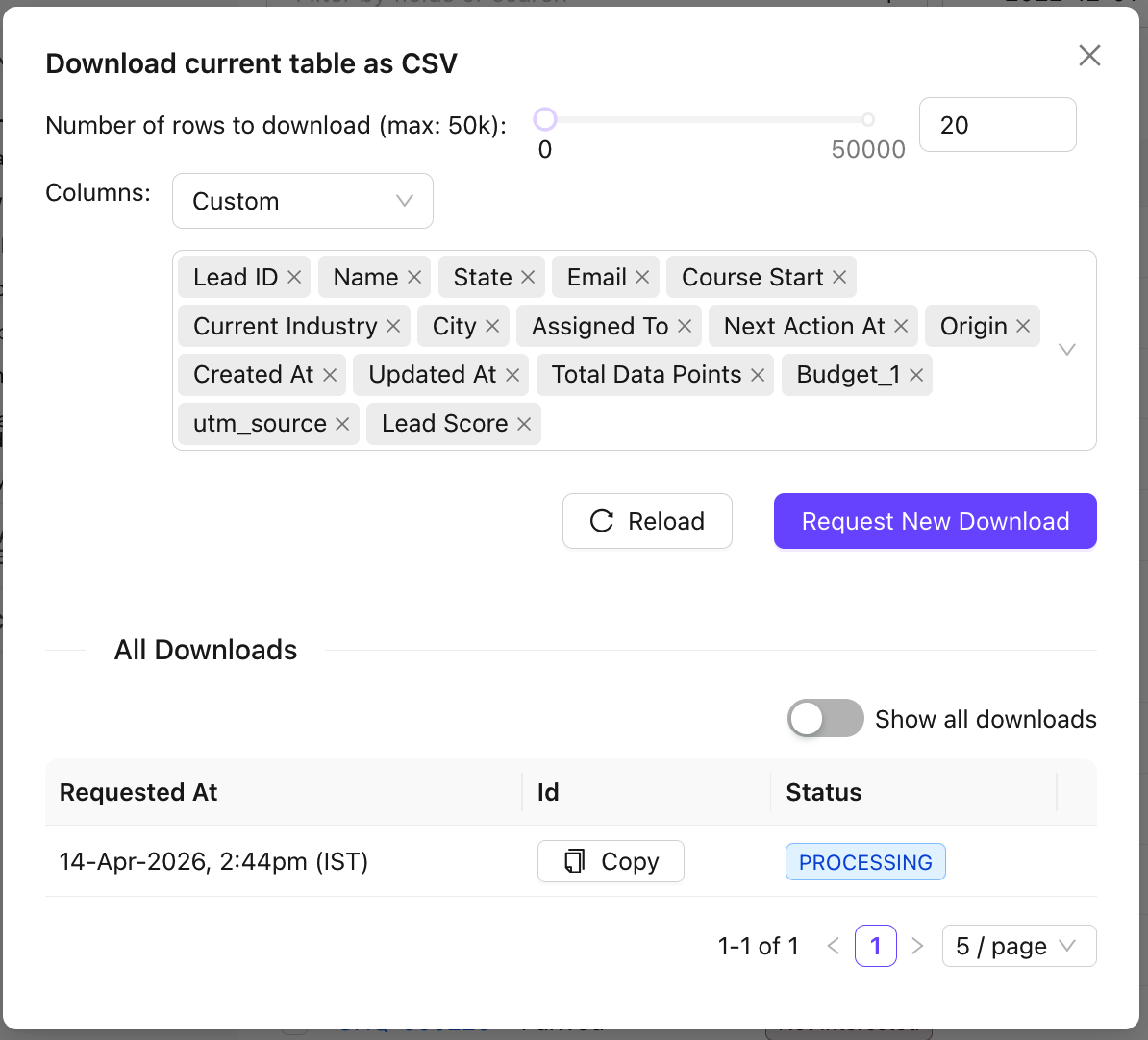
Export your lead list or a filtered subset as a CSV file. Choose which fields to include in the download.
Details
- Download the current filtered lead list as a CSV file
- Select which fields to include in the export
- Large exports are processed and made available for download or sent via email
- Useful for sharing lead data with external tools or stakeholders
Lead List Navigation
Overview
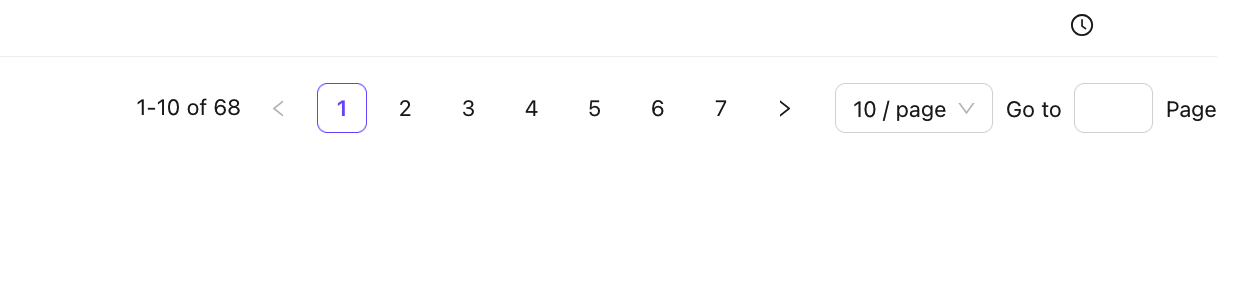
Navigate through pages of your lead list using page number buttons, the next/previous buttons, or by jumping directly to a specific page.
Details
- Use previous/next buttons or type a specific page number to jump directly
- Configure the number of rows displayed per page: 25, 50, or 100
- Navigate directly to the last page to view recent or oldest leads
- Pagination state is preserved when switching between filters or spaces
Lead States
Overview
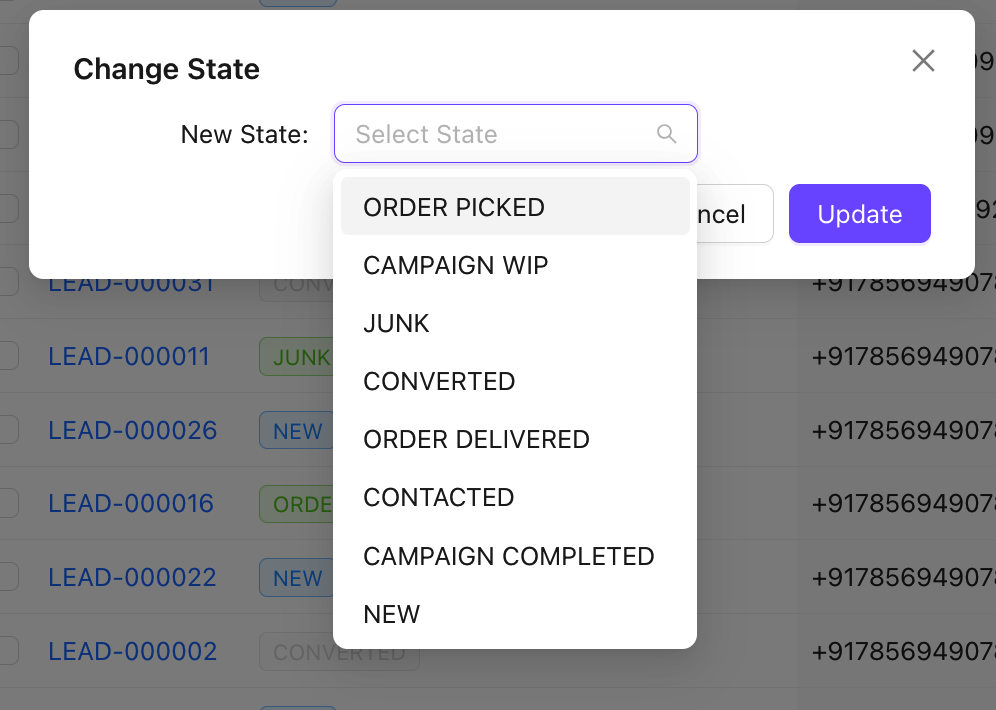
Lead States represent the stages of a potential customer's journey, from initial contact through to conversion or loss. States are fully customizable.
Details
- Create and customize states to match your specific sales process
- Move leads between states manually or automatically via automation rules
- Each state can have specific tasks and workflow automations attached to it
- Use Kanban view to visually manage and move leads across states
Lead Status
Overview
Lead Status is a system field that defines whether a lead is active or inactive: Open (Active), Closed (Inactive), or Cancelled (Inactive). Open leads appear in the default lead dashboard.
Details
- Open leads are visible in the active lead dashboard by default
- Closed or Cancelled leads can be made visible using the toggle option in Settings
- Status changes are logged in the lead's history with timestamps
- Automations can update lead status automatically based on pipeline events