Add Custom field in Lead
Add custom field/attribute in Chakra Chat Leads
Overview
In Chakra Chat, you can add custom field in the Lead as per your requirement. The custom field (attribute) will be visible in the lead section to all users.
Steps to add custom field to lead
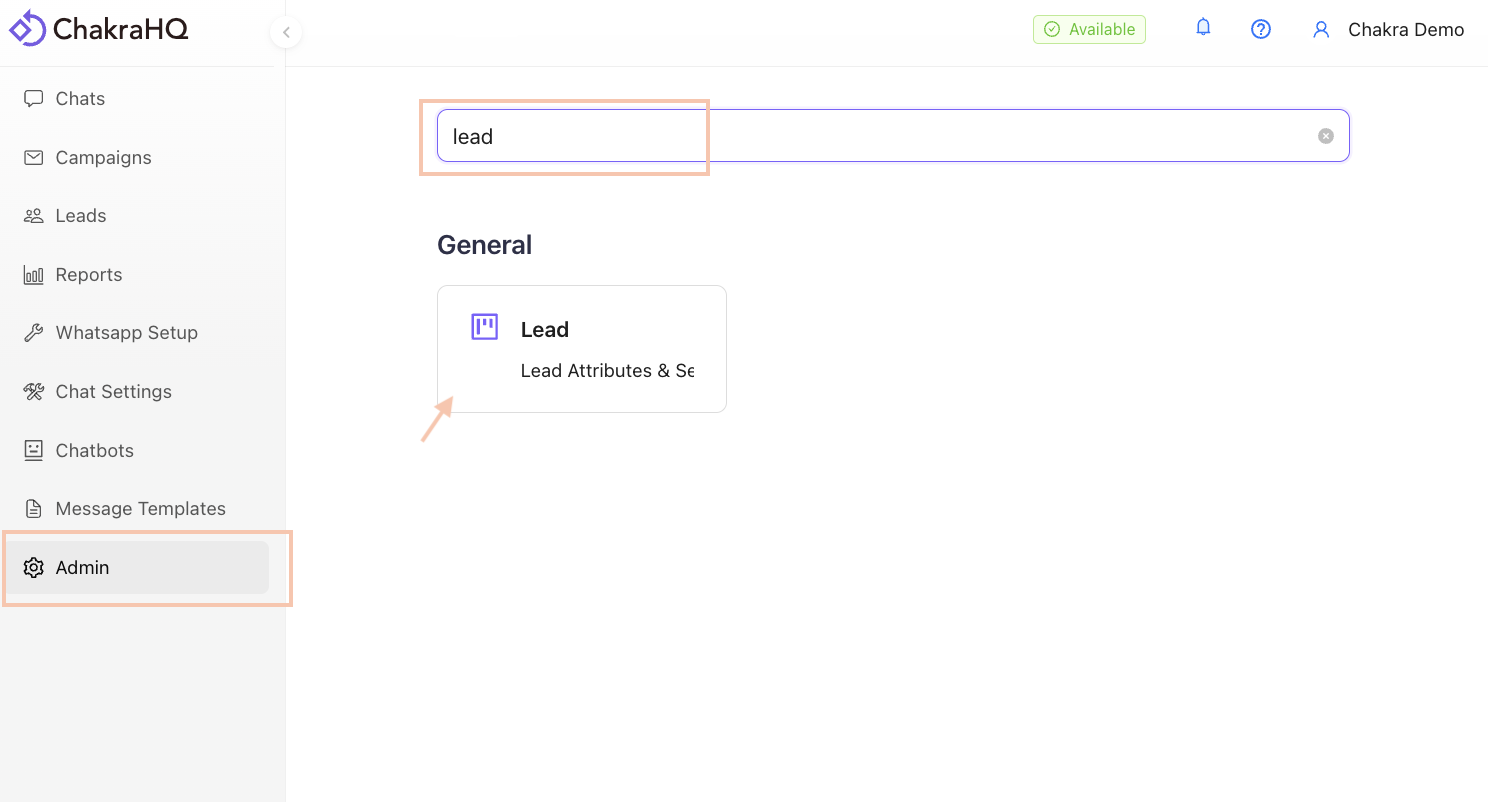
Go to Lead Settings
Go to Admin. In the Leads section in the left sidebar. Search for Lead in the search bar and click on the Lead settings Box
Go to Lead Attributes
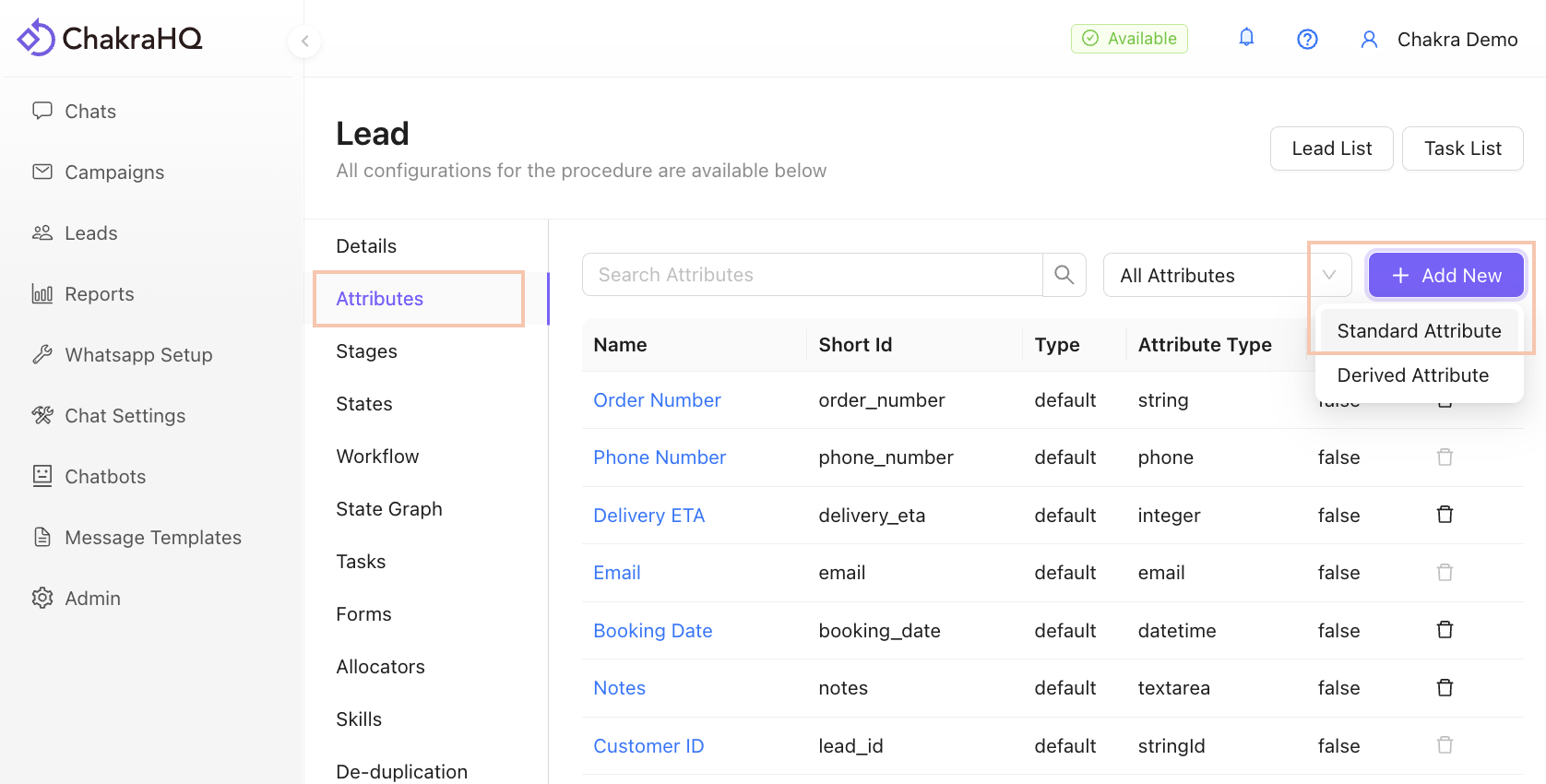
Next, go to Attributes in the left side panel. Click on Add New and choose the Standard Attribute option.
Configure the new field (attribute)
Configure the attribute in the pop up box
- Add a
Name - The short id is automatically generated
- Select the
Attribute Type. (e.g.,Stringfor text fields orDatefor date fields)
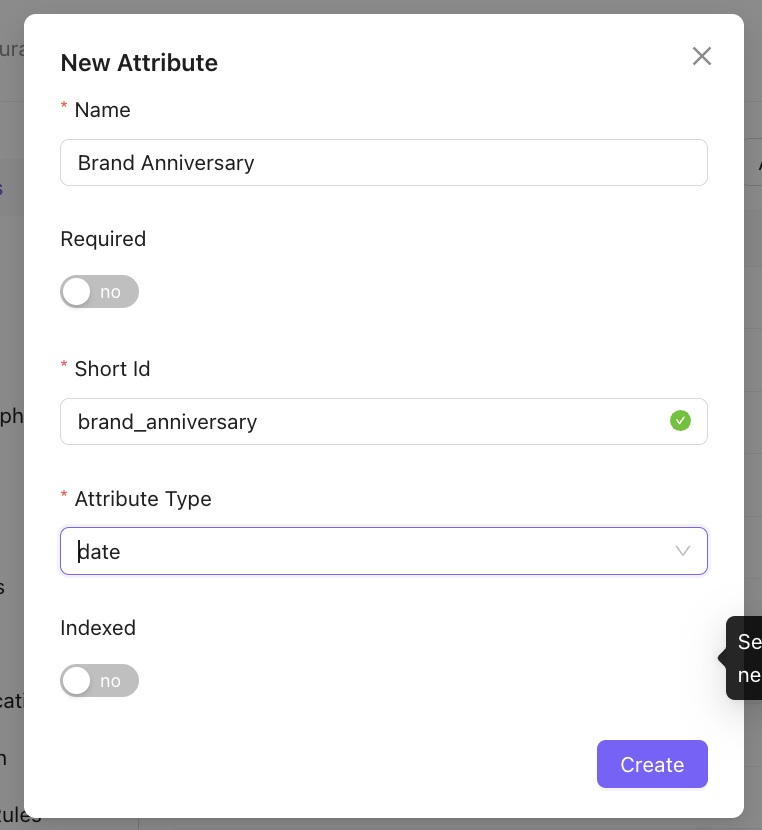
Click Create
This will add a new field (attribute) in the lead.
For Custom Fields with Fixed Values
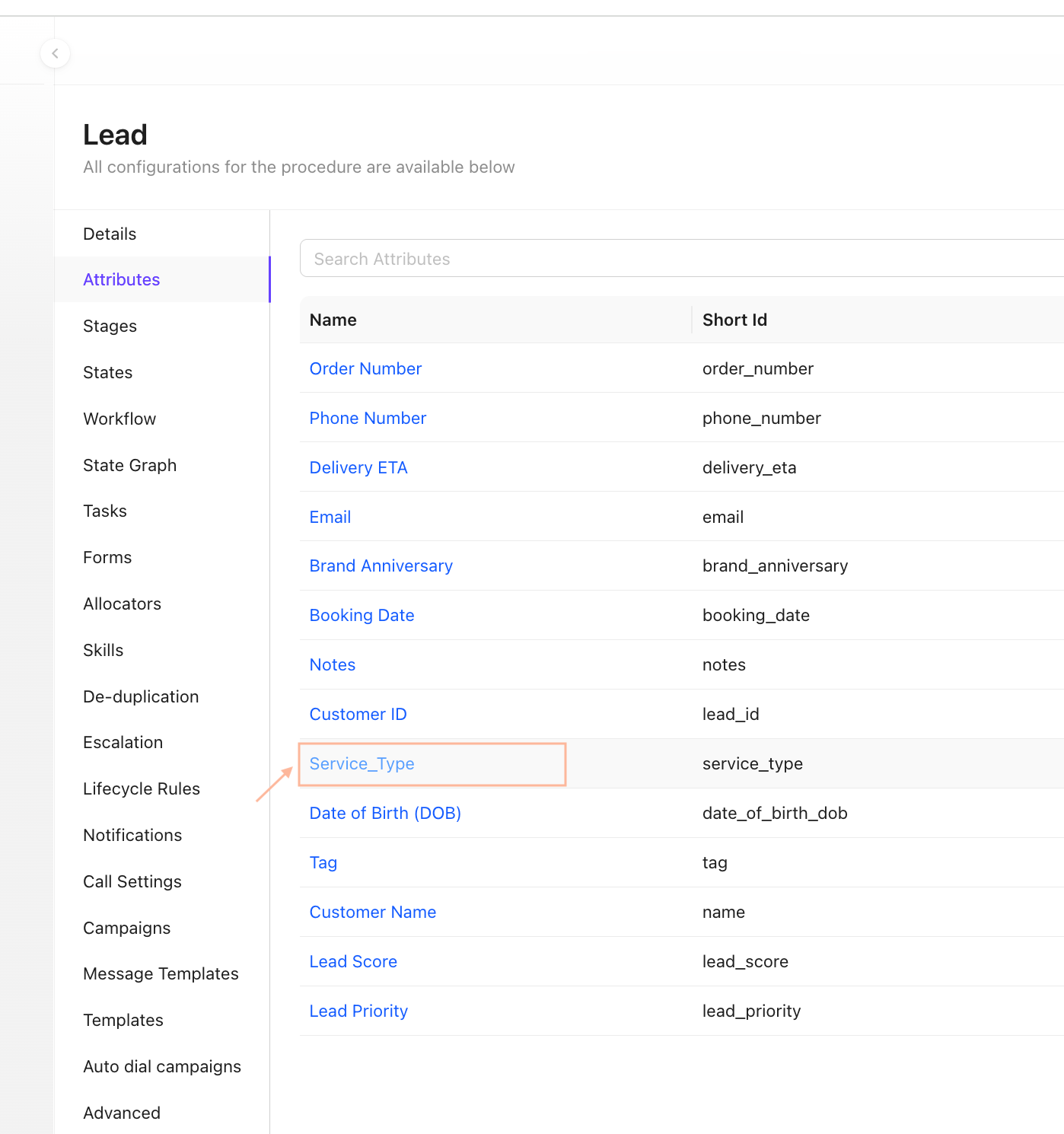
Select the Customer Lead Attribute
Go to Admin -> Lead -> Attribute. Select the Attribute
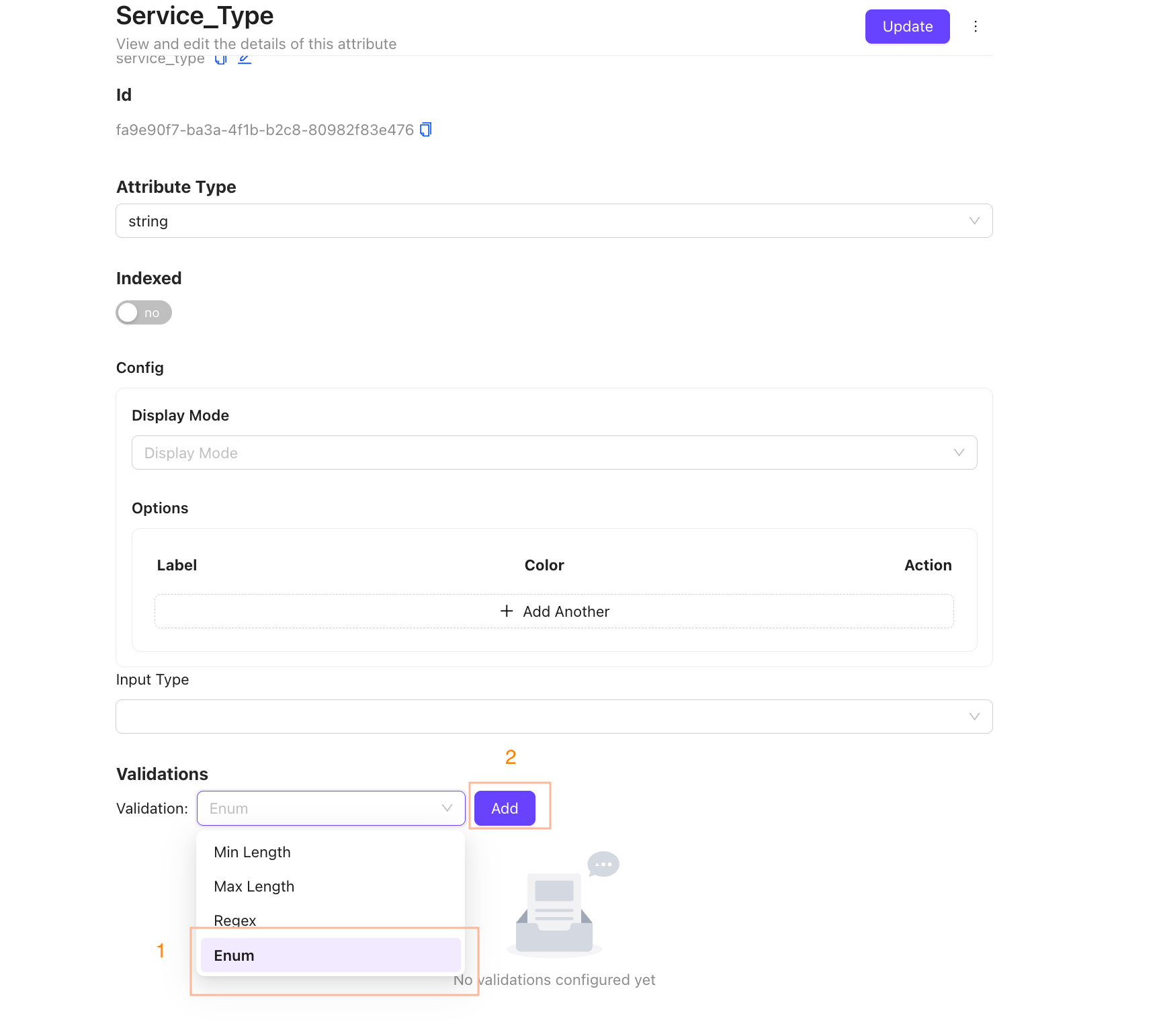
Select Enum in Validations
Select the 'Enum' option in Validation section. Click Add
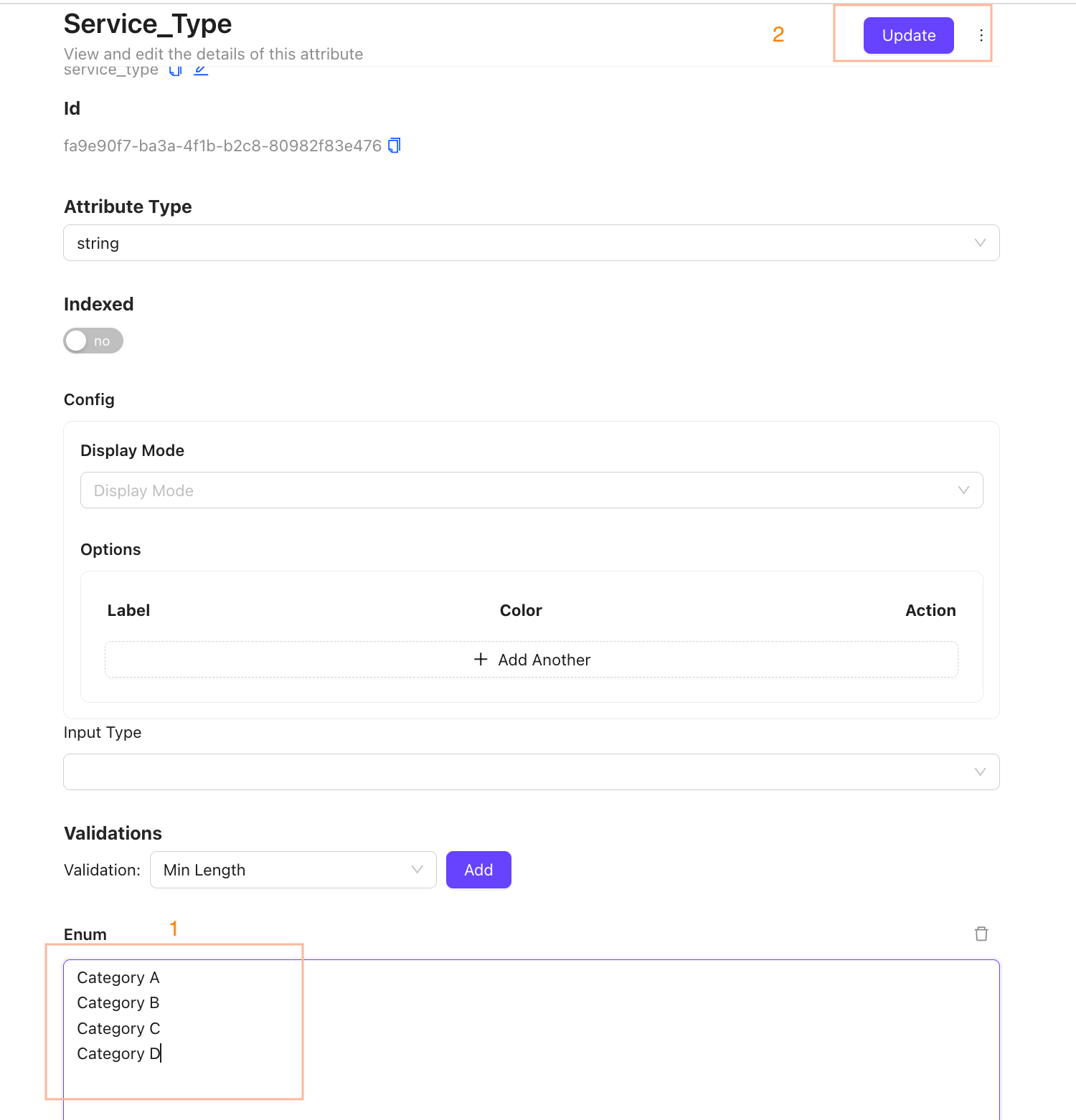
Select Enum in Validations
Add the Field Value. Click Enter after each value.Click on Udpate
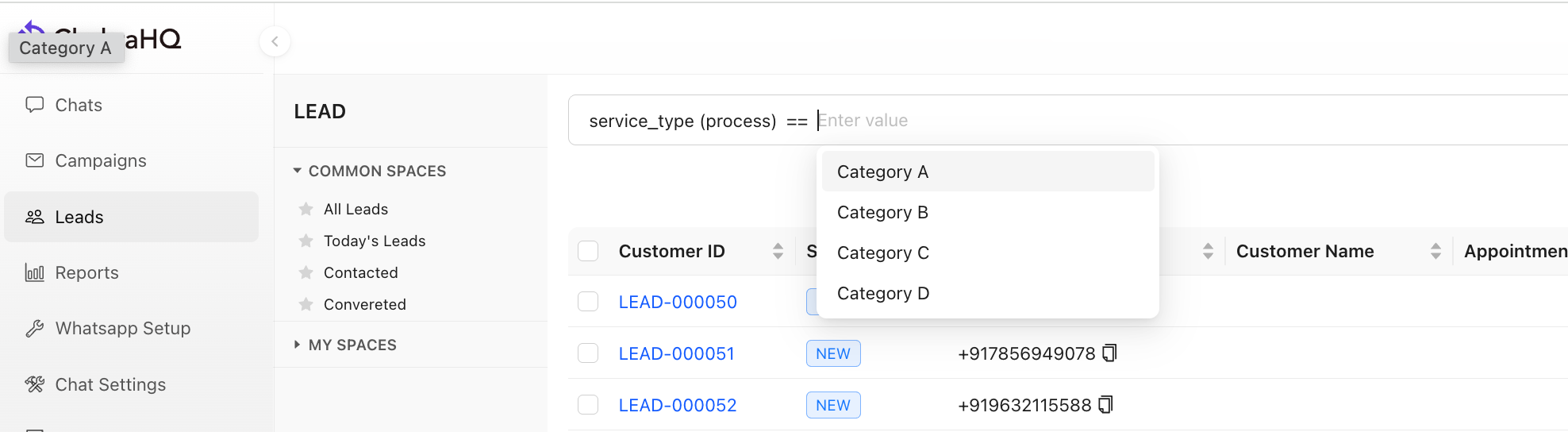
Check Filter Dropdown in Leads
Go to Leads. Filter the attribute for eg: Service Category == and the value will appear as Dropdown