Add Chatbot Trigger
Overview:
Triggers initiate the chatbot’s interaction with the user. For Chakra Chat, the triggers can be configured to start the chatbot in 2 ways:
- Default Auto Reply Chatbot: Configure a chatbot to auto-reply to any new chat
- Keyword Chat Trigger: Activate specific chatbots based on text keywords in the user chat
Configure a Default Auto Reply Chatbot
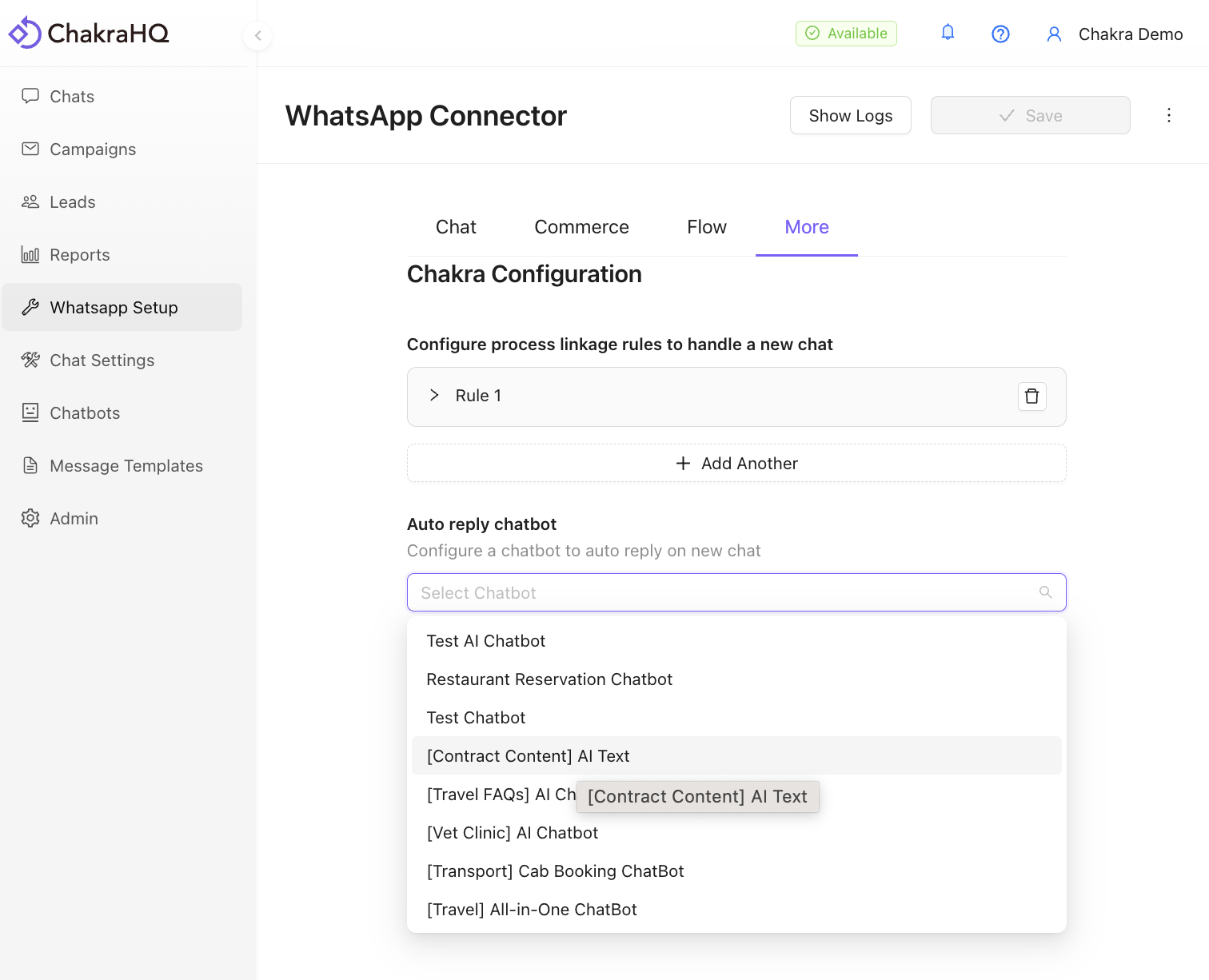
- Go to 👉 WhatsApp Setup, click on the
Moretab - Next, in the Auto Reply Chatbot field, choose the desired chatbot from the dropdown. Click
Save
Configure a Keyword Chatbot Trigger
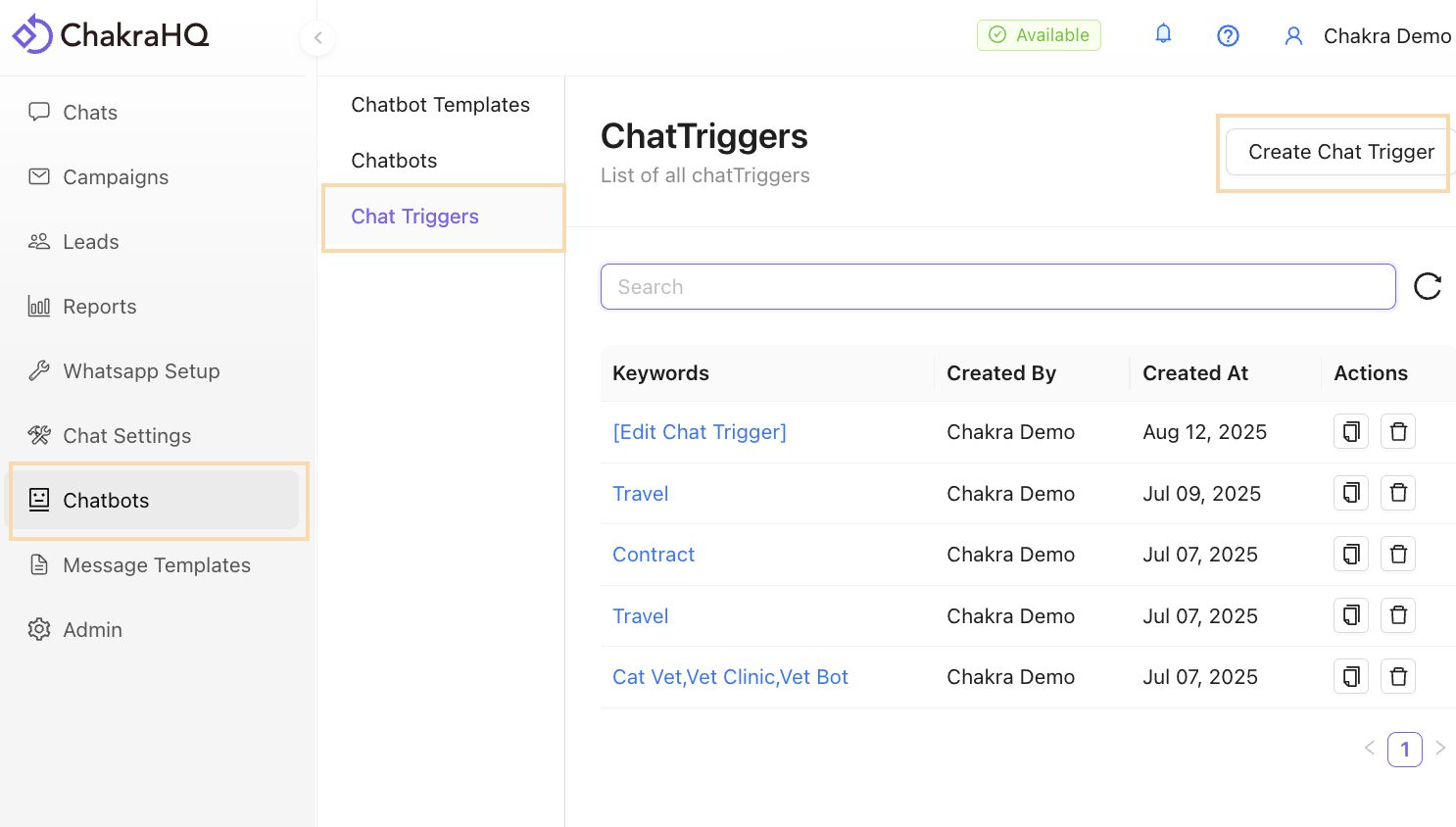
- Go to the Chatbots section, in the Chatbot Trigger tab, click on
Create Chat Trigger.
- Configure keywords that trigger automatic messages or chatbots. Click on
Save.\\
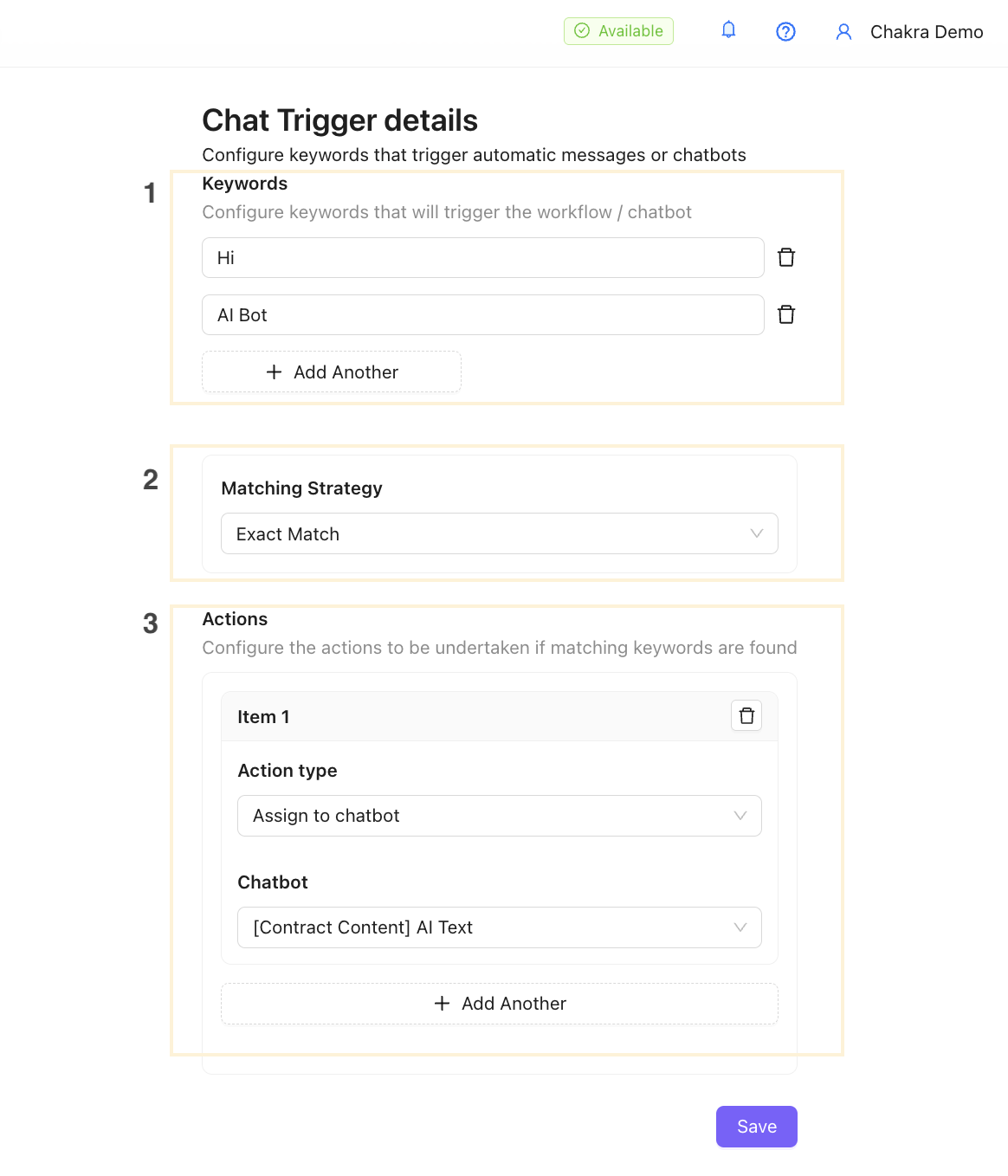
The chatbot trigger has been set up successfully.
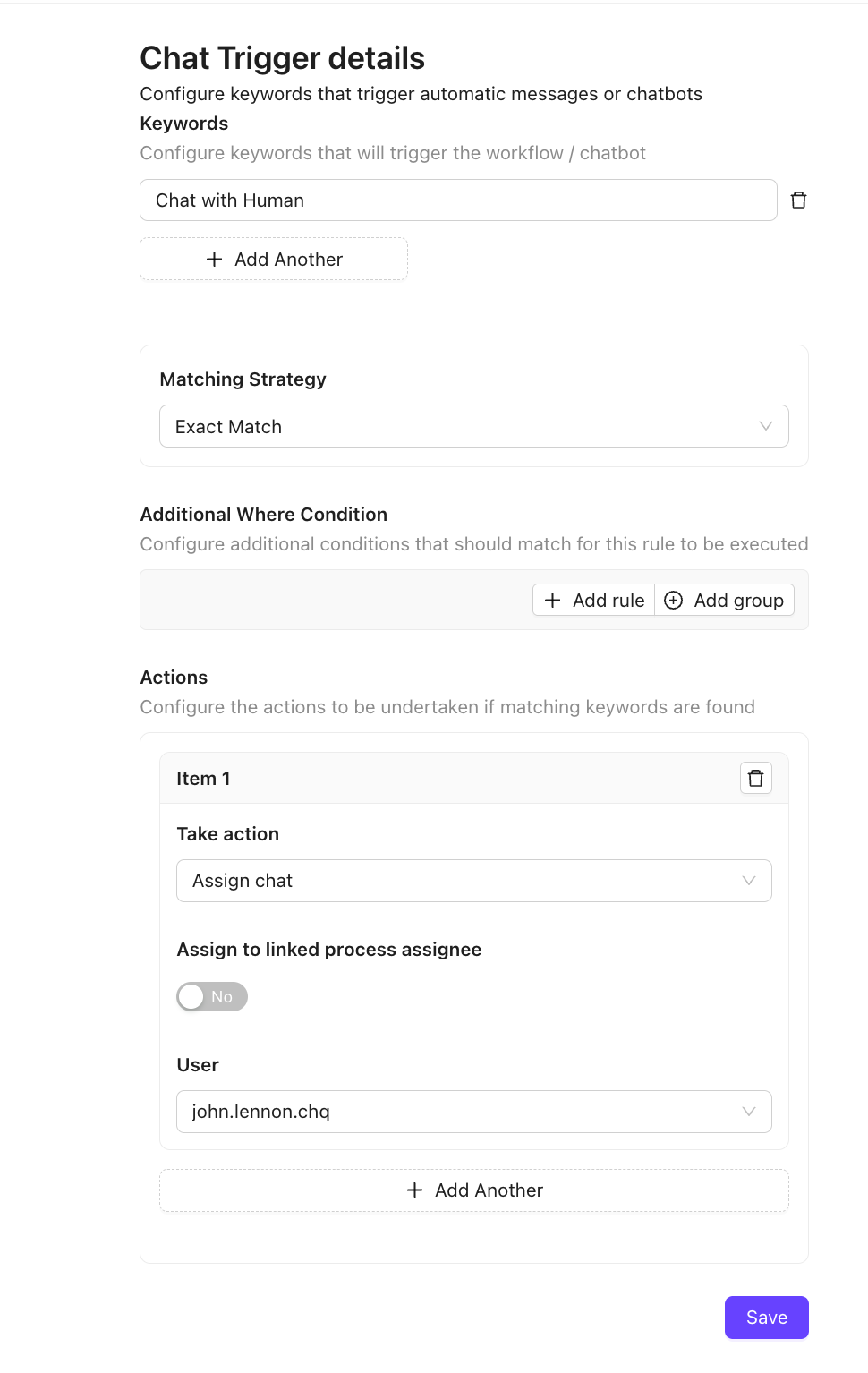
Chat Triggers: Assign to a User
Keywords can be used to trigger specific workflows:
- Go to Chat Trigger
- Click on
Create Chat Trigger - Add keyword(s) in Keyword section
- Choose matching strategy
- In Actions, Configure the Chat Trigger using Chat Keyword and choose
Assign Chat