

Mobile App
Detailed guide to Chakra Chat Mobile App for managing customer chats and leads.
Overview
Key Sections Overview
Chat
Chat Inbox in ChakraHQ (Chakra Chat) mobile app is one place to manage all your conversations
- Read Incoming Messages
- Send Replies
- Send Attachments (images, videos, documents, audio files)
- Action Buttons (Quick Reply, Manual Chatbot Trigger, Generate AI Replies)
- Leads - Lead List in Chakra Chat mobile app is to track and manage all the leads.
Manage Leads
Organize, filter, and sort leads using spaces, saved filters, and status updates to streamline workflow.
- Update Leads
Modify lead details such as contact info, status, assigned owner, or notes directly from the list or detail page.
- Create Leads
Manually add a new lead by entering essential information like name, phone number, email, and source.
- Access Lead Information
Tap any lead card to open the Lead Details Page, where complete information, activity history, and workspace are available.
Settings
To manager basic user account settings
Access Chakra Mobile Apps
Chakra Chat has iOS and Android app to help businesses manage their customer interactions and lead management using Chakra mobile apps.
To access Android App - Chakra Android mobile app
To access iOS App - Chakra iOS mobile app
Chat
Chat List
All active and archived chat conversations can be accessed from the Chat List sorted by most recent message. Users can tap any conversation to open the Chat Card and continue the discussion.
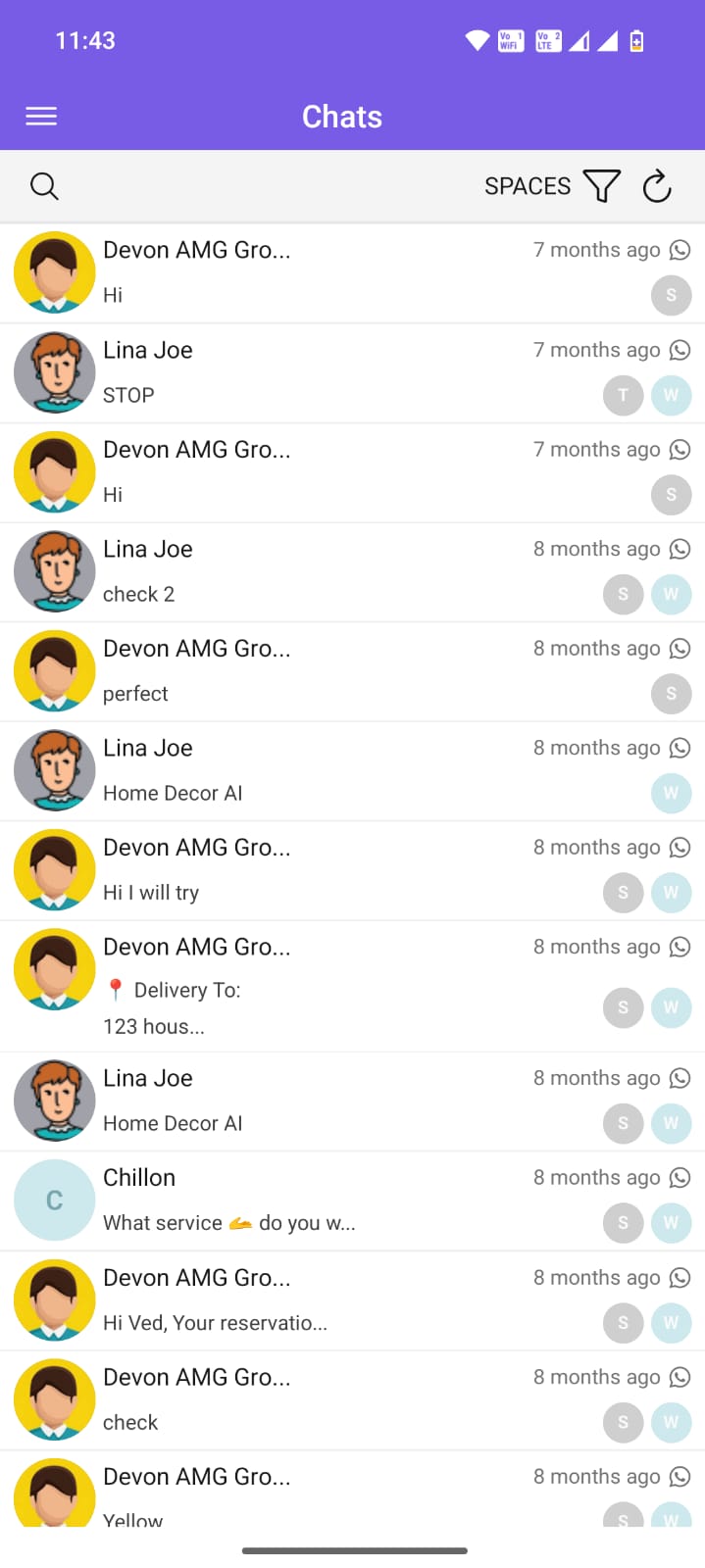
Chat Card
Chat cards represent individual chat items/conversation items in a chat list. The following details are part of a chat card if applicable:
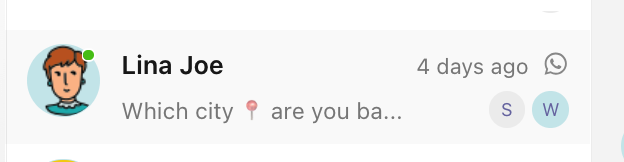
- Avatar/Photo: Displays the lead's profile picture or a default placeholder icon. Helps visually identify the contact at a glance.
- Sender Name: Shows the lead's name or company name. Makes it easy to recognize who the conversation is with.
- Message Preview: Displays a short snippet of the most recent message in the chat. Allows users to quickly grasp the context without opening the chat.
- Last Updated Time Stamp: Indicates when the last message was sent or received (e.g., "2 min ago," "Yesterday"). Helps prioritize recent and pending conversations.
- Channel Icon: An icon showing which messaging channel the chat belongs to (e.g., WhatsApp, Web Chat, etc). Helps users identify the conversation source instantly.
- Chat Assignee Icon: An icon indicating which team member or agent is currently assigned to the lead. Useful for ownership tracking and handoffs.
- Unread Messages Count: A badge showing the number of unread messages in the conversation. Draws attention to pending replies and urgent follow-ups.
Search
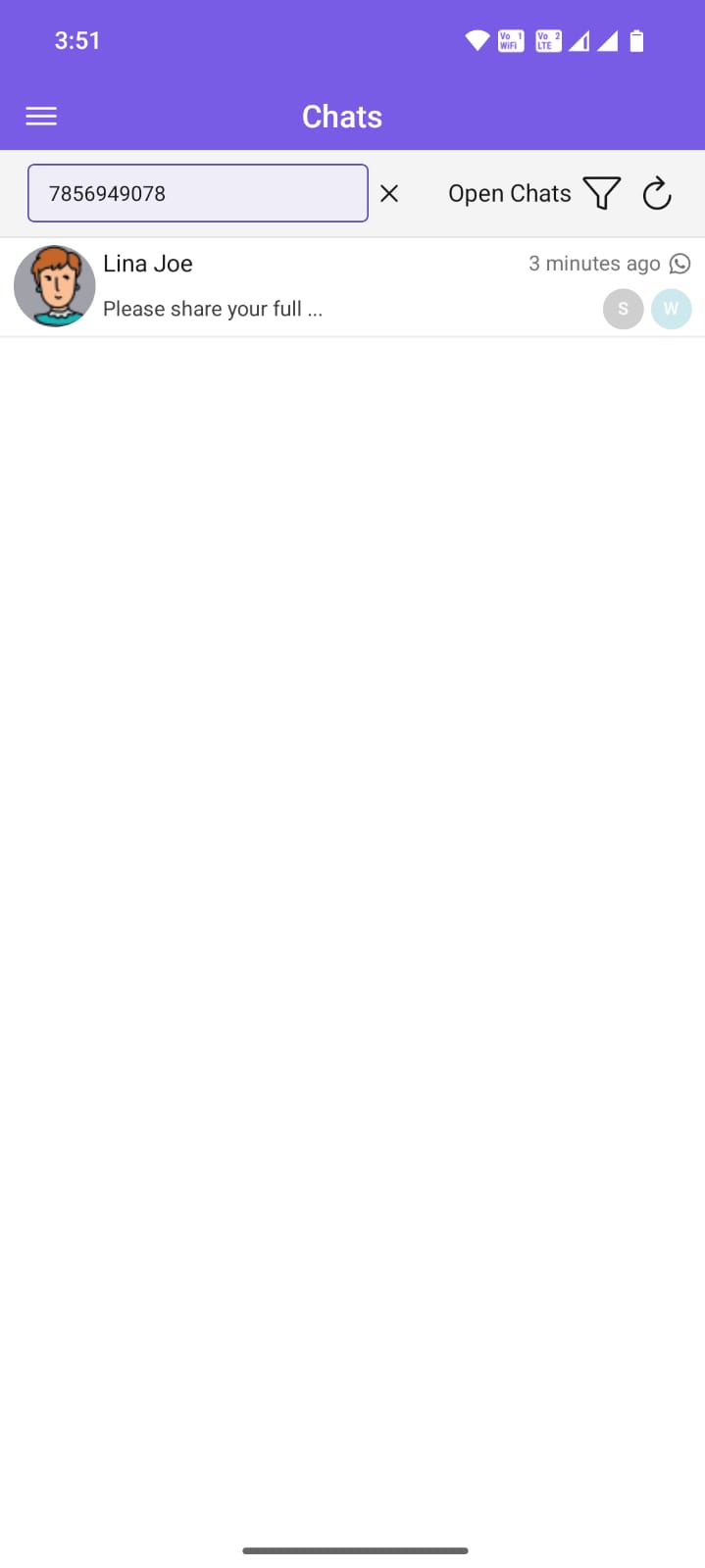
The Search function in the chat list is used to search for specific chat(s). Currently, search is supported using the contact WhatsApp Phone and contact Sender Name.
Spaces (Saved Filters)
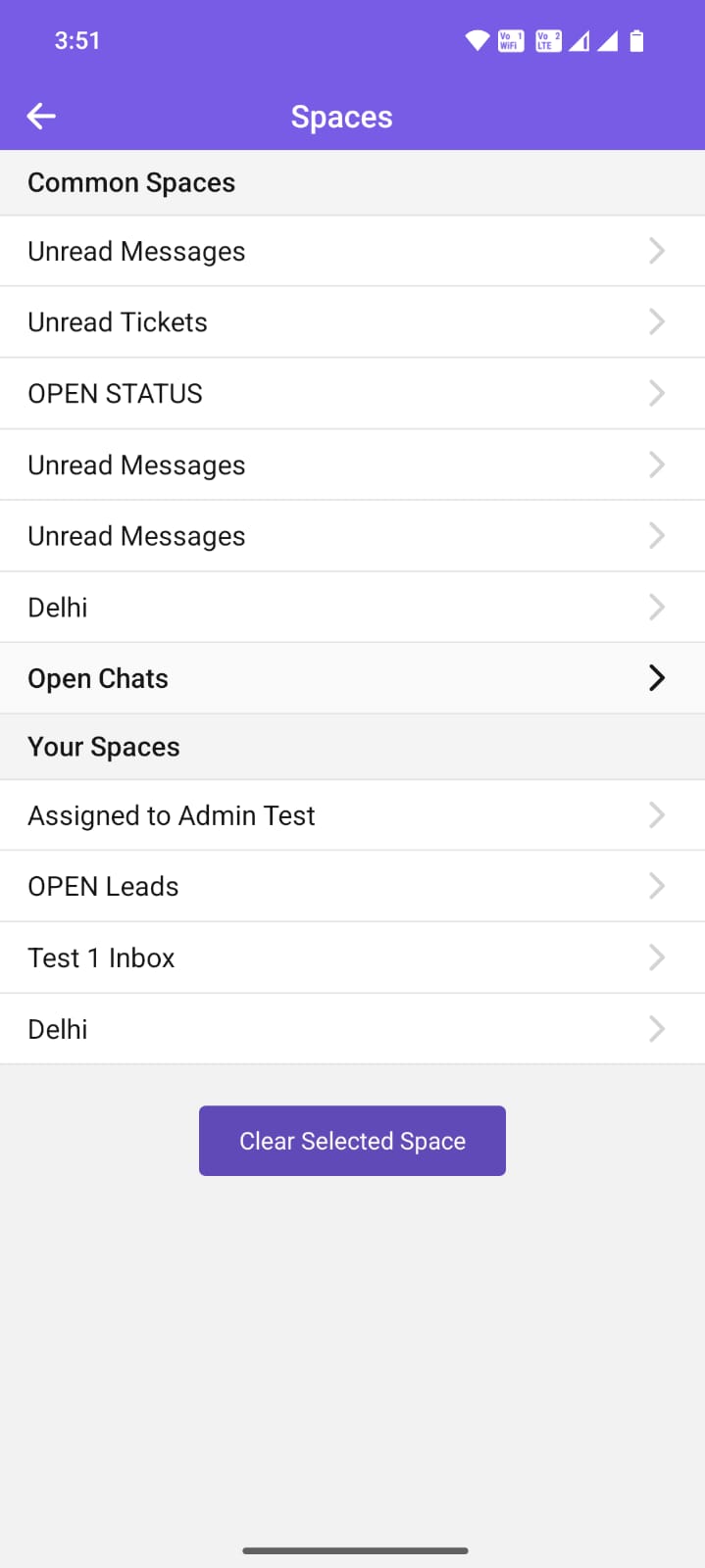
Spaces in the Chakra mobile app can be used to apply pre-created filters.
- To apply Spaces (saved filters) in the Chat List
- To clear (remove) any applied space
⚠️ Note: Filters and Spaces cannot be created using the Charka Chat Mobile app. Only saved filters (Spaces) can be applied or cleared via the mobile app.
Refresh
To refresh the chat list for new message updates
Chat Window
The main Chat interface where a live conversation with a lead takes place. It displays the full message thread and provides other tools to aid the messaging conversation.
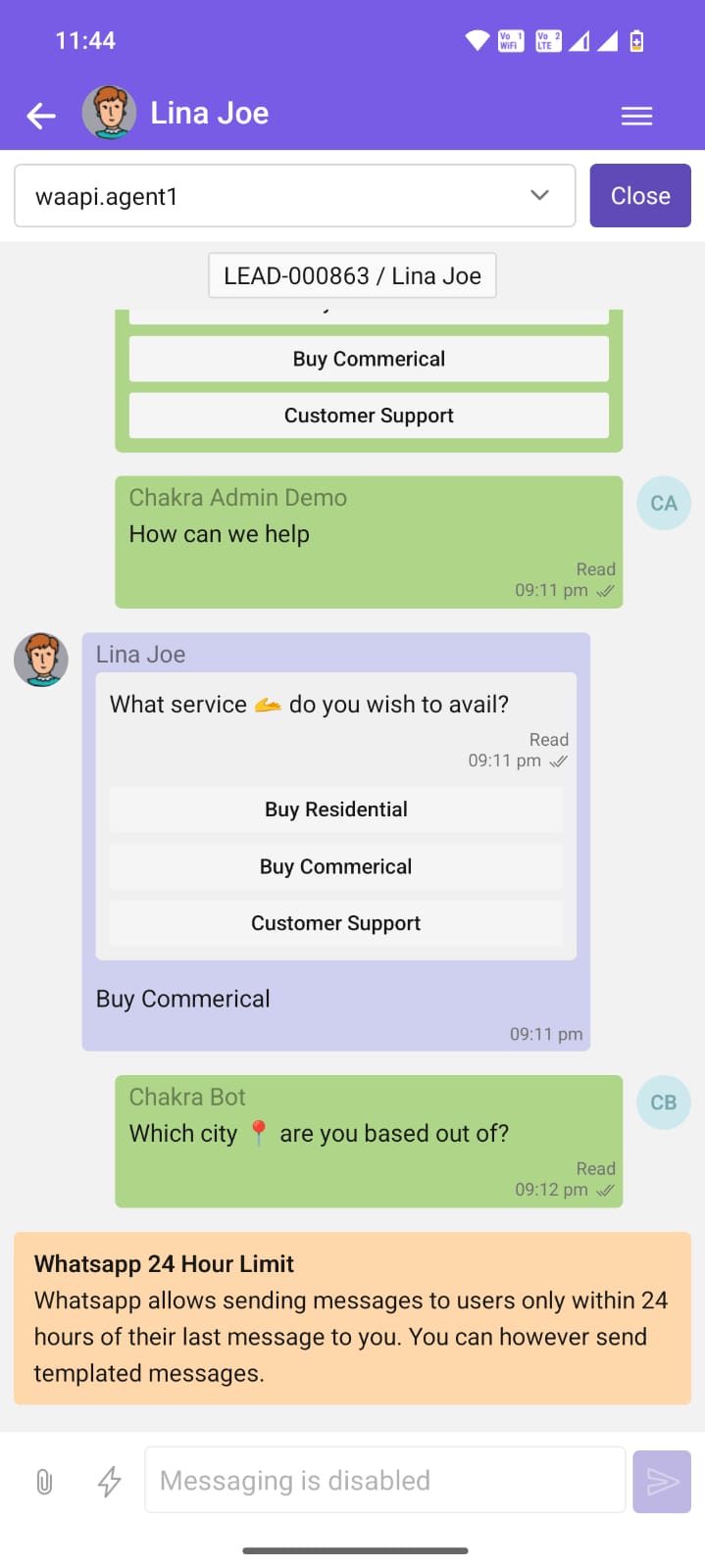
Header Bar
- <- Back Button
- 🧑🏻 Avatar/Photo
- Sender Name
- ☰Other Details
- Chat Assignee Filter
- Close Chat
- Linked Leads
- ◉ STOP Chatbot
Message Body
The individual chat bubbles or blocks containing the text, media, or system notifications exchanged between the user and the lead. Each message shows sender info, timestamp, and delivery/read status where applicable.
- Sender Message Bubble
- Message Time stamp
- Recipient Message Bubble
- Chat Message Time stamp
- Chat Message delivery status
- Date Separator
Input Area
The bottom section of the Chat Window where users type new messages, attach files, or send quick responses. It includes a text field, send button, and optional shortcuts for emojis, templates, or voice notes.
Text Input Box
The text field where users type new messages to the lead. Supports plain text, emojis, and line breaks before sending.
Attachment Button
A button that opens the device's file picker to attach images, documents, voice notes, or videos. Attached files appear as rich media or downloadable links within the message body.
Quick Action Button
This button reveals a menu of preset actions like sending a message for scheduling a meeting, sharing a price quote, etc. Helps speed up common workflows without typing.
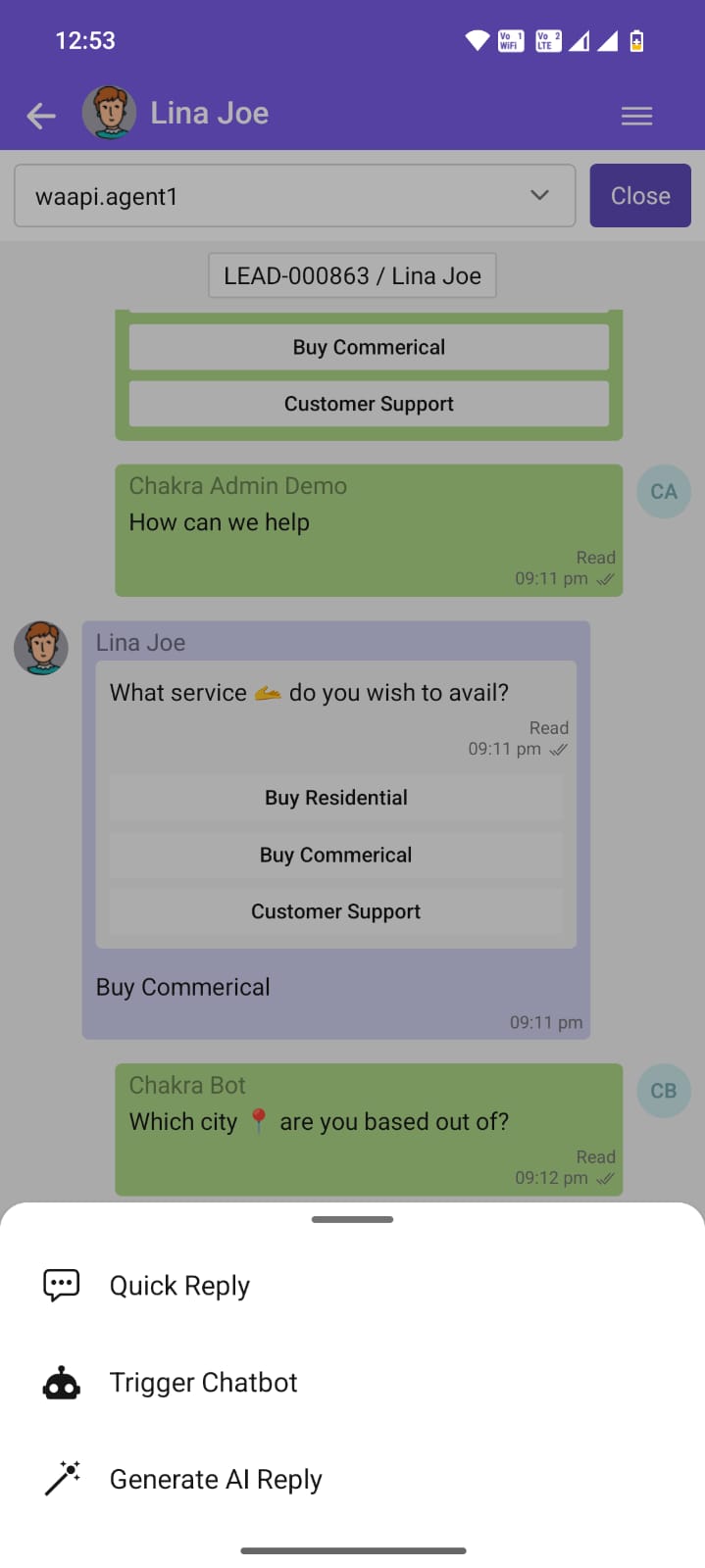
- Quick Reply: Predefined templated responses (e.g., "Thank you, I'll check") that insert instantly into the Text Input Box or send immediately. Saves time for frequently used replies.
- Trigger Chatbot: This button hands over the conversation to an automated chatbot for instant responses, lead qualification, or after-hours support.
- Generate AI Assisted Reply: This feature prompts the AI to draft a context-aware reply based on the lead's last message and lead details. Users can edit, accept, or discard the suggested response before sending.
- Send Button: This submits the typed message, selected quick reply, or AI-generated response to the chat thread.
Leads
Manage and track every potential client from first contact to confirmed booking - all in one place. Chakra Chat's lead management module lets you capture leads from WhatsApp conversations, organize them by stage, and follow up at the right time.
≡ Lead List
Lead List is a dashboard within the ChakraHQ (Chakra Chat) mobile app that displays a list of leads, enabling users to track and manage them efficiently.
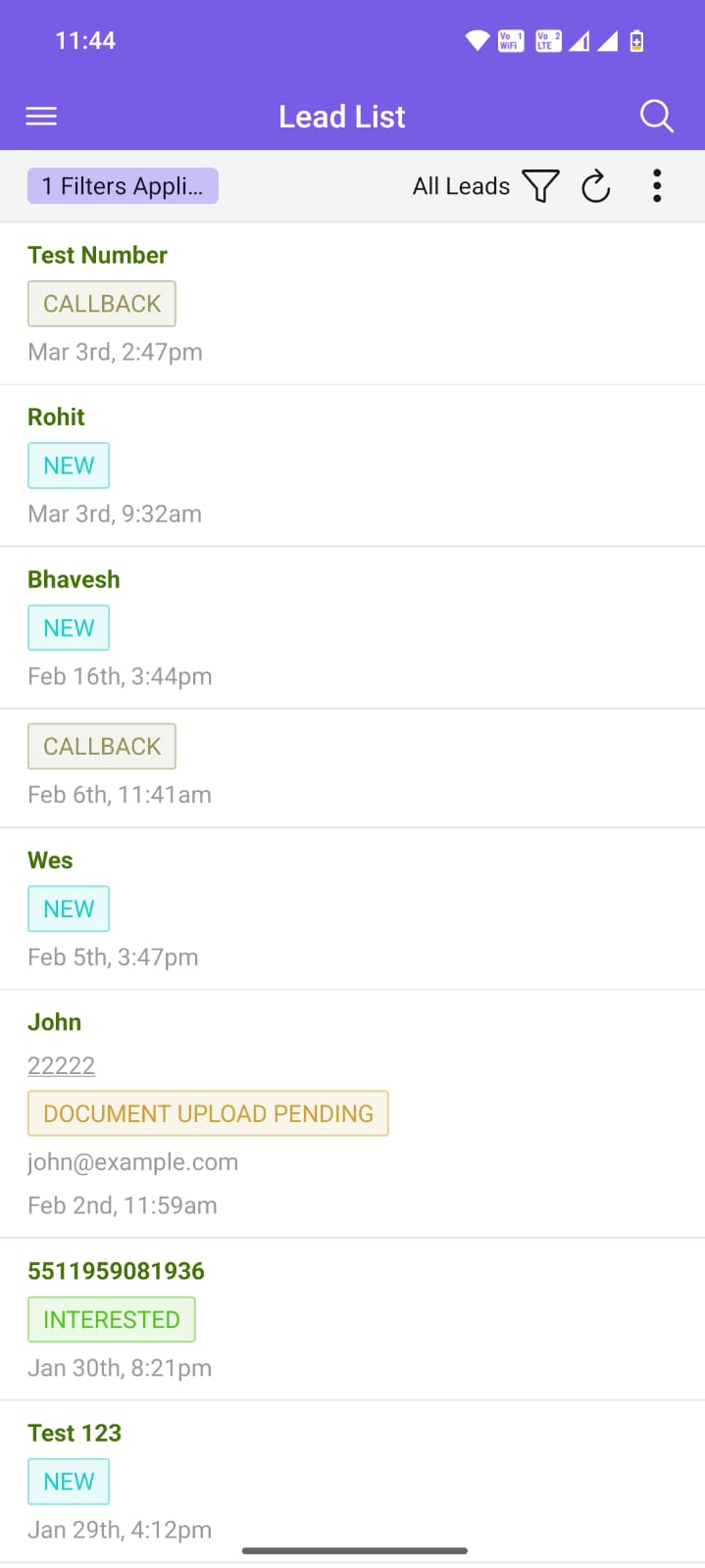
▽Apply & Clear Spaces
Quickly apply predefined saved filters to narrow down leads, or clear all active filters to reset the lead list view.
- Tap the funnel icon (▼) located at the top-right corner of the Lead List screen.
- In the Spaces drawer that opens, select the desired space filter to apply.
- The Lead List page updates to show only leads matching the selected space.
- To remove all active space filters, tap Clear Selected Space.
➕ Create NEW Lead
Tap to manually add a new lead to the list, capturing essential details like name, contact info.
Steps to create a new lead
- Click on the ⋮ at the right hand top of the lead list.
- Click on + Create New at the bottom drawer of the lead List
- Fill the details in the Create Lead form. Phone Number is mandatory.
◻Lead Card
Each lead is displayed as a card showing key information (name, status, last activity), enabling Users to quickly access key information about the lead. The lead details on the Lead card can be customized from the Chakra web-app.
Customize lead card?
- Go to Chakra Web App
- In the Leads Tab on left-hand sidebar
- Follow the customize table columns guide to customize lead fields in the lead card
⟳ Refresh Lead List
Tap to ⟳refresh button the lead list, fetching the latest updates from the server.
🔍︎ Search Leads
Type keywords to instantly filter leads by name, company, or other lead attributes for quick access.
✎ Edit Leads
Tap the edit icon on a lead card to modify its details, update status, or add notes.
Lead Details Page
The lead details page displays comprehensive information about a specific lead, including contact details, status, assignment, activity history, and notes, with options to edit or take action.
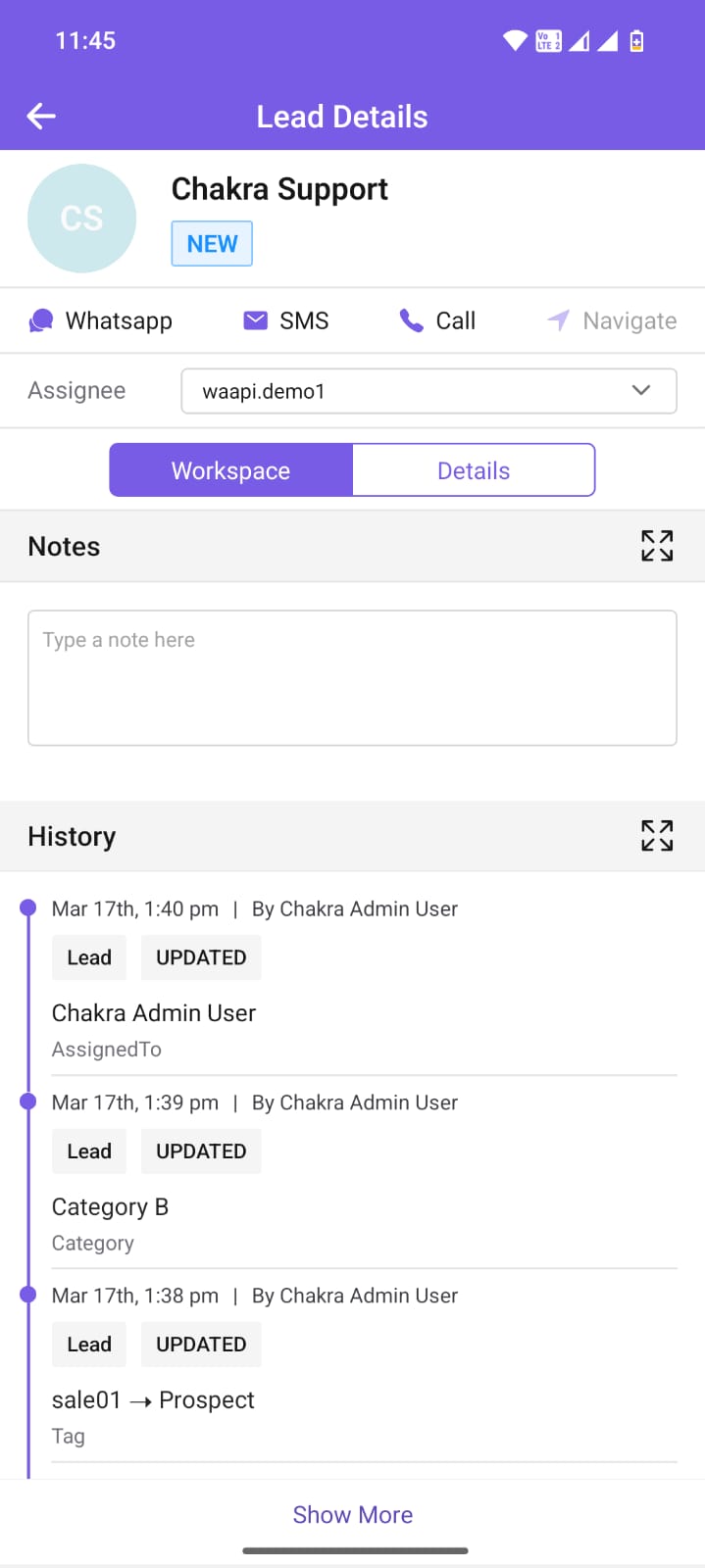
Lead Details Header
The follow key sections in the lead details page header
- Lead Name
- Communication Navigation Icons
- Assign Leads
Workspace
Workspace in Lead Details Page that organizes lead-related activities, notes, and communication history in one place for streamlined collaboration and follow-up.
- Notes
- Lead History
Details
The details section captured the lead's core information, such as name, phone number, email address, lead state, and assigned owner, allowing users to quickly view
- Lead Summary
- Lead Details
Reports
Reports in ChakraHQ (Chakra Chat) mobile app can only be used to view. Reports cannot be created or edited in the mobile app. Certain advanced visualisations may not be entirely supported in the Chakra mobile app. Key section of the Reports section:
Chart Dashboard List
The default reports page has the list of all reports created in the account. Access the dashboard in this section.
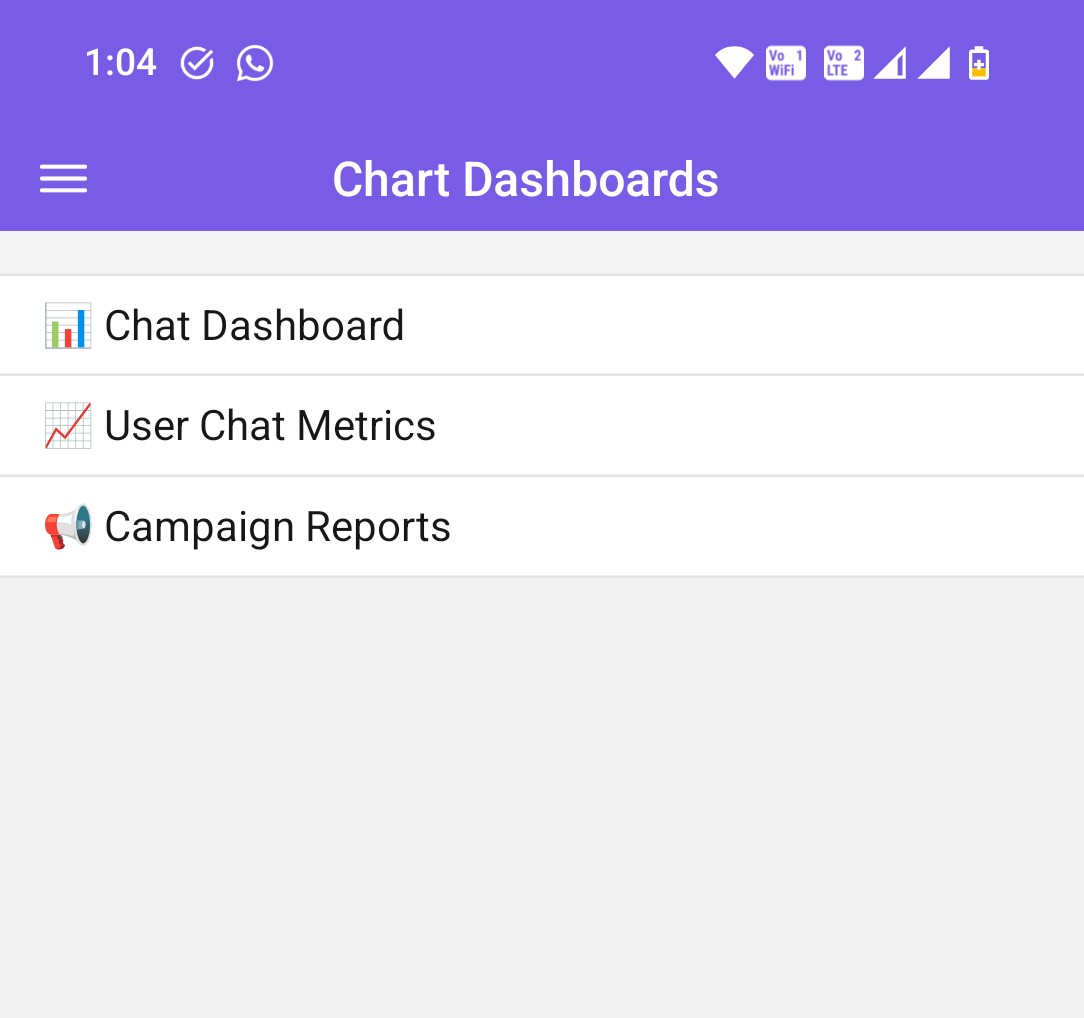
View Report Dashboards
Click on any report in the report dashboard list to access the report details. Access the report visualisation
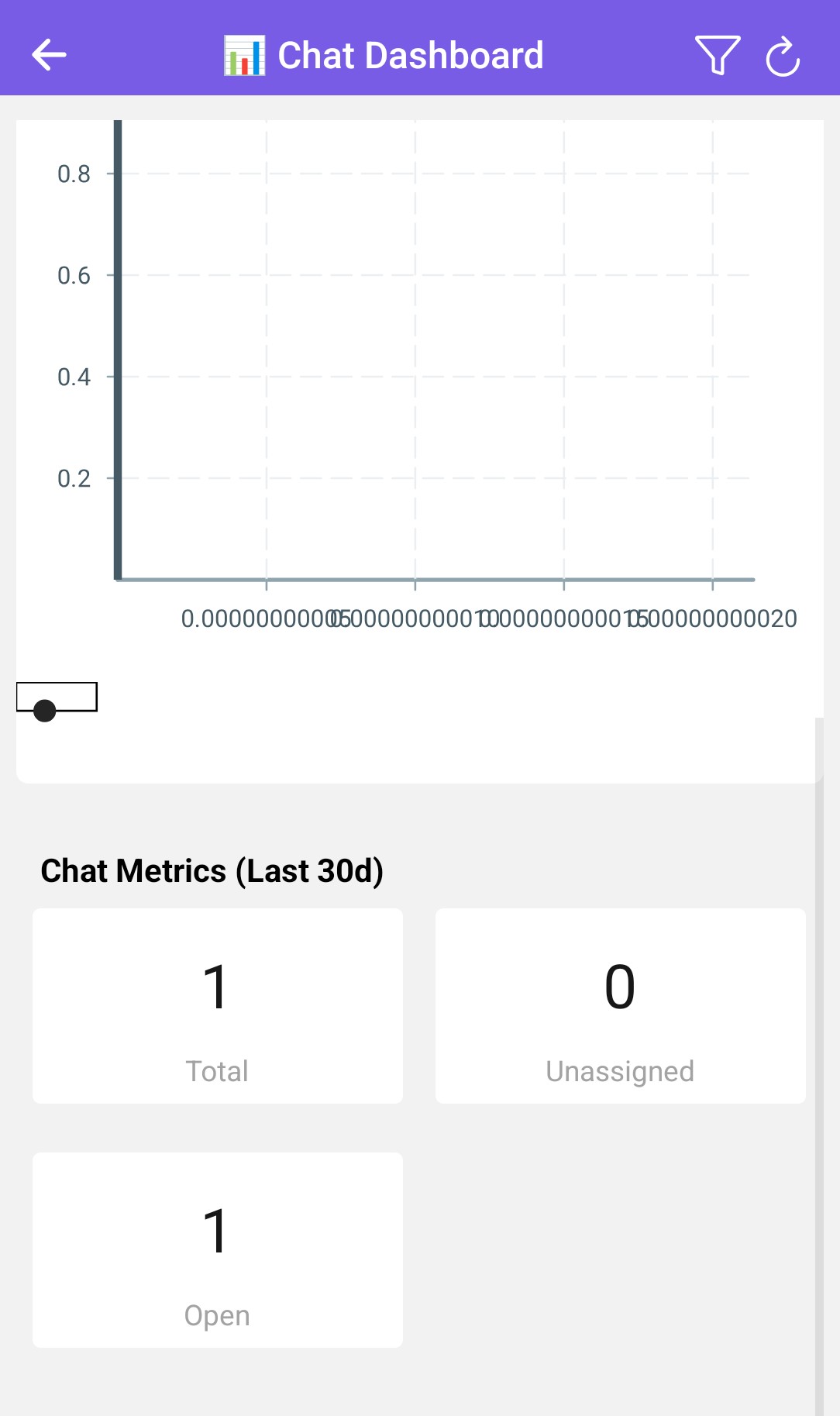
Report Filters
Apply filter to the reports using the filter functionality
Settings
The settings option is enabled only for the Admin and Manager Role Types. The following sections:
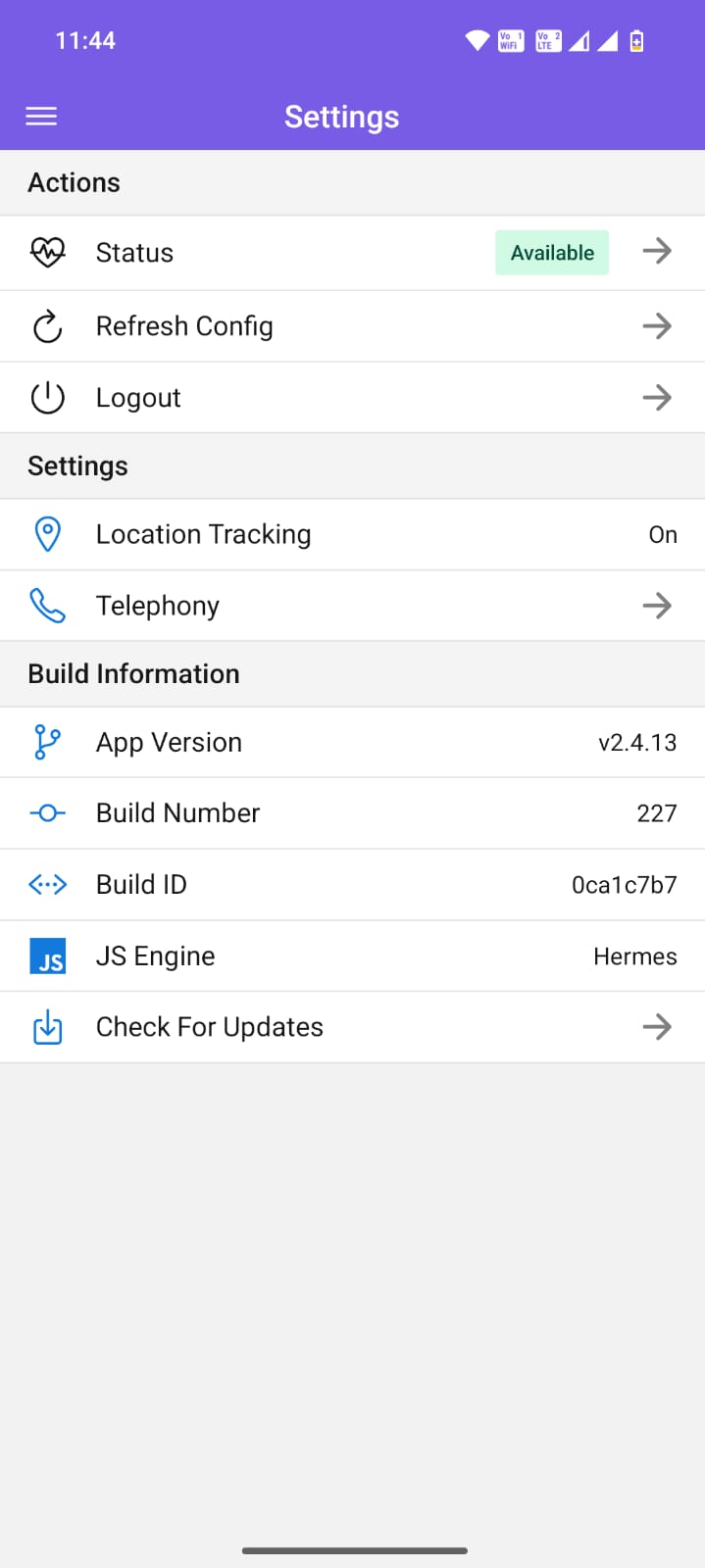
User Availability Status
There are 3 types of user availability status in Chakra
- Available (during office hours, Chats or Leads are assigned automatically)
- On-Break (For short breaks during office hours, no chats or leads assigned automatically during the break)
- Not Available (For non work days or vacations - no chats or leads assigned automatically)
- Refresh Config
To update the app configuration after change in basic setting in the Chakra Web-App settings.
Logout
To sign out from the Chakra mobile app.
Check for Updates
Use this option to update the latest ChakraHQ app version.