

Exotel Telephony Setup
Steps to setup Exotel Telephony in Chakra Sales CRM
Overview:
Steps to integrate Exotel cloud telephony in Chakra Sales CRM
Add Exotel plugin
Provider's telephony plugin addition is needed to make any call through some provider on chakra. To add any provider telephony we need to follow the below steps:
- Go to Admin --> Plugins
- Click on Add.
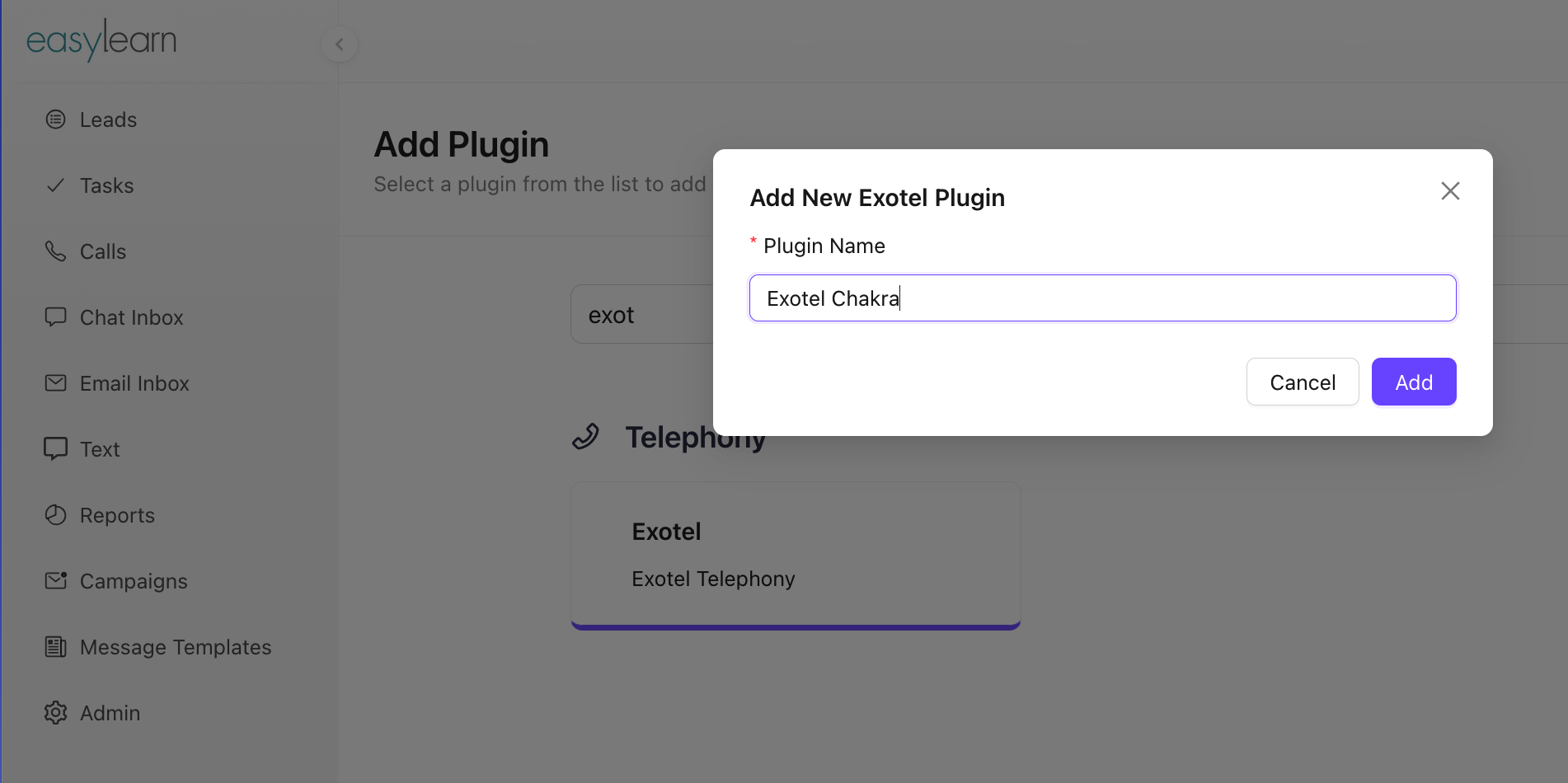
- Search for Exotel and click on the plugin.
- In the New Plugin pop, name the plugin, click on
Add
Access & Configure Plugin
- Go to Chakra Admin Plugins
- Click on the Exotel Plugin created
- Configure the Exotel Plugin
- Add Exotel SID
- API Key
- API Token which will be available on Exotel.
Note: ❌ Do not use the default API Key. Create a new API Key for Chakra
Configuration Exotel Plugin
- Allowed Virtual Numbers (Optional) section
- Add the exotel number by clicking
Add Another
- Add the exotel number by clicking
- Actions for Inbound Call (Optional)
- add the actions that needs to be taken if you recieve any inbound call for eg create lead whenever any exotel inbound call is received on Chakra.
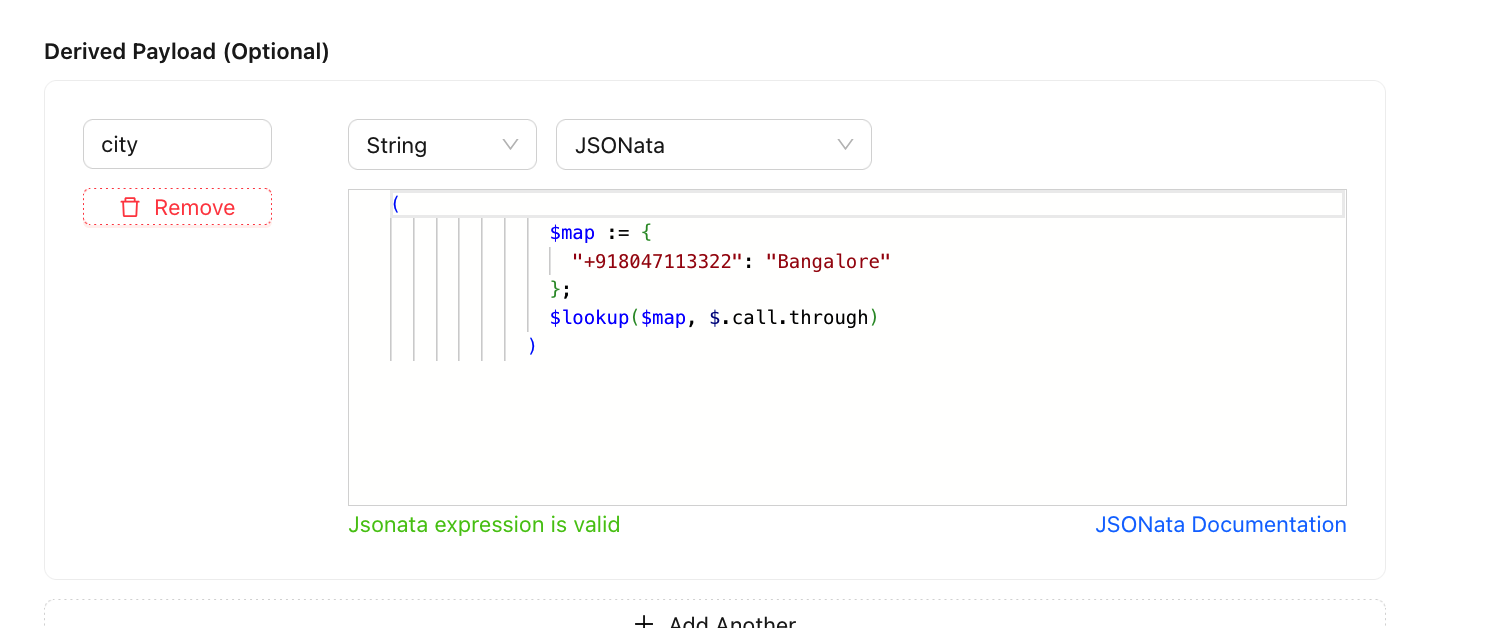
- Derived Payload (Optional)
- Map exotel phone number as per any required condition.
- Ex: To map the exotel phone number to some city;
- Add the condition in the Derived Payload (Optional) section
- Refer to JSONata Documentation for the format
- Actions for Manual Outbound Call (Optional)
- The first action that satisfies the condition will be triggered.
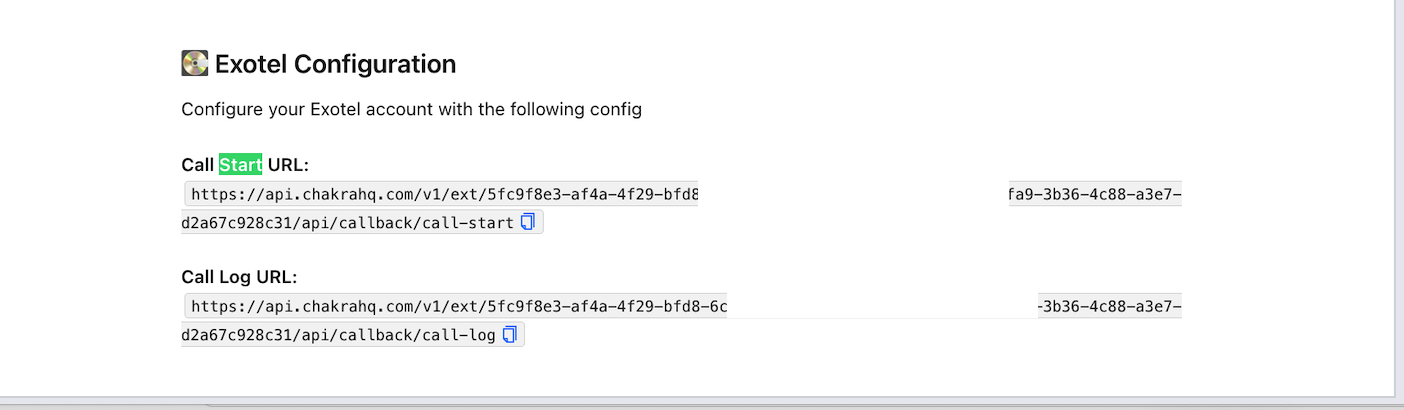
Exotel Configuration
Copy and Use the following API for configuration in Exotel integration setting in Exotel app.
Call Start URLCall Log URL
Configurtion in Exotel
Configuration need to added in exotel application to integrate with Chakra Sales CRM
Adding Exotel Numbers
To add new exotel numbers below steps needs to be followed:
- Go to your Exotel account
- In the Exotel homepage. Go to the ‘
ExoPhones’ option present in the left navigation bar under Admin section - Add the Exotel phone numbers here
Adding Configuration
Follow the below steps to add configuration on exotel:
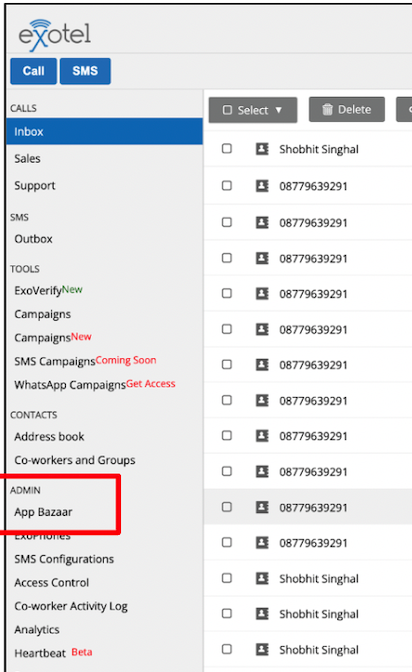
- Go to the ‘
App Bazar’ option from the side nav in Admin section
- Create the
flowand edit it.
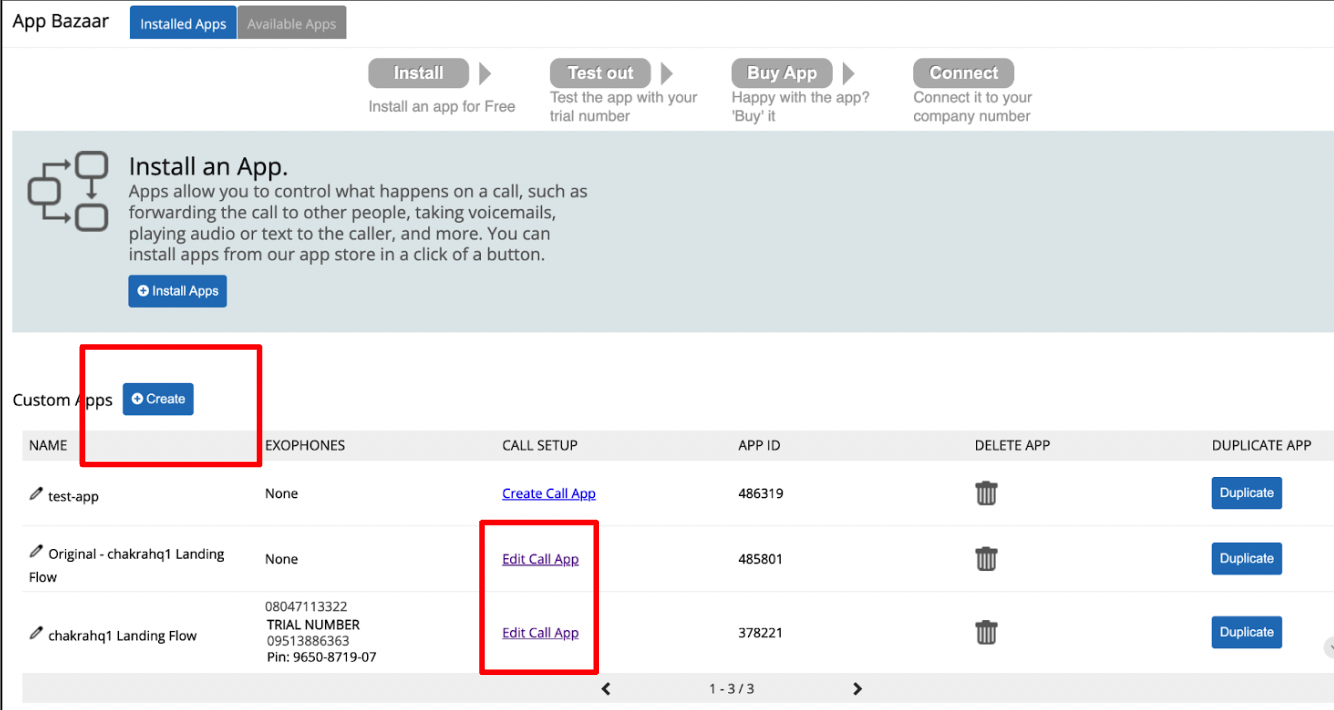
Flow configuration
After creation the flow we need to add configuration in the flow to integrate exotel with Chakra. That can be done by:
- Click on the
Edit Call Appwhich was created.
Call Startpage will open.- Click on
Greeting - Customize the greeting audio recording here
- In Next , add the applet by drag and drop from voice applets
- Click on
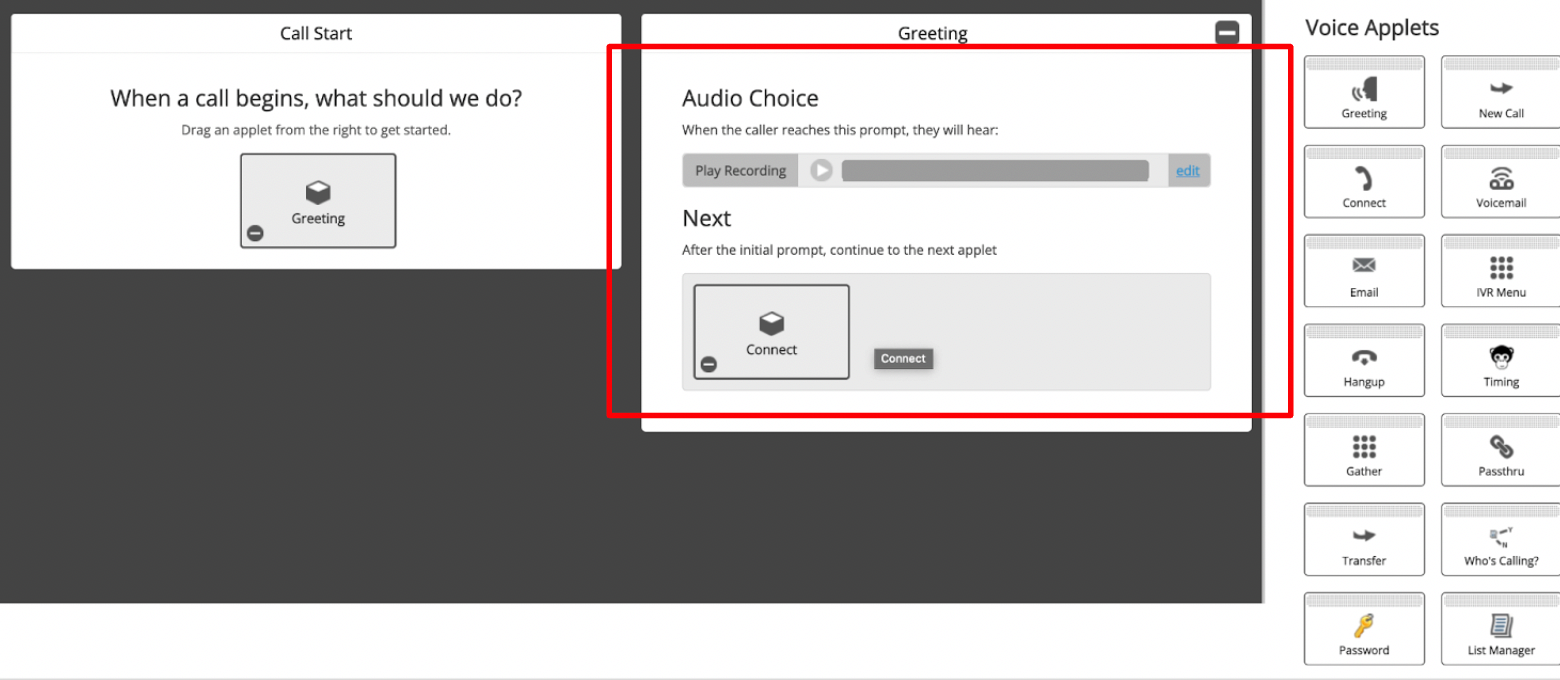
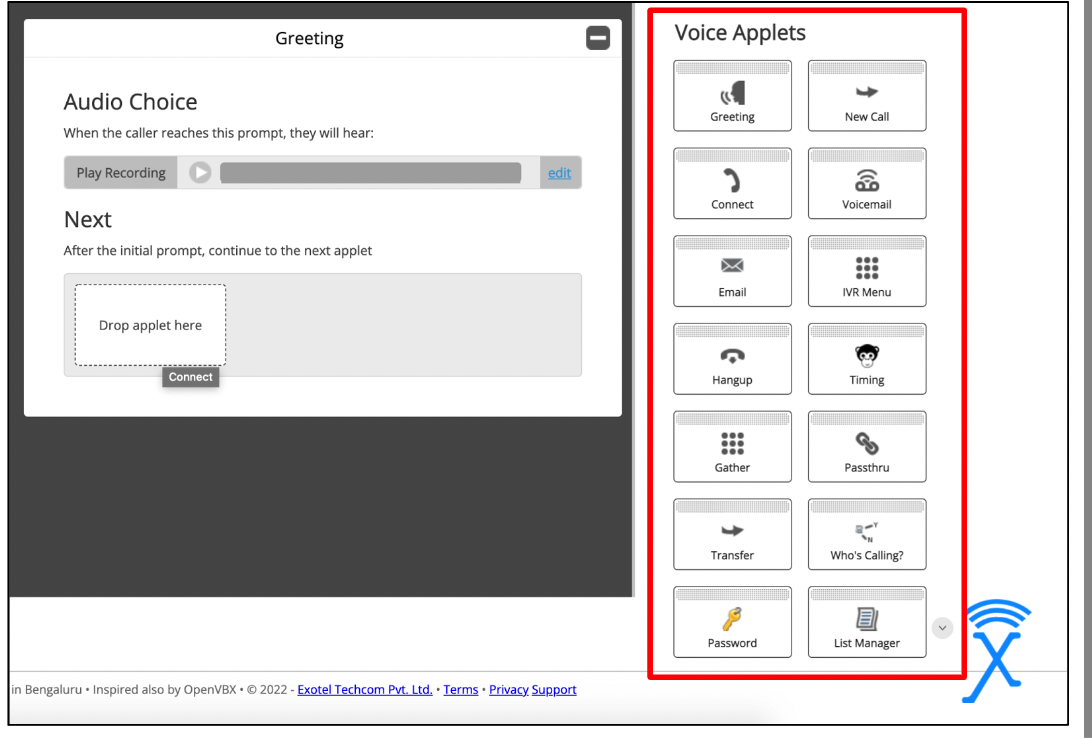
- In
Connect -> ‘Dial Whom’, select the Dial group or user from the search option.
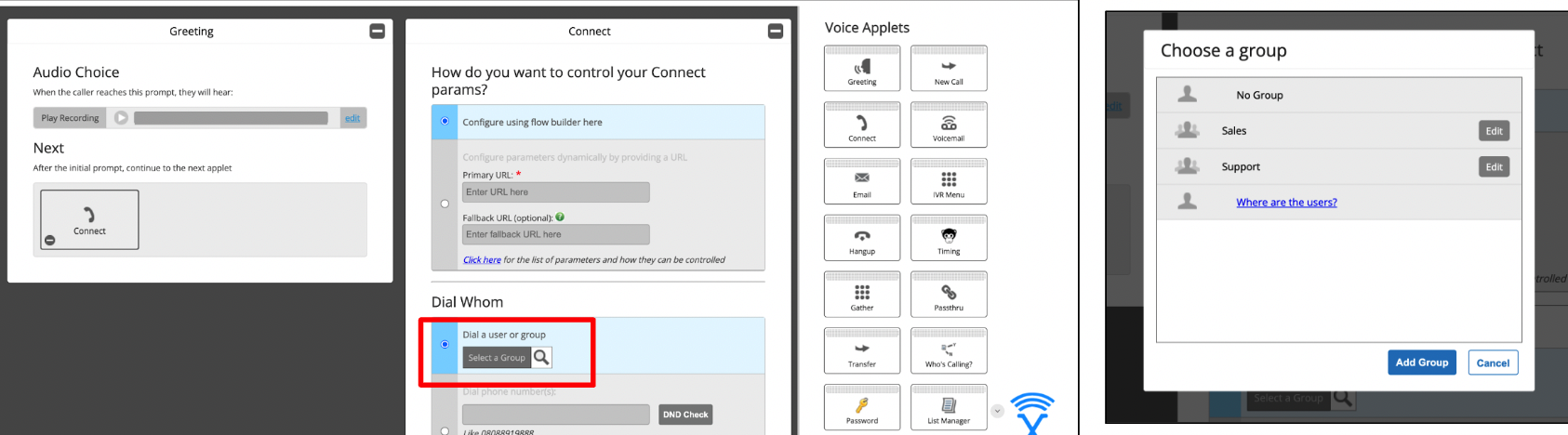
- In
Connect → ‘Create Popup’ add the Call Start URL.
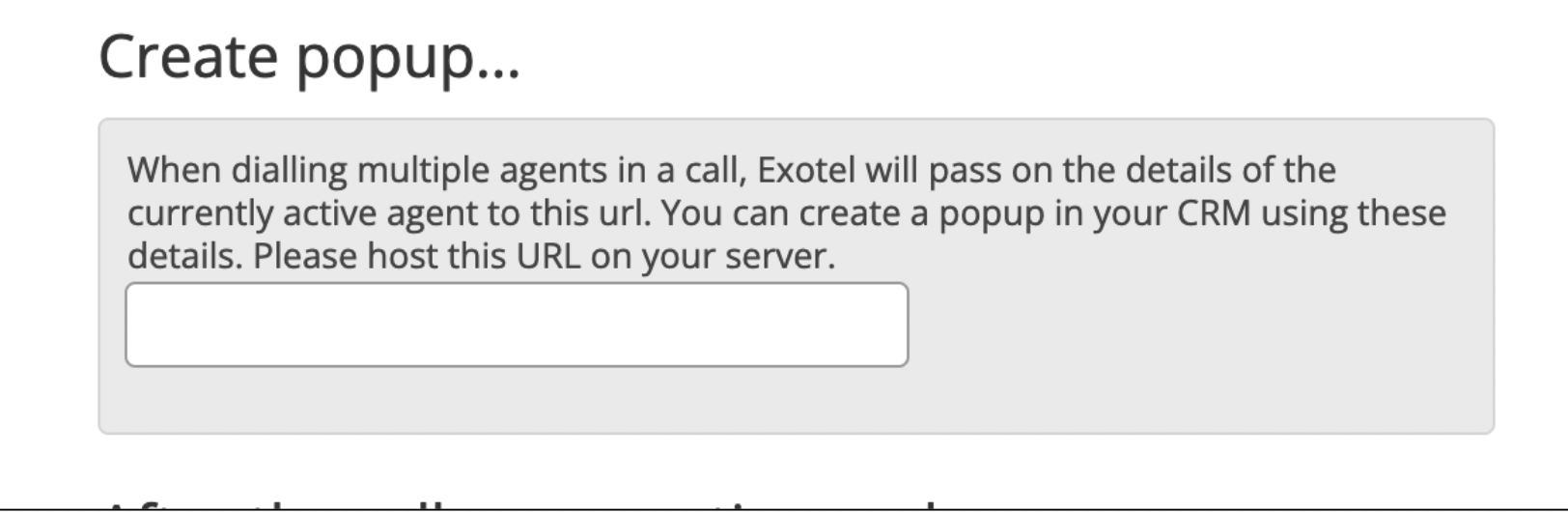
- In
Connect → After Call Conversation Endstab - Select the Passthru applet from the voice applet.
- Check the ‘Make Passthru Async’
- Add the Call Log URL. Click Save.
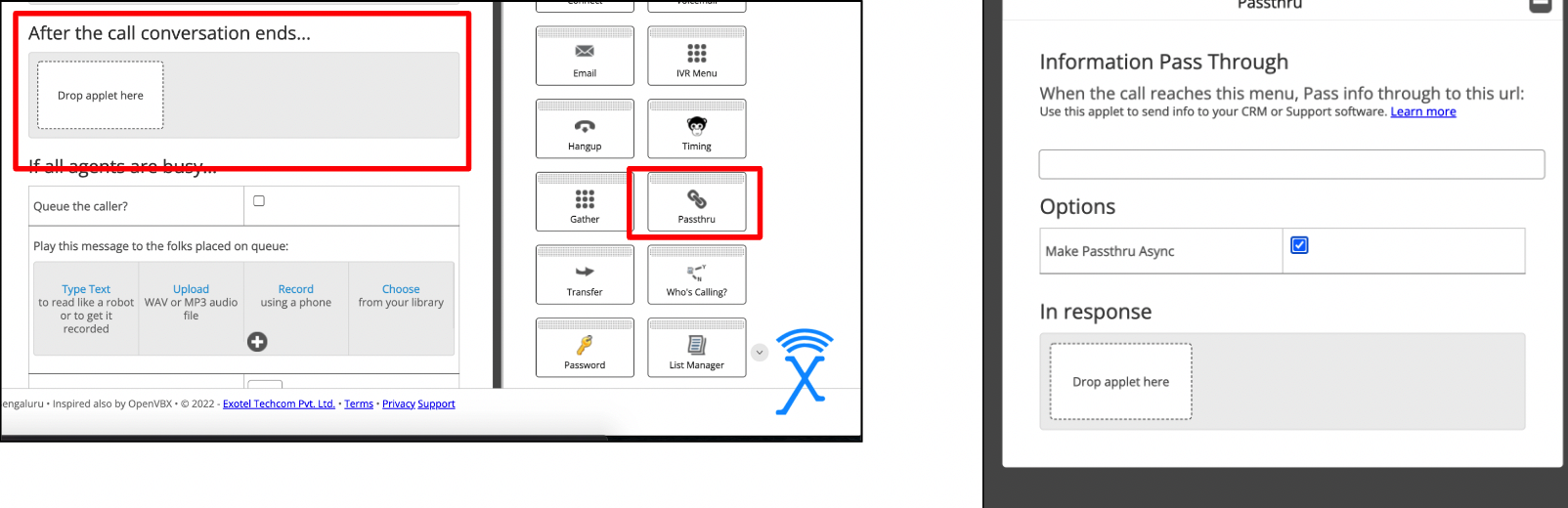
- In Connect → If nobody answers
- Add the ‘
Greeting’ Applet - Next add the
passthru. - Check the ‘
Make Passthru Async - Add the Call Log URL.
- Add the ‘
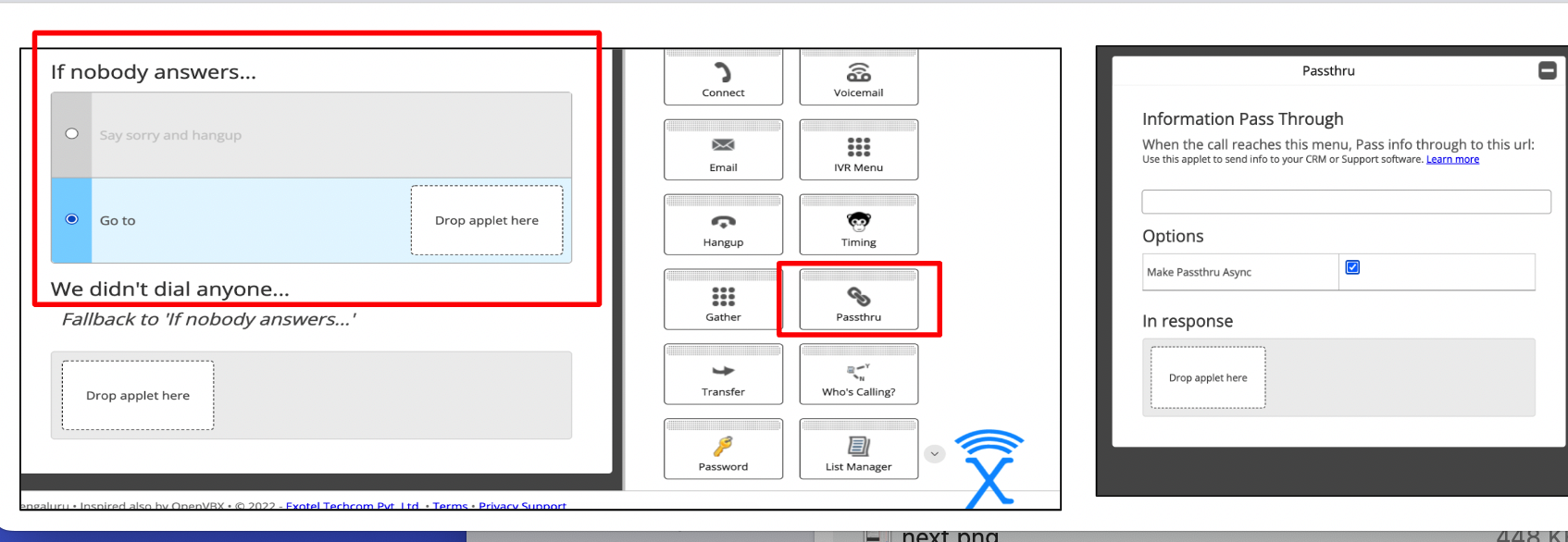
- In Connect → We didn't dial anyone
- Add the passthru applet
- Check the ‘Make Passthru Async’
- Add the Call Log URL
- Click
Save
The configuration for that flow is done. You can also add the passthru response as Hangup