Communication ChannelsTelephony Integrations
MCube Integration
Steps to configure the MCube Telephony in Chakra Sales CRM
Overview
To configure MCube telephony in Chakra, follow the steps below:
Mcube Plugin Addition
Provider's telephony plugin addition is needed to make any call through some provider on chakra. To add any provider telephony we need to follow the below steps:
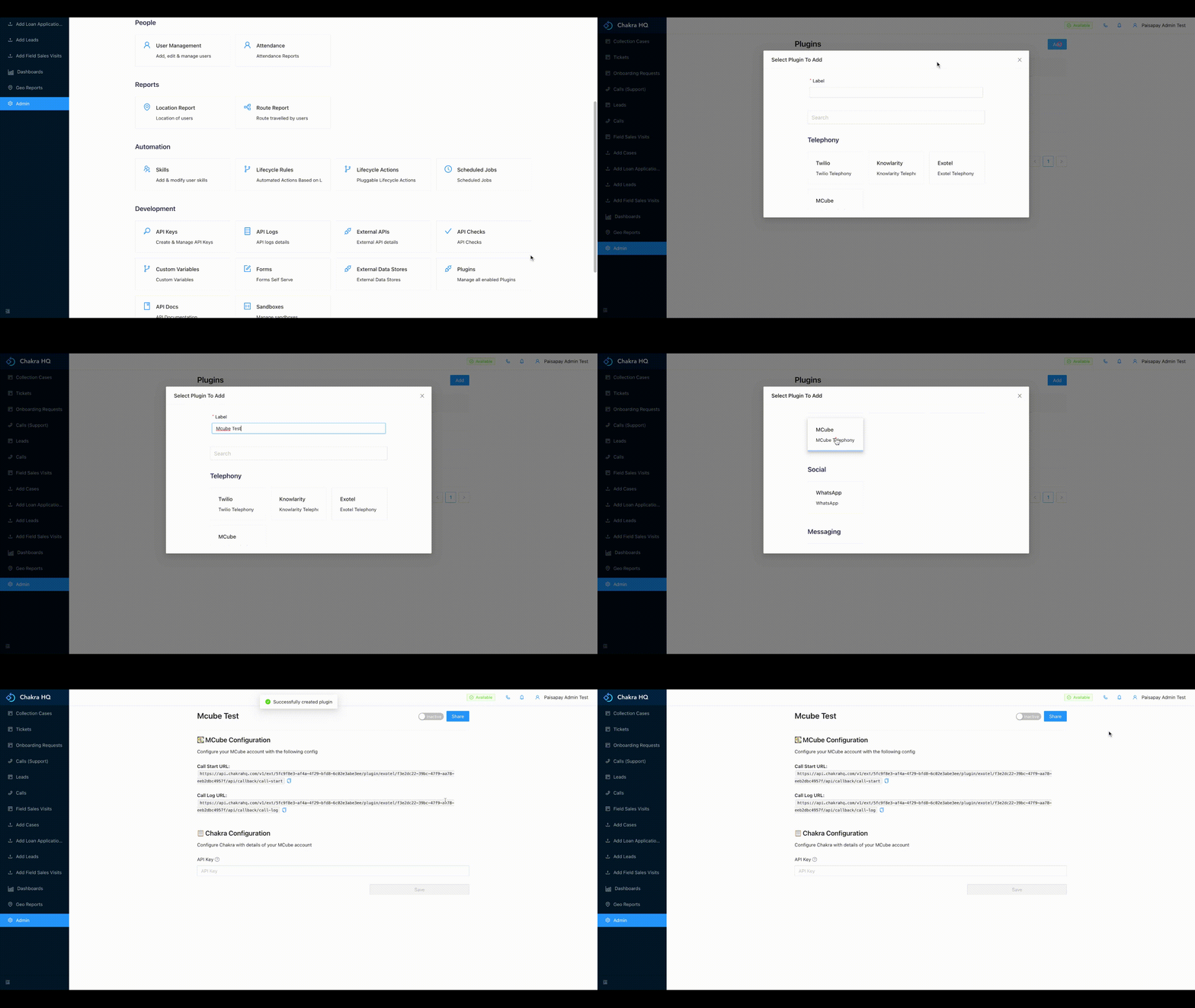
- Go to Admin --> Plugins
- Click on Add, name the plugin in label, select the type of plugin form the list and click add
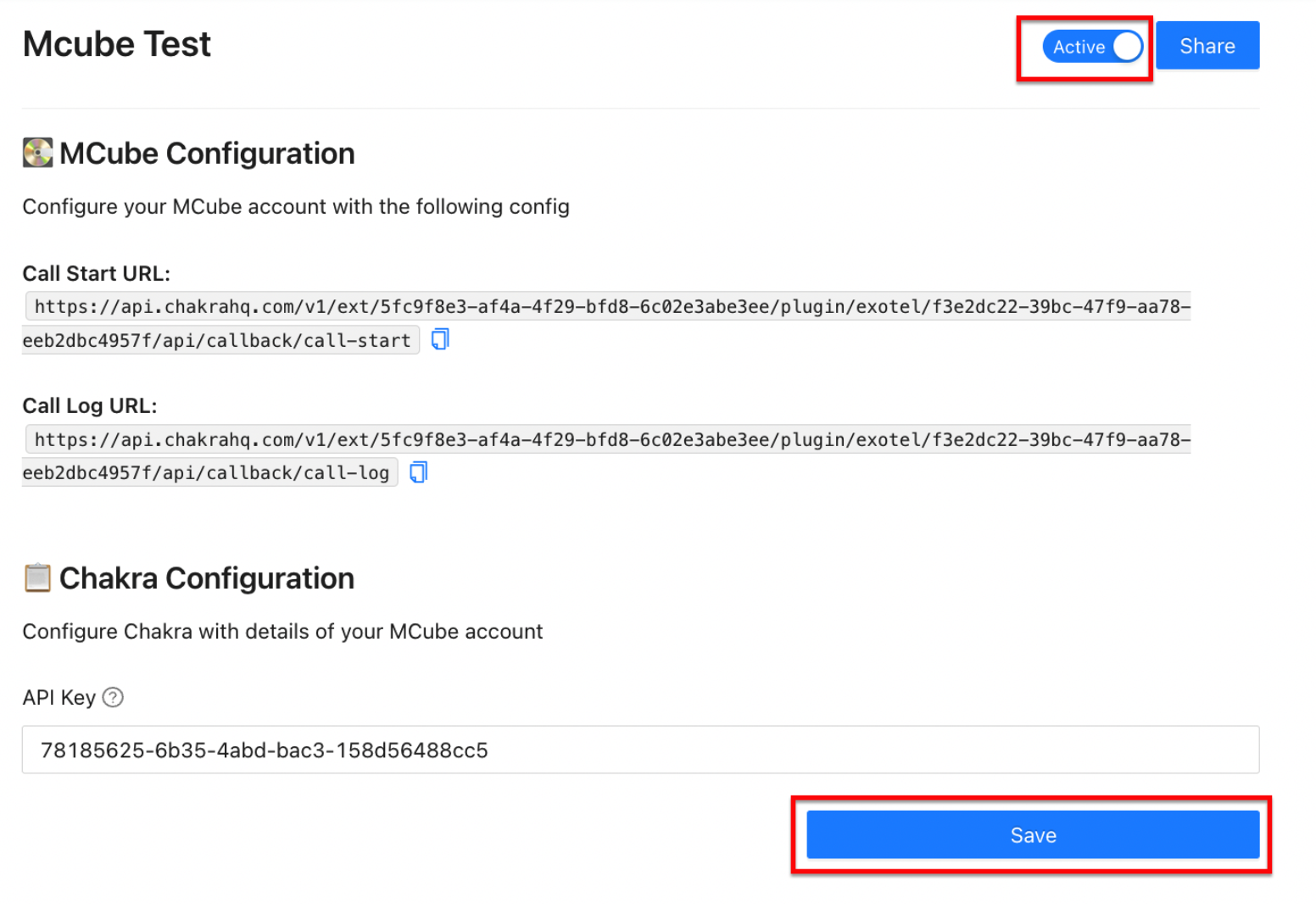
- Enter the required API Key and click save
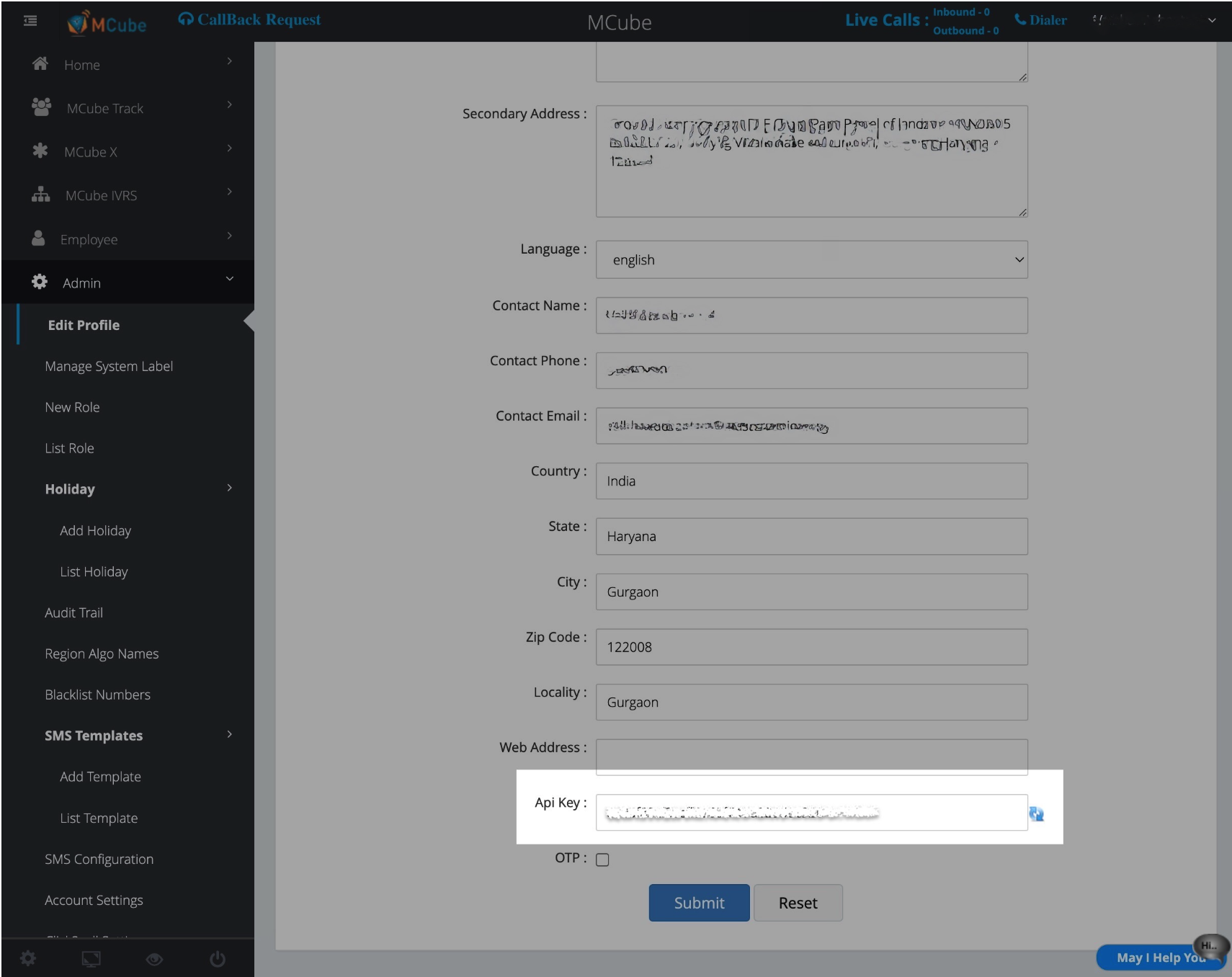
- Get API Key for MCube account.
- Drop an email to the mCube team to enable access for API key
- Copy the following URLs from Chakra MCube plugin
-
Call Start URL -
Call Log URL.
-
Mcube configuration
To integrate Mcube with Chakra, we need to follow the below steps:
- Login to your Mcube account
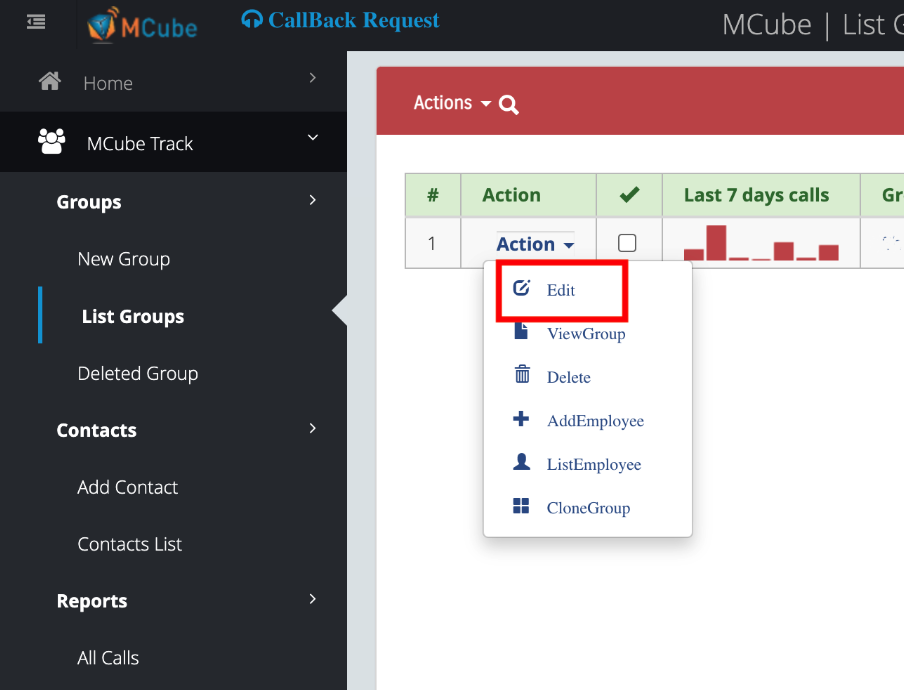
- Navigate to Mcube Track> Groups> List Groups
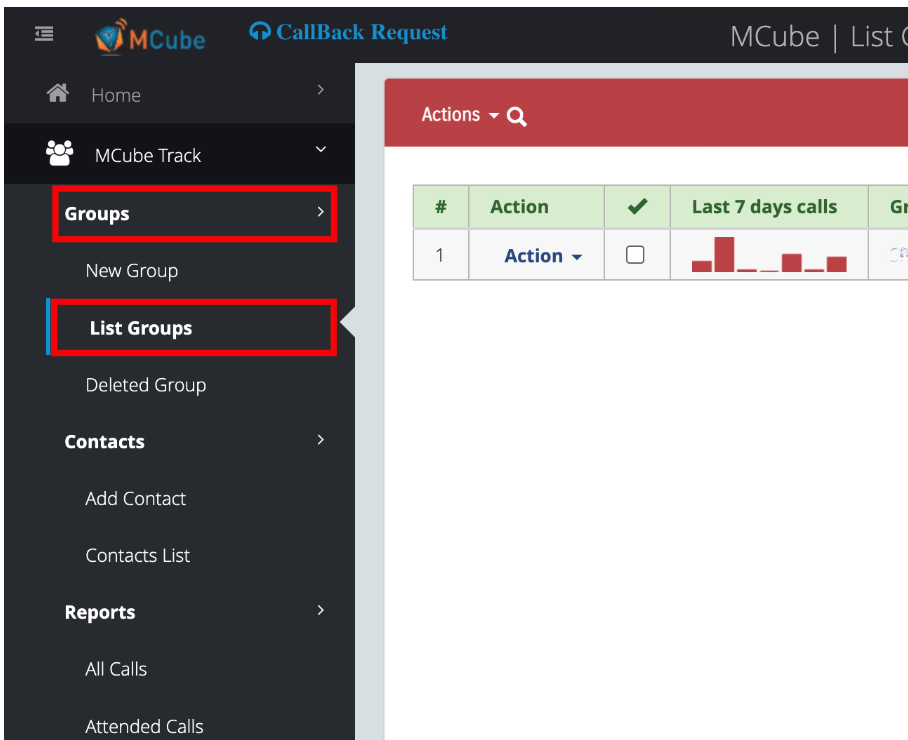
- Click on the edit option under action of the respective virtual DID.
- Paste the
Call Start URLfrom Mcube plugin in Chakra's inAction Perform on Callfield
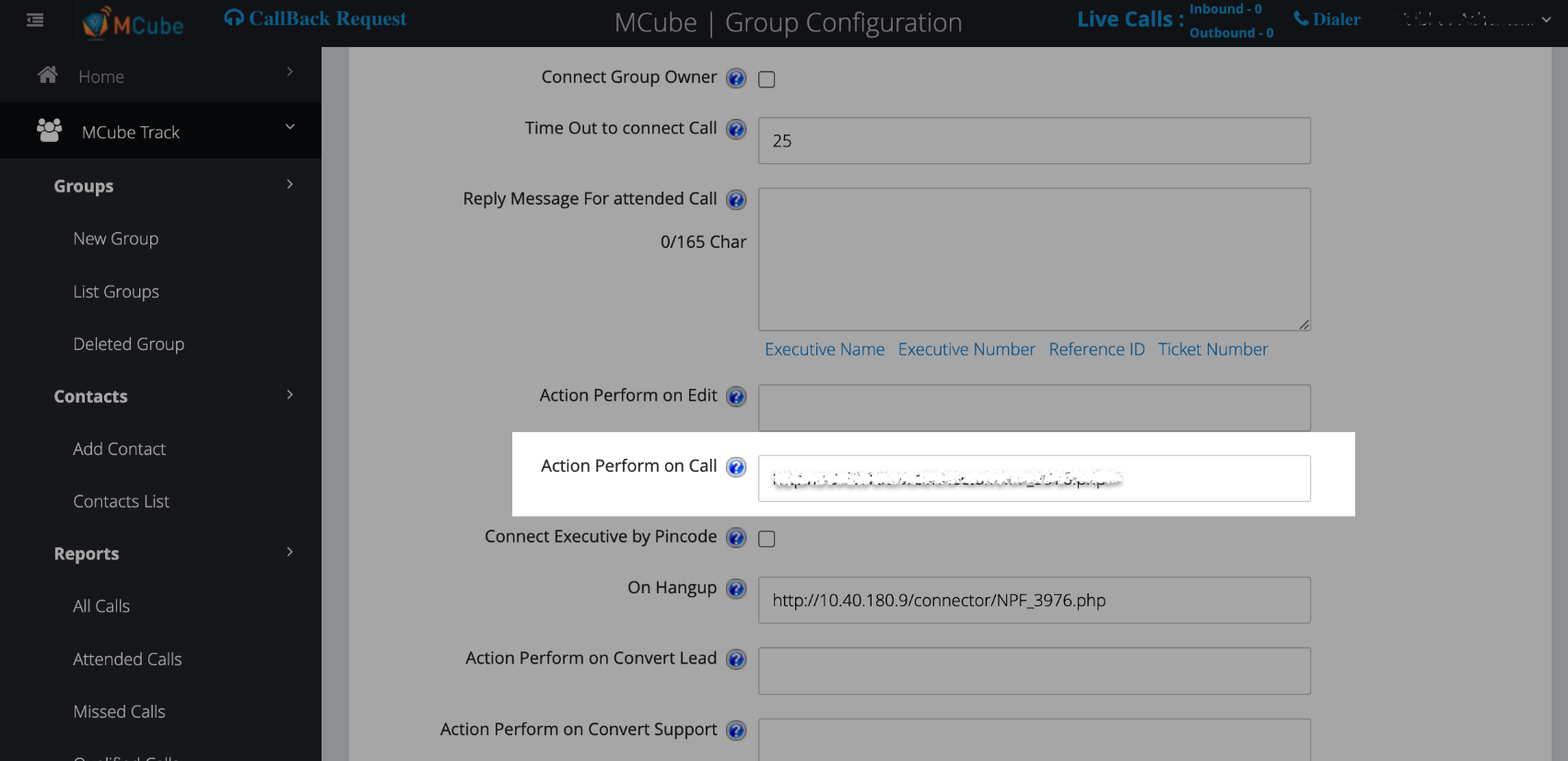
- Paste the
Call Log URLfrom Mcube plugin in Chakra's inOn Hangupfield. Save
Save and Active
- Go to the MCube plugin in Chakra Plugins
- Mark the plugin as
Activeand click onSave