

WhatsApp Number Setup
Steps to setup WhatsApp Number (WhatsApp Business API) in Chakra. Use Chakra native WhatsApp Business API to setup
Overview
Use Chakra's native WhatsApp API integration to connect WhatsApp numbers to Chakra Sales CRM
Setup Prerequisites
Connecting WhatsApp Number in Chakra Sales CRM (using WhatsApp API embedded Signup) has a list of prerequisite checklist.
✅️ The WhatsApp Business API registration is for Businesses ONLY.
✅️ Meta Business Manager Account & Access
✅️ A Phone Number (NEW) OR existing WhatsApp Business Number OR an Already connected API number to migrate
✅️ Business Details (Business Name, Address, Website)
✅️ Tax Info as per local regulations. (GST for India, VAT for UK/Australia, etc)
Review the list of detailed prerequisites in this Pre-Requisites Checklist
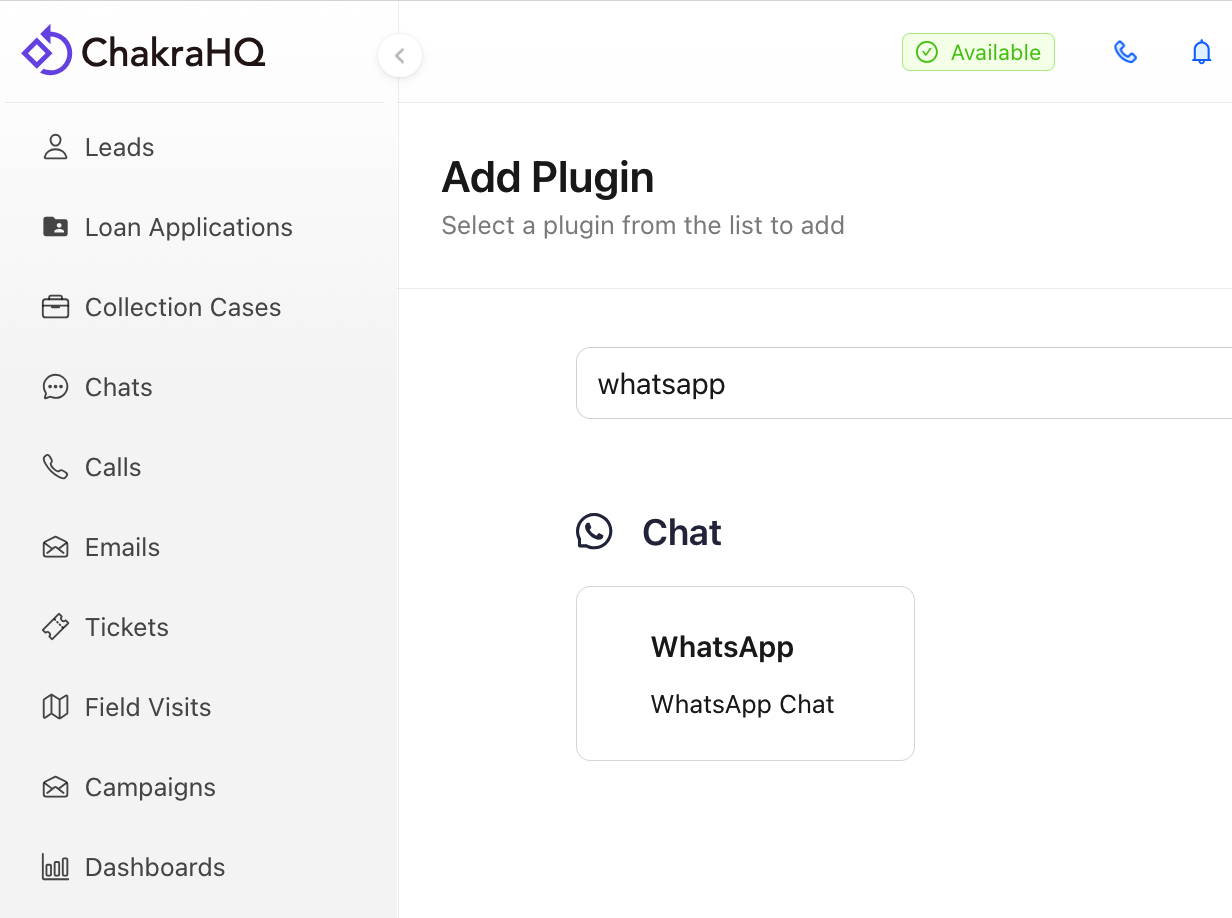
Create Chakra WhatsApp Plugin
- Go to Chakra Admin Plugins
- Click on Add Plugin
- Search for WhatsApp and click on the WhatsApp Chat plugin
- Add a Plugin name.
Connect WhatsApp Number
Steps to connect a WhatsApp Number in Chakra WhatsApp Plugin section.
Access WhatsApp Plugin
- Go to
Pluginsin Chakra - Click
+ Add Plugin - Search for
WhatsAppplugin. - Provide a WhatsApp plugin name and click
Add - Follow the steps in the Guide to connect the Number(s)
WhatsApp API Setup Guide
Connect Types:
- New Number Connection
- Existing Number Migration
- Existing WhatsApp Business Connection (CoExistence)
- Migration of Coexistence Number
Overview of Key Steps:
- Grant Facebook Permissions to Chakra
- Choose/Create (Portfolio, WABA)
- Add Phone Number
- Verify Phone Number
- Review Access
- Setup Complete
Other Steps WhatsApp Setup
- Add Payment Method in Meta (for template messaging charges)
- Complete Business Verification (If enabled by Meta)
Test WhatsApp Number Setup:
Using the Test WhatsApp features guide