

Create A Message Template
Create a message template
Overview:
Guide to Creating a WhatsApp Message Template in Chakra Chat
Steps to Create Template Message
1. Go to 👉 Message Templates
Click Add
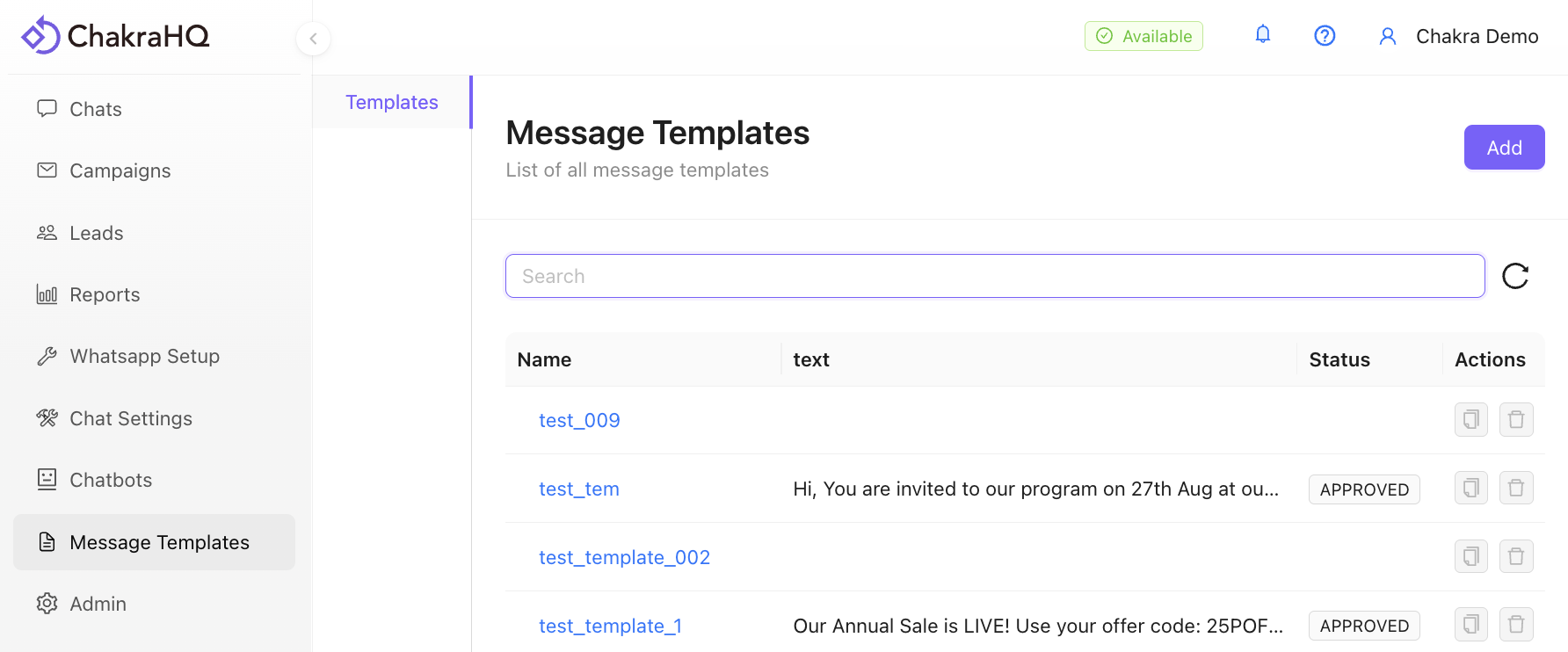
2. Name the Template
Enter a unique name for the template using only lowercase alphanumeric characters and underscores. Select the appropriate Plugin or WABA ID.
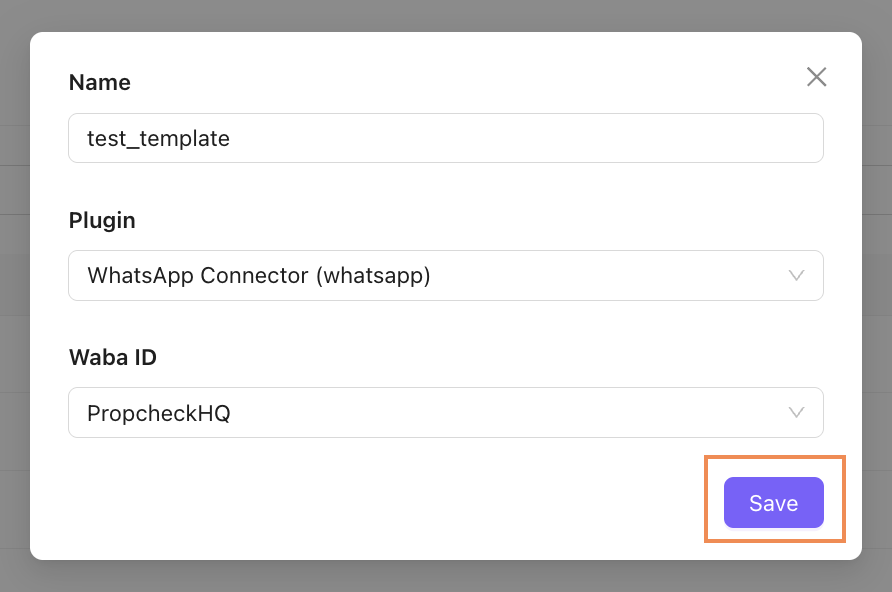
3. Configure Template Settings
- Choose the template category and language.
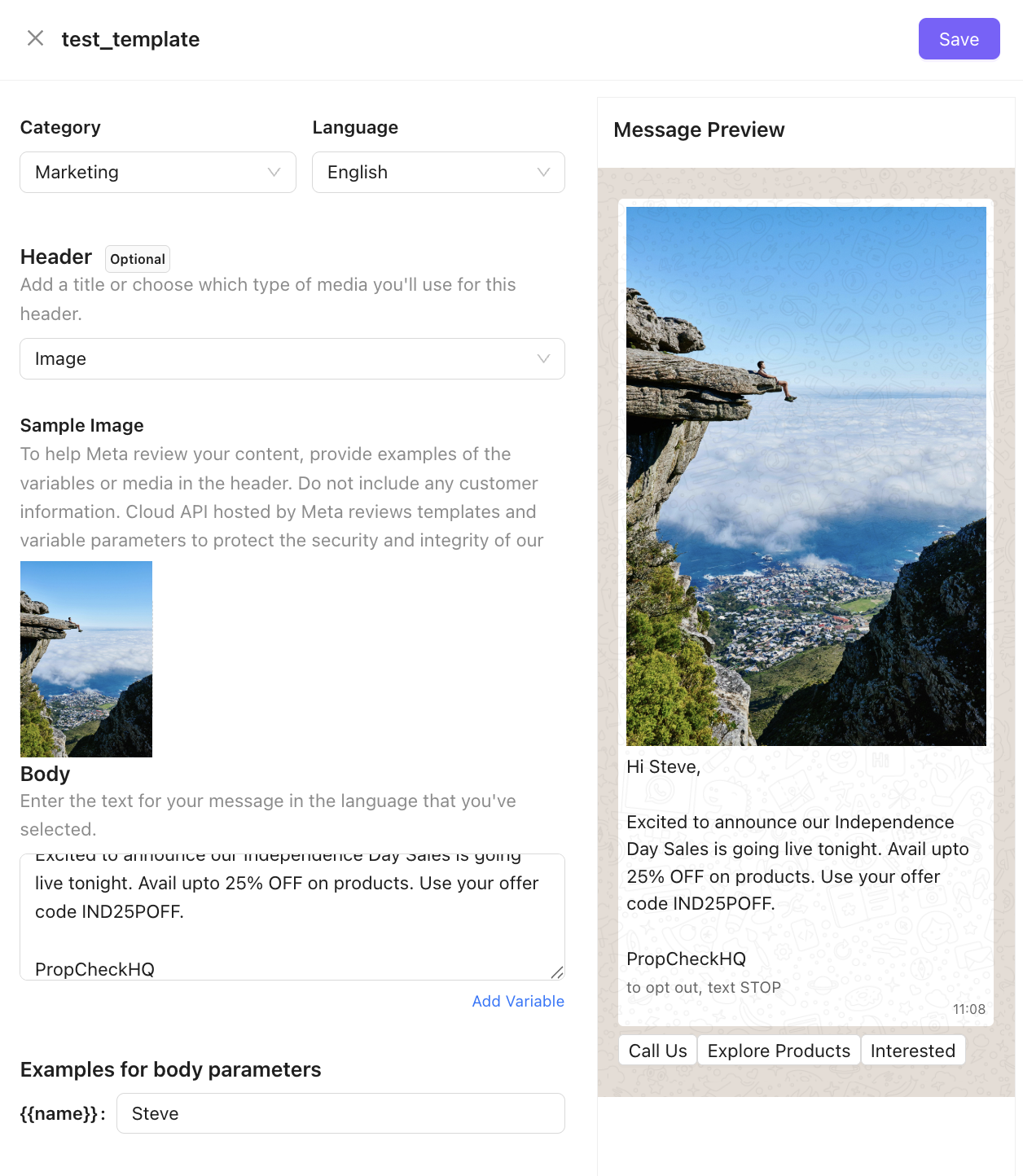
- [Optional] Add a Header: Include sample header text or media, if applicable.
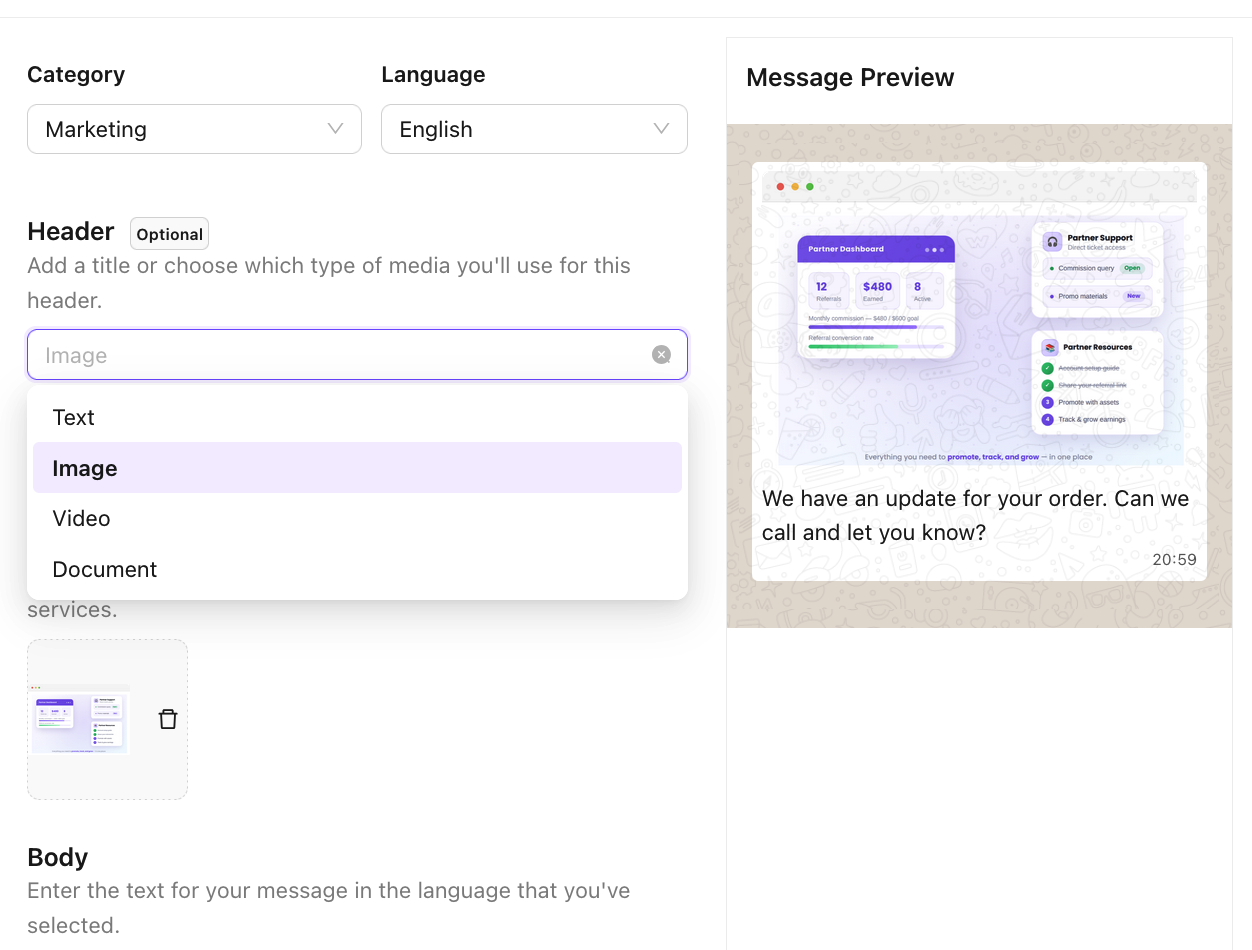
4. Compose Message Body
Write the message content in the selected language.
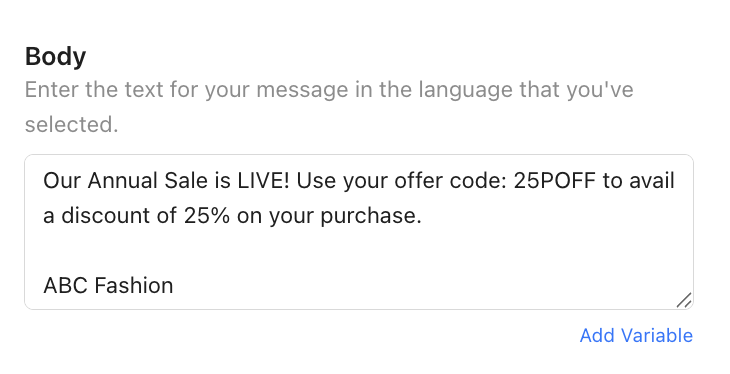
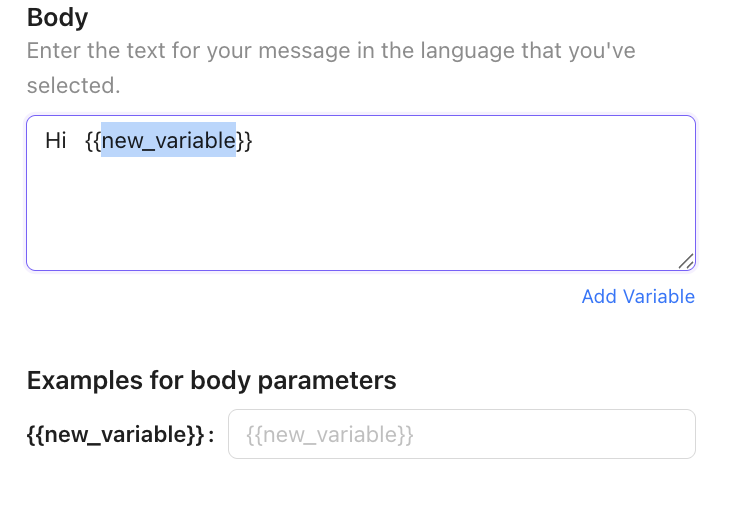
Add Message Variables
Use Add Variable option
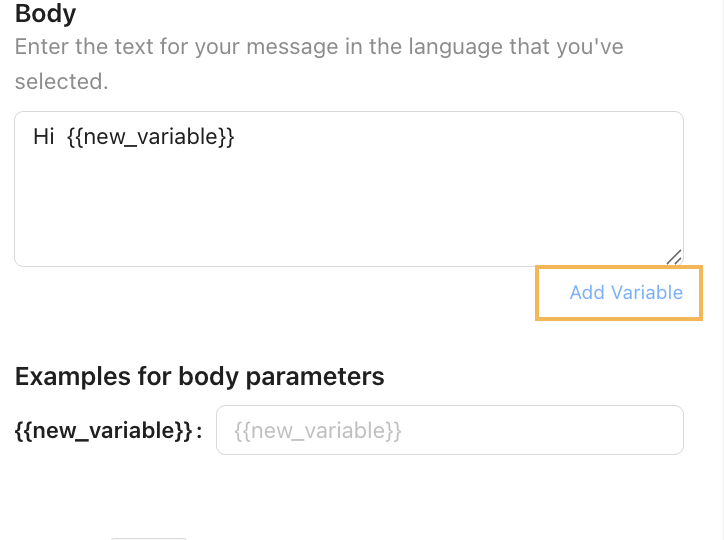
Rename variables
If applicable provide example values for body parameters like images, personlaized name, etc
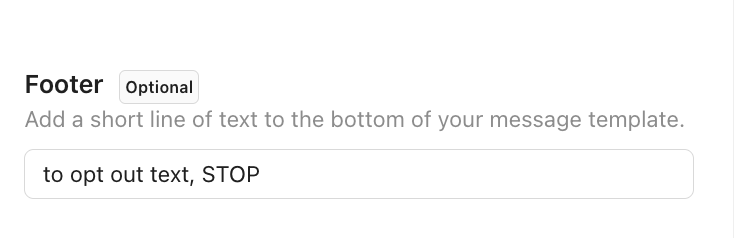
[Optional] Add a Footer
Include a short line of text at the bottom of the template.
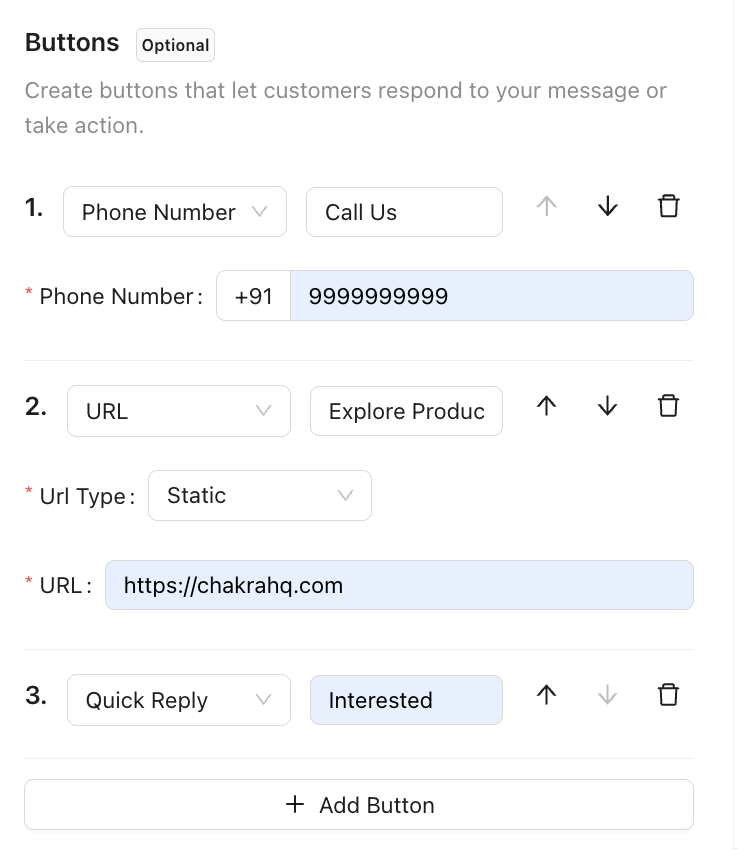
[Optional] Create Buttons
Select from URL, Quick Reply, or Call button types.
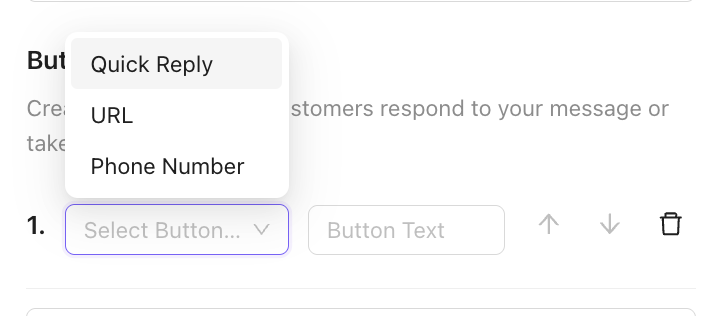
Enter the Button Text as it should appear in the template. Reorder or delete buttons using the provided options.
5. Preview the Template
Preview the message in real-time.
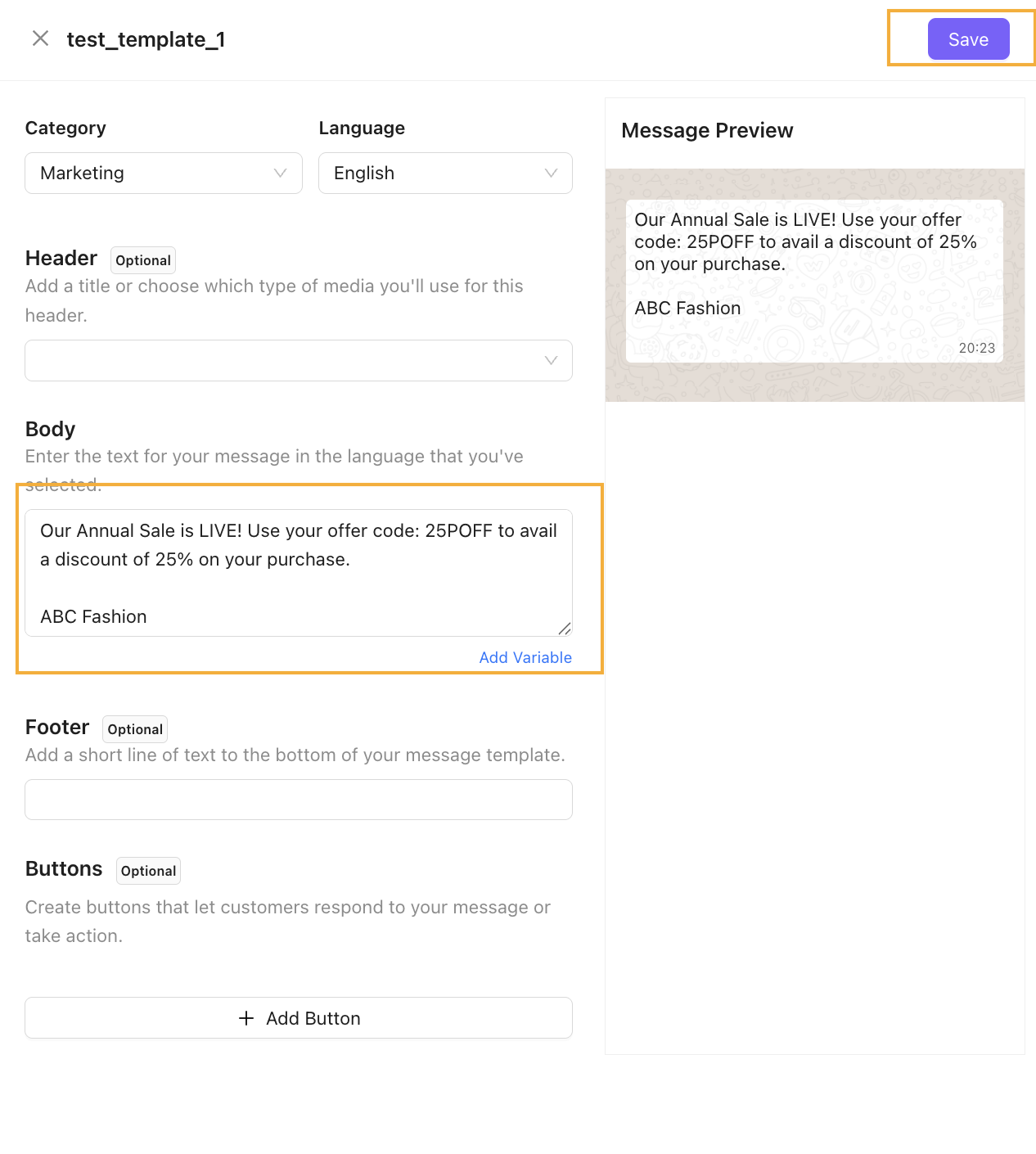
6. Save the Template
Verify the template details and click Save to submit.
7. Template Approval
The template will remain pending until approved by Meta.

8. Check Approval Status
Use the Refresh option to monitor the template’s approval status.

9. Template Ready for Use
End: Once the WhatsApp message template is created and submitted, it typically receives approval within minutes. However, in some cases, approval may take a few hours.