

Create Workflow Campaign
Overview
Workflow campaigns in Chakra allow you to create campaign sequences or drip campaigns. These let you schedule a series of WhatsApp messages to be sent to customers at specific points in their engagement journey. With smart decision nodes and automated removal options, you can tailor the experience effectively.
Create Workflow Campaign
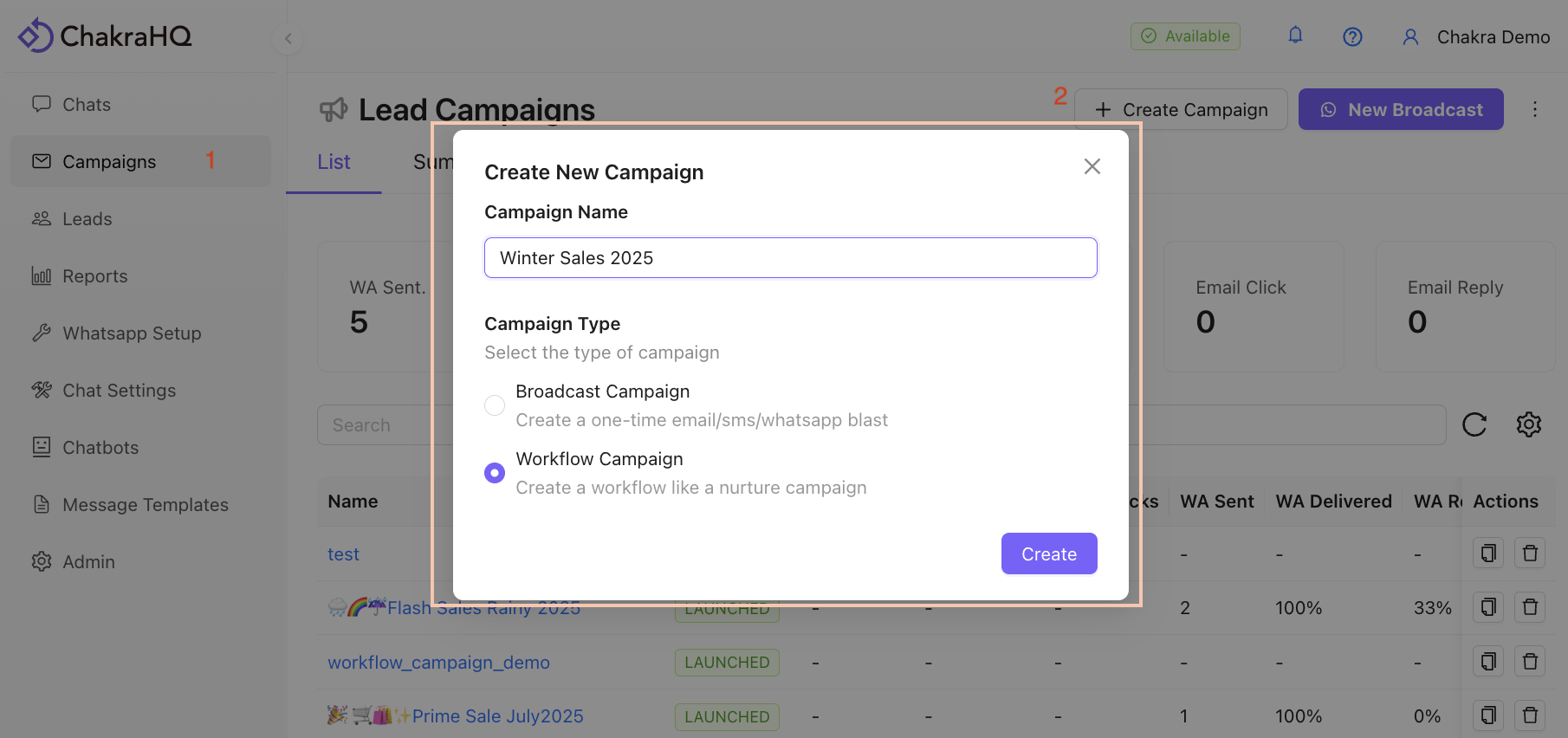
1. Go to Campaigns
- Go to the Campaigns Tab in the left-hand side bar
- Click on
Create Campaignbutton
2. Set Campaign Details
Add a campaign name and select the Workflow Campaign option in Campaign Type.
3. Add WhatsApp Message Step
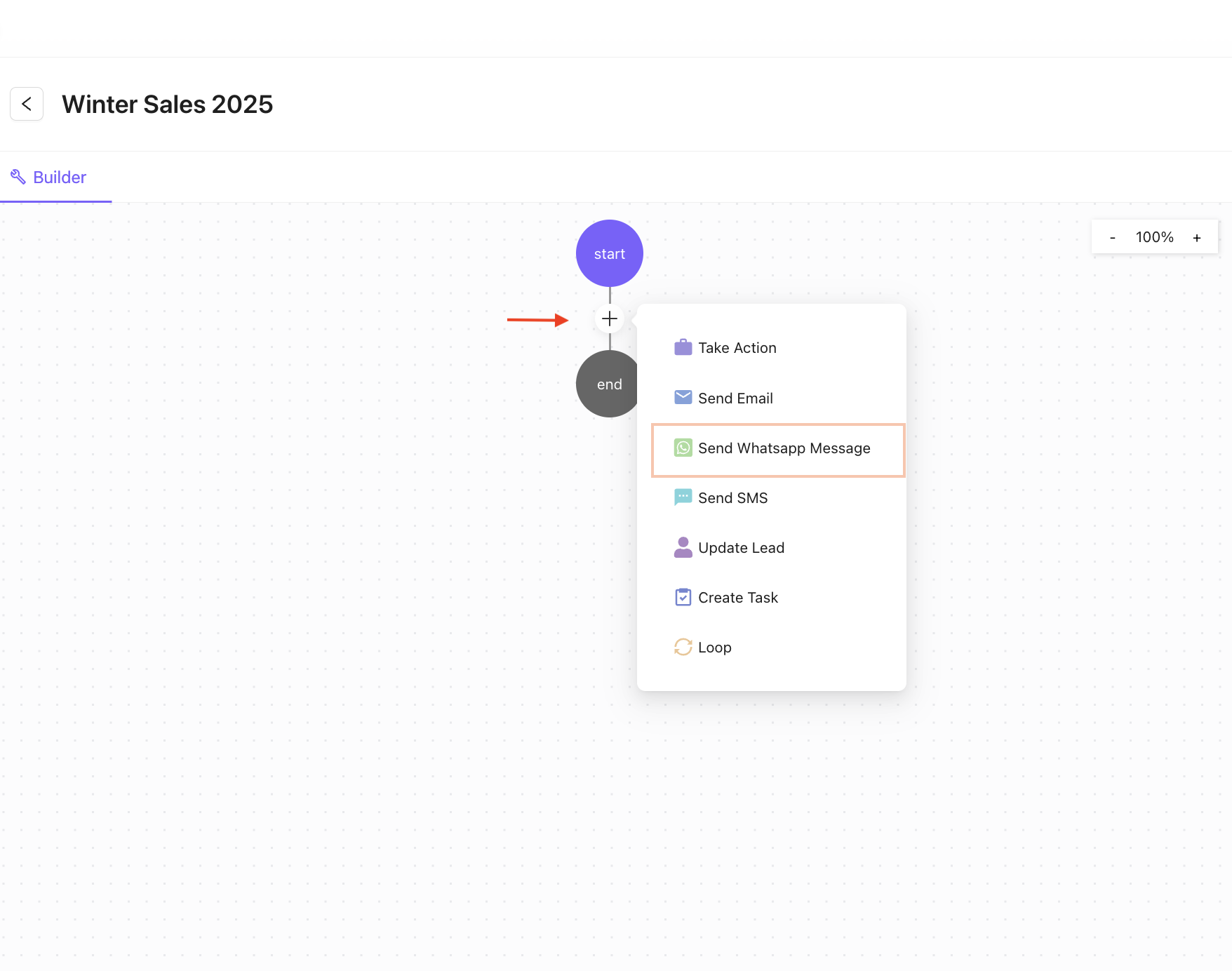
In the campaign builder, click the + icon and choose Send WhatsApp Message.
4. Configure Campaign Step
The campaign step drawer opens on the right. Click on the "Campaign Step" section.
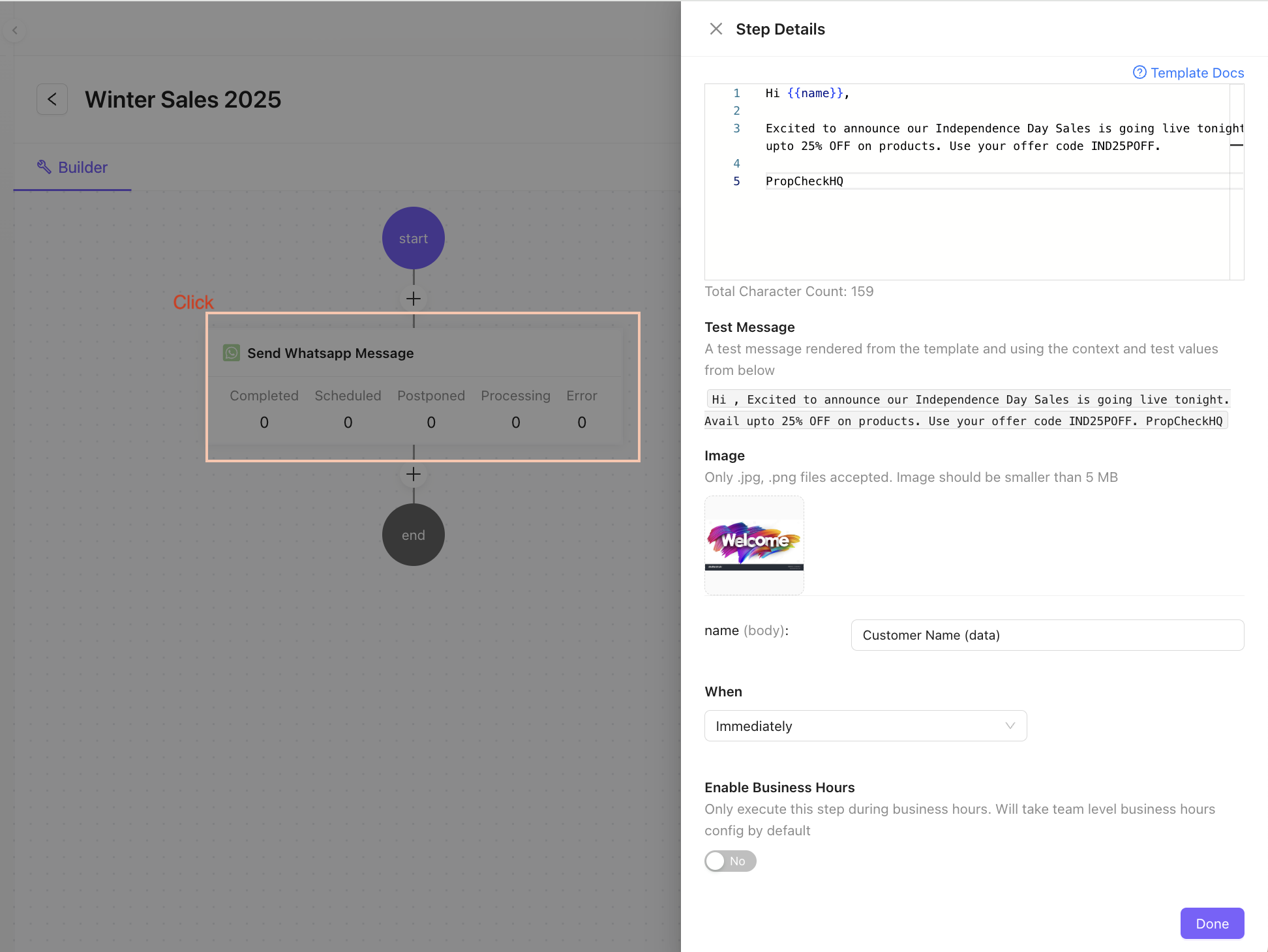
5. Enter Step Details
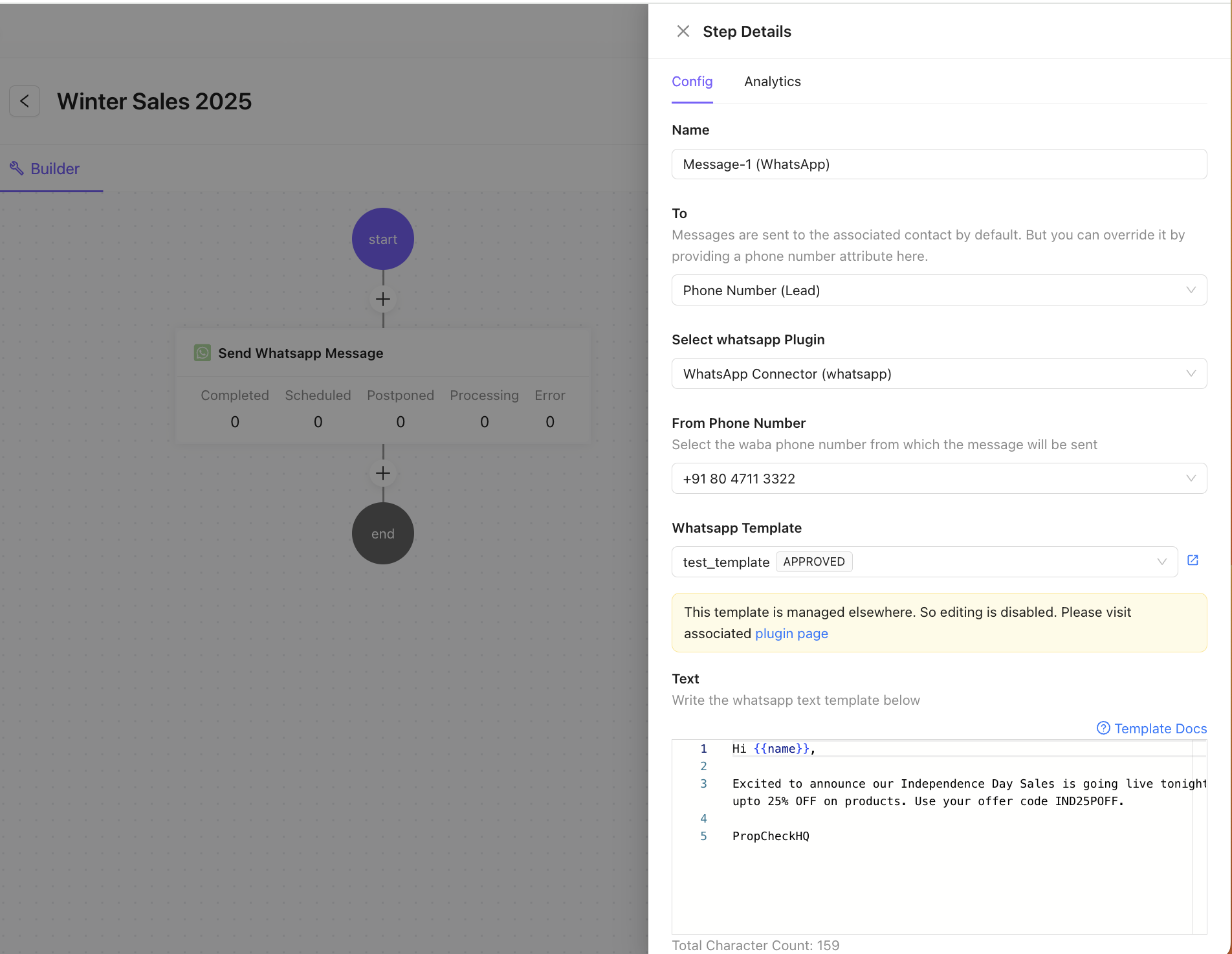
- Add a Step name.
- Set "To" (Phone Number/Lead).
- Select
WhatsApp PluginandPhone Numberif needed. - Choose a template.
- Preview the template in the template view
⚠️⚠️ Note: Approved templates cannot be modified here
6. Add Template Variables
Include template message body variables (e.g., image upload, personalized name, etc.).
Click on Done
7. Save & Activate Campaign
Once the builder flow is complete, click Save and toggle the campaign to Active.
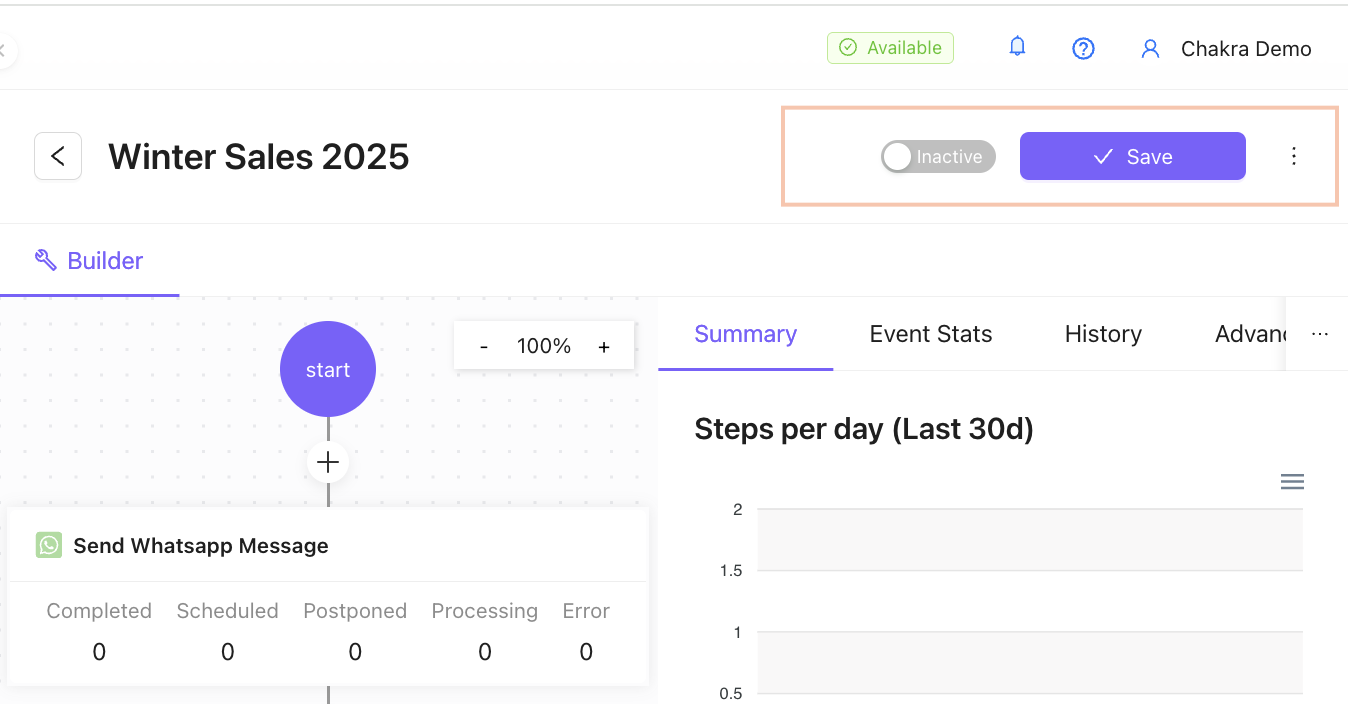
- The campaign is now ACTIVE.
8. Add Leads to the Campaign
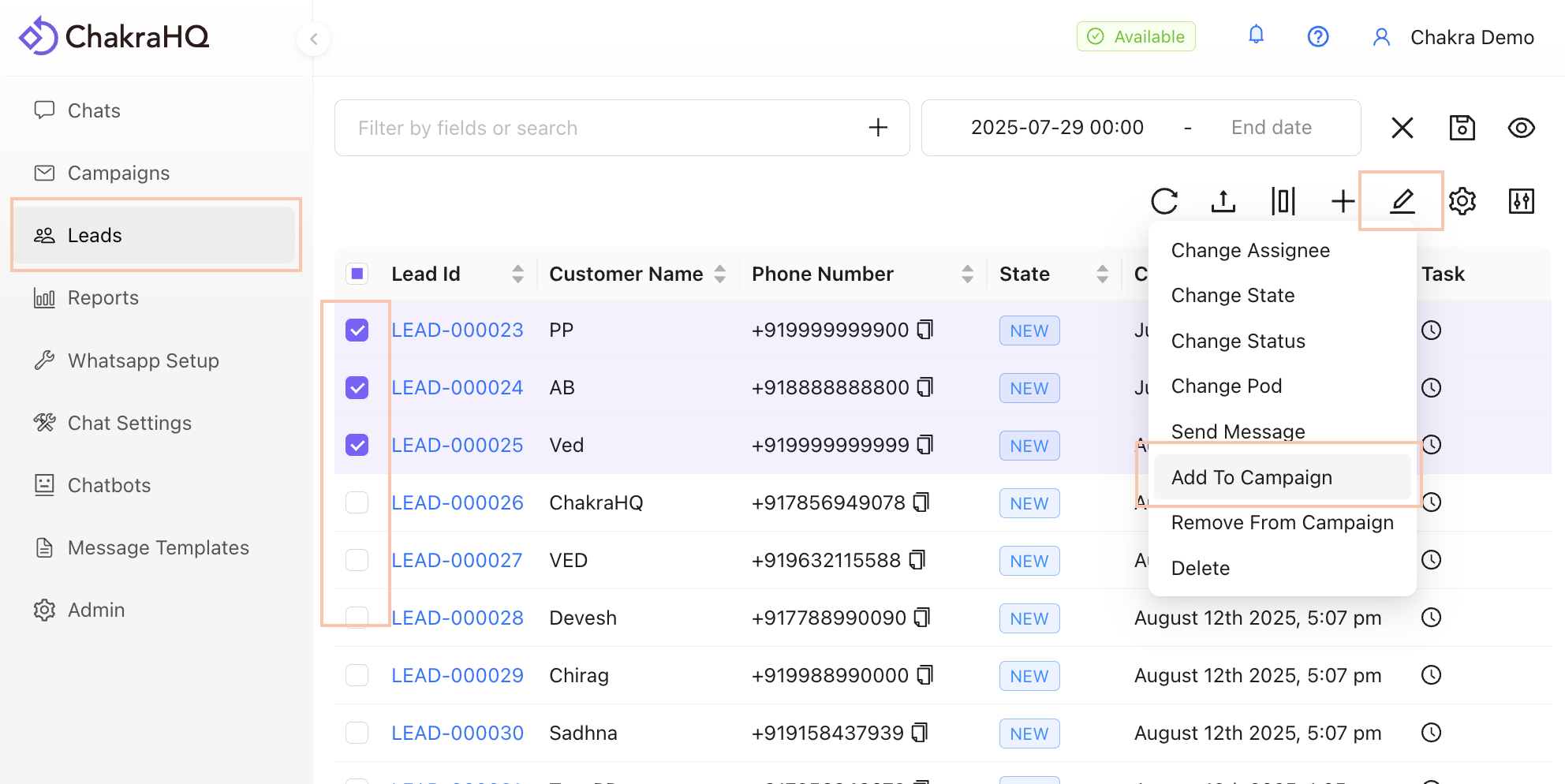
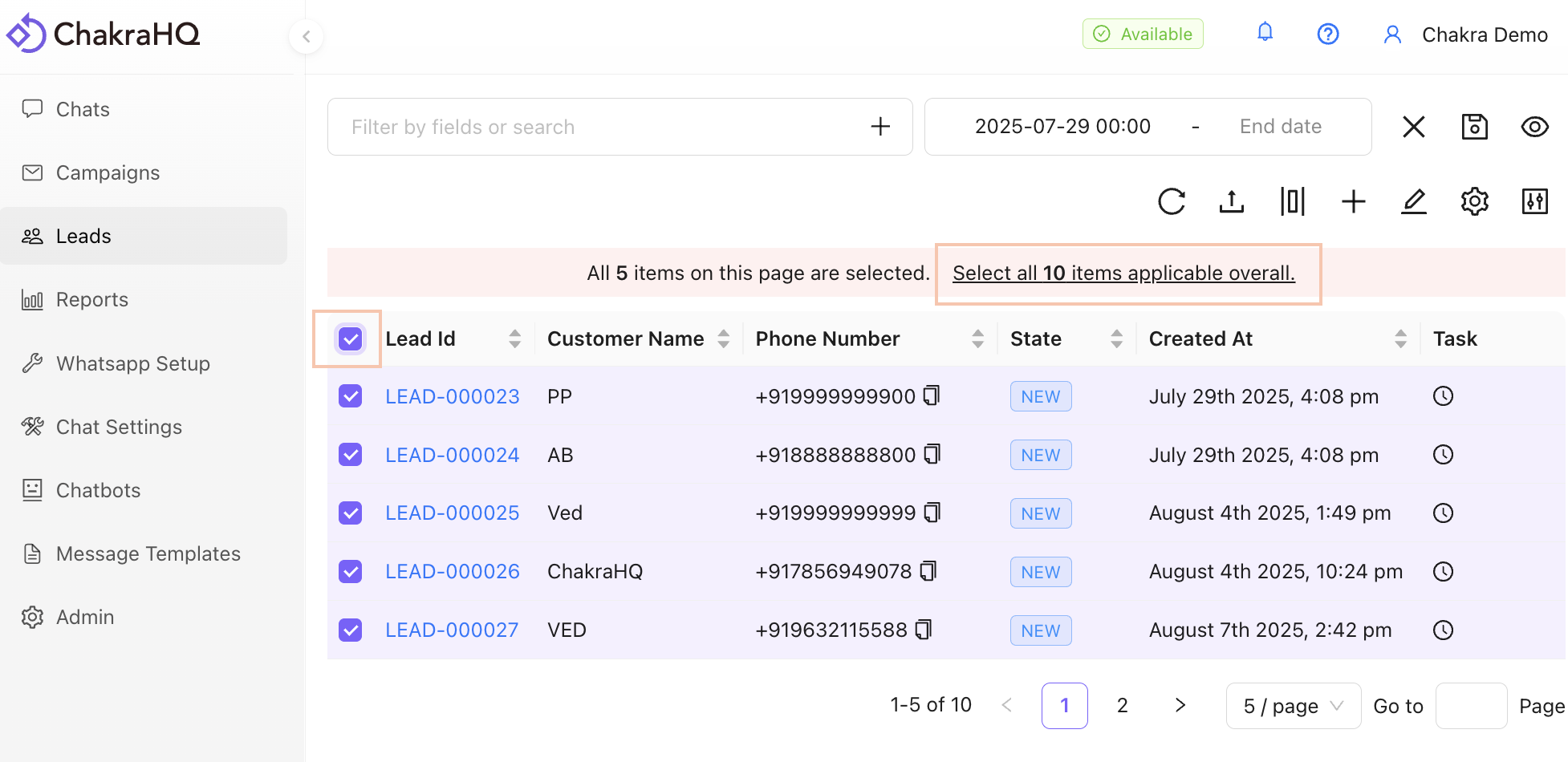
- In the Leads tab, select specific leads or use "Select All" to choose leads.
Steps to Add Leads to a Campaign
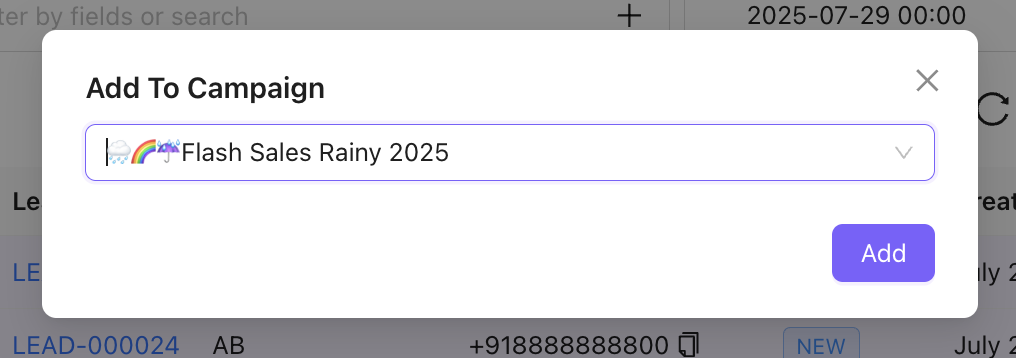
Select the Campaign and click Add
Select ALL Leads
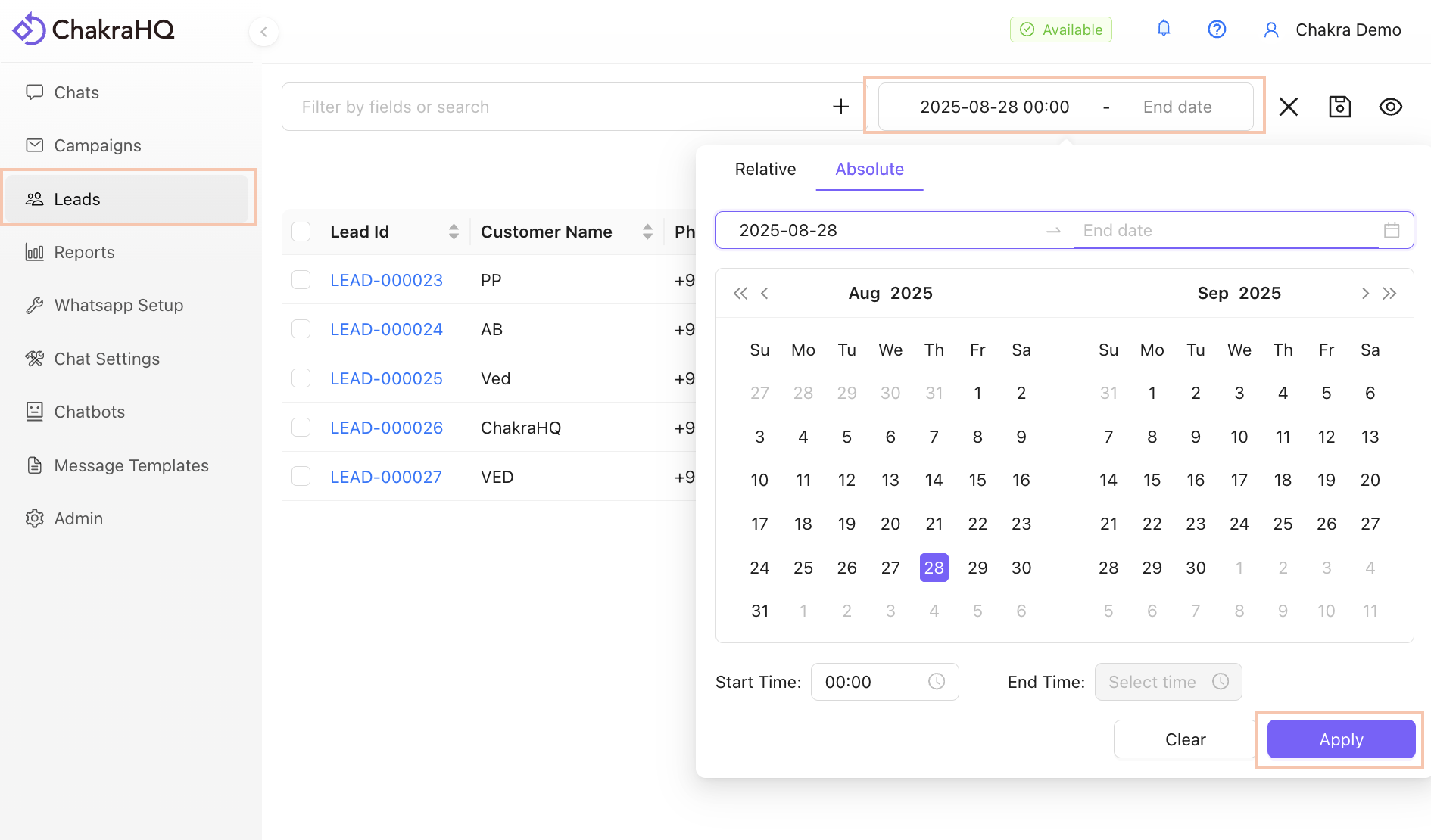
Use Lead Filters
Use Date filter or Lead filter by attributes to shortlist relevant leads for the campaign
9. Track Campaign Performance
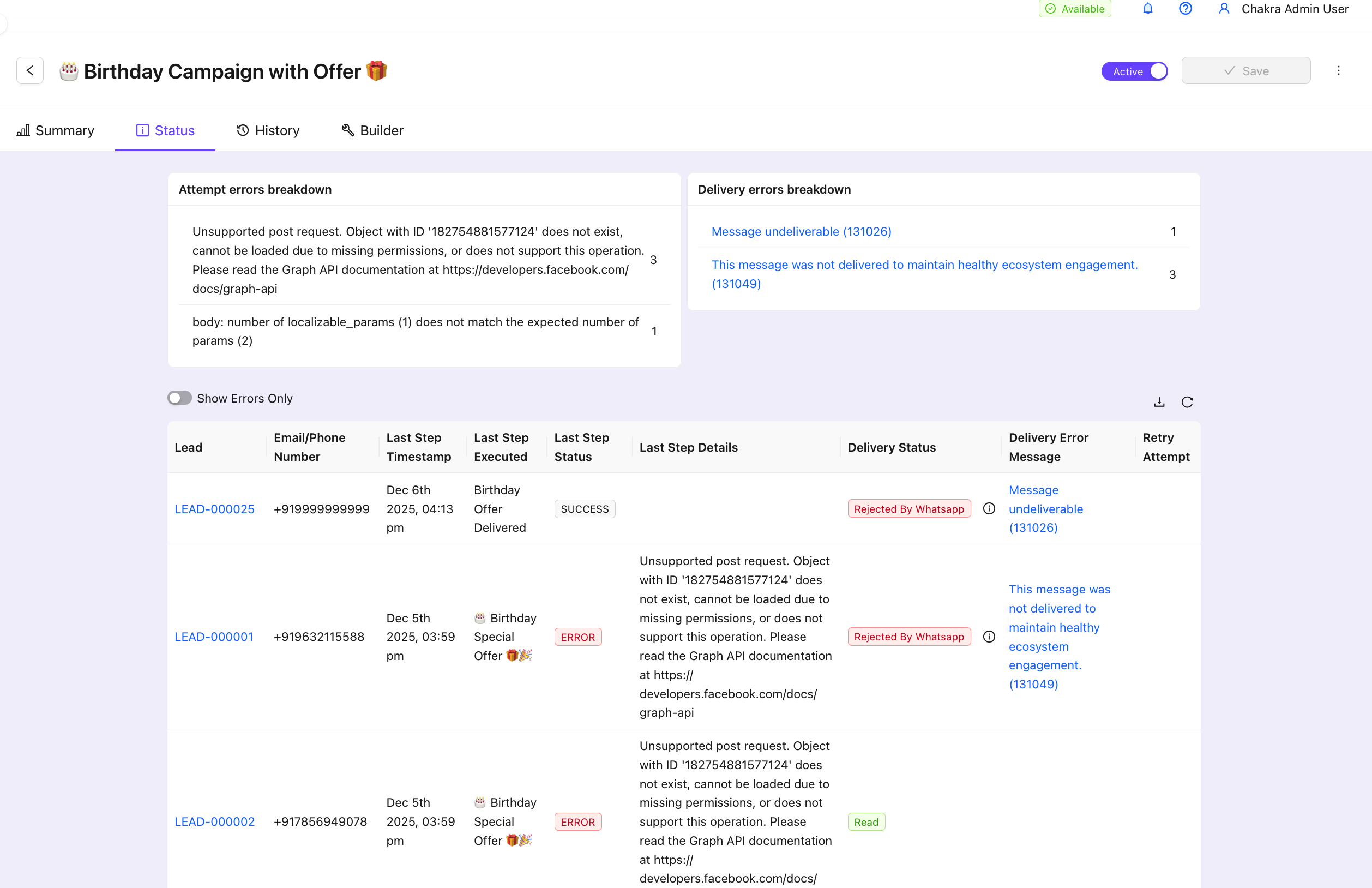
Monitor campaign metrics in the Status tab.
Check more detail in the Campaign Delivery Status Help Guide
10. [Optional] Other Step Details
A. Set Execution Time
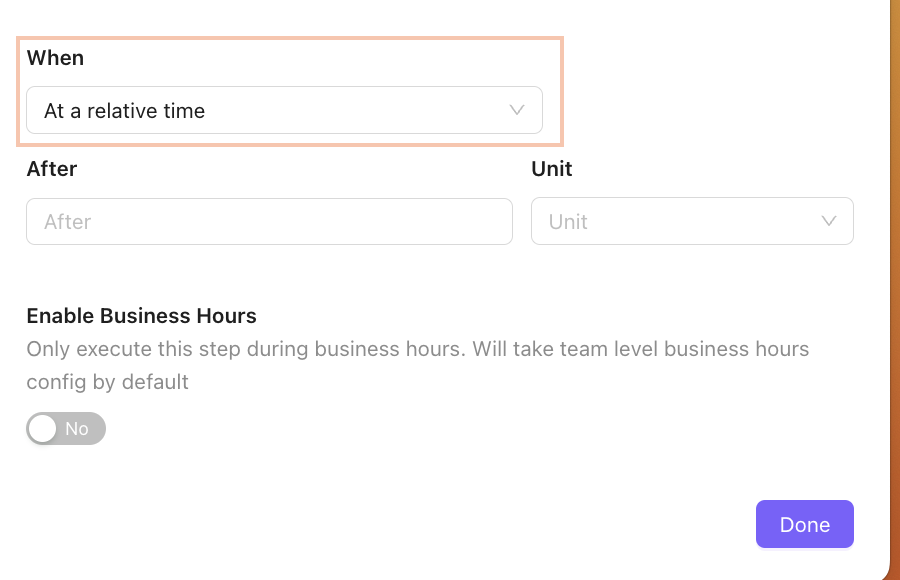
Choose the step execution time under When
- Immediately
- At Relative Time
- At a Scheduled Time
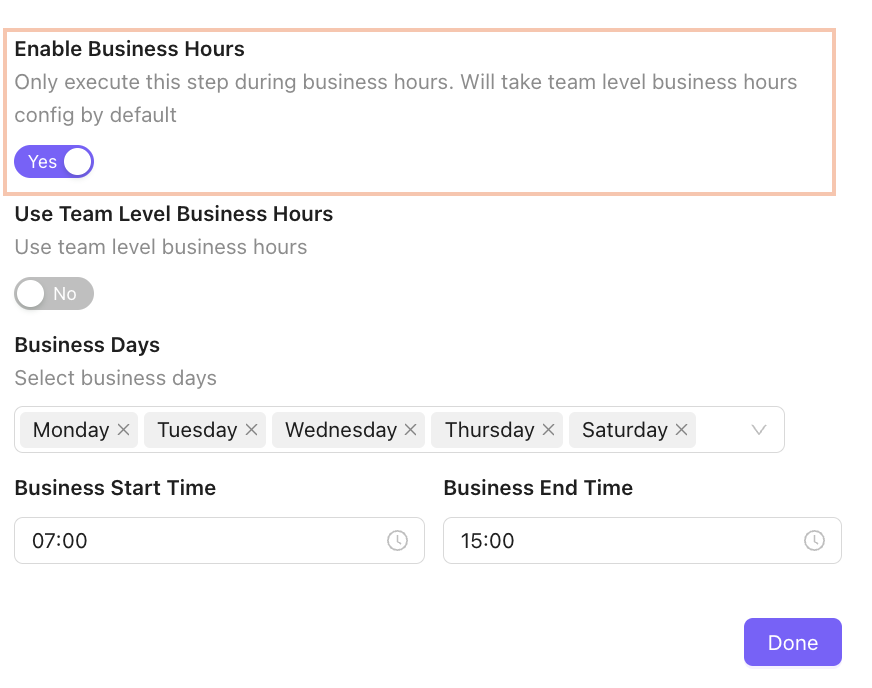
B. Configure Business Hours
Add Business Hours settings to send messages only during set times.
C. Add Decision Nodes
Use the + icon in the builder and select "Take Action" to configure branching points. Set rules or conditions (e.g., Message Read, Replied, Delivered, or NOT) to direct the campaign flow, allowing actions like Remove from Campaign or Send a different message based on previous step behavior.
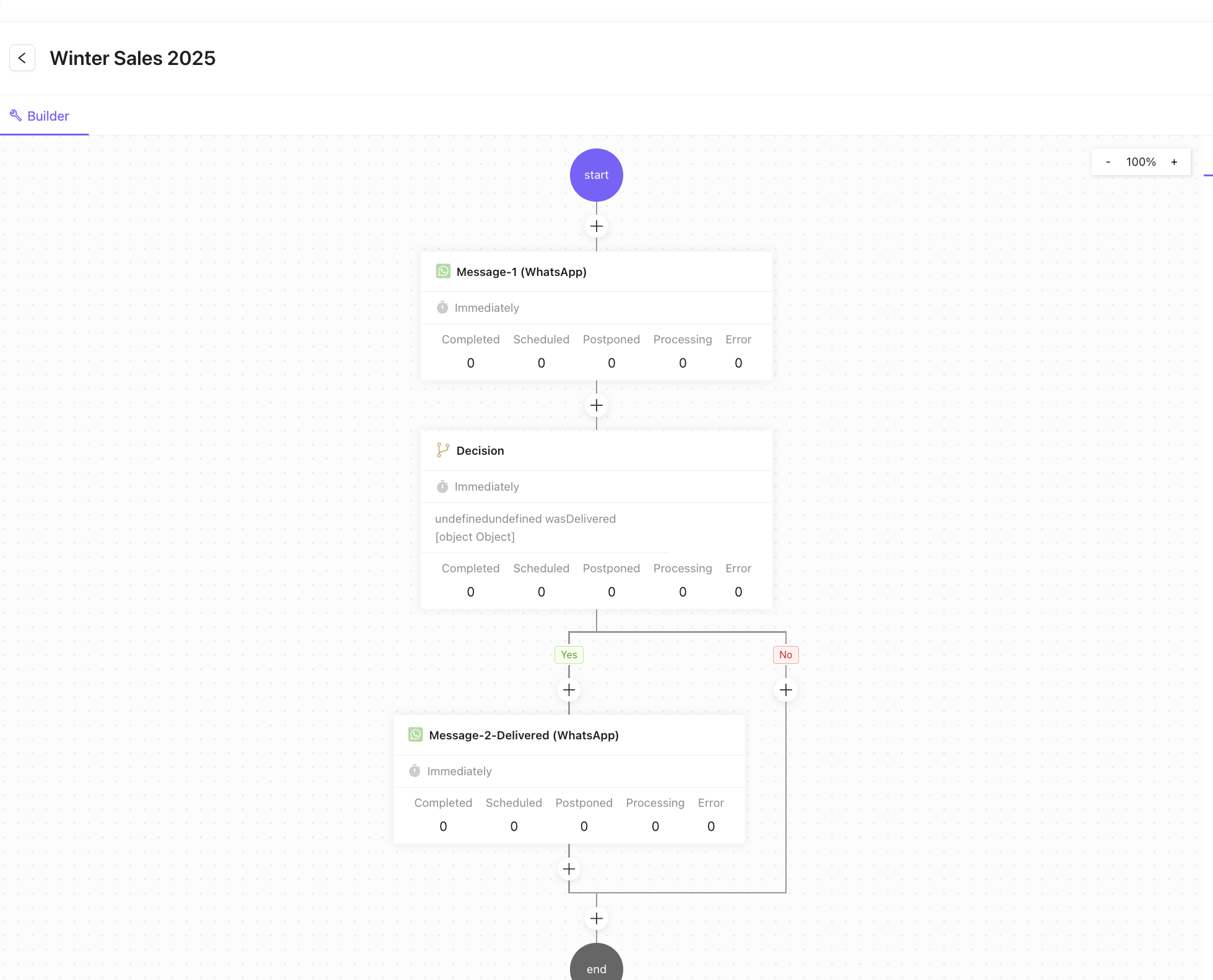
D. Add More Campaign Steps
Build the rest of the campaign sequence flow as needed.
E. Add Rate Limit
WhatsApp API system have a default message per second (MPS) rate limit for every account. It's suggested to keep the rate limits under 80 MPS for new accounts.
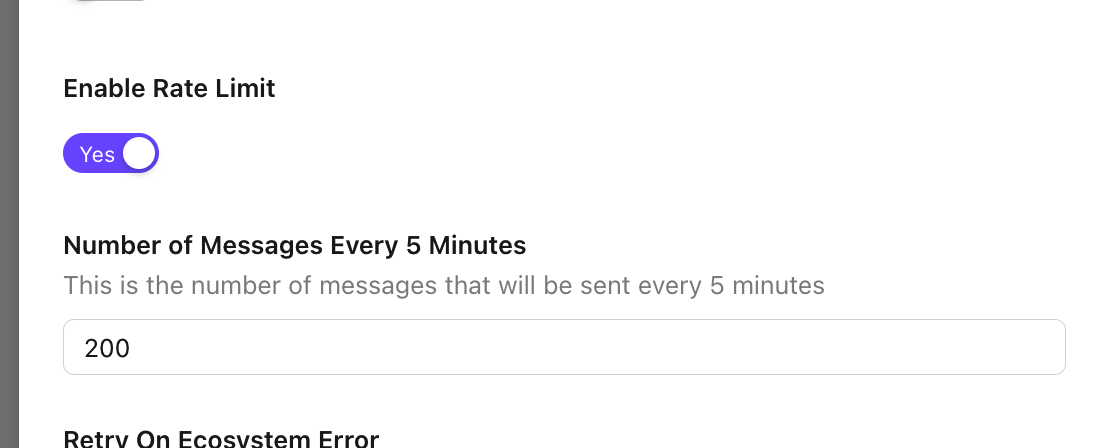
- Add the Number of Messages Every 5 Minutes
- The default number of messages per 5 minute is 200
11. [Optional] Add Campaign Retry
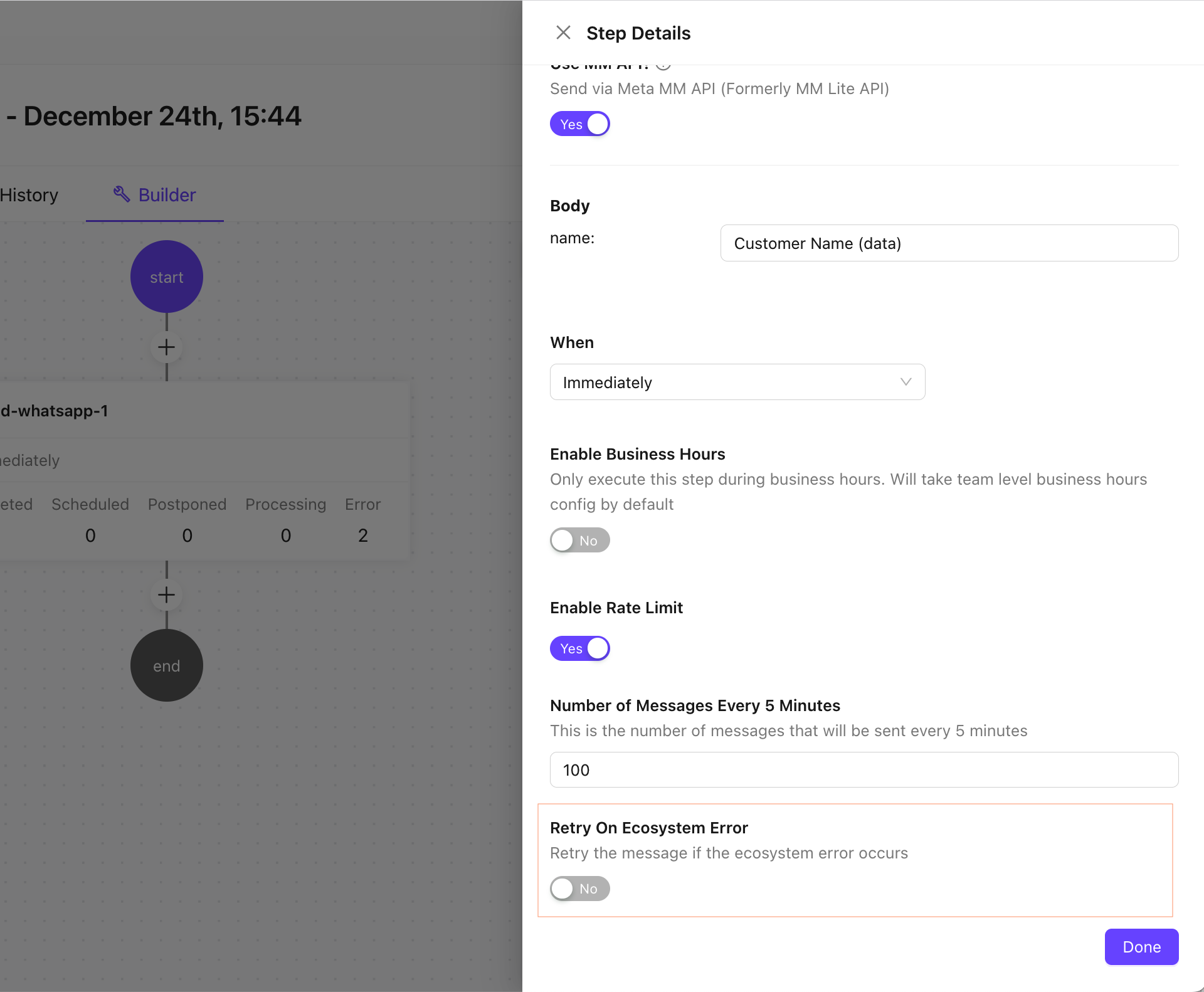
Currently campaign retry workflow is enabled for Maintining a Healthy Ecosystem Error Code #131049
a. Choose a Campaign Step
Click on the Campaign Step to open the configuration settings
b. Enable the Retry Ecosystem Error option
Enable the Retry Campaign Toggle
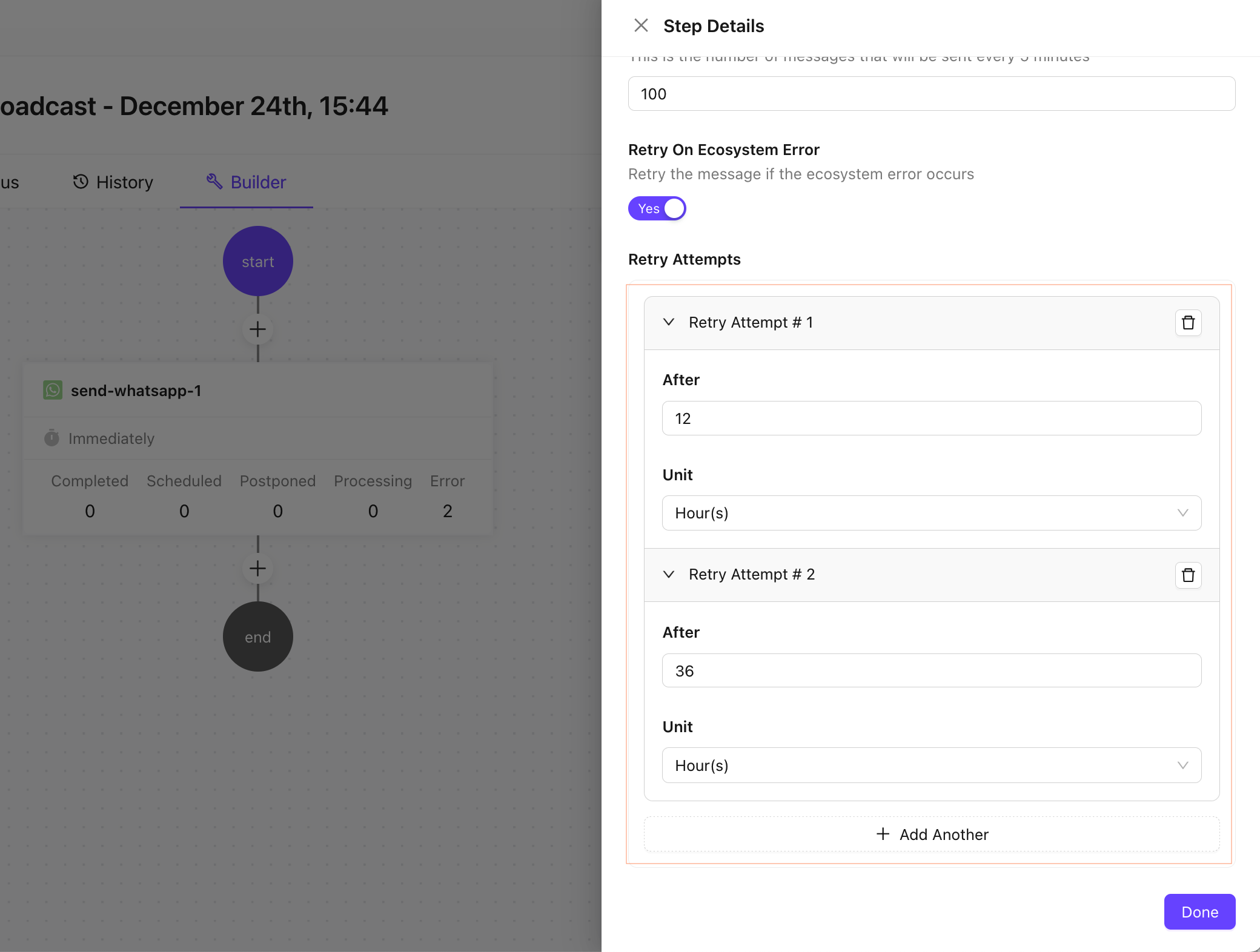
c. Configure the Retry Campaign Setting
Add the Retry Attempts Rules with Retry Attempt Time Frame and Time Unit.
d. Save The Campaign
Save the Campaign after configuration.
Additional Notes
- Ensure templates comply with WhatsApp policies.
- Track Message Delivery performance for every executed campaign step
- Regularly review campaign performance to optimize results.
For further assistance, contact support or refer to additional resources.