

Track Campaign Delivery
How to Track Campaign Message Delivery Status in Chakra Chat
This guide explains how to check the real-time delivery status of every message sent in a WhatsApp campaign, including detailed error codes and recommended solutions.
Steps to View Delivery Status
- Go to the Campaigns tab in the left sidebar
- Click on the specific campaign you want to check
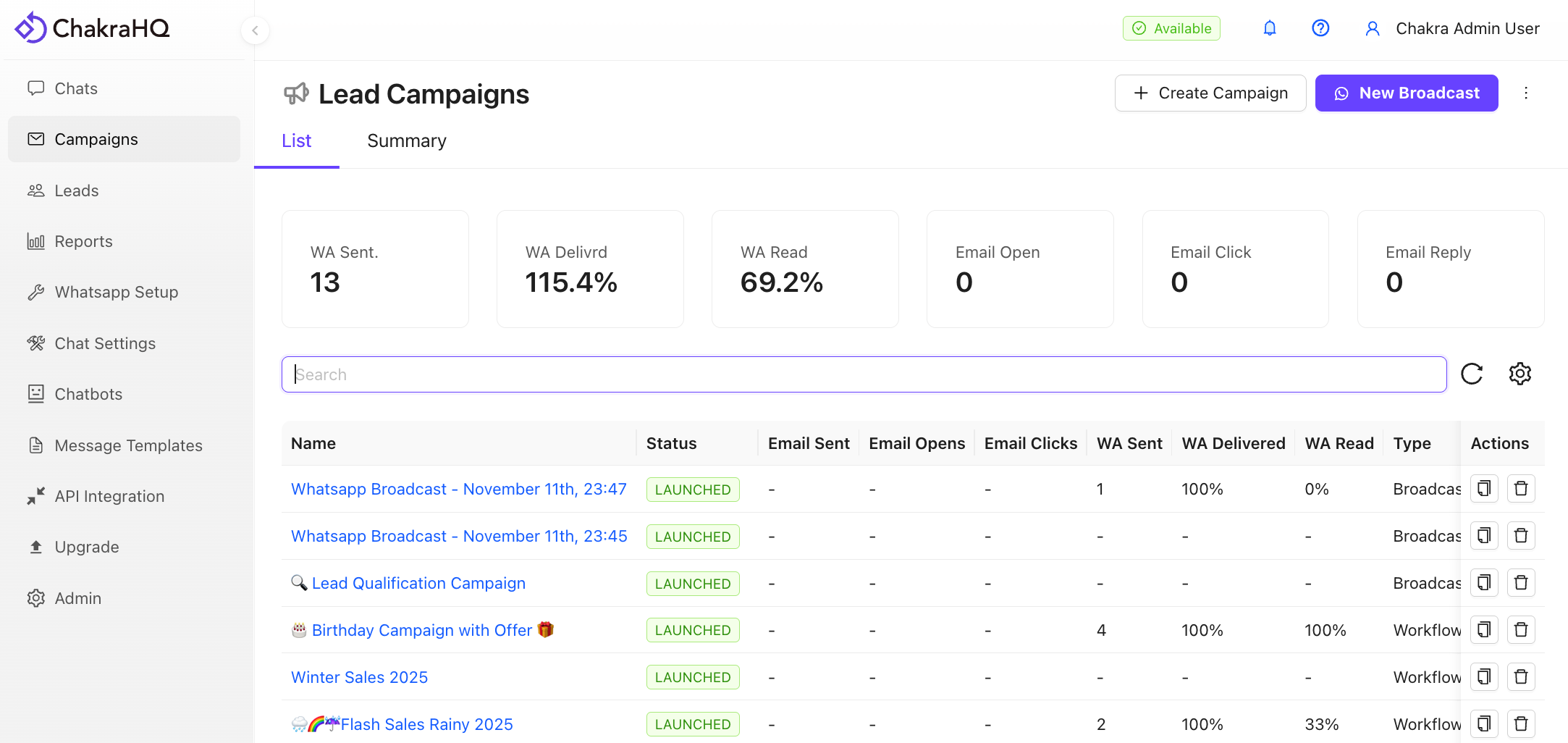
- Click on the Status tab (next to Overview, Builder, etc.)
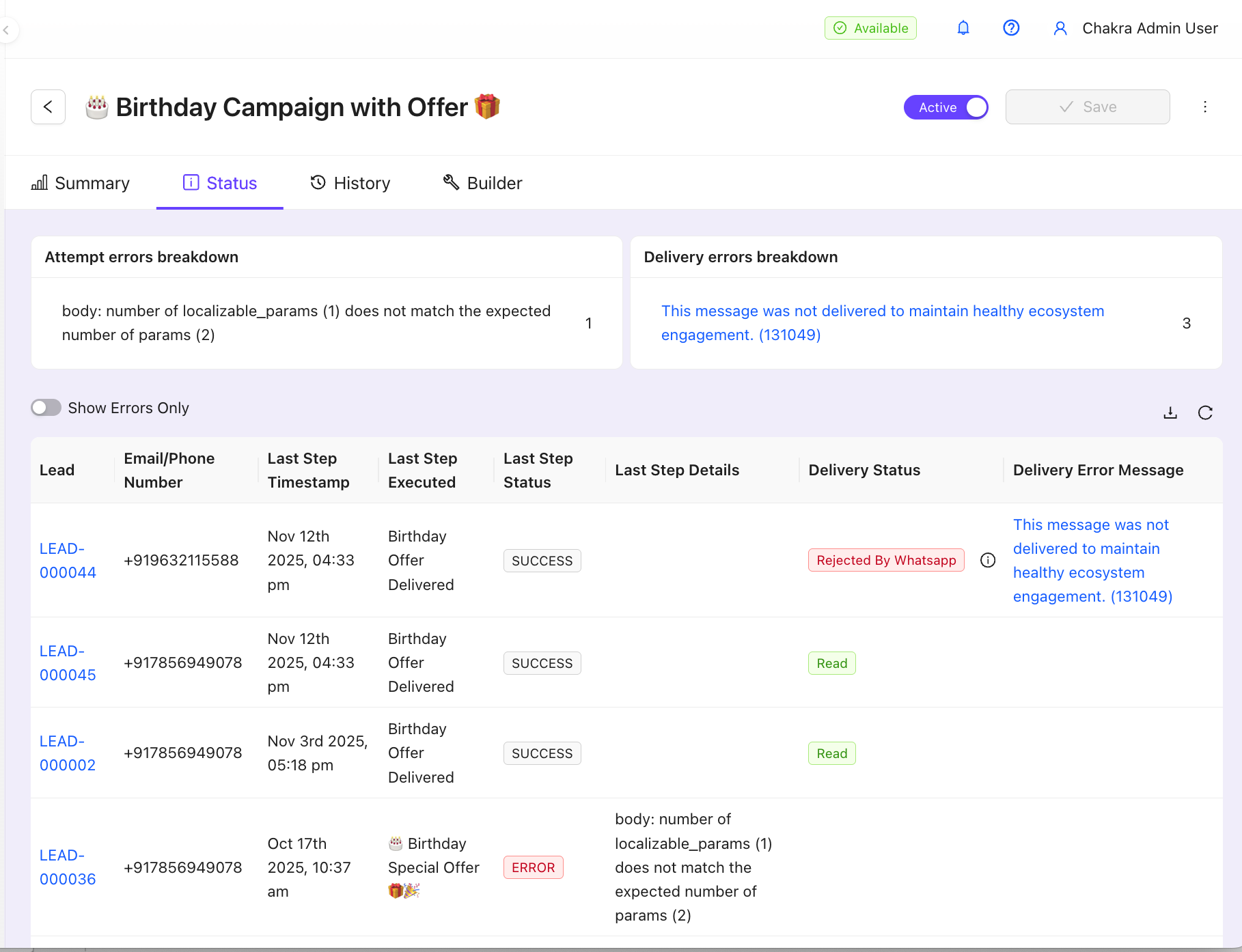
You will now see a complete recipient-level report.
Understanding the Status Tab
The Status tab is divided into three main sections:
1. Attempt Errors Breakdown
Summary of contacts where Chakra did not even attempt to send the message (e.g., invalid number, etc.).
2. Delivery Errors Breakdown
Summary of messages that Chakra sent to WhatsApp/Meta, but WhatsApp failed to deliver to the recipient.
3. Campaign Status List (Main Table)
Detailed row-by-row status for every recipient.
Field | Description |
|---|---|
Lead | Lead ID of the contact |
Email/Phone Number | Recipient's phone number |
Last Step Timestamp | When the last campaign step was triggered (visible in Builder) |
Last Step Executed | Name of the campaign |
Last Step Status | Status of the last executed step |
Last Step Details | Additional info about the last step |
Delivery Status | Final delivery outcome (Delivered, Read, Sent, Failed, etc.) |
Delivery Error Message | Error description + Error Code if the message failed |
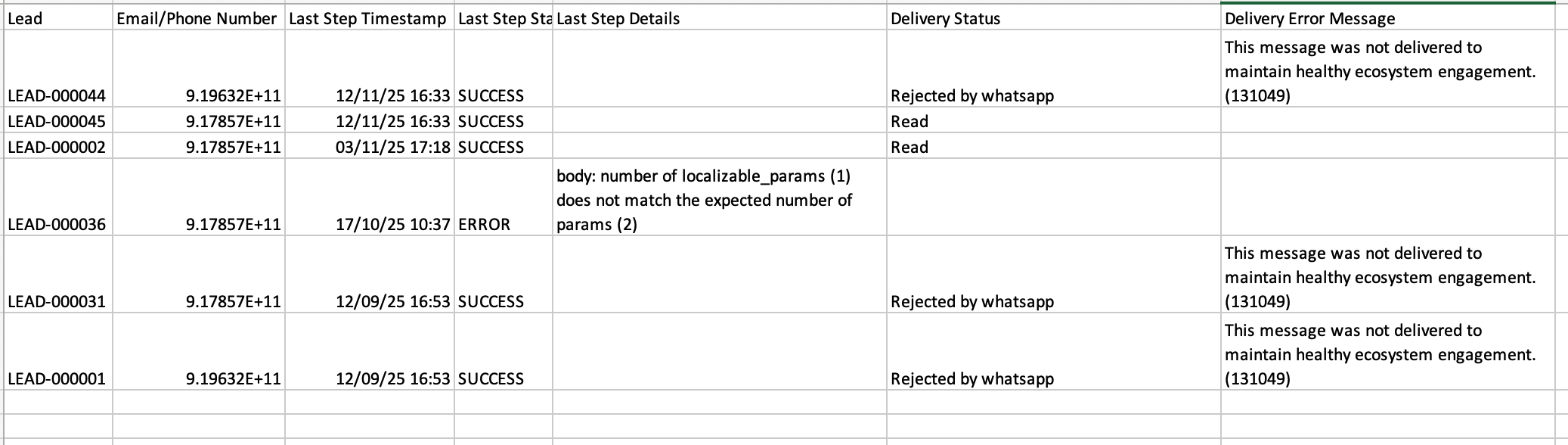
4. Download Campaign Delivery Report
Use the Download button ⬇️ to download the campaign in a csv file
Common WhatsApp Delivery Error Codes & Solutions
Error Code | Reason | Suggested Solution |
|---|---|---|
131026 | Recipient number is not on WhatsApp OR user hasn't accepted latest ToS/Privacy Policy OR using outdated WhatsApp version | Ask the user (via SMS/email/call) to: • Confirm they can message your business number • Accept latest Terms (Settings → Help) • Update WhatsApp to: Android ≥ 2.21.15.15, iOS ≥ 2.21.170.4 |
131042 | Business account payment or eligibility issue | Go to WhatsApp Manager → Check billing & payment method. Ensure credit line is active and not over limit. Verify WABA is not suspended/deleted. Set timezone & currency if missing |
131049 | Meta blocked the message to protect ecosystem (usually marketing template limit) | This is commonly caused by per-user marketing template limit. Wait at least 24 hours before retrying the same user. Do not resend immediately — it will fail again. |
131056 | Pair rate limit: Too many messages sent from your number to the same recipient in a short time | Wait a few minutes/hours before messaging the same user again. You can still message other users immediately. Recommended: Enable Rate Limit in Chakra → Campaign Step 4 |
131048 | Too many previous messages blocked/flagged as spam → Phone number quality rating dropped | Check your template quality & messaging limits in WhatsApp Manager. Improve quality rating before sending more marketing messages. |
131051 | Unsupported message or template type | Use only supported message/template types (see WhatsApp documentation). |
131052 | Media file could not be downloaded by WhatsApp | Ask the user to resend the media via another channel or re-upload a smaller/correctly formatted file. |
Tips to Reduce Delivery Errors
- Always validate phone numbers are active WhatsApp numbers before importing.
- Use Chakra's built-in rate limiting (Step 4 of campaign creation) to avoid 131056.
- Monitor your WhatsApp Business Account quality rating daily.
- Avoid sending the same marketing template to the same user within 24 hours.
If you still face issues after following the above solutions, contact Chakra support with the campaign ID and the specific phone numbers/error codes. Create a ticket
You're all set! You can now confidently track and troubleshoot every campaign message delivery.