Communication ChannelsEmail Integration Setup
Setup Email - AWS SES
Steps to setup AWS SES account and configure SES Plugin in Chakra
AWS SES Perquisites Steps
Prior to setting up your account, you will need to complete the following prerequisites:
- Create an AWS account
- Create & Verify AWS SES domain
- Move your SES account from sandbox to production mode
- Create an IAM user with SES access (steps 1-7)
Setup SES Account
1. Login into SES account
Login to your AWS SES account and start onboarding.
2. Add a SES Email Plugin
- Click on the
Add SES Pluginbutton - Add a new SES plugin
This enabled you to configure the SES account in Chakra.
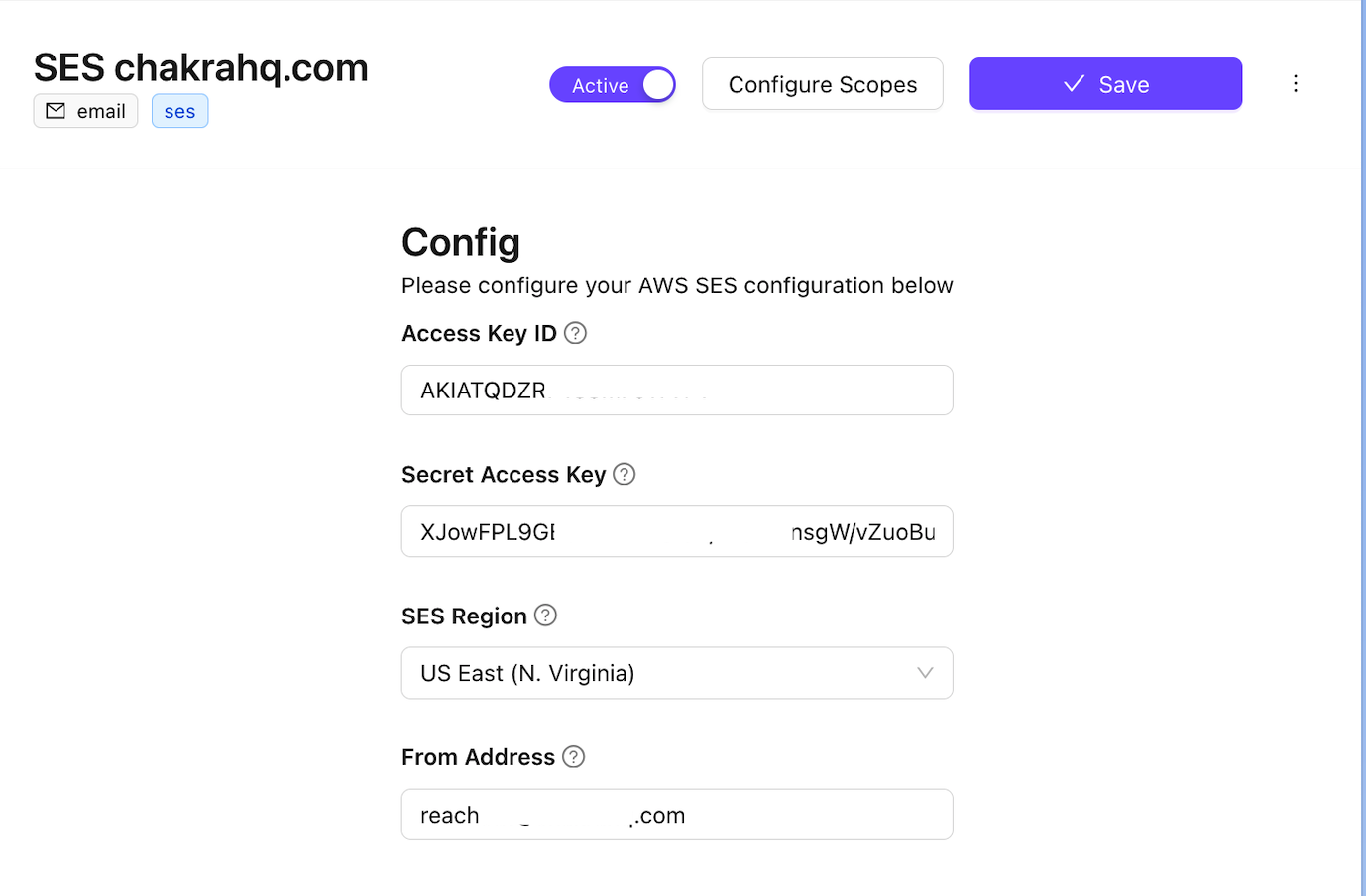
Configure SES Plugin (Chakra)
- Access SES plugin in Admin -> Plugin -> "SES Plugin"
- Add
Access Key ID,Secret Access Key,SES regionandFrom Address (email). - The from email address should be of the same domain as verified in SES. So if your verified domain is example.com - your from email address can be any of john@example.com, sales@example.com, etc...
- Click Add when done.
Verify SES Email
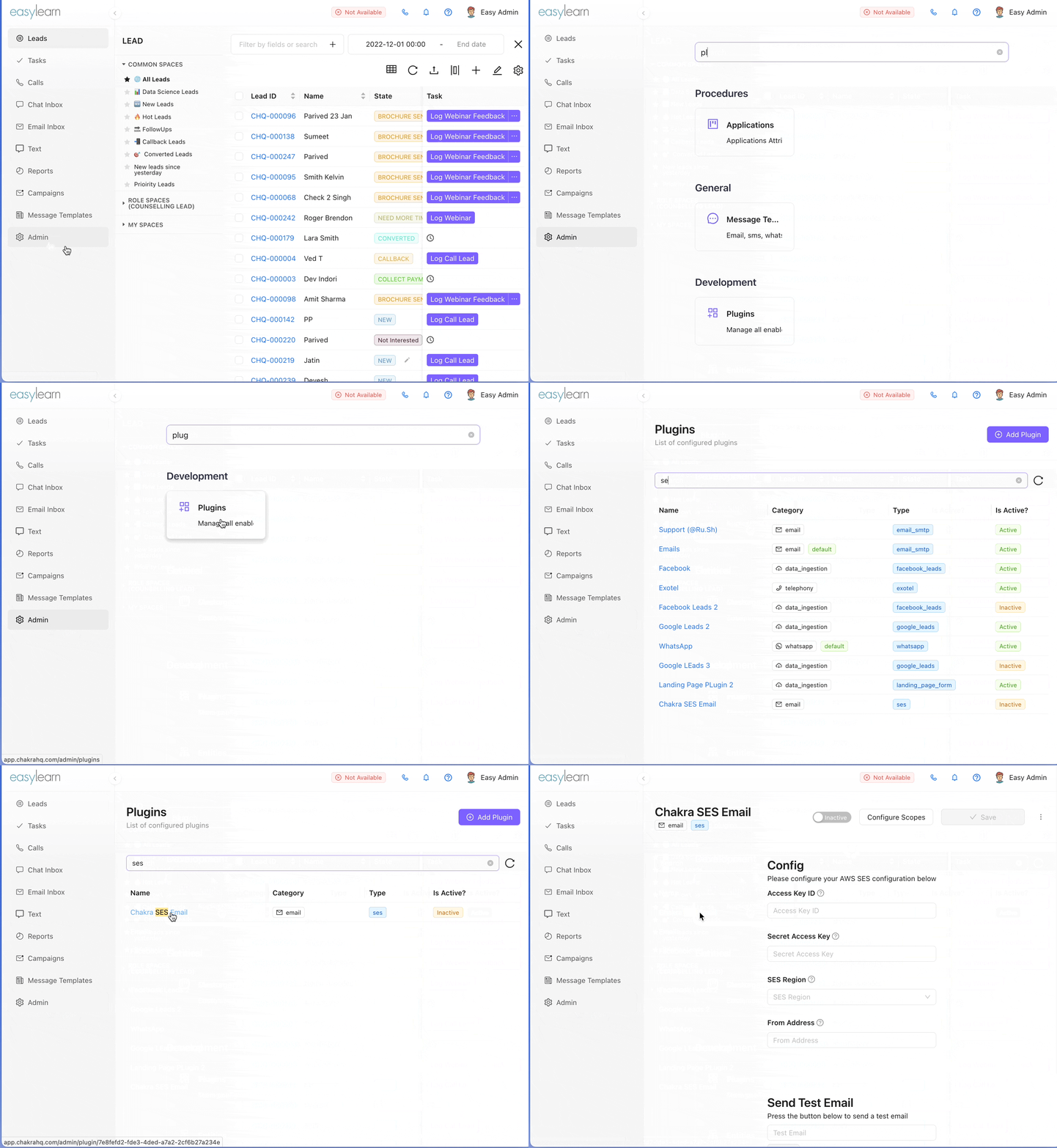
1. Navigate to SES Plugin
- Click
Adminon the left-side navbar - Search
Pluginand click on plugin
2. Test SES Plugin
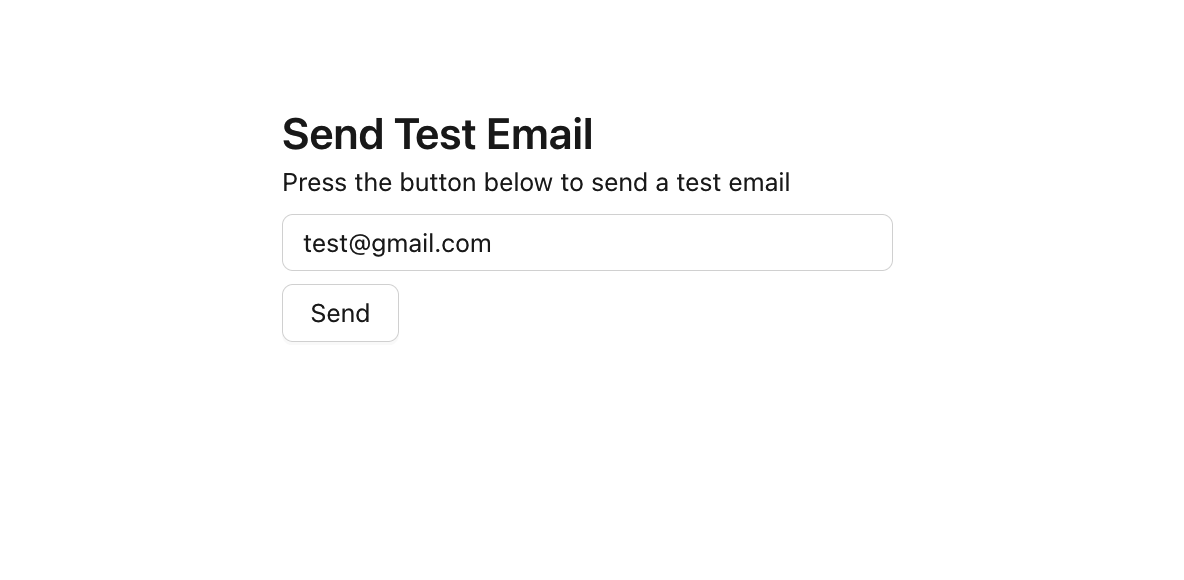
- Add
email addressin "Send Test Mail" section input box - Click
Send. - A test email should be delivered