

Setup Website Chat Widget
Along with WhatsApp, Chakra also enables you to create a Website Live Chat Widget - allowing your customers to chat with you directly from your website or landing page. All chats (website + WhatsApp) appear in the same chat inbox for easy management. This guide details wow to setup a website chat widget
Add Chat Widget in Website
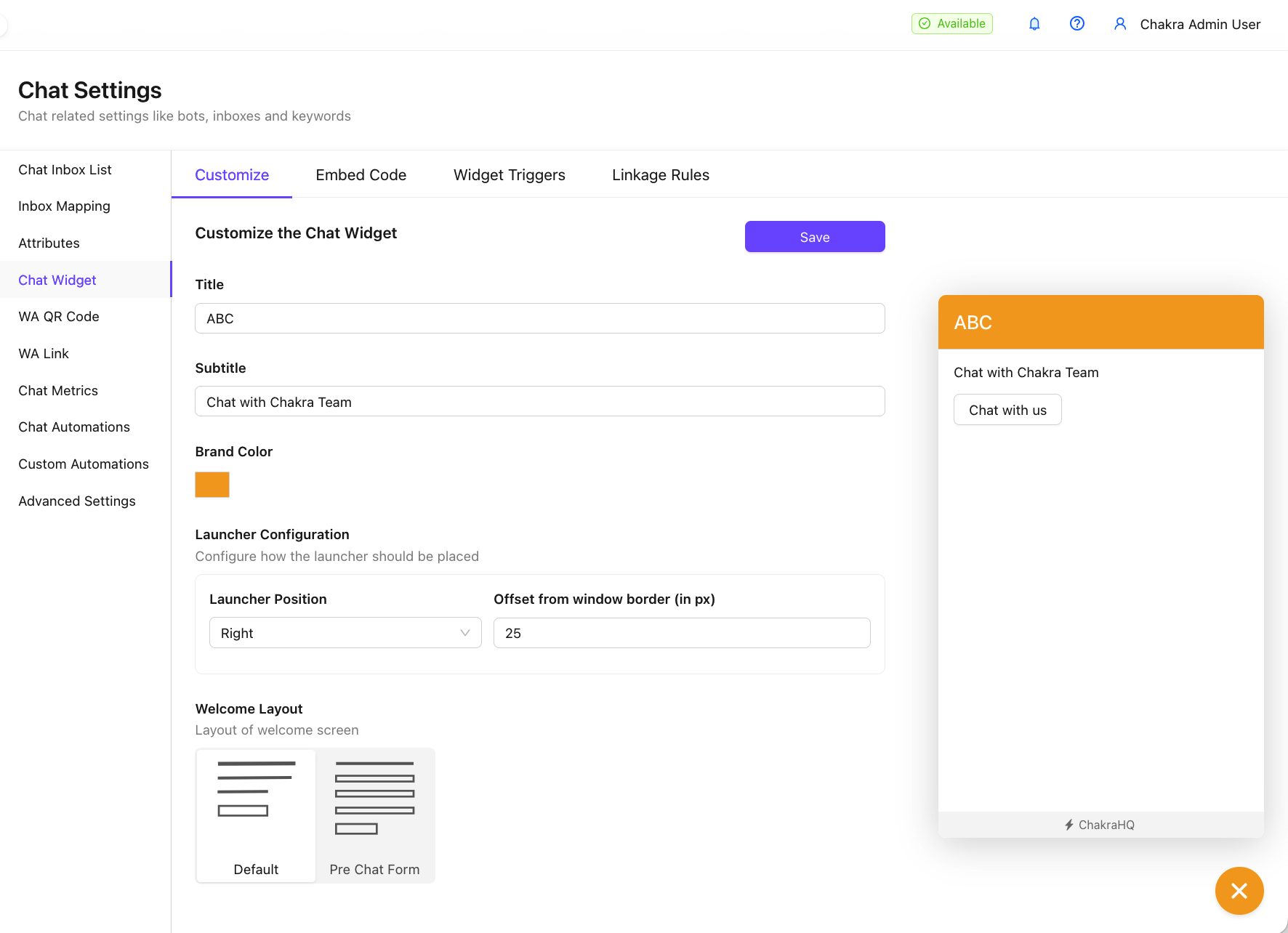
Steps to Set Up Live Chat Widget
- Go to Admin > Chat Settings > Chat Widget > Customize
- Under the
Customizetab: - Choose your brand color
- Set up welcome messages
- Optionally embed a pre-chat form to collect user info or intent before the chat begins
- Use the demo widget button (bottom right corner) to preview your customizations
- Once you're happy, go to the
Embed Codetab - Copy the embed snippet
- Paste it into the bottom section of your website or landing page (just before
</body>)
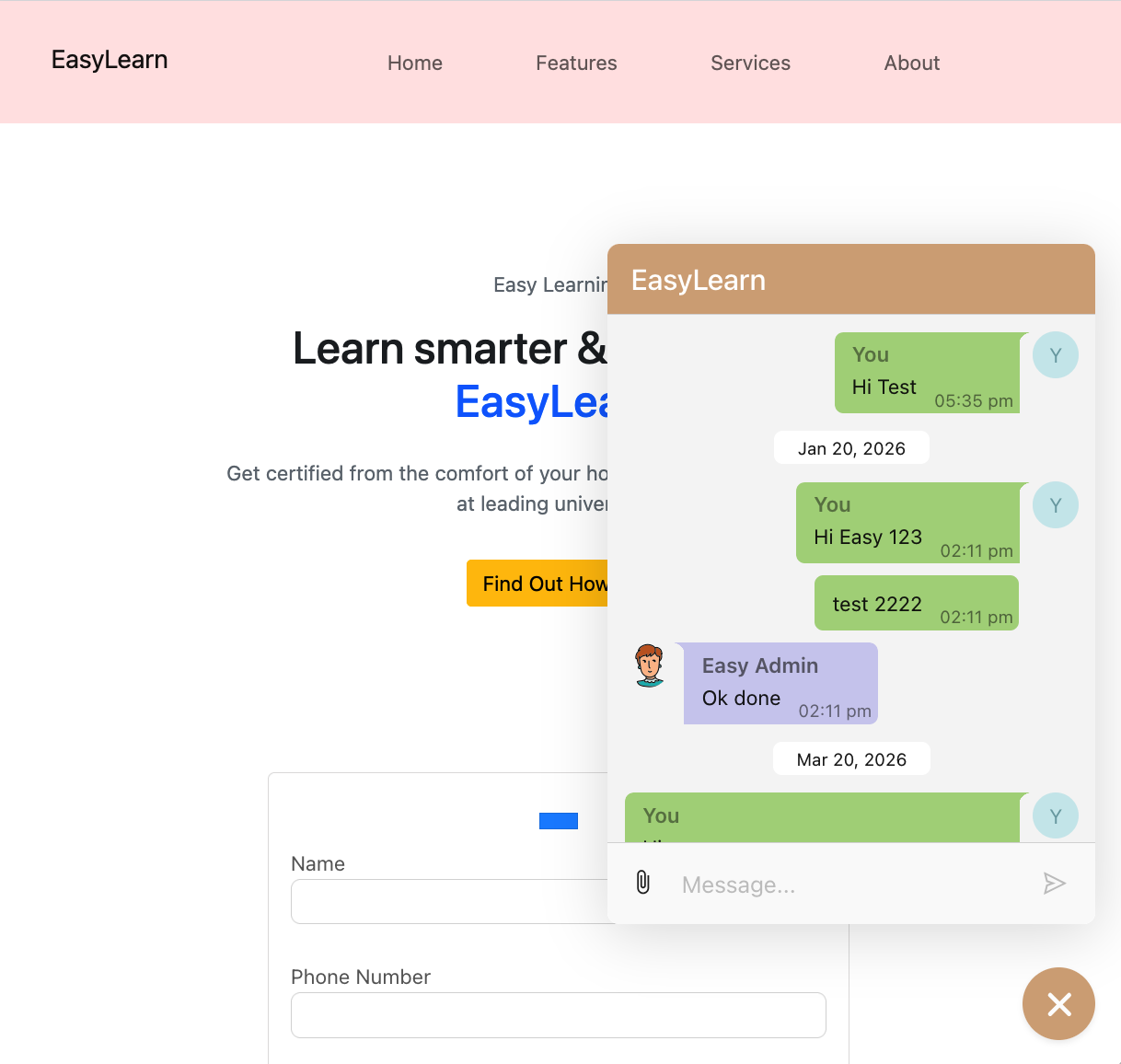
✅ That’s it! When you reload your page, you’ll see the chat widget live!
Send Custom Data with Chats
You can enrich your live chat with custom structured data (like user IDs, tracking codes, etc.).
- First, create custom attributes if you haven’t already. 📚 Reference Guide
- In the
Embed Codetab, find the section:
Chat attributes for which data will be sent from the website:
- Select the attributes you want to pre-fill
- Once selected, the embed code will update to include a
chatDataobject - Replace
<value>in the snippet with dynamic or static values as needed - Add this updated snippet to your landing page or website
🎯 When a chat starts, Chakra will automatically capture and store the configured custom data!
Track Chat Widget Interactions
You can listen to various widget lifecycle events and track them in tools like Google Analytics, Mixpanel, etc.
Steps to Setup Events:
- Go to the
Embed Codetab - Look for: Widget events that you want to listen to
- Select the events you want to track. Available events:
widget:load🟢 – When the chat button appearswidget:open📂 – When a user opens the chat windowwidget:close❌ – When chat window is closedchat:start💬 – When a chat beginschat:end🛑 – When a chat is closedmessage:receive📥 – When your team sends a messagemessage:send📤 – When the customer sends a message
- Once you select the events you want to track, the embed script will automatically update to include event listener hooks for each selected event.
- Copy this updated embed script and paste it into your website or landing page code. ⚠️ Note: The generated functions are just placeholders — they won’t track anything by default.
- You’ll need to add your own analytics logic/code inside these handlers to send data to your analytics platform
WhatsApp Chat QR code
Make it easy for customers to reach you on WhatsApp with a custom QR code! 🎯 Chakra provides a free tool to generate a branded QR code linked to your business WhatsApp number.
Setup WhatsApp Chat widget
You can easily add a WhatsApp chat widget to your website or landing page using Chakra's embed widget. Choose between a popup-style widget or a direct chat button — both are simple to set up and customize.