

Generate AI Replies
Respond to customers faster and more consistently with AI-generated replies - powered by your own content sources, right inside the chat window.
Overview
Generate AI Reply is a built-in AI assist feature in Chakra Chat that helps chat users craft instant, context-aware responses to customer messages. Instead of typing from scratch, users get a ready-to-send reply generated directly in the chat text input box - which they can review, edit, and send with a single click.
The feature draws on your configured Content Sources (product FAQs, documentation, scripts, etc.) to generate replies that are accurate and relevant to your business.
Setting Up Generate AI Reply
Before using Generate AI Reply, you need to add at least one Content Source. This tells the AI what your business does and what answers it should draw from.
How to Add a Content Source
- Go to AI Settings in your Chakra dashboard, or click on Content Source directly from the AI Chat Assist panel.
- Click Add Content Source.
- Upload or paste your content (e.g. FAQs, product documentation, support scripts, or knowledge base articles).
- Save your content source.
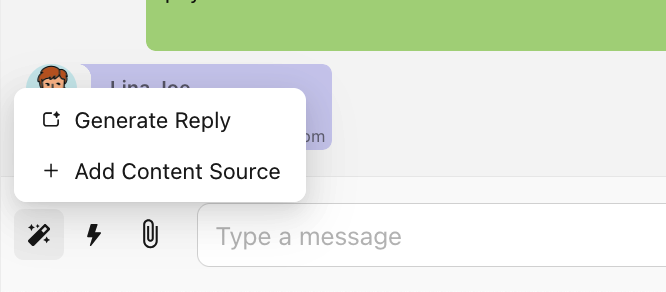
Follow the steps in this Guide: How to add AI Content Source in Chakra?
Note: Once at least one Content Source is added, the Generate AI Reply feature is immediately active - no additional configuration needed.
How It Works
Once set up, using Generate AI Reply is straightforward:
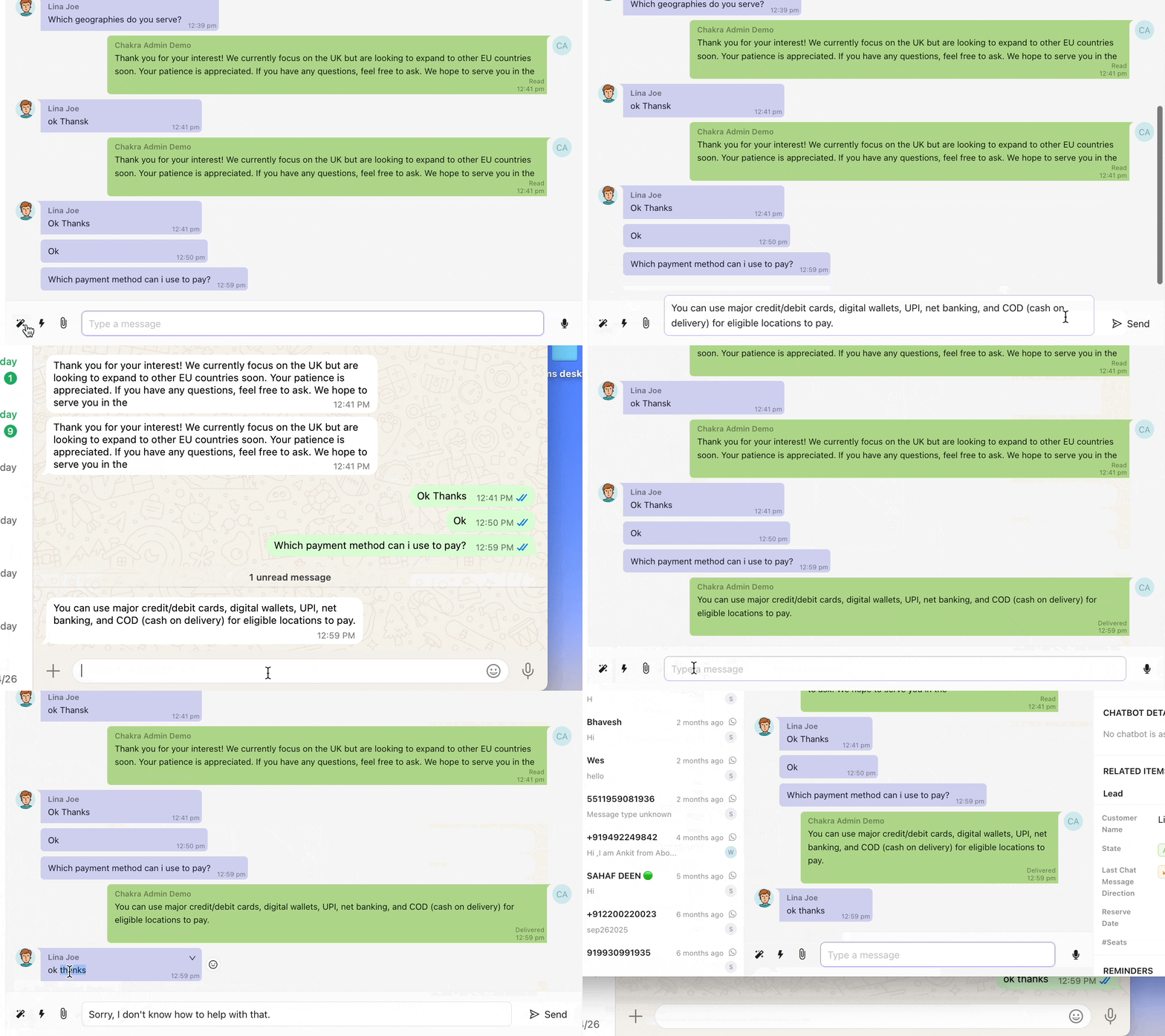
- Open a customer chat in Chakra Chat.
- Click the Generate AI Reply button in the chat panel.
- The AI reads the customer's latest message and generates a suggested reply using your content sources.
- The generated reply appears directly in the chat text input box.
- Review the reply, make any edits if needed, then click the Send ➤ button to share it with the customer.
Important Behaviour to Know
📌 Note: Replies are generated based on the customer's last message only - the AI does not consider earlier messages in the conversation thread.
📌 Note: All configured Content Sources are used together when generating a reply. The AI selects the most relevant content from the combined sources.
📌 Note: The generated reply appears in the text input box and is not sent automatically - the chat user must review and click Send ➤.
📌 Note: The generated reply can be freely edited in the text input box before sending.
📌 Note: If the AI cannot find a relevant answer in any of the content sources, it will generate a default response: "Sorry, I don't know how to help with that."
Reply Refinement Actions
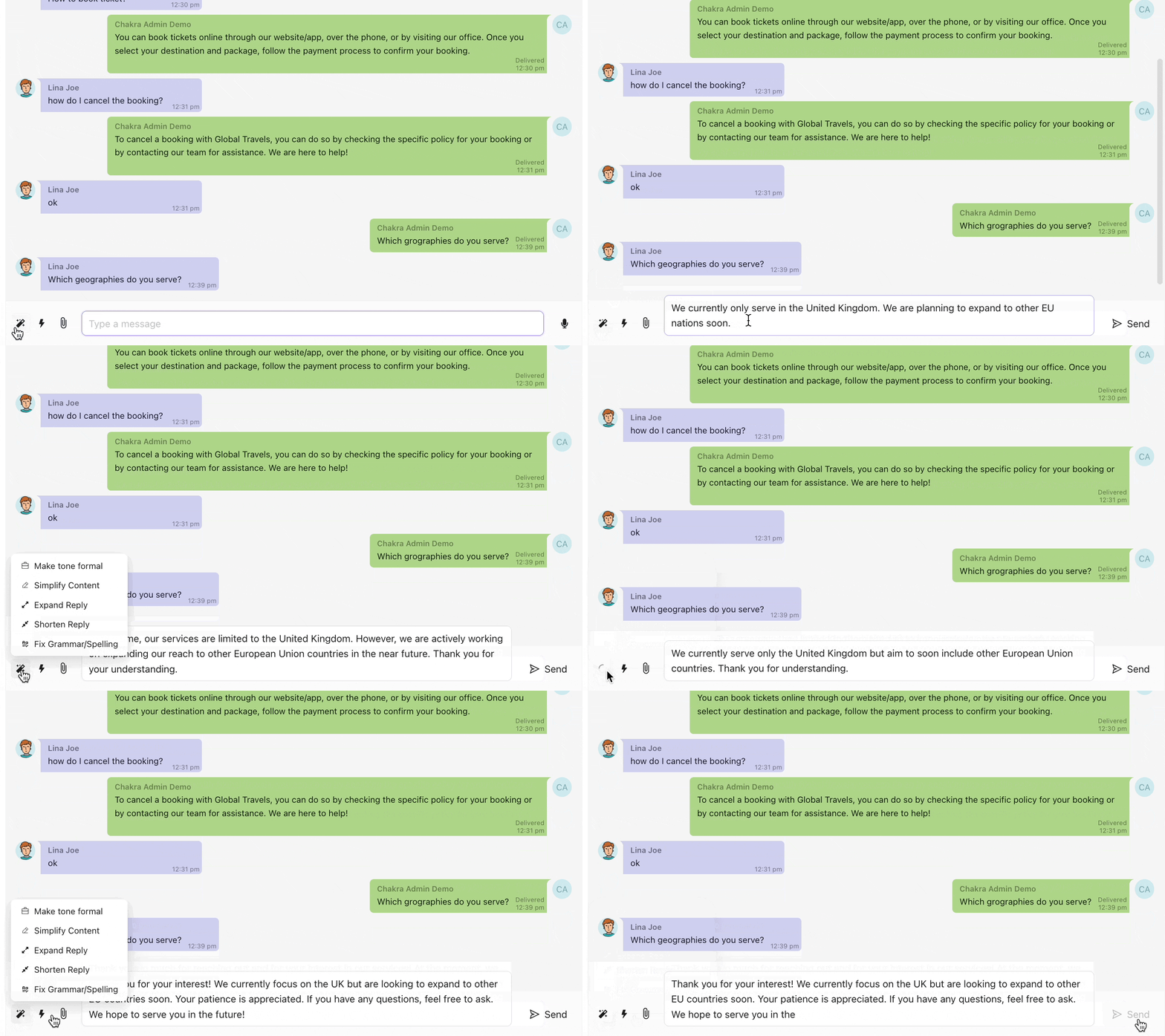
After a reply is generated, you can further refine it using the following one-click actions before sending. These help you adjust tone, length, or quality to match the situation.
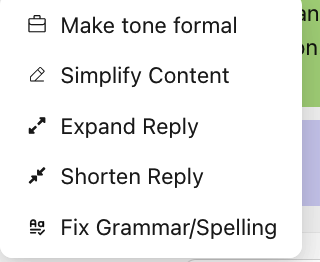
🎩 | Make Tone Formal Rewrites the reply in a professional, formal tone - ideal for business queries, escalations, or first-time interactions where a polished impression matters. |
✏️ | Simplify Content Reduces complexity in the reply - removes jargon, shortens sentences, and uses plain language. Useful when the generated reply is too technical or wordy for the customer. |
📝 | Expand Reply Adds more detail and context to the reply. Use this when the initial response is too brief or when the customer's question warrants a more thorough explanation. |
✂️ | Shorten Reply Trims the reply to its essential points. Best used for quick confirmations, simple queries, or when a concise response is more appropriate than a detailed one. |
🔤 | Fix Grammar / Spelling Corrects grammatical errors, typos, and spelling mistakes in the generated reply - particularly helpful when the AI-generated text or a manually typed reply needs a quick polish before sending. |
About Content Sources
Content Sources are the knowledge base the AI draws from when generating replies. The quality and coverage of your content sources directly affects the accuracy and usefulness of generated replies.
What to Add as Content Sources
- Frequently Asked Questions (FAQs)
- Product or service documentation
- Support scripts and standard responses
- Pricing information and plan details
- Policy documents (returns, shipping, SLAs, etc.)
- Onboarding guides or how-to articles
Tips for Better AI Replies
- Keep content sources up to date - outdated information will produce outdated replies.
- Write content in clear, complete sentences rather than bullet fragments where possible.
- Cover common customer questions explicitly - the more specific your content, the more specific the AI reply.
- If you notice the AI producing a default 'Sorry, I don't know how to help with that' response for a common query, add that topic to a content source.
Quick Reference
Action | What It Does |
|---|---|
Generate AI Reply | Creates a reply in the text input box based on the customer's last message and your content sources. |
Make Tone Formal | Rewrites the reply in a professional, formal tone. |
Simplify Content | Makes the reply easier to read by reducing complexity and jargon. |
Expand Reply | Adds more detail and context to a brief reply. |
Shorten Reply | Trims the reply to its key points only. |
Fix Grammar / Spelling | Corrects language errors in the reply. |
Send ➤ | Sends the reply (as shown in the text input box) to the customer. |