

Troubleshooting: WABA Restricted
While registering your number in Chakra WhatsApp Business API Solution, you encounter an error during the enter your phone number step: "You cannot proceed with this operation since your WhatsApp Business account is currently restricted. To continue, select a different WhatsApp Business account or visit Business Support Home to resolve any issues with your account."
This error means your WhatsApp Business Account has been restricted or disabled due to policy violations or discrepancies in the verification process. Common causes include sending spam or inappropriate messages, promoting restricted/prohibited goods or services, or receiving excessive user complaints.
Steps to troubleshoot
Follow the below steps to troubleshoot your WABA restriction for a New Phone Number registration or a WhatsApp Business Phone registration.
For a New Phone Number
If a restricted WABA issue comes up during a new phone number setup, you have 2 options to troubleshoot.
Create New WhatsApp Business Account
- In the Embedded Signup (ES) step "
Select or Create WhatsApp Business Account" - Instead of selecting the restricted WhatsApp Business Account, try creating a new WhatsApp Business Account. Choose the option
Create a WhatsApp Business Account
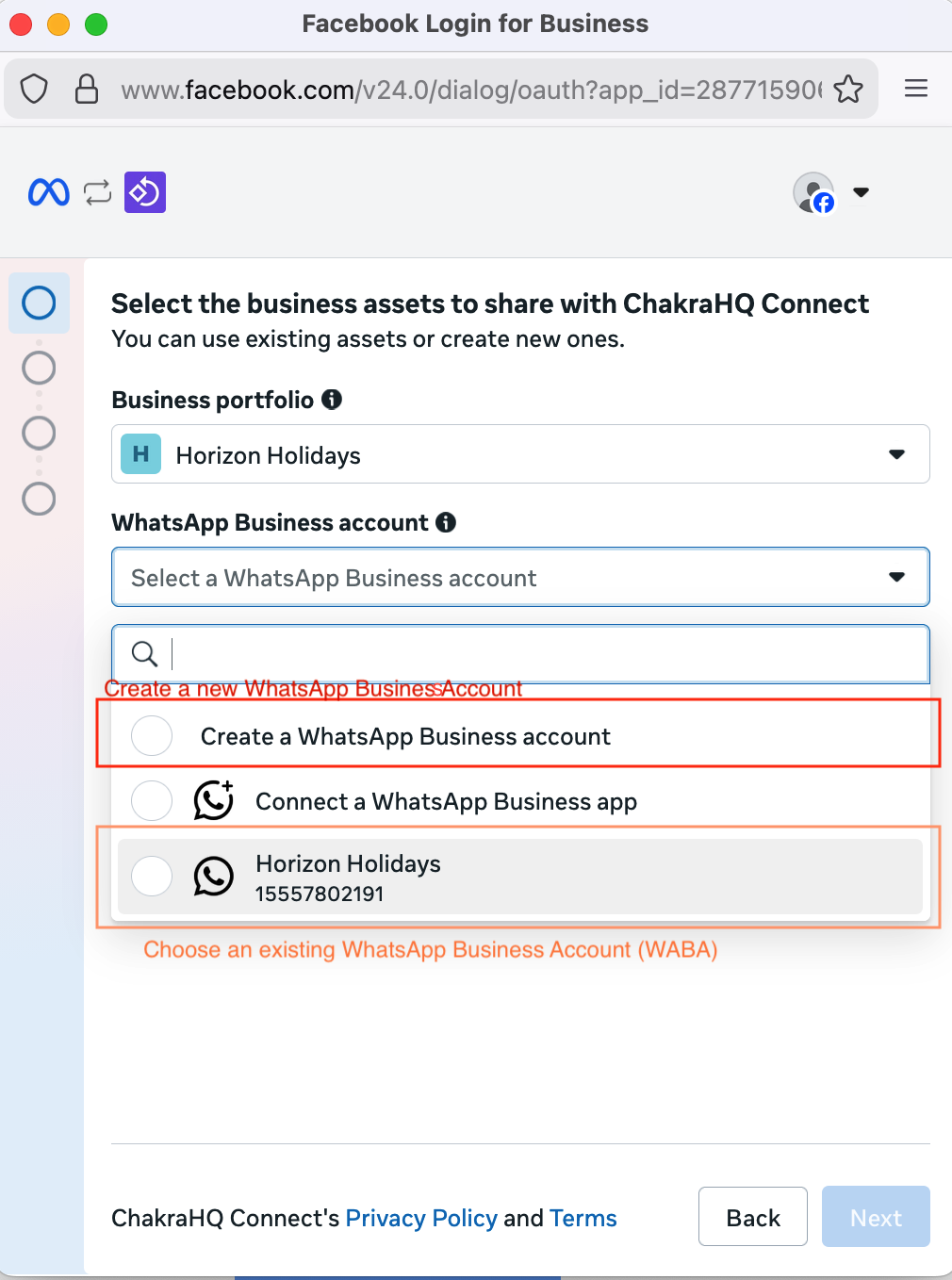
- This will create a new WhatsApp Business Account (WABA) and should generally not face an issue while you add your phone number in this new WABA
- In case of the new WABA also facing restriction, follow the Request a Review process to get the WABA unblocked
Unrestricted WhatsApp Business Account
Types of Restrictions & What to Expect
Restrictions range from a Partial Block (1–3 days) where you can't send marketing templates, to a Full Block (5–30 days) where no messages can be sent, to an Account Lock which is indefinite and requires an appeal to fix. Read more about WhatsApp Business account restriction troubleshooting from Facebook documentation.
Step 1 — Go to Business Support Home
This is your first and most important action. Navigate to: 👉 Business Support Home
You can find all active restrictions in the Business Support Home section of Meta Business Suite. Meta gives you a clear dashboard that shows the exact policy you broke.
Step 2 — Identify the Specific Violation
You need to diagnose the violation by checking violation details at Business Support Home. If it shows a policy violation that you feel can be appealed, you can proceed to request a review.
Step 3 — Request a Review
Follow the steps in the guide to request a review. Open the Account Review page, and click Request Review to submit your case. In the pop-up, type a short, clear message explaining what was flagged, the changes you've made, and include any relevant details (like an updated website link or proof of opt-in contact worfklow).
A good message template to use:
"Our business account was restricted for _____. We have resolved this issue by _____ and updated the business details to comply with WhatsApp's Business policies."
Note: It may take arouind 48 hours to get a decision on the review request, although it may take more time.
Step 4 — While the review is in progress, Check Your Account Setup
Check that basics are in order for your API signup:
Do ensure your personal Facebook account is active, verified, and doesn't face any restrictions. Verify your business using valid documents (business certificate, tax ID, etc.). Use a valid business email and accurate details. Ensure an admin with full access is driving the setup.
For WhatsApp Business Phone
If a WABA restriction if encountered during the Embedded Signup(ES) of a WhatsApp Business Phone number, follow the below steps to troubleshoot.
Types of Restrictions on WhatsApp Business Phone Account
- Your account may be restricted soon
- Your account is restricted right now
- You're temporarily banned
Wait for Temperory Restriction to be Over
If you get a temperory restriction with a message flashed with a specified timeline on the WhatsApp Business app.
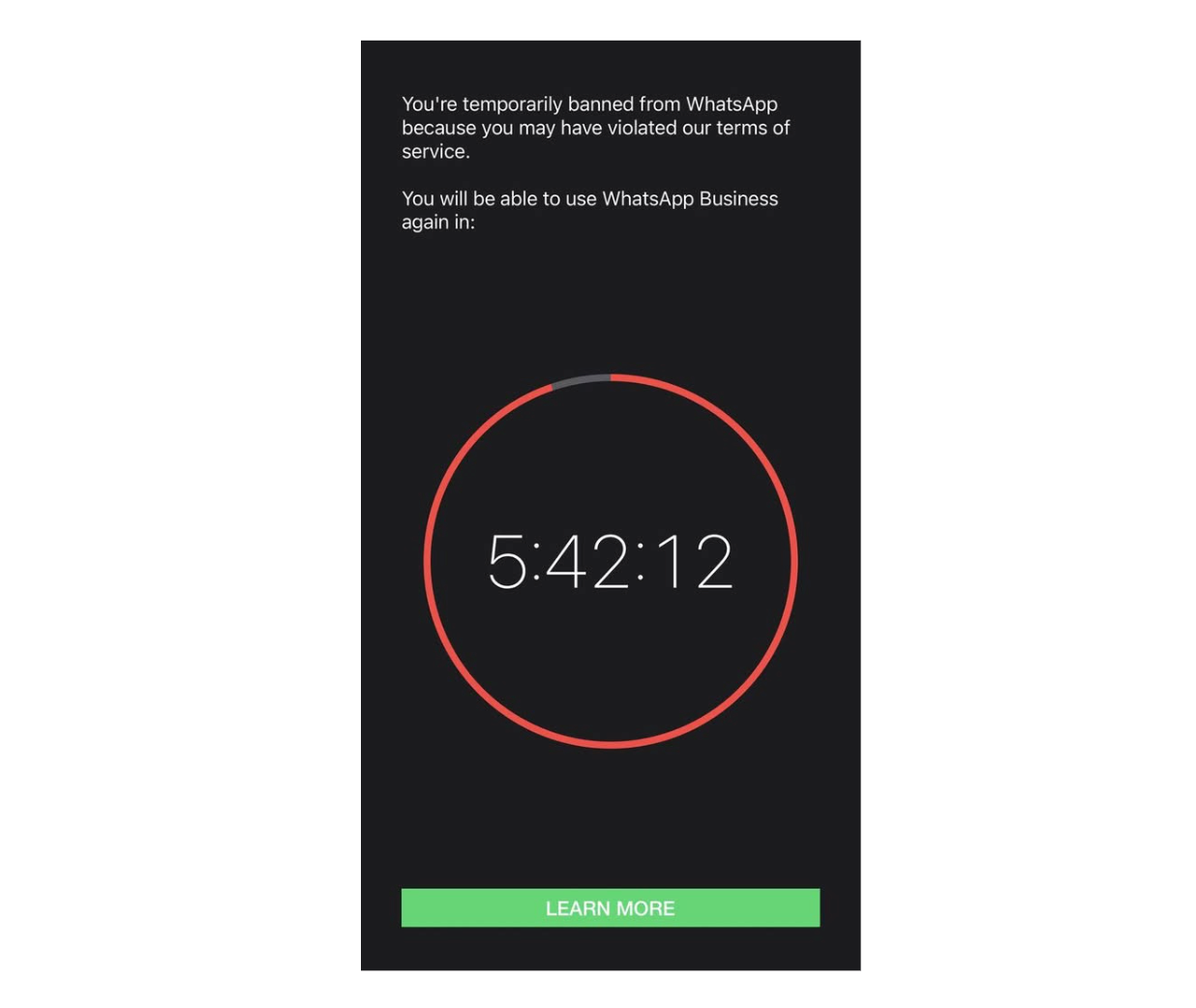
Wait for the restriction to be over and then try registering the WhatsApp Business Phone in Chakra Chat using the Embedded Signup (ES). Follow the steps in this Coexistence setup guide.
For Permanent Restriction
Request a Review: For a permanent restriction, please follow the steps by requesting a review in Meta Business Support Home
- Follow the Chakra Help guide how to request a review
- Read more about the steps in this section of the help guide
For any other issues, reach out to Chakra team via a Chakra Support Ticket