

👨🏻💻 Get Help & Support
For any issues, create a ticket in Chakra
Create a Ticket with Chakra
If you are facing any issue you can create a ticket with the Chakra support team.
Go To Chakra Support
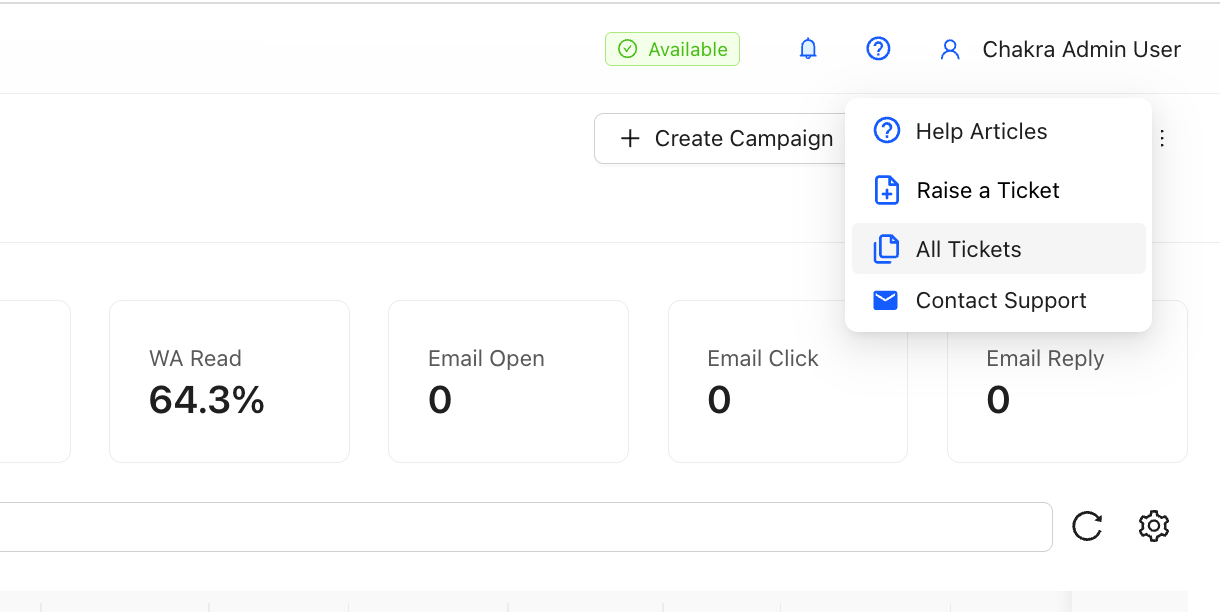
Go To Chakra Support or Navigate to the ⍰ icon on the top right corner of the Chakra dashboard
Go to All Tickets
Click on All Tickets
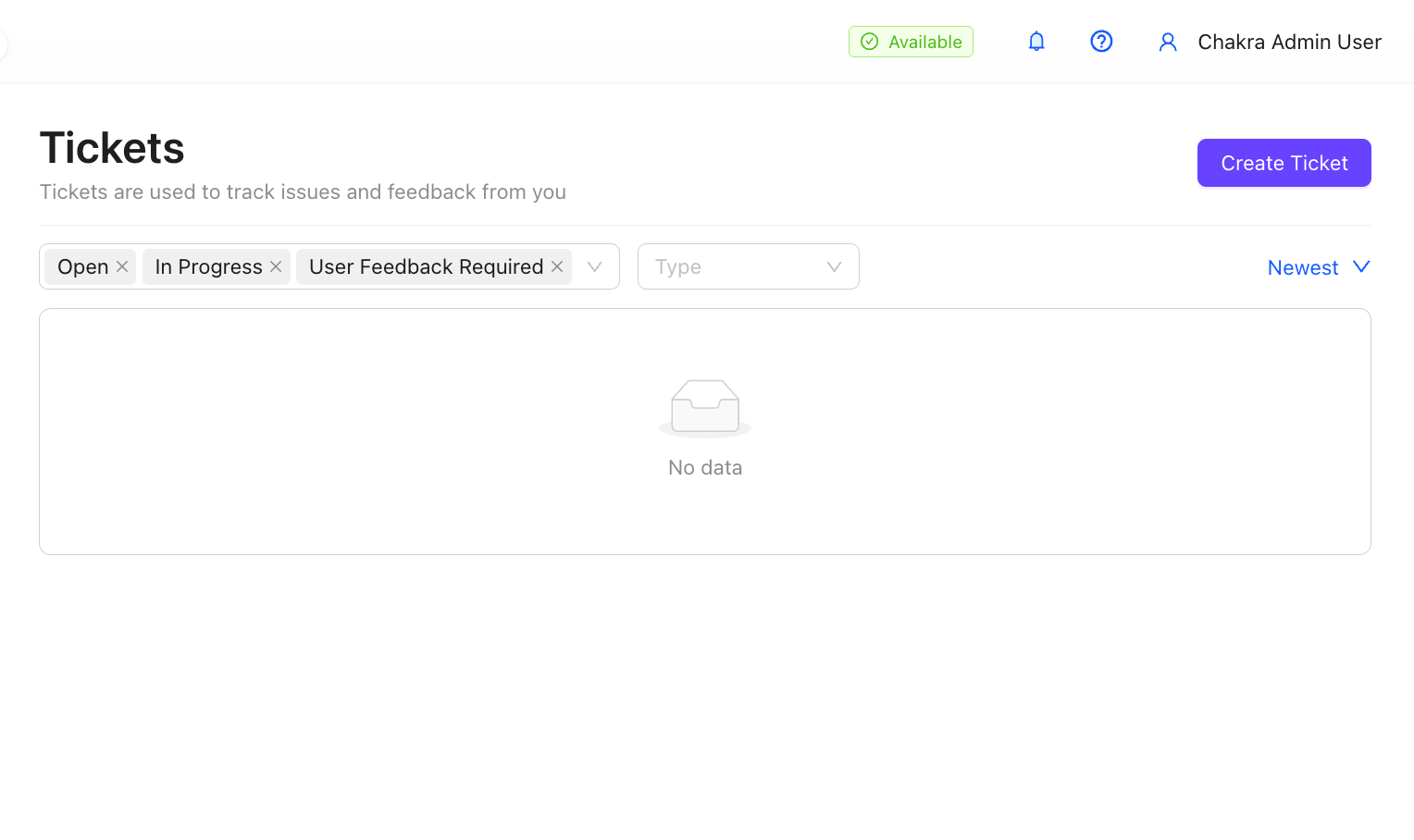
In the Tickets page, click on Create Ticket
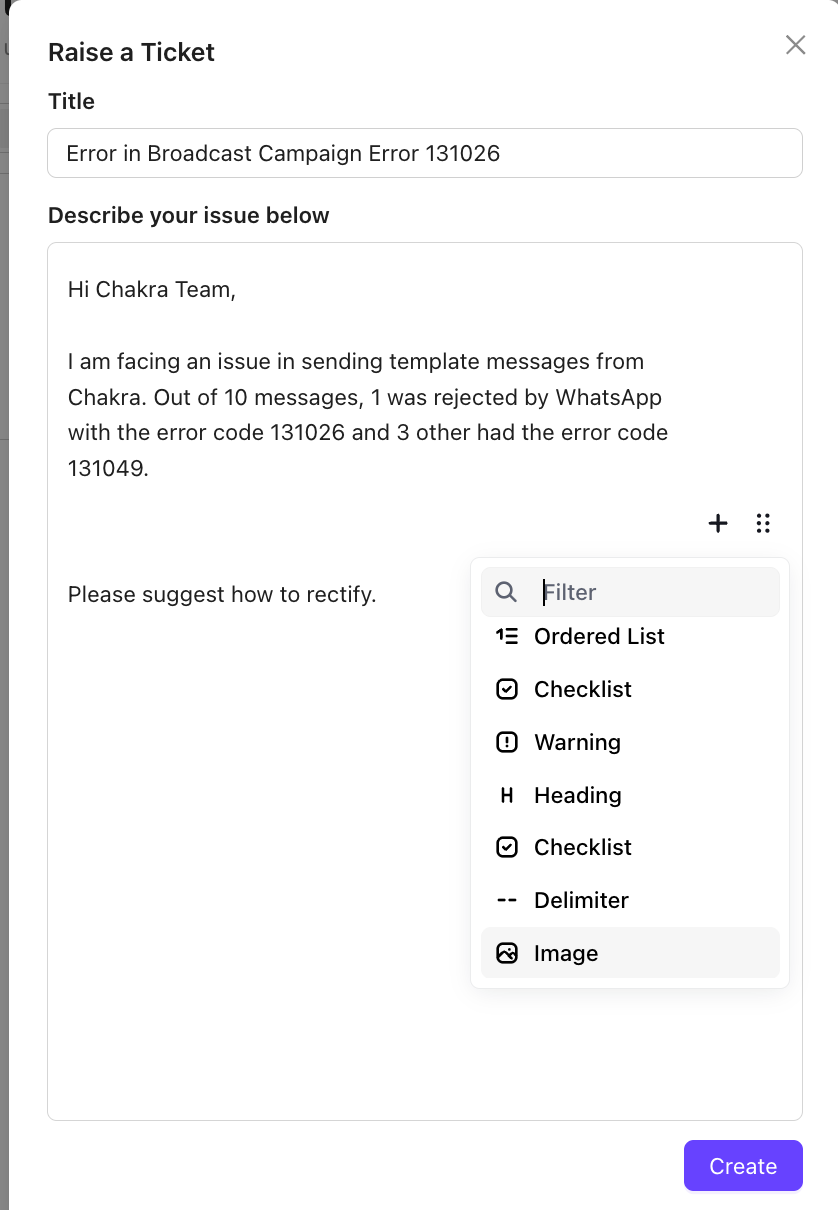
Add details in the Ticket body and click Create
Add Ticket Details
Add a topic to the ticket and describe your issue in the ticket body.
Add image screenshot
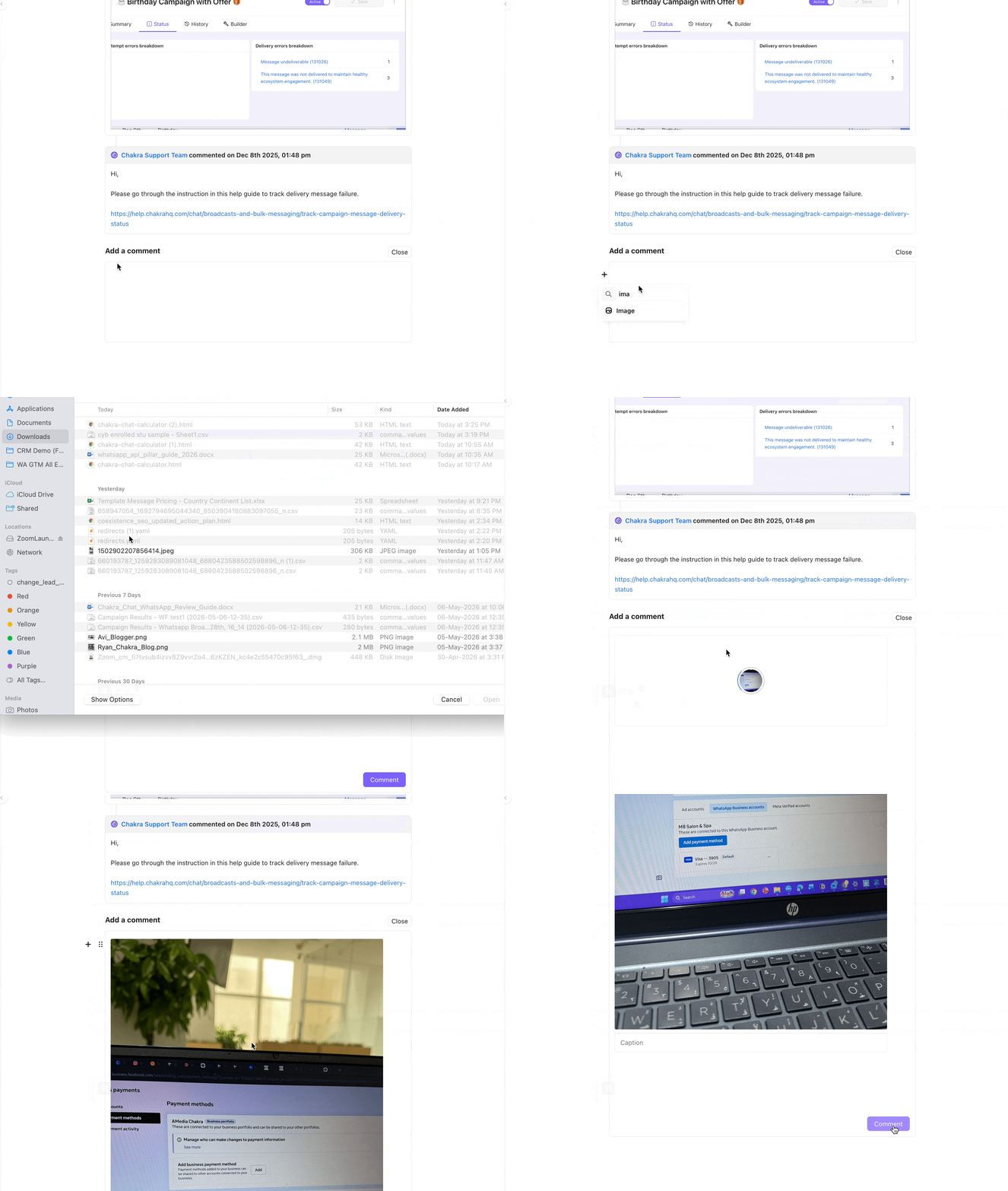
Note: For ticket related to any error or issue, please share the following details:
- Clear issue description in steps
- Attached Image for any error message
- Screen Recording in a drive URL (if required)
Track the ticket
You can track the tickets from Chakra Tickets.
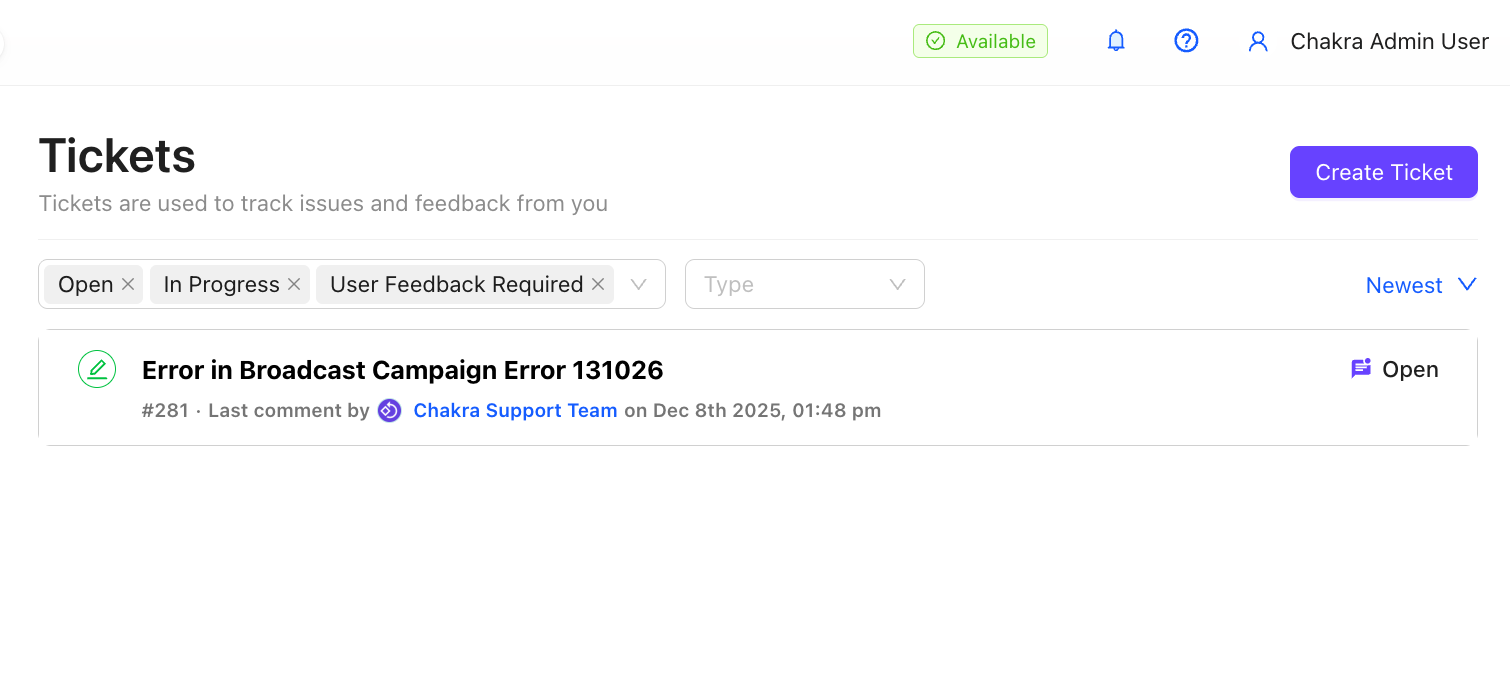
Note: An email notification is sent for every new response from Chakra team
Reply on the ticket
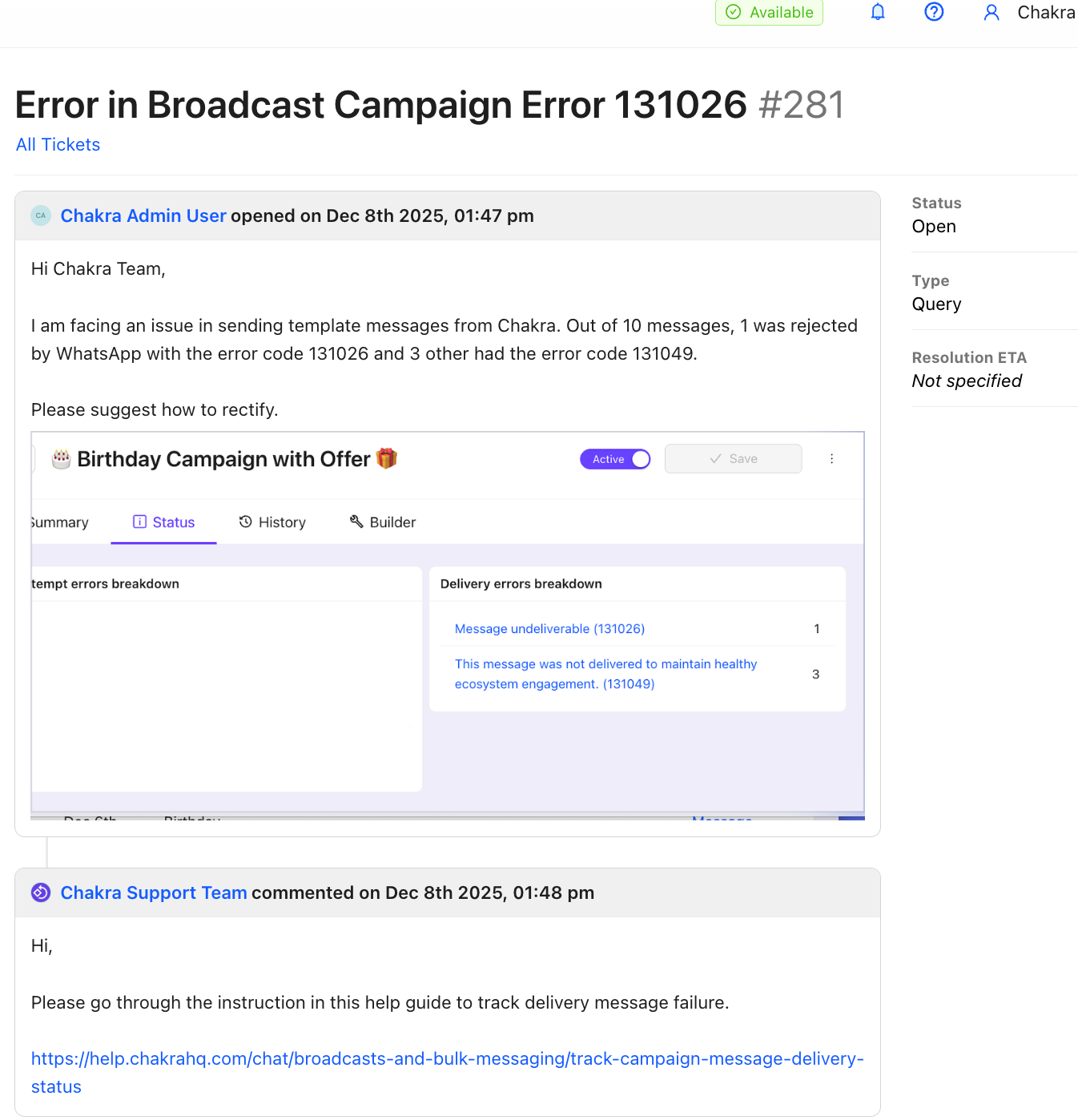
Track Ticket Status and ETA
Request Review in Meta Business Manager
- Go to Business Support Home
- Choose
Portfolioin Account overview - Scroll Down to WhatsApp accounts section
- Check for any entry for Policy Violations (spam reports, restricted content/categories, or account bans) and Account Restrictions
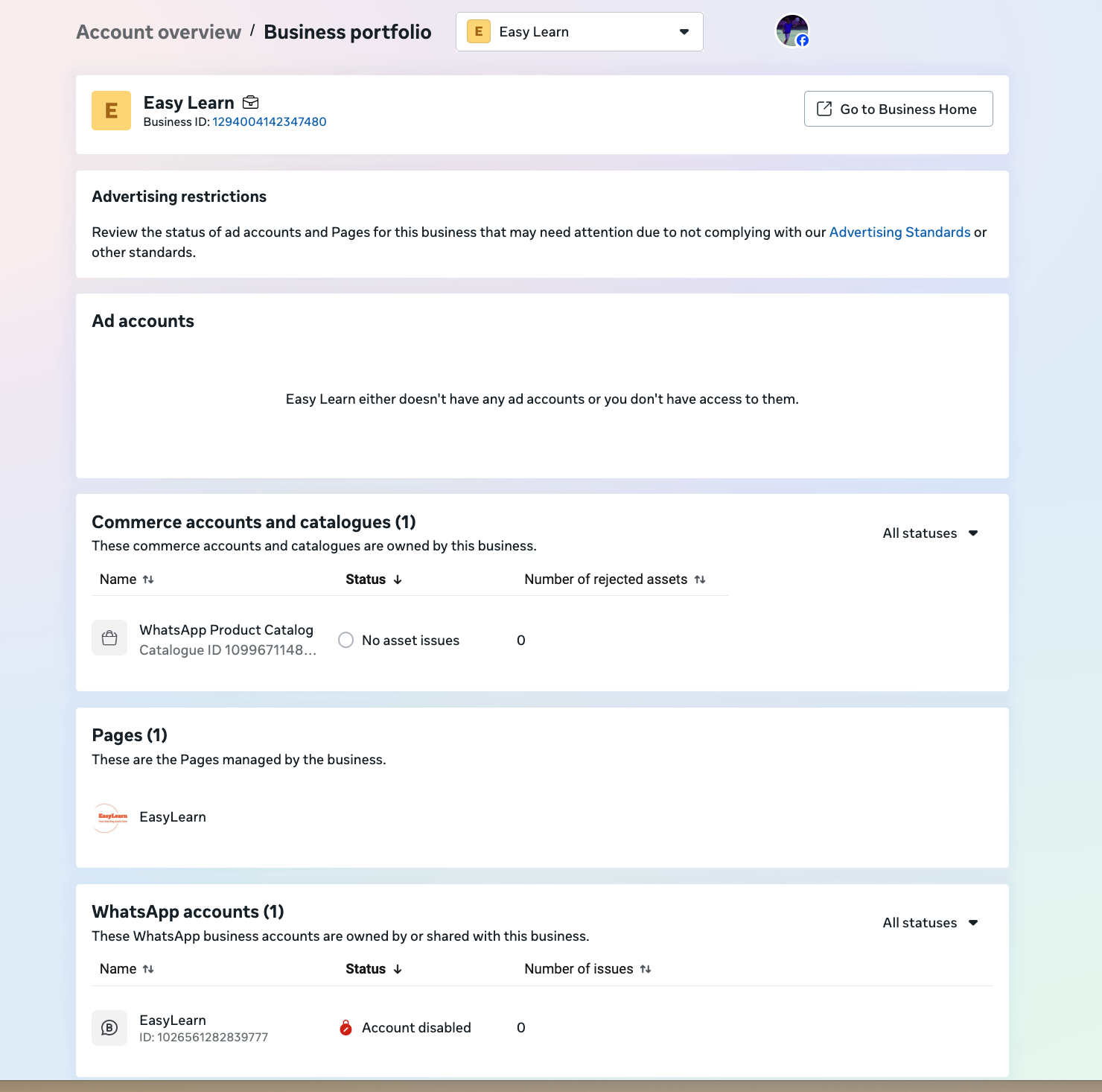
- Click on the Violation Entry
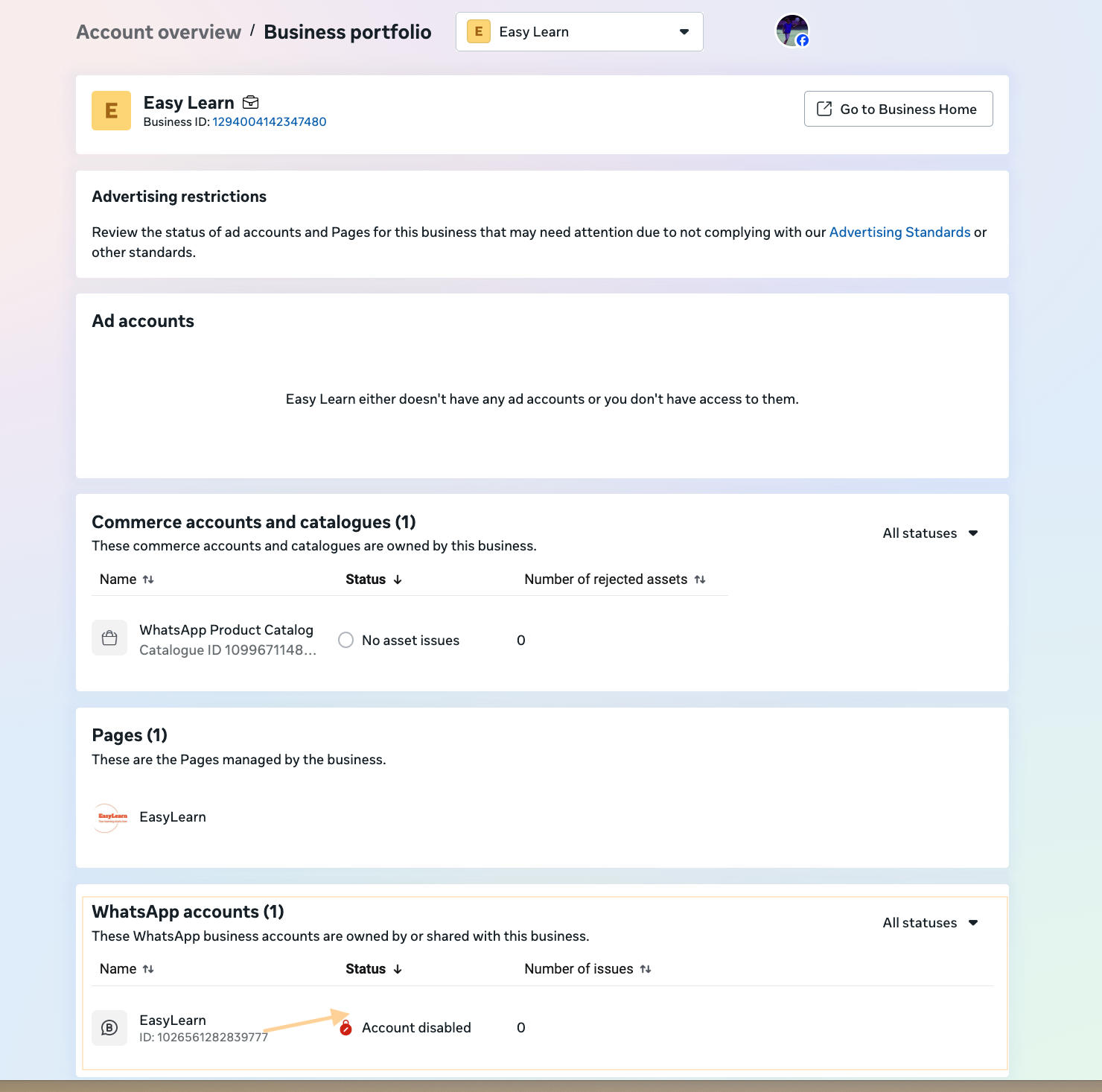
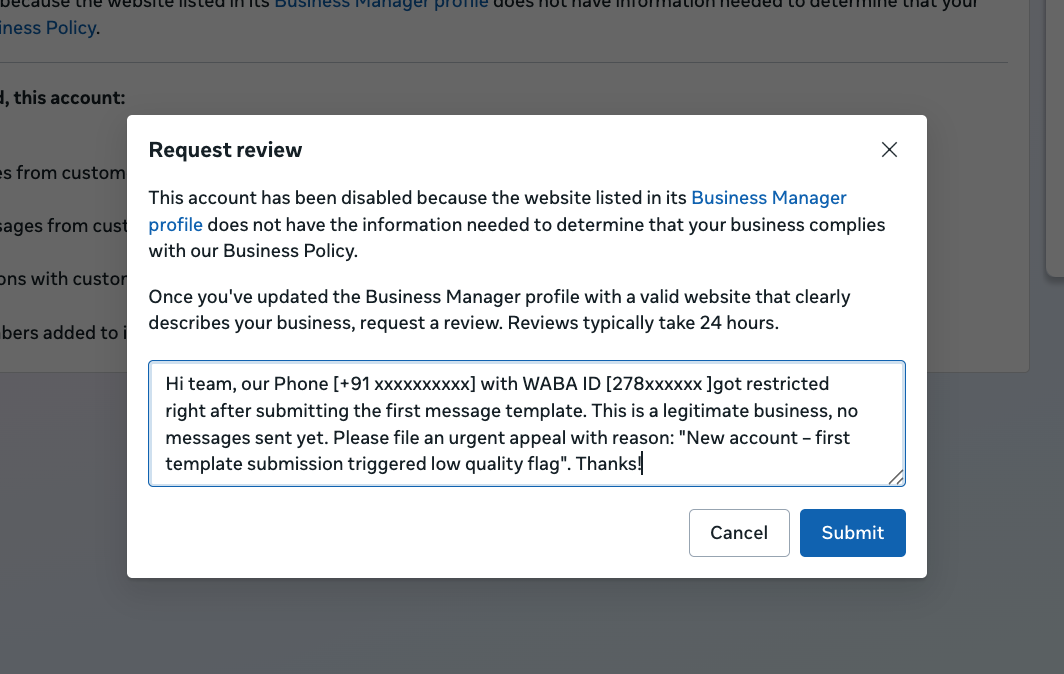
Go to Request Review
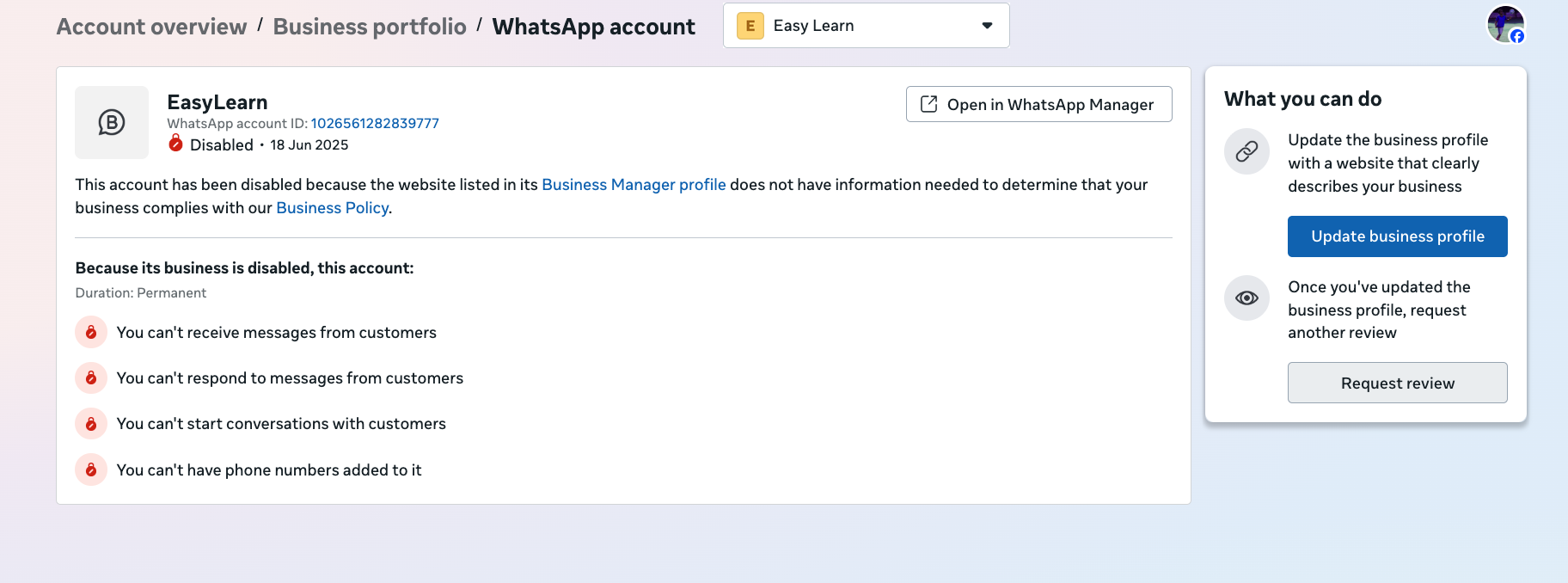
- Add a request review description using the the suggested reveiw template above
- Submit the review form
WhatsApp Support [Business app]
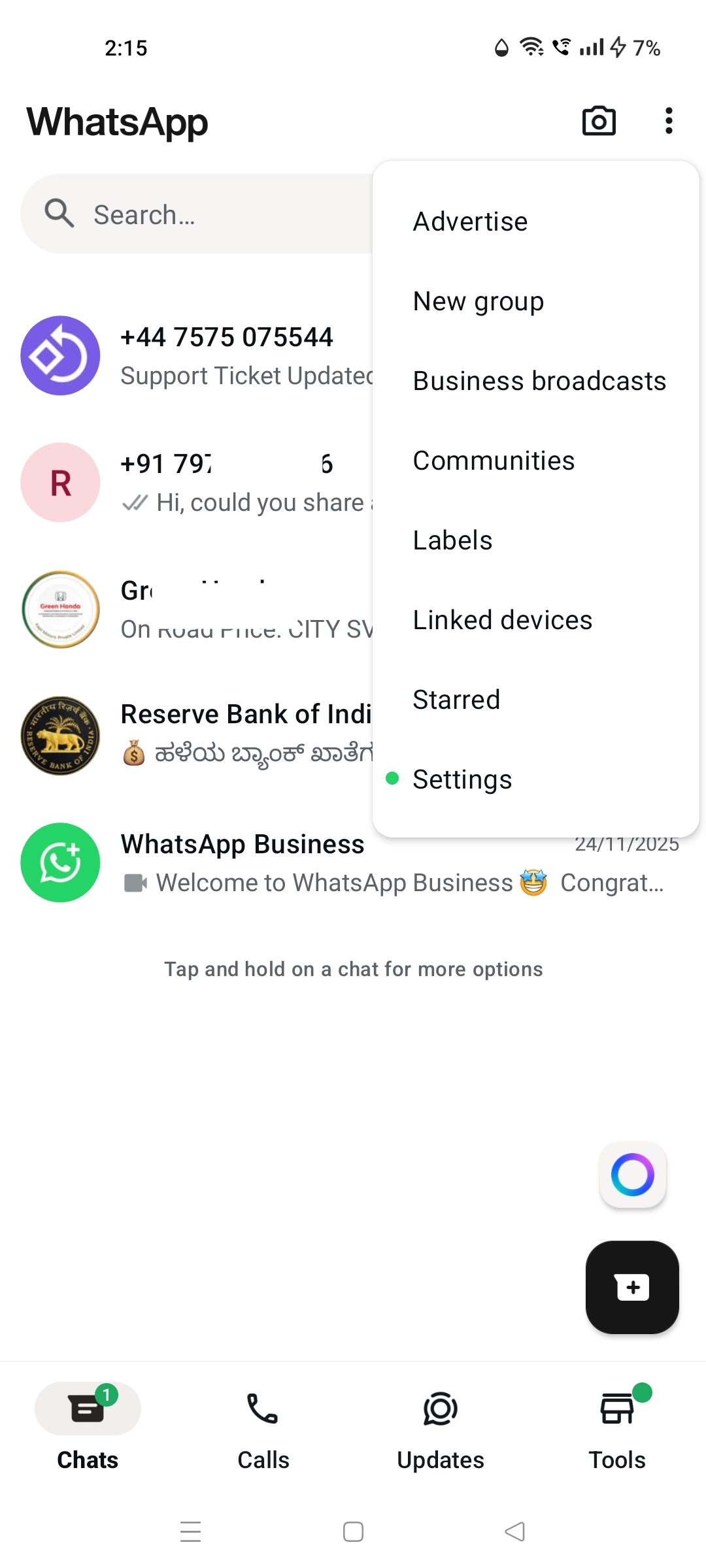
Go to WhatsApp Business App
Click on ⋮ icon on the top right corner
Click on Help and feedback
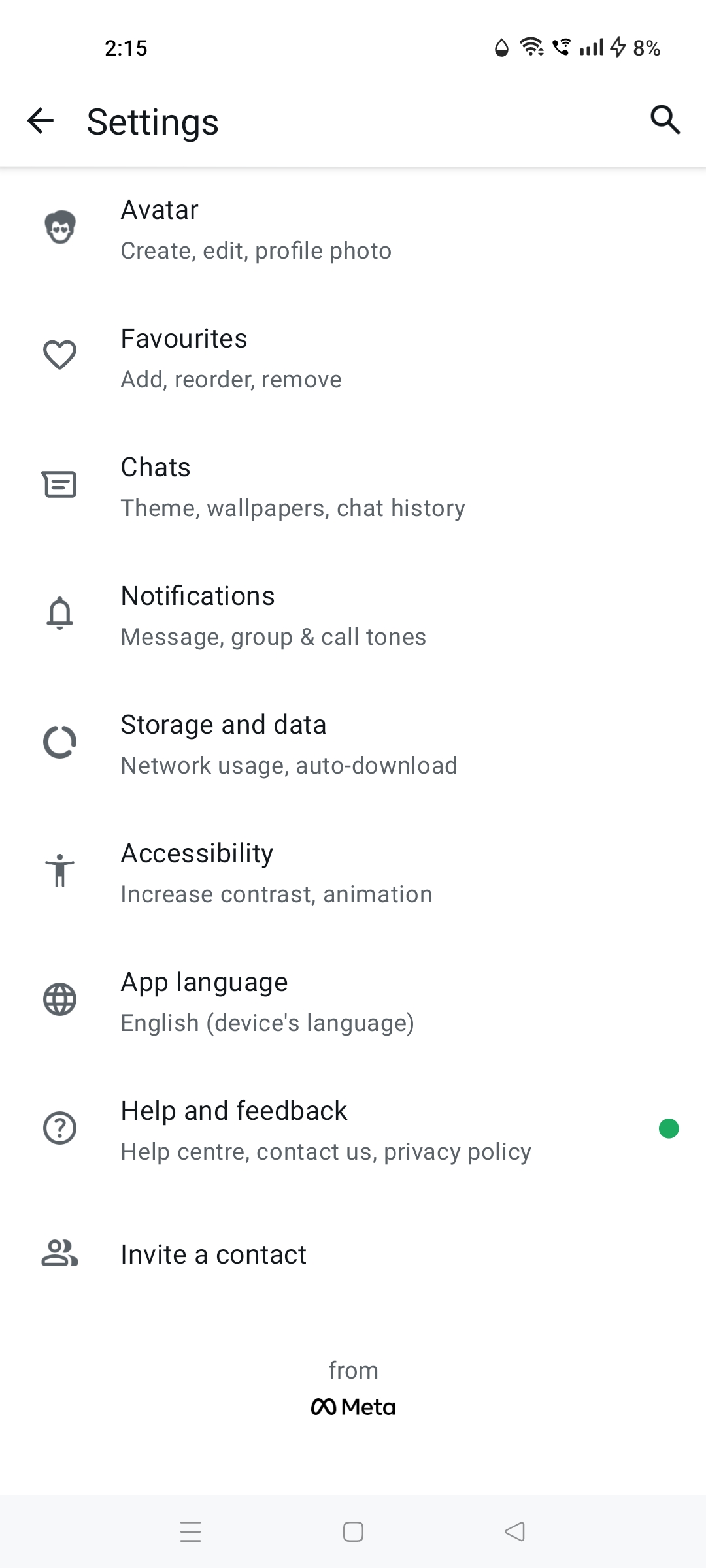
Go to Help centre
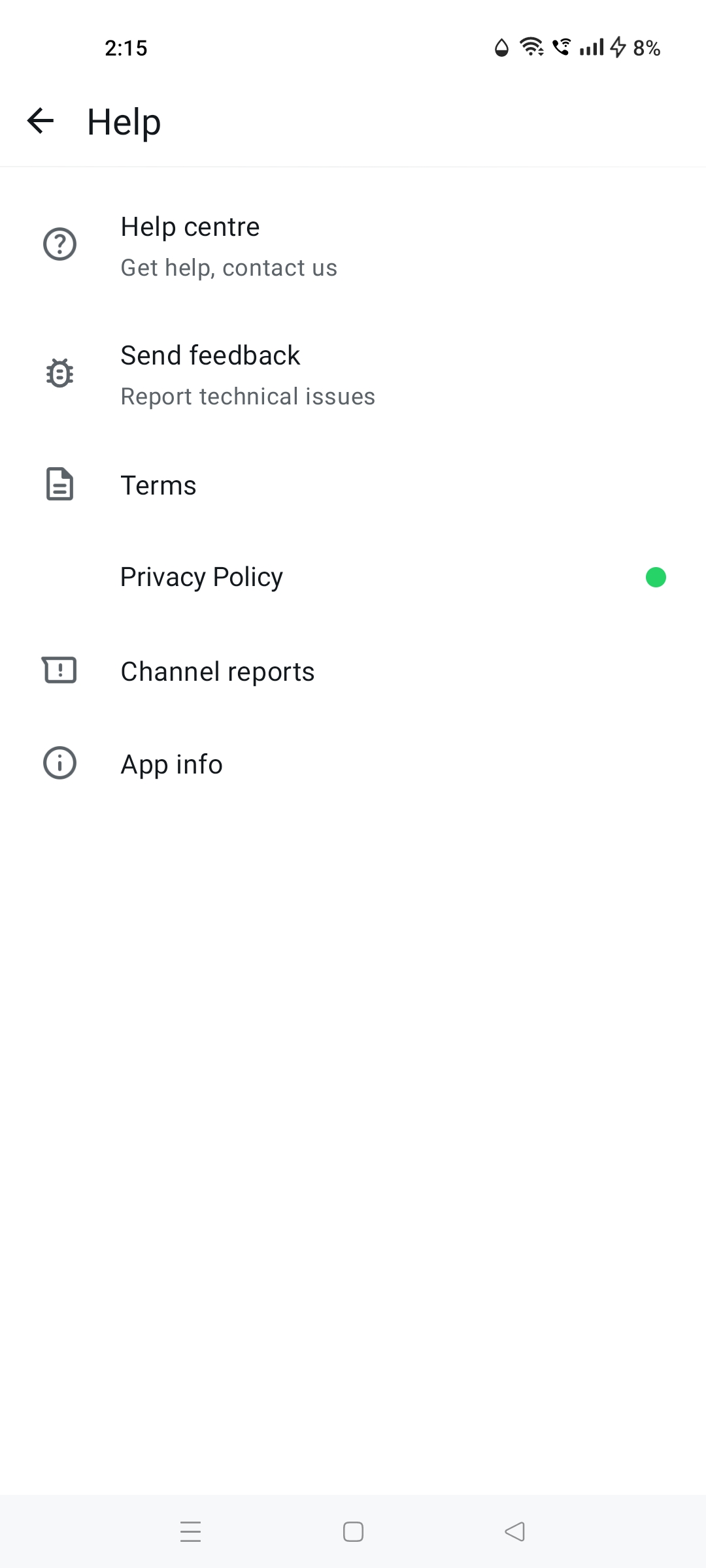
Click on Contact Us widget on the bottom
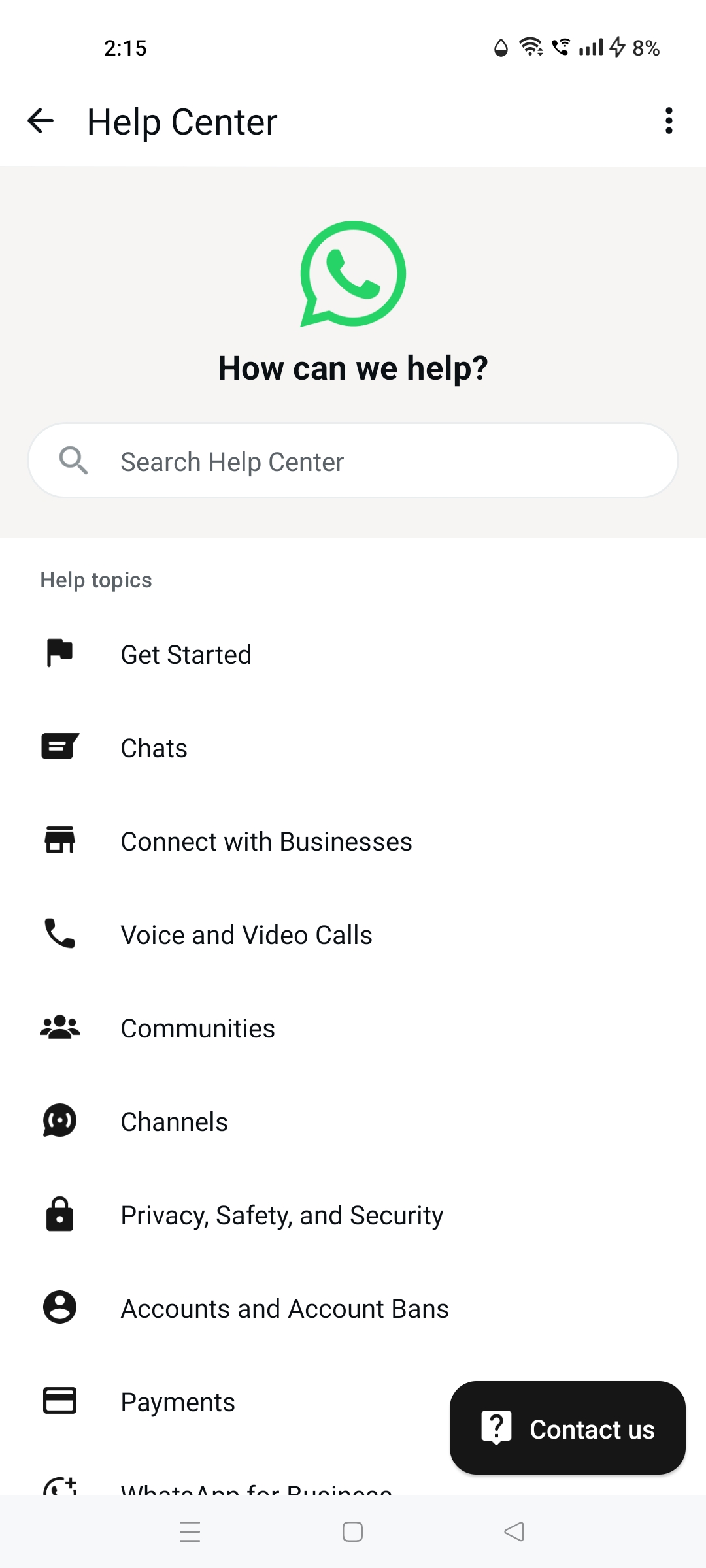
Click on Start Chat
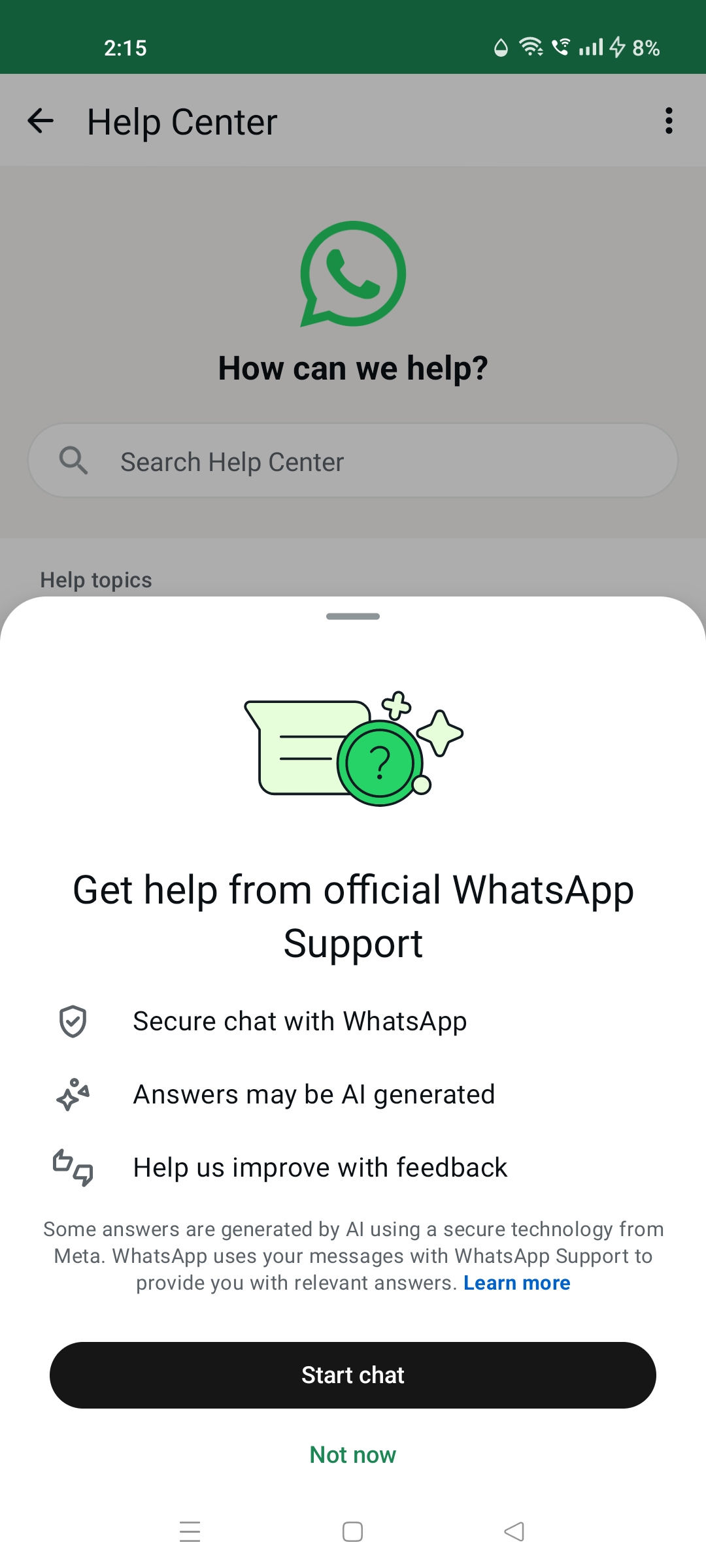
Continue with Chat on WhatsApp Support
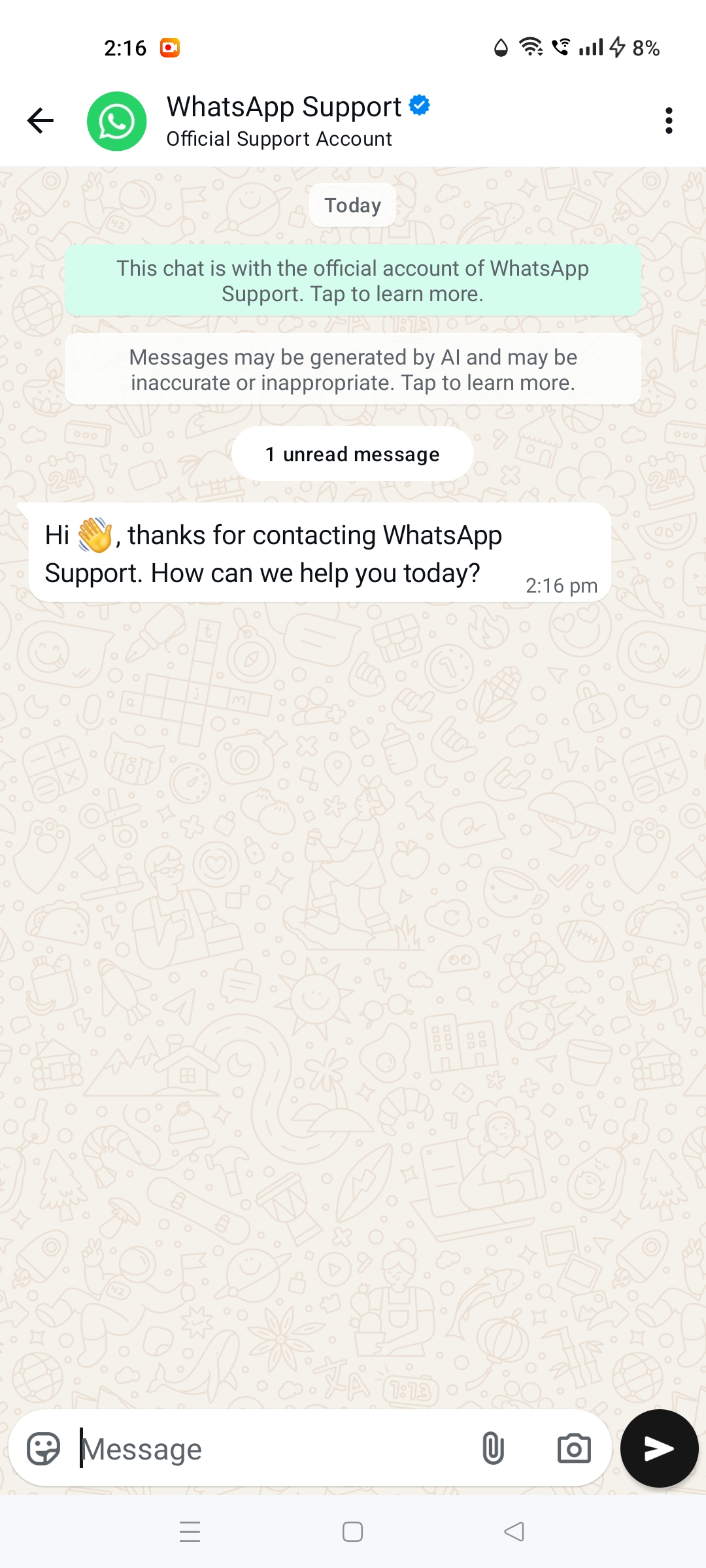
Share your issue or query with all the details