

Chat Notification Settings
Overview
Chakra Chat solution by default notifies chat assignees through notifications on Desktop app (https://app.chakrahq.com) or Chakra mobile app (iOS and Android). Although, user for different Role Types can customize chat notifications to receive notifications for every new chat and chat message.
Default Notification Settings
System Default | Customize All Notifications | |
|---|---|---|
User | Assigned Chat Notifications Only | No |
Manager | Assigned Chat Notifications Only | Possible |
Admin | Assigned Chat Notifications Only | Possible |
Customize Notifications
Chat Notification customisation option is configurable for Admin and Manager Role Types. By default users get notifications for chats assigned to them.
Steps to Enable All Notifications
- Click to
⋮icon to the right of Chat Search button - Go to
Settings - A
Configuredrawer opens on the right hand side panel - Enable the Toggle to
Yesto receive all Notifications
Type of Notifications
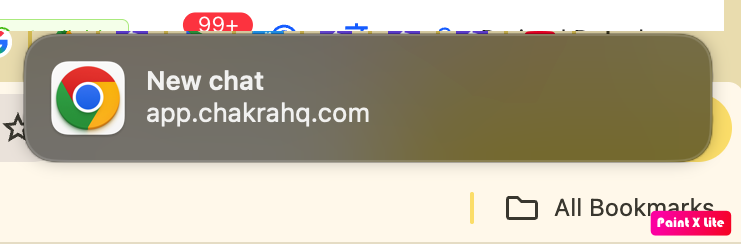
New Chat Notification (Desktop)
For every new chat started, a new chat notification is received by the user(s)
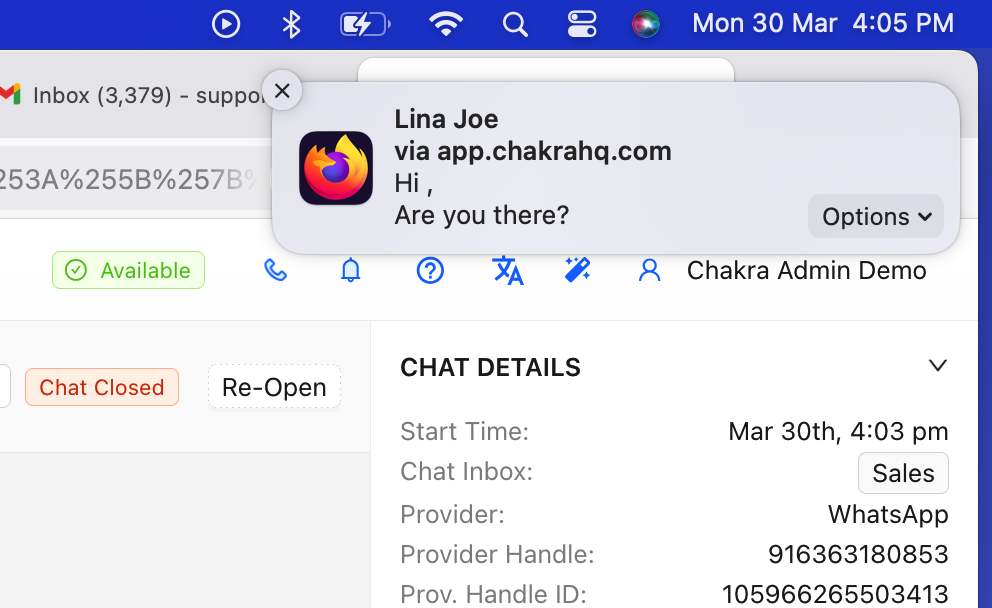
Chat Message Notifications
On Desktop (browser)
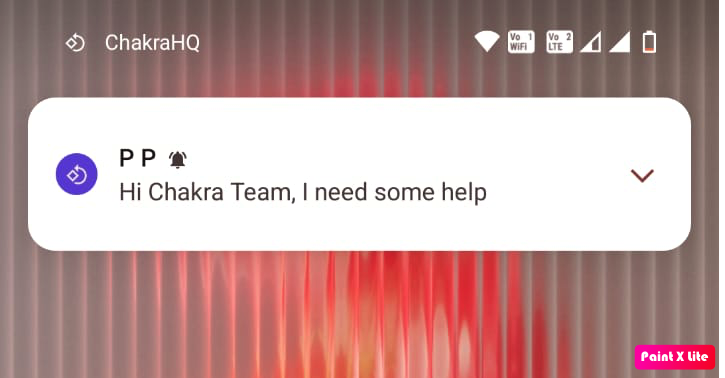
On Mobile App
Enable Desktop Notifications
Chat notifications are also dependant on the operating device Desktop (Browser) or Mobile App (iOS or Android)
Enable Desktop Notifications
Steps to Enable Desktop Notifications
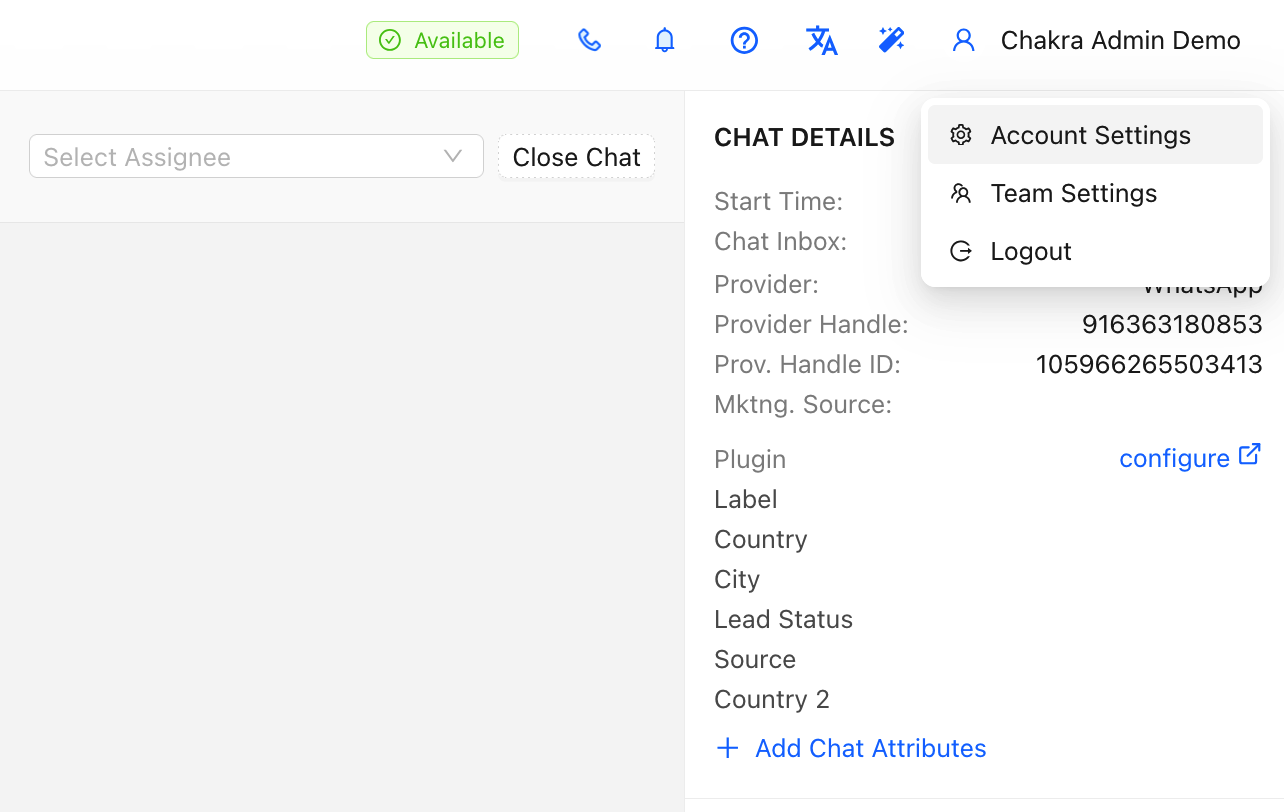
- Go to
Accounts Settingin Chakra
- Scroll down to
Desktop permissions - Click on
Enable desktop notificationsbutton (if available)
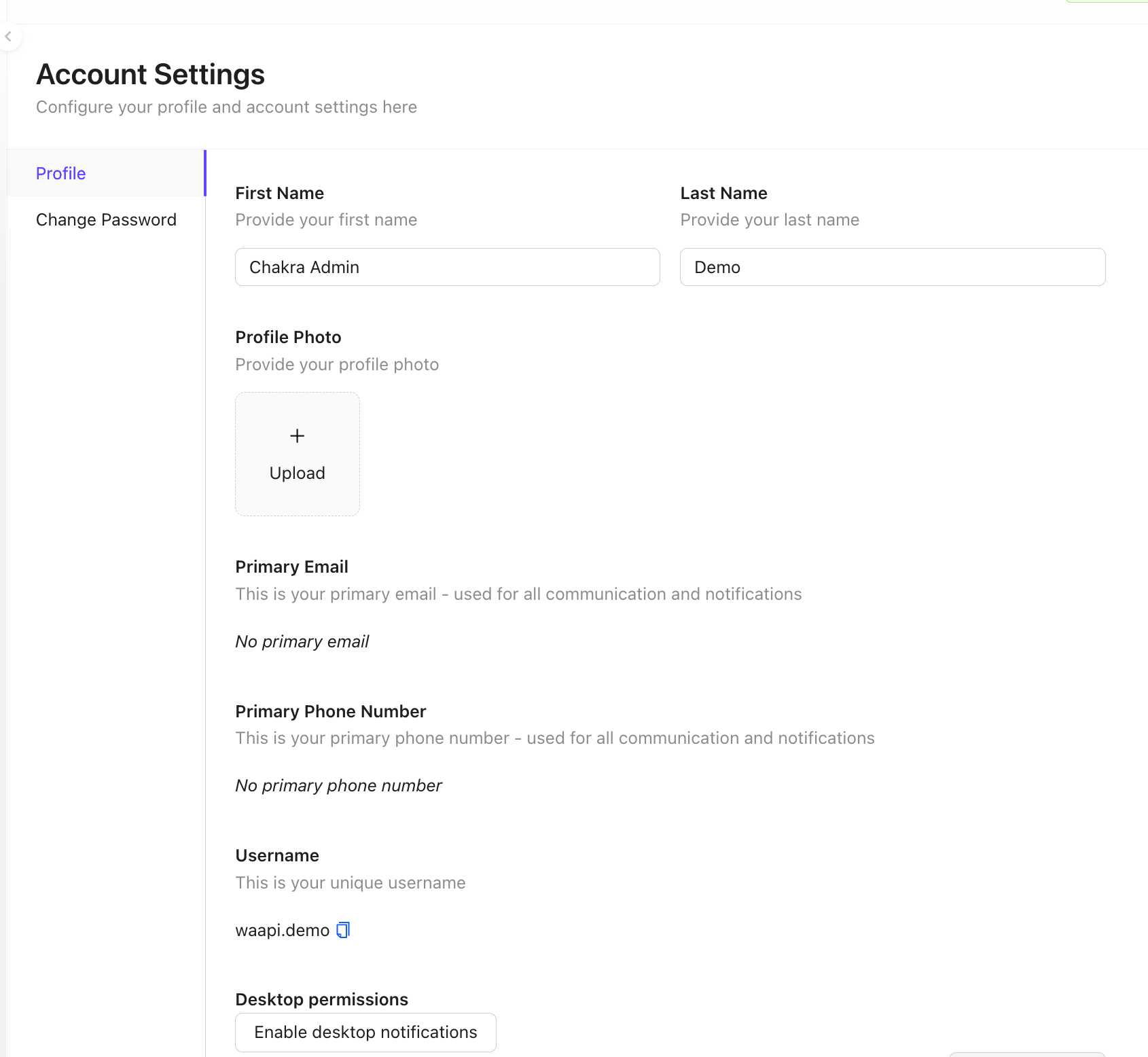
- This enabled the specific browser notifications for Chakra Chat (https://app.chakrahq.com)
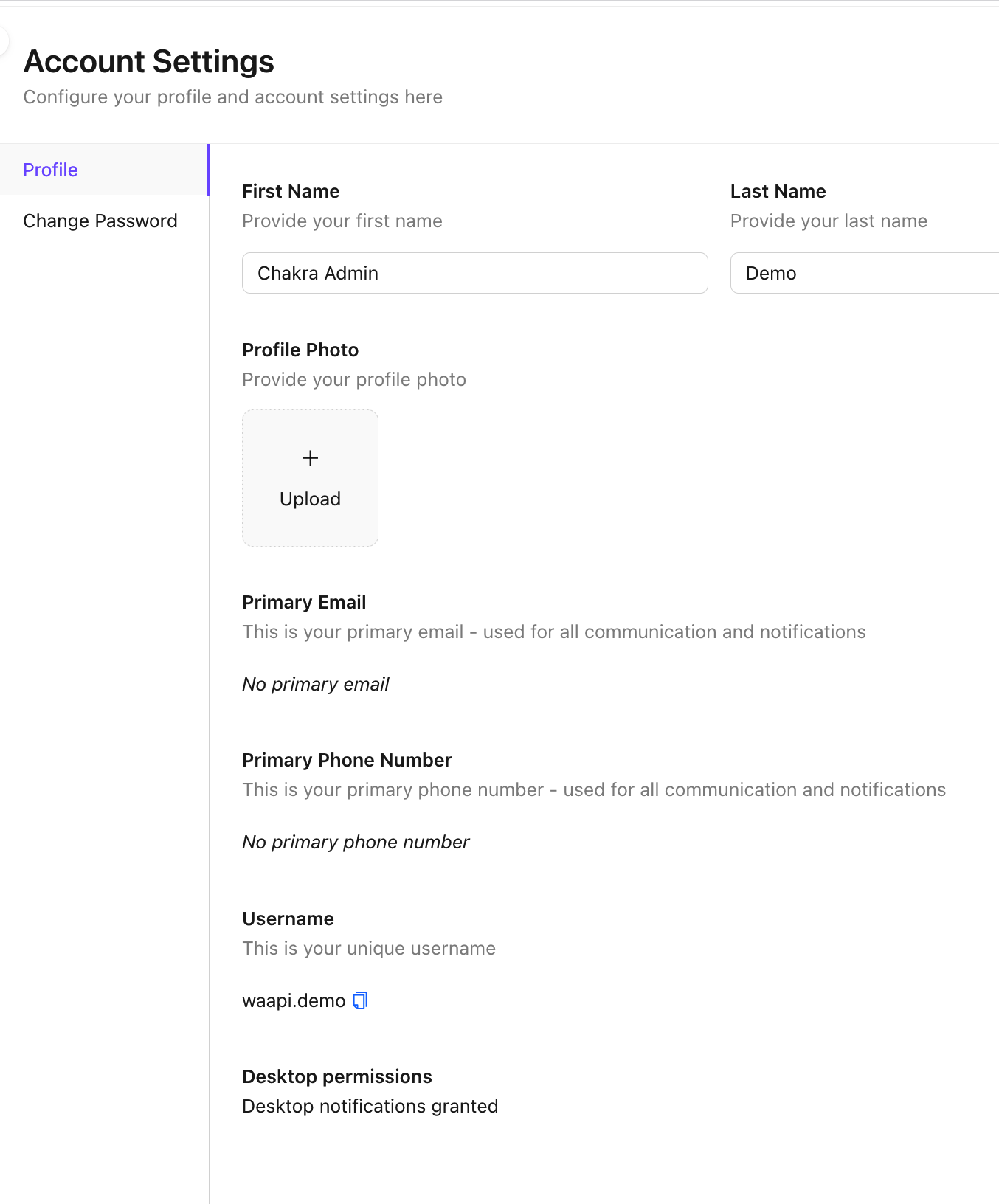
- A prompt
Desktop notifications grantedwill be visible in Desktop permissions section
Unblock Browser Notifications
Firefox
- Type
about:preferencesin the browser - Search for Notifications in the Search bar
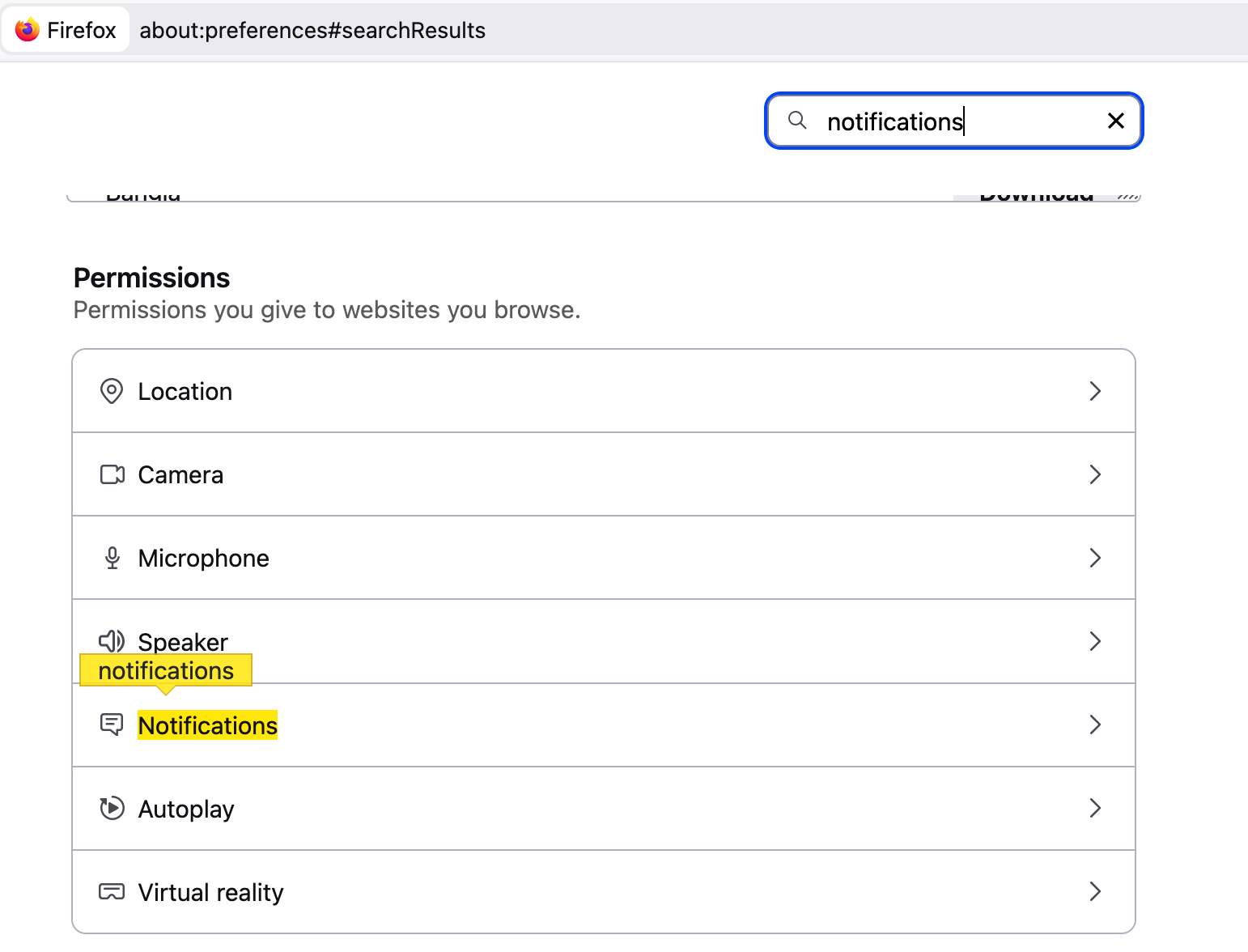
- In the
Permissionssection click on Notifications - Search for app.chakrahq.com and click on Allow in the Status column
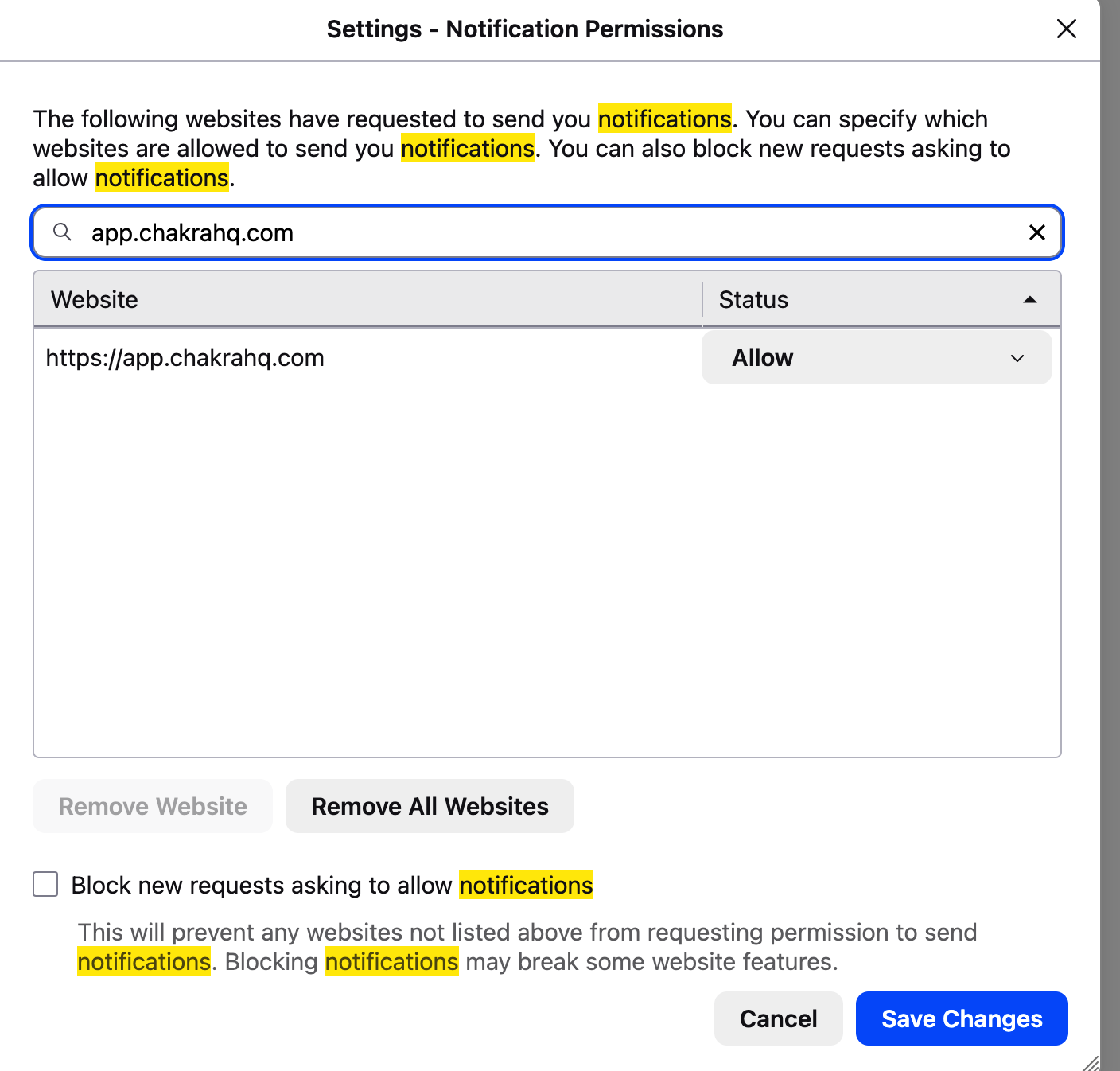
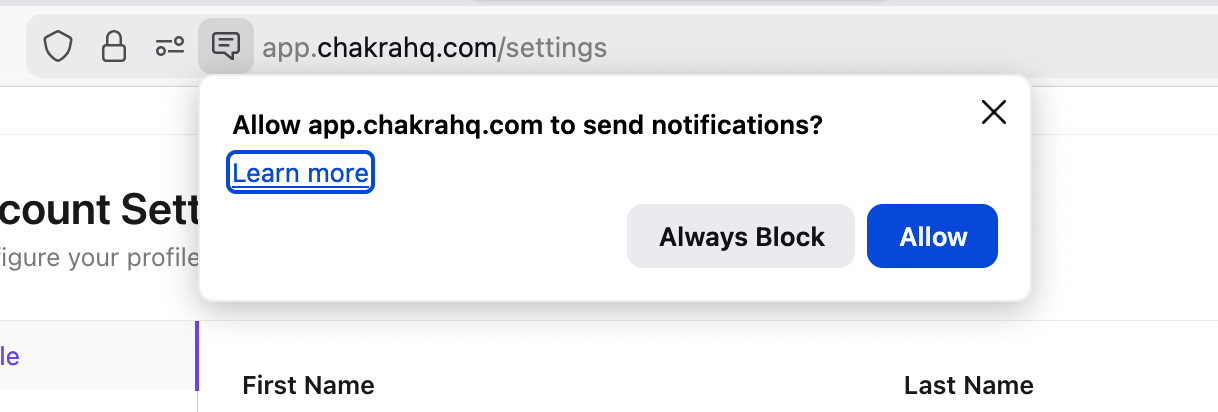
- If the Notification permissions are revoked
- Click on the
💬icon in the browser - Click
Enablein the popup Allow app.chakrahq.com to send notifications
- Click on the
Chrome
- Click on the Setting line icon in the url bar
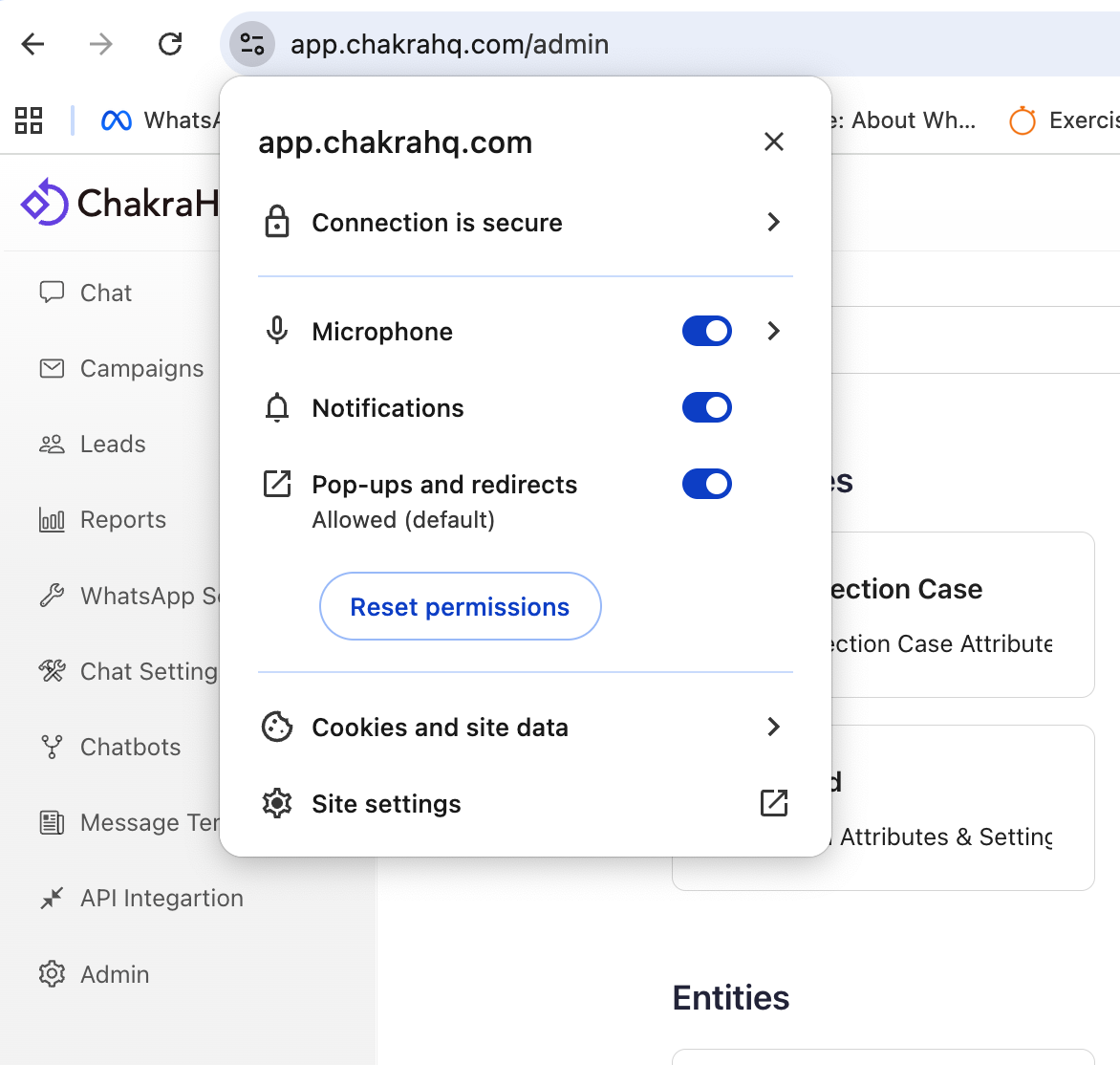
- Toggle ON against the Notifications pop up page
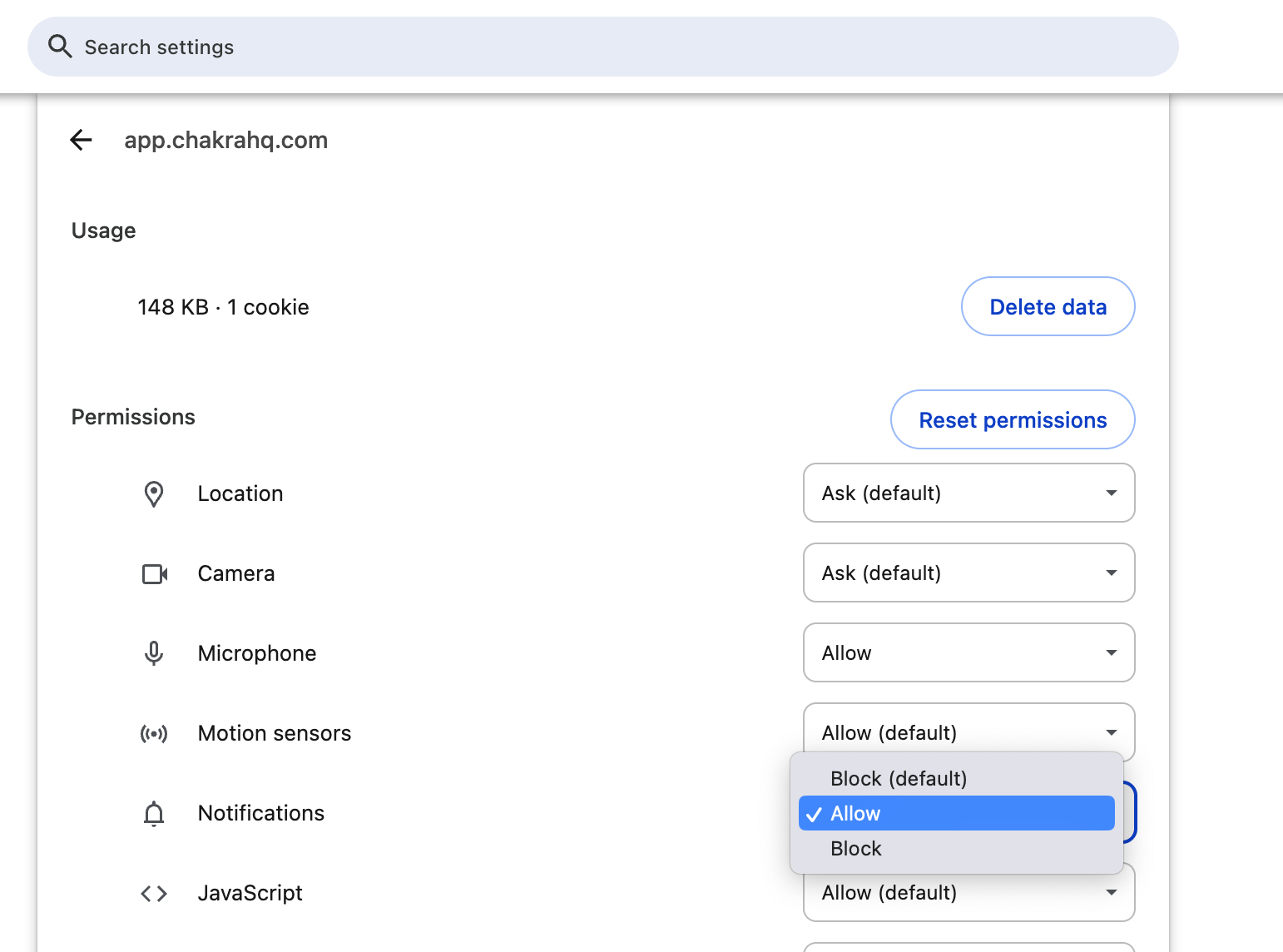
- For additional configurations, click on
Site Settings - Manage the Notification permissions in the 🔔Notification field
Enable Mobile App Notifications
Android
- Go to Settings -> Notifications -> Apps -> ChakraHQ
- Enable All ChakraHQ Notifications
iOS
- Go to
Settings > Notifications - Select the ChakraHQ app, and toggle
ON Allow Notifications